


To fix an external hard drive not showing up in Windows 10, check its cable, power, and USB connection, then use Disk Management to bring it online or assign a missing drive letter. If Windows still cannot detect it, check Device Manager and test the drive on another computer. For a drive that contains files you need, pursue recovery before initialization or formatting.
The short version
- Start with the connection: Try another compatible cable and connect directly to a different USB port on your computer.
- Check Disk Management: A detected drive may need to be brought online or assigned a drive letter.
- Protect existing files: Pursue recovery before initialization or formatting when the drive contains files you need.
- Separate access from detection: A supported secure drive may need unlocking before you can access its files.
| Check or fix | When to use it |
|---|---|
| Try another cable, port, adapter, or computer | The USB drive is not detected |
| Check external power | The drive has its own power adapter |
| Bypass the hub or dock | The drive connects through another device |
| Power-cycle the computer and drive | The connection checks have not helped |
| Inspect Disk Management | You need to identify the disk's status |
| Select Action > Rescan Disks | You have reconnected the drive |
| Select Online | The detected disk is marked Offline |
| Add or change a drive letter | An accessible data volume lacks a letter or has a conflict |
| Inspect Device Manager | You need the disk number or device-status error |
| Select Enable Device | Device Manager reports Code 22 |
| Update the device driver | The affected device has a driver problem |
| Check Windows Update | An applicable driver update is available |
| Select Roll Back Driver | The problem followed an update and a previous driver is available |
| Uninstall and redetect the device | A driver or device-detection problem persists |
| Select Scan for hardware changes | The device was removed |
| Unlock through Toolkit or DriveLocked | A supported Seagate or LaCie secure drive is locked |
| Initialize the disk | The disk is genuinely new, empty, and uninitialized |
| Create a volume | The unallocated space is genuinely unused |
| Format an existing volume | Its contents are empty, backed up, or expendable |
| Run error checking | The drive is accessible through File Explorer |
| Run a SeaTools self test | The drive and USB bridge are detected and supported |
| Seek recovery or replacement | The drive also fails on another computer |
Check the USB connection and power
Reconnect the external drive with another compatible cable, then try another USB port. Bypass any USB hub or dock and connect directly to the computer. Remove or replace any USB adapter in the connection as well.
For a desktop drive with its own power adapter, check the power light and the adapter connection. Try another electrical outlet, connecting directly to the outlet instead of through a power strip.
Next, select Start > Power > Shut down. Turn off the externally powered drive, then turn both devices back on. If the drive remains missing, test it on another computer and continue with the Windows checks below.
Find the drive in Disk Management
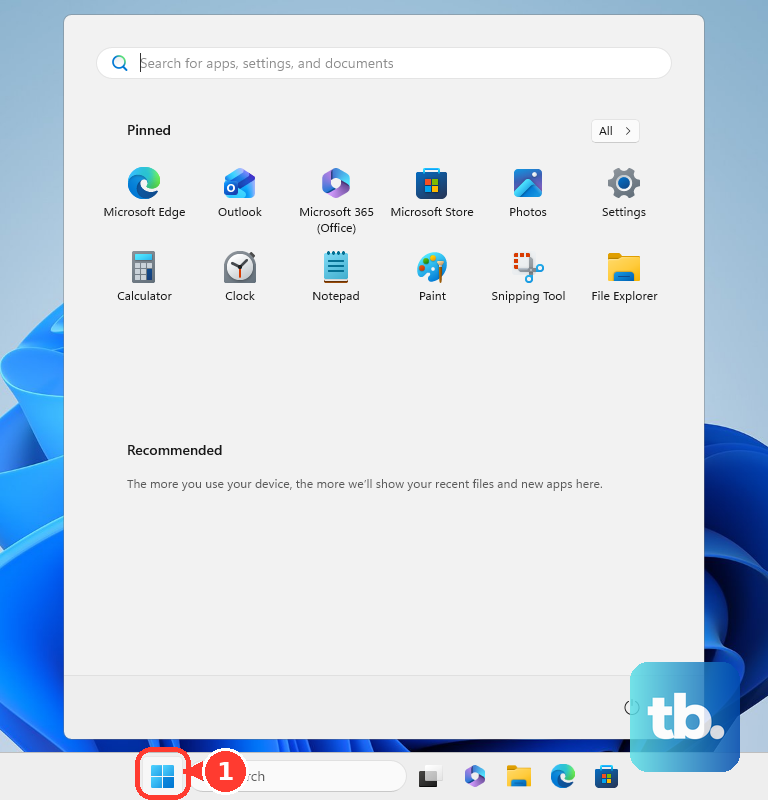
Right-click Start and select Disk Management to see whether Windows detects the disk. Another way to open it is to press Windows + R, enter the following command, and select OK.
diskmgmt.mscReconnect the external drive, then select Action > Rescan Disks. Look for the external disk and its status. A disk marked Offline needs a different fix from a data volume that simply lacks a drive letter.
When the disk is marked Offline, right-click that disk and select Online. If it is detected but still missing from File Explorer, check its drive letter next. If Disk Management does not detect it, move to Device Manager after completing the connection checks.
If the drive previously held files you need, pursue recovery before initialization or formatting. Reserve the new-disk setup steps below for a genuinely empty disk.
Add or change the drive letter
For an accessible data volume, right-click the volume in Disk Management and select Change Drive Letter and Paths. Select Add when the letter is missing, or Change to replace an existing letter that conflicts. This operation requires administrator or Backup Operators permissions.
Select Assign the following drive letter, choose an unused letter, and select OK. If a confirmation appears, select Yes. Check File Explorer again after assigning the letter; if access remains blocked, continue with the checks that match the drive's status.
Check the device and its driver
Right-click Start and select Device Manager, then expand Disk drives. Open the affected drive's Properties and inspect General for the device-status error. To match a detected physical drive to its disk number, open Volumes and select Populate.
A Code 22 error means the device is disabled. Select the disabled drive, then choose Action > Enable Device. For a driver problem, right-click the affected device, select Update driver, and use the automatic-search option.
On Windows 10, open Start > Settings > Update & Security > Windows Update and select Check for updates. When View optional updates is available, open it, select the applicable driver update, and choose Download and install. Restart afterward; update availability depends on your hardware and servicing eligibility.
If the problem began after a driver update and a previous driver is available, open the affected device's Properties > Driver > Roll Back Driver. Choose the applicable reason and select Yes. Restart if requested; rollback requires administrator permissions.
Uninstalling the affected device removes it from Device Manager, and Windows attempts to reinstall its driver when it redetects the device, which can happen immediately or after a restart. For a persistent driver or device-detection problem, right-click the affected drive, select Uninstall device, and select Uninstall. Then restart your Windows computer.
After device removal, you can also select Action > Scan for hardware changes in Device Manager. If the drive also fails on another computer, seek manufacturer assistance and pursue recovery before initialization or formatting when its files matter.
Unlock a supported secure drive
For a supported secure Seagate or LaCie drive, check that the model supports Seagate Secure. Obtain Toolkit from Seagate if you need the companion application. Open Toolkit, select Seagate Secure > Unlock, enter the drive password, and select Unlock.
The alternative for compatible models is to open DriveLocked in File Explorer and select Unlock Drive for Windows. Enter the password and select OK. One Touch with Hub models of 12TB or more require Toolkit, so use the application for those drives.
Set up only a genuinely empty disk
Initialization carries a data-loss risk and must not be used to recover an existing drive. Never initialize, format, clean, or create a replacement volume merely because an existing disk appears RAW or unallocated. For a genuinely new, empty, uninitialized disk, right-click the correct disk in Disk Management and select Initialize Disk. Choose the appropriate partition style, normally GPT for a modern large drive, and select OK.
Some USB disks cannot be initialized this way. If the drive remains unusable, seek manufacturer assistance; a drive that previously held needed files belongs on the recovery path.
Creating a replacement volume over a lost partition can put needed files at risk. For genuinely unused space only, right-click the unallocated region and select New Simple Volume > Next. Specify the size and select Next, choose a drive letter and select Next, then accept suitable formatting settings and select Next > Finish. Creating a volume requires administrator permissions.
Formatting erases the volume's data, so back up accessible files first if you need to keep them. For an empty, backed-up, or expendable existing volume that you intend to format, right-click the correct volume in Disk Management and select Format. Select the required file-system settings, select OK, and select OK again.
Check a recognized drive for errors
Once the drive is visible enough to open its properties, back up accessible files before checking it. In File Explorer, open This PC, right-click the affected drive, and select Properties > Tools. Under Error checking, select Check > Scan drive.
This check applies to a recognized volume and cannot repair hardware non-detection. If Windows still cannot detect the drive, use the connection and other-computer checks to narrow down the problem.
Test the drive and know when to stop
For a supported detected drive and USB bridge, obtain SeaTools 5 using Download for Windows on Seagate's software downloads page. Open SeaTools 5, select Health, locate the correct drive, and select Self Test. Inspect Results afterward.
SeaTools diagnoses a detected drive; it cannot make an electrically undetected drive appear. If the drive also fails on another computer, seek manufacturer assistance. When its files matter, pursue recovery before initialization or formatting, and replace a failing drive.
Frequently Asked Questions
Can an external drive be accessed through a folder instead of a drive letter?
Yes, an eligible volume can be mounted in an empty folder on an NTFS volume. In Disk Management, select the volume and open Action > All Tasks > Change Drive Letter and Paths > Add. Select Mount in the following empty NTFS folder, use Browse to choose the empty folder, and select OK twice.
What if new volumes keep failing to receive drive letters?
Automatic volume mounting may be disabled. For new volumes that are not automatically receiving drive letters, DiskPart's automount command can inspect that setting, and automount enable enables it when disabled. Run these within DiskPart from an elevated command prompt, then run exit and reconnect the drive.
Should you disable USB selective suspend?
Microsoft recommends leaving USB selective suspend enabled. Dell includes disabling it as a targeted troubleshooting test on systems that expose the setting, so treat it as a temporary test.
Where should you get a storage or USB driver for a Dell PC?
Open Dell's Drivers & Downloads service and identify the computer by its Service Tag or model. Obtain only drivers matching that model and Windows version. Windows 10 driver availability varies by model.
Can Seagate's Paragon Driver help with a drive used on a Mac?
Seagate offers a Paragon Driver for eligible cross-platform drives, but compatibility depends on the exact model and file system. The download listing explicitly excludes APFS. Confirm the drive and operating-system compatibility before installing it.