Your Android tablet won't connect to Wi-Fi, or it connects but won't open a single website. Start with the quick connection checks, then tackle the fixes that match what you're seeing. The Pixel, Galaxy, and Lenovo instructions below account for their different menus.
Start with Wi-Fi and signal strength
A weak signal or a switched-off Wi-Fi setting leaves your tablet without a connection.
Move closer to the router.
Check whether the Wi-Fi indicator gains signal bars.
On a Pixel Tablet, select your network under Settings > Network & internet > Internet.
On a Galaxy tablet, open Settings > Connections > Wi-Fi.
Turn on Wi-Fi.
Select your network.
Enter its password.
Tap Connect.
On Lenovo tablets, look for Settings > Network & internet > WLAN or System > Wireless & Networks > WLAN, depending on the model's menu layout.
Enable WLAN.
Select your network.
Enter its password to reconnect.
Restart the connection and pinpoint the problem
Open Settings > Network & internet > Airplane Mode, or Settings > Connections > Airplane Mode on Galaxy.
Turn on Airplane Mode.
Wait 10 seconds.
Turn off Airplane Mode.
Check that Wi-Fi is enabled afterward.
On Pixel Tablet, swipe down to open Quick Settings.
Tap Power > Restart.
On Galaxy, open Quick Settings.
Tap the Power off icon.
Tap Restart.
Tap Restart again to confirm.
Test another device on the same Wi-Fi network. If it also cannot browse, the router or internet connection needs attention.
Try your tablet on another working network. Failure across multiple working networks points toward the tablet.
For a home network that still fails, disconnect the router's power.
Wait 30 seconds.
Reconnect the router's power.
Allow startup to finish, following the router manufacturer's instructions for its startup time.
Test the connection again.
Tip: For a frozen Galaxy tablet, hold the Side key and Volume down together for more than seven seconds to force a restart.
Rejoin a saved network or add a hidden one
Use this when a saved network refuses to connect, especially after its password changes. Have the current password ready before removing the connection.
On Pixel Tablet, open Settings > Network & internet > Internet.
Touch and hold the saved network.
Tap Forget.
Select the network again.
Enter its current password to reconnect.
On Galaxy, open Settings > Connections > Wi-Fi.
Tap the settings cog beside the connected network. On Samsung layouts without this control, touch and hold the network instead.
Tap Forget or Forget network, matching your screen.
Choose the network again.
Enter its current password.
Tap Connect.
For a hidden network on Pixel Tablet, open Settings > Network & internet > Internet > Add network.
Enter the network name, also called its SSID, exactly as configured on the router.
Enter the matching security details.
Set Advanced options > Hidden Network > Yes.
Tap Save.
Restore internet access after Wi-Fi connects
An unfinished public Wi-Fi sign-in leaves your tablet connected to the network without usable internet access.
At a hotel, airport, or café, tap the network sign-in notification.
Complete the sign-in page, including its terms.
If no notification appears, open a new browser page to bring up the portal.
If the portal still doesn't open, forget the network using the steps above.
Reconnect to the network.
Accept its terms on the sign-in page.
If other devices also connect but cannot browse, contact your internet provider or router manufacturer. Resetting the tablet's saved Wi-Fi settings does not repair an internet-service failure.
If only your tablet cannot browse and it uses a VPN, open Settings > Network & internet > VPN.
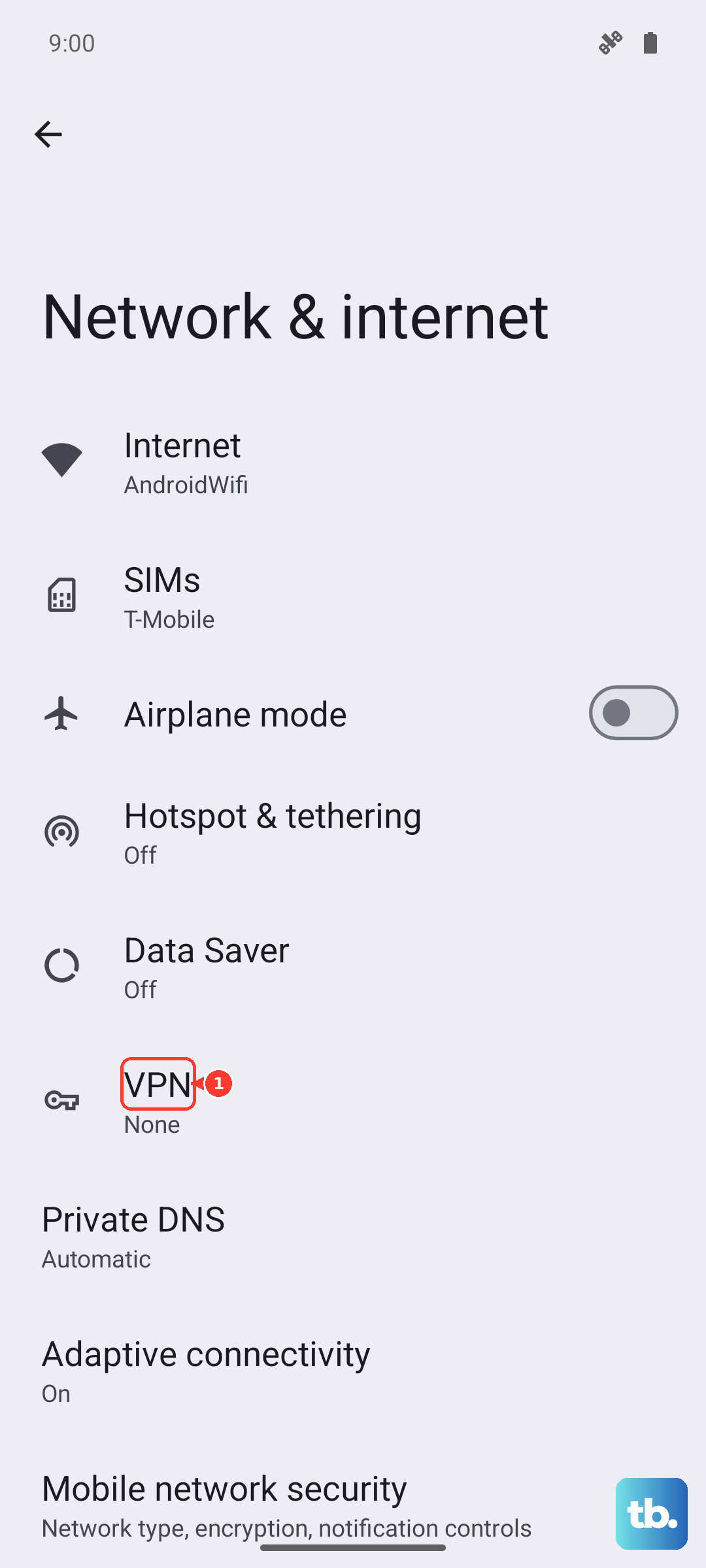
Tap the settings icon beside the VPN.
Turn the VPN off for a connection test. App-managed VPNs use their own controls.
On Pixel Tablet with VPN by Google, select Settings > Network & internet > VPN > VPN by Google > Pause VPN. It stays paused until the tablet changes networks.
Test browsing with the VPN paused or disconnected.
If you configured a custom Private DNS provider and website names fail to resolve, open Settings > Network & internet > Private DNS.
Select Automatic. Google recommends keeping Private DNS enabled.
Tap Save.
Test browsing again.
Bring the tablet's software up to date
Connect the tablet to another working network for an update check.
On Pixel Tablet, open Settings > System > Software updates. Google documents two layouts for this screen, so use the one your tablet shows: tap System update to check whether your Android version is up to date, or, if the update status appears straight away, tap Check for update.
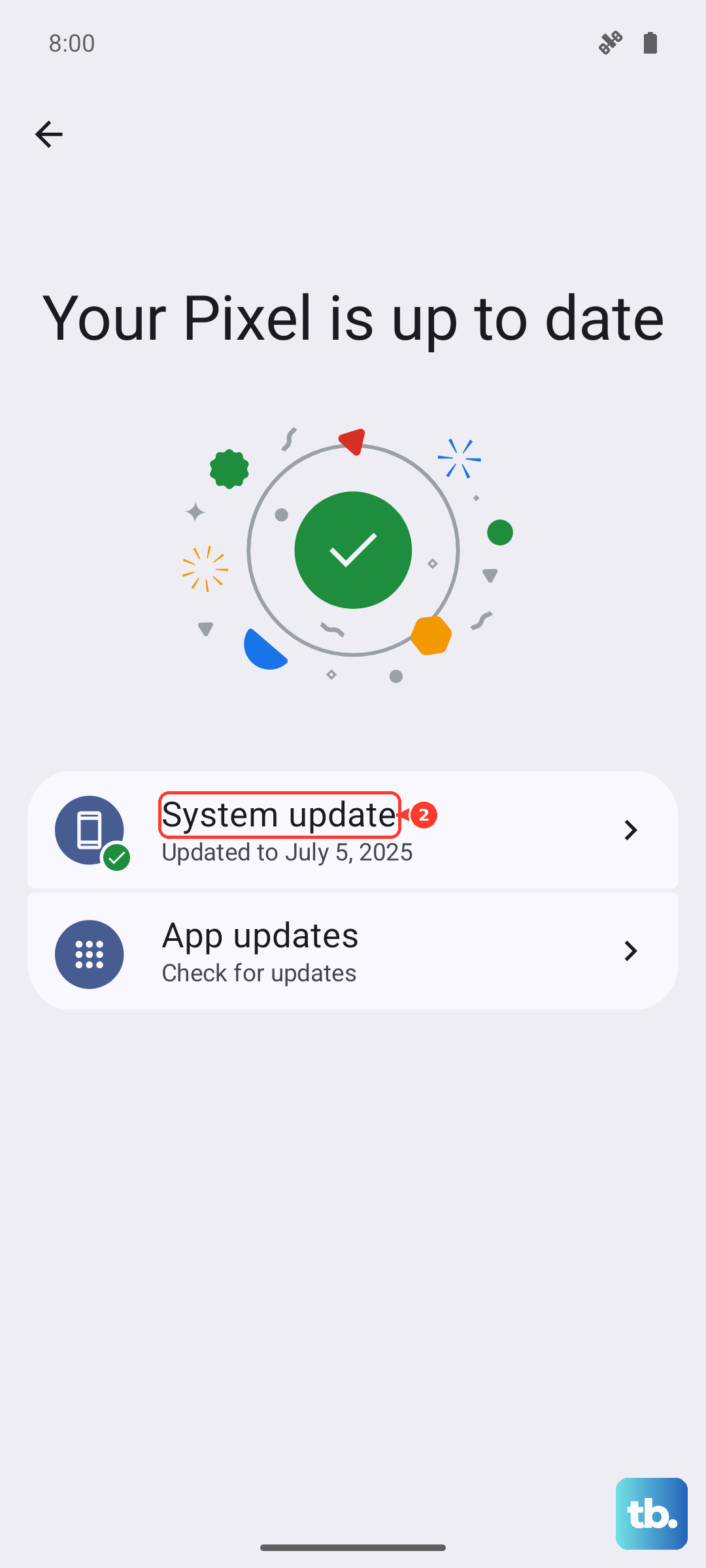
Follow the prompts to install any offered update.
On Galaxy, open Settings > Software update > Download and install. Carrier versions also use System updates > Check for system updates or System updates > Check for software updates.
Install any offered update.
If your compatible Galaxy tablet cannot get online, connect it by USB to a Windows PC or Mac with Smart Switch installed.
Open Smart Switch on the computer.
Select Update if offered.
Follow the update prompts, keeping USB connected until the process finishes.
Tip: Some Galaxy carriers require Wi-Fi for updates through Settings; Smart Switch provides a computer-based alternative for compatible tablets.
Test a Galaxy tablet in Safe mode
Use Safe mode to check whether an installed app is interfering with Wi-Fi.
- 1.Open Quick Settings and tap the Power off icon.
- 2.Touch and hold Power off.
- 3.Tap Safe mode.
- 4.Test the Wi-Fi connection.
- 5.Restart the tablet to exit Safe mode.
- 6.If Wi-Fi worked in Safe mode, remove suspected recent apps one at a time. Open Play Store > profile icon > Manage apps & devices > Manage, select an app, and tap Uninstall. Retest Wi-Fi after each removal.
Check the router when only your home network fails
A router access block or incompatible wireless configuration stops an individual tablet from connecting even while other devices work.
Ask the router owner to check for an unintended block under Access Control or MAC filtering. Supported TP-Link routers use Advanced > Security > Access Control. TP-Link's current guide calls the blocked-device list the Deny List; its guide for the older blue router interface still calls it the Blacklist.
Have the owner remove any unintended block affecting your tablet.
For a paused Google or Nest Wifi family group, have the network manager open Google Home > Home > Wifi > Family Wi-Fi.
Select the tablet's group.
Tap Unpause.
If the network name is missing, have the owner open the router's wireless settings on another connected device. On supported TP-Link routers, sign in at tplinkwifi.net and open Advanced > Wireless > Wireless Settings.
Enable a wireless band that the tablet supports.
Clear Hide SSID to make the network name visible.
Click SAVE.
For a tablet without the required 6 GHz or WPA3 support, ask the network owner to provide a separate compatible 2.4 or 5 GHz network. A 6 GHz network requires compatible clients and does not support WPA2.
After a network security change, forget the old connection on the tablet using the steps above.
Rejoin the network with its current credentials.
Reset saved Wi-Fi and Bluetooth settings
This clears saved connection settings so you can set up the connection afresh.
On Pixel Tablet, open Settings > System > Reset options > Reset Bluetooth & Wi-Fi.
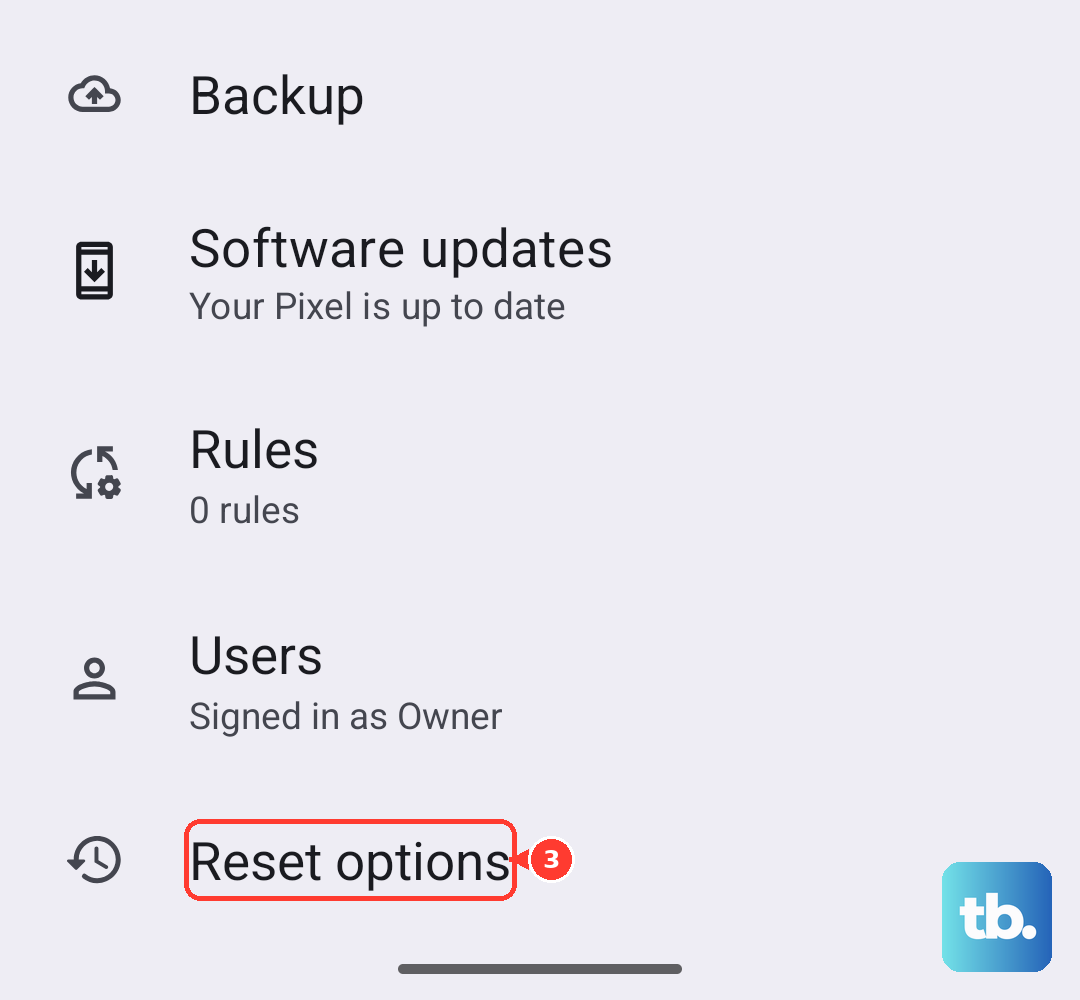
Tap Reset.
Complete the onscreen prompts.
On Galaxy, open Settings > General management > Reset > Reset Wi-Fi and Bluetooth settings.
Tap Reset settings.
Select your Wi-Fi network.
Enter its current password.
On Galaxy, tap Connect.
Configure your other saved connections again as needed.
Get support before a last-resort reset
If the tablet still fails on multiple working networks, contact its manufacturer. If other devices also fail on your network, contact your internet provider or router manufacturer.
On Galaxy devices with Samsung Members Wi-Fi diagnostics, open Samsung Members > Support > Get started > Wi-Fi to run the test.
A factory reset erases personal data, so back up before using it as a last resort. On Galaxy, open Settings > General management > Reset > Factory data reset > Reset > Delete all and provide the requested credentials. Samsung notes that a network connection is required to log out of your Samsung account before the reset can finish.
For Pixel Tablet, back up and charge the tablet before resetting it. Arrange a working network for signing in afterward. Then open Settings > System > Reset options > Erase all data (factory reset) > Erase all data and follow setup after the reset.
Frequently Asked Questions
Can I connect without typing the Wi-Fi password?
On supported Galaxy tablets, open Settings > Connections > Wi-Fi. Tap the QR code icon, then scan the network's Wi-Fi QR code.
Why won't my tablet connect to my phone's hotspot?
Check that the phone has cellular service and that the tablet uses the correct hotspot password. Disconnect the tablet from the hotspot. Switch the phone's hotspot off. Restart the tablet. Wait one minute. Enable the hotspot, then reconnect the tablet.
What should I do if my work tablet cannot connect?
Ask IT to check the tablet's Wi-Fi profiles, authentication certificates, VPN restrictions, and network-reset restrictions. Managed tablets have no universal consumer setting that repairs these problems. Use the enterprise configuration and certificates supplied by your network administrator.
Why does Wi-Fi work everywhere except one app?
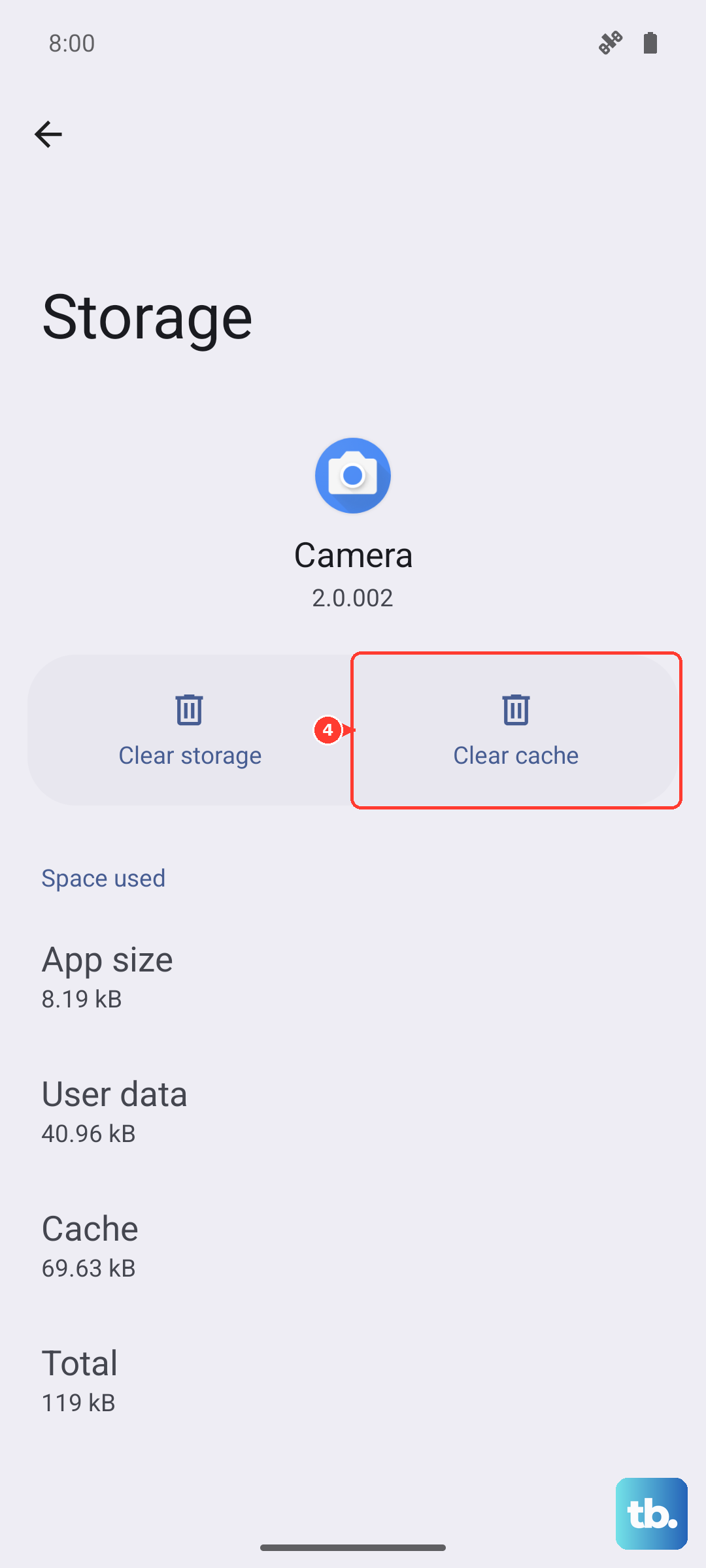
When other apps use the connection successfully, troubleshoot the affected app. On Galaxy, open Settings > Apps. Select the affected app, then open Storage. Tap Clear cache. The separate Clear data option removes that app's saved data and settings.