
You're staring at your Samsung Galaxy Tab S10+ and that Wi-Fi icon just won't turn blue. It's stuck on "Obtaining IP address" or simply says "Saved, Secured" but refuses to connect. I've seen this a lot with the One UI 6.1.1 software, and the good news is it's almost always a quick software fix you can handle yourself.
Toggle Wi-Fi and Restart Your Tablet
Let's start with the simplest fix. Swipe down twice from the top of your screen to open the full quick panel. Tap the Wi-Fi icon to turn it off, wait a solid five seconds, then tap it again to turn it back on. This forces the tablet's Dimensity 9300+ chipset to re-initialize the Wi-Fi radio and can clear up a temporary glitch instantly.
If that doesn't do it, give your Tab S10+ a full restart. Press and hold the Volume Down button and the Power button together for about ten seconds. You'll see the Samsung logo appear as it reboots. This clears out any system cache that might be interfering with the connection process.
Forget the Network and Rejoin
Your tablet might be holding onto corrupted login information for your network. To clear it out, go to Settings > Connections > Wi-Fi. Tap on the name of the network you're trying to join, then select Forget at the bottom of the screen.
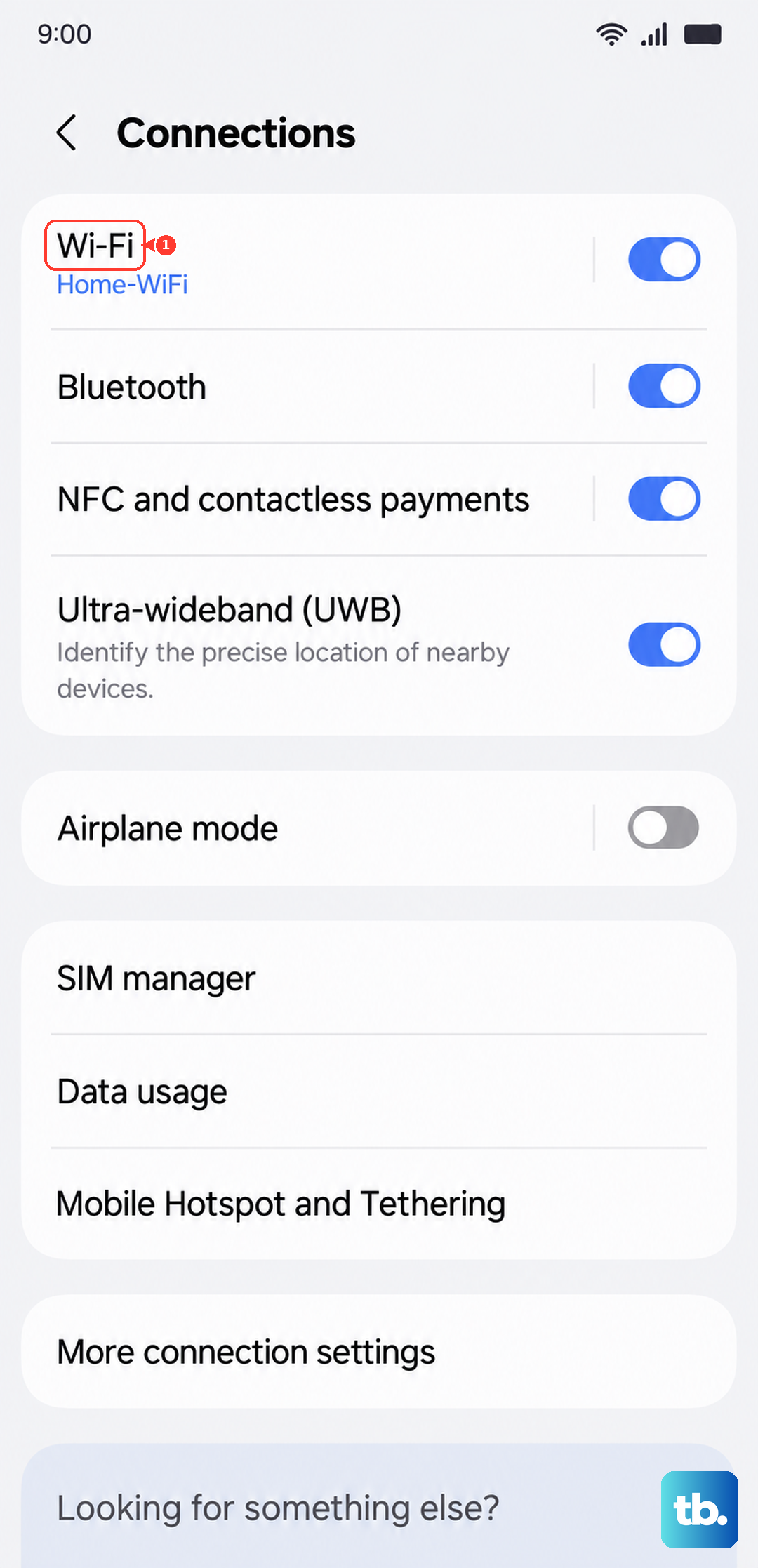
Now, tap on the network name again from the list. Re-enter your Wi-Fi password carefully, making sure caps lock isn't on. This is the most effective single step if you've recently changed your router's password or security settings.
Check and Disable Airplane Mode
It's easy to accidentally enable airplane mode, especially on a large tablet. Swipe down your notification shade and look for the airplane icon. If it's highlighted, tap it to turn airplane mode off.
You can also use this trick proactively. Turn airplane mode on, wait 15 seconds, then turn it off. This resets all wireless radios, including Wi-Fi, and often kicks a stubborn connection back into gear.
Disable Samsung's Smart Network Switch
Samsung's software includes a feature designed to save battery, but it can prevent a stable connection. Navigate to Settings > Connections > Wi-Fi. Tap the three-dot menu in the top right and go to Intelligent Wi-Fi.
Here, you'll want to turn off Switch to mobile data. This feature tries to switch to cellular data when Wi-Fi is weak, but it can sometimes be overzealous and block the initial connection altogether on your Tab S10+.
Turn Off Bluetooth Temporarily
Bluetooth devices, especially accessories like the S Pen or wireless headphones, can sometimes cause interference on the 2.4GHz band that Wi-Fi also uses. Swipe down your quick panel and tap the Bluetooth icon to turn it off.
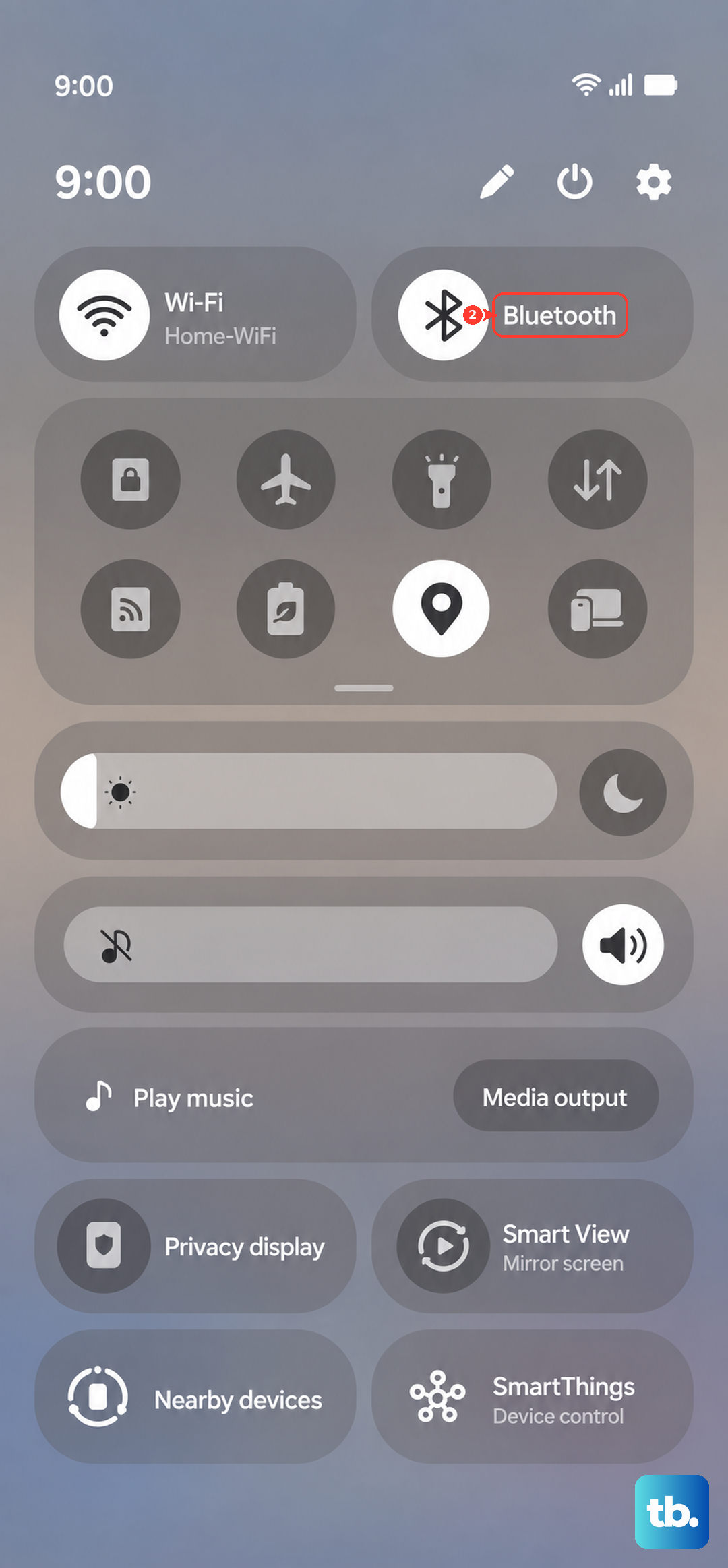
Now try connecting to Wi-Fi again. If it works, you've found the issue. You can usually turn Bluetooth back on afterward, but you may need to manage your connected devices if the problem returns.
Verify Your Date and Time Settings
This is a sneaky one that people often overlook. If your tablet's clock is wrong, it can fail to authenticate with modern Wi-Fi security protocols. Go to Settings > General Management > Date and Time.
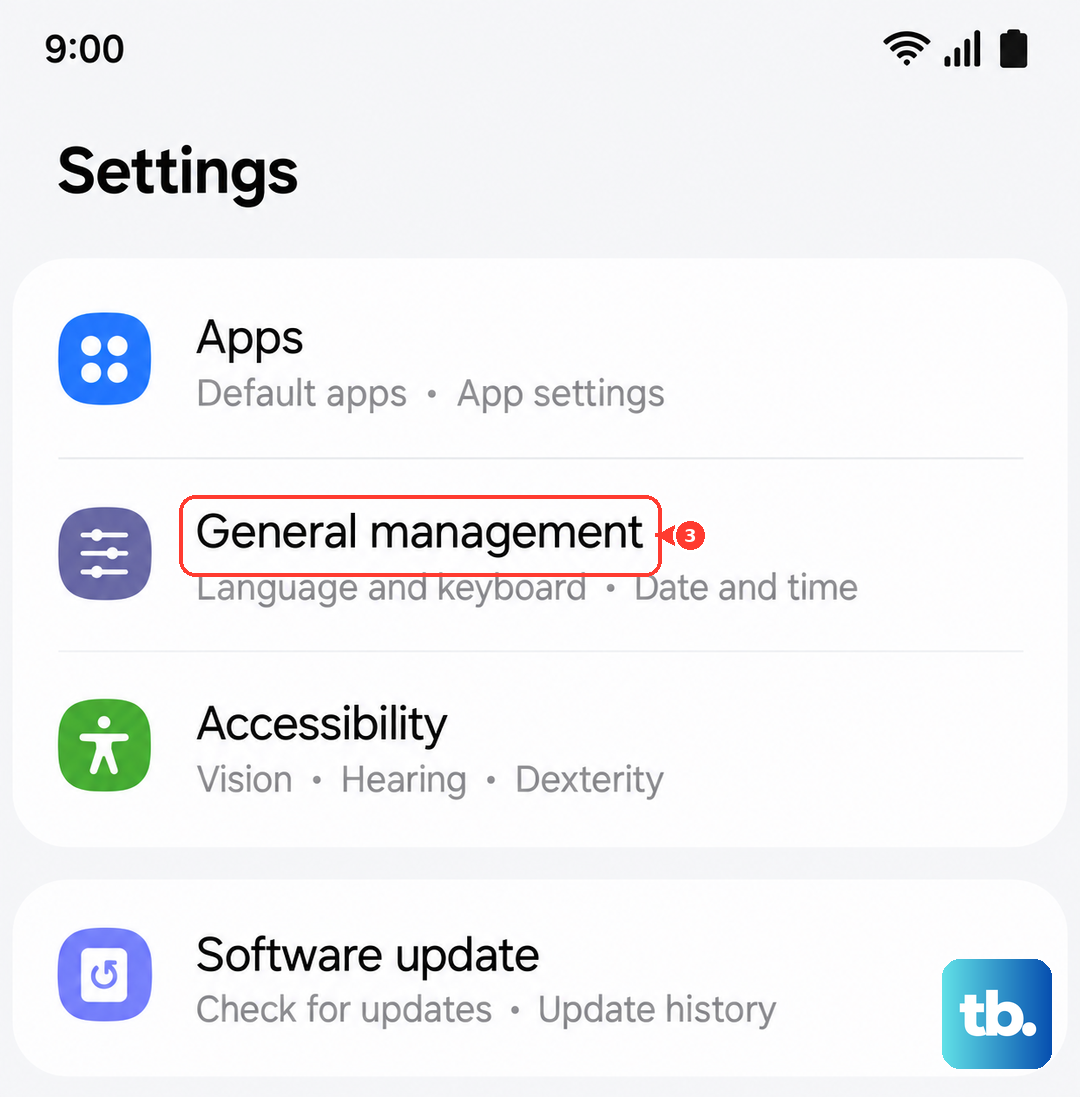
Make sure both Automatic date and time and Automatic time zone are switched on. This ensures your tablet syncs correctly with network time servers, which is crucial for security certificates.
Check for a Software Update
Samsung regularly releases updates that fix connectivity bugs. With the Tab S10+ running Android 14 and One UI 6.1.1, it's important to stay current. Go to Settings > Software Update > Download and Install.
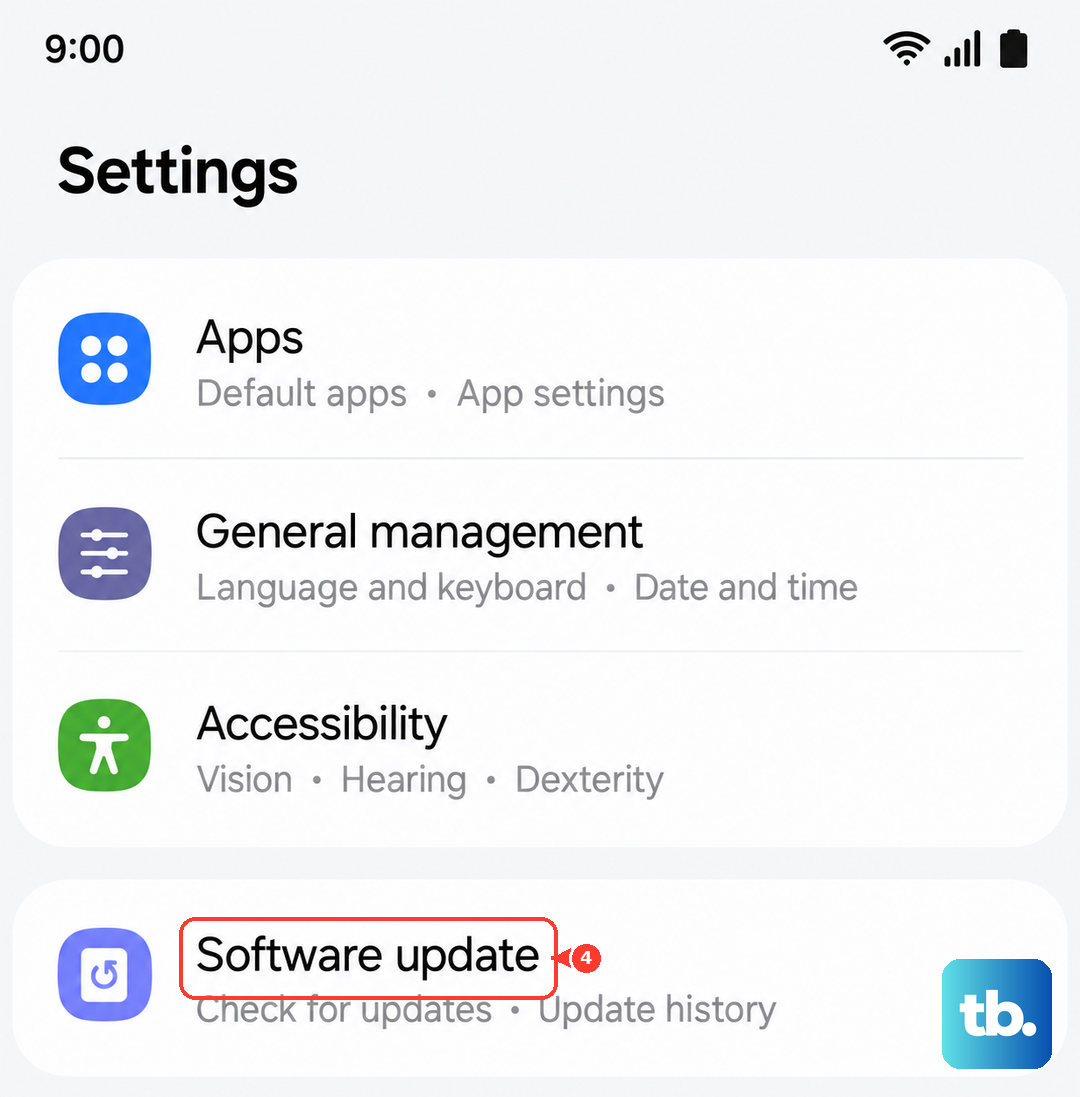
If an update is available, I'd recommend installing it. These updates often include patches for the Wi-Fi driver and can resolve issues related to the tablet's performance, including those that might occur if the chipset gets warm.
Restart Your Wi-Fi Router
The problem might not be your tablet at all. Unplug your router and modem from power. Wait a full 60 seconds before plugging them back in. This gives their memory a complete clear.
Once all the lights on your router settle into their normal pattern, try connecting your Tab S10+ again. If other devices in your home were also having trouble, the router was almost certainly the culprit.
Boot Into Safe Mode
A third-party app you installed could be blocking the connection. To check, we'll boot into Safe Mode. Press and hold the power button until the power menu appears. Then, tap and hold the Power off option on your screen.
You'll see a prompt to reboot to Safe Mode. Tap it. If Wi-Fi works perfectly in Safe Mode, you know a downloaded app is causing the conflict. Start by removing any recent VPN, ad-blocker, or network booster apps.
Reset Your Tablet's Network Settings
This is a more thorough step that resets all connectivity back to factory defaults. Go to Settings > General Management > Reset. Tap on Reset network settings.
Confirm the action. This will erase all saved Wi-Fi networks, Bluetooth pairings, and mobile network settings. You'll need to reconnect to your Wi-Fi and re-pair devices like your S Pen afterward, but it clears out any deep-seated configuration errors.











