

Fix a Windows C drive that is full for no apparent reason by checking its Storage categories, clearing reviewed temporary files, and fixing any app or system file that keeps growing. Start with the largest storage category to identify which cleanup will help. The steps use Windows 11 menus, with Windows 10 alternatives where they differ.
The short version
- Find the space: Inspect Storage categories before deciding what to remove.
- Clean carefully: Review cleanup selections because deleting a previous Windows installation removes your rollback option.
- Keep your files: Move large personal files to another drive or make synced OneDrive files online-only.
- Stop repeated growth: Repair the app or update problem when recovered space keeps disappearing.
| Fix | Best use | Main catch |
|---|---|---|
| Storage categories | Identifying the largest storage category | Windows 10 category labels can differ |
| WizTree | Locating unexpectedly large files | Identify the owning app before removing files |
| Cleanup recommendations | Reviewing files and unused apps | Cleanup removes selected content |
| Disk Cleanup | Temporary files and system leftovers | Review selected categories |
| Delivery Optimization cache | Removing cached delivery files | Deletes the selected cache |
| Previous Windows installation | Removing Windows.old | Eliminates rollback to that installation |
| Uninstall through Settings | Removing unused Windows 11 apps | Installer dialogs vary |
| Uninstall through Control Panel | Removing desktop programs | Requires a supported program uninstaller |
| Move personal files | Relocating large downloads and media | Requires another drive |
| Move Steam games | Relocating installed games | Requires a suitable destination library |
| OneDrive online-only files | Releasing downloaded cloud content | Opening files downloads them again |
| Microsoft Store cache reset | Repeated temporary .appx growth | Check whether growth continues afterward |
| App repair or reset | Fixing an app repeatedly generating data | Reset can remove app data |
| Windows Update troubleshooter | Failed or repeated update downloads | Restart and check for updates afterward |
| Applicable Windows updates | Fixing abnormal system-file growth | Update eligibility depends on release and edition |
| Page-file investigation | Explaining virtual-memory usage | Allocation depends on system requirements |
| System Protection allocation | Limiting restore-point storage | Reducing it sacrifices older recovery points |
| DISM component cleanup | Removing superseded Windows components | Requires administrator access |
| Storage Sense | Recurring automatic cleanup | Check deletion intervals |
| Future storage destinations | Saving new content on another drive | Existing files still need moving |
| Full malware scan | Investigating unwanted data generation | These controls require Microsoft Defender Antivirus |
| File-system check | Checking NTFS allocation metadata | Does not clean junk files |
| Windows reset | Last-resort troubleshooting | Does not increase drive capacity |
Find what is taking up the space
On Windows 11, open Settings > System > Storage. Inspect Installed apps, Temporary files, and System & reserved, then select Show more categories for the remaining usage. Compare the breakdown with your drive in File Explorer > This PC.
On Windows 10, open Settings > System > Storage to inspect usage, although some category labels differ. Use the largest category to choose your next step.
When the categories leave the cause unclear, download WizTree from its official download page and choose the installer or portable edition. Scan C: and inspect Tree View or File View for unexpectedly large folders and files. Identify the application that owns a large file before removing anything.
Clear temporary files and old Windows leftovers
On Windows 11, open Settings > System > Storage > Cleanup recommendations. Review Temporary files, Large or unused files, Files synced to the cloud, and Unused apps individually. Cleanup removes the selected content. Select only items you can discard, then choose Clean up for each section.
Disk Cleanup provides another route on Windows 11 and Windows 10. Search for Disk Cleanup, open it, select C:, and choose OK. Select Clean up system files, choose C: again, and select OK to include system cleanup categories.
Deleting selected cleanup categories removes their files. Review categories such as Temporary Internet Files and Thumbnails, check the ones you want to remove, then select OK and Delete files.
Clearing the Delivery Optimization cache removes its cached files. Open Disk Cleanup for C:, check Delivery Optimization Files on the Disk Cleanup tab, then select OK and Delete files.
Removing the previous Windows installation deletes Windows.old and eliminates rollback to that installation. On Windows 11, when previous-installation files remain, open Settings > System > Storage > Temporary files, check Previous Windows Installation(s), and select Remove files. On Windows 10, the same option is under Settings > System > Storage > Temporary files.
Remove unused apps and move large files
If apps account for much of the usage, identify removable applications you no longer need. Uninstalling removes the selected application. On Windows 11, open Settings > Apps > Installed apps, find the app, open More, and select Uninstall. Follow the subsequent installer dialogs, which vary by app.
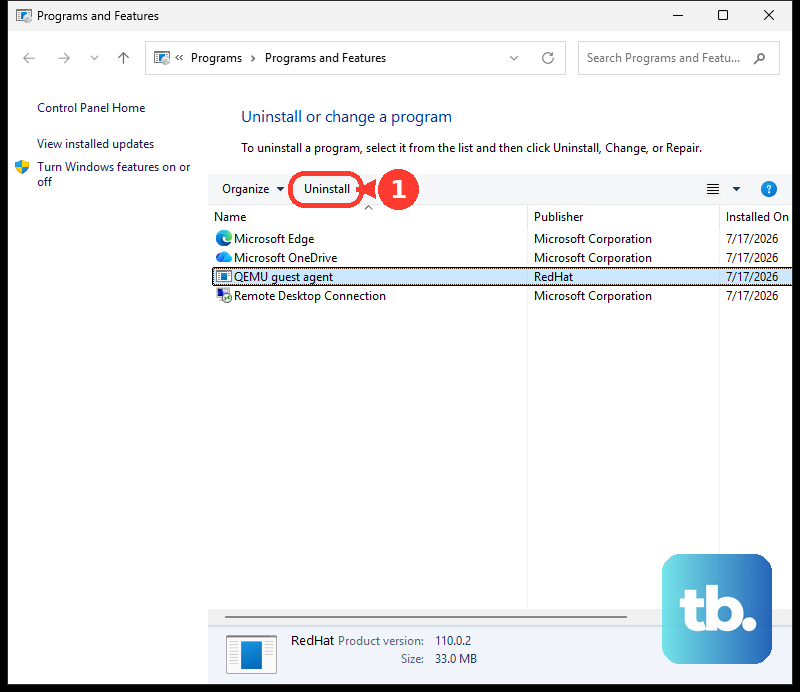
For desktop programs on Windows 10 or Windows 11, open Control Panel > Programs > Programs and Features. Uninstalling removes the selected program. Right-click the program and select Uninstall or Uninstall/Change.
In Windows 11 File Explorer, inspect Downloads, Videos, Pictures, and other personal folders, using View > Details and Sort by > Size. Connect another drive, select the files, choose Cut, open the destination, and choose Paste. Windows 10 also supports moving files, with different ribbon controls.
Steam games have their own relocation option when another suitable drive is connected. Open Steam > Settings > Storage, add a destination library using the drive controls, and select the installed games to relocate. Then select Move.
Release downloaded OneDrive files
Downloaded OneDrive content occupies local drive space even when a cloud copy exists. With the current OneDrive sync client and Files On-Demand available on Windows 11 or a compatible Windows 10 installation, you can make synced files online-only.
Making a file online-only releases its local contents while keeping the cloud copy. In File Explorer, right-click a synced OneDrive file or folder and select Free up space. Opening the file later downloads it again, so repeated access can bring its local storage usage back.
Fix temporary files that keep coming back
When temporary .appx files repeatedly fill the drive on Windows 11 or Windows 10, clear the Microsoft Store cache with wsreset.exe. Press Windows + R and enter the following command:
wsreset.exeSelect OK and wait for Microsoft Store to open. Restart Windows, then check whether the drive continues filling.
For a malfunctioning app repeatedly generating data, try its repair option. On Windows 11, open Settings > Apps > Installed apps, open the app's More menu, and select Advanced options > Repair. This route applies to apps offering Advanced options.
On Windows 10, open Settings > Apps > Apps & features, select the app, then open Advanced options and select Repair. Resetting can remove app data. If repair fails, select Reset and review the app-specific confirmation.
For failed or repeatedly downloading updates on Windows 11, open Settings > System > Troubleshoot > Other troubleshooters and select Run next to Windows Update. Restart afterward. On Windows 11, then open Settings > Windows Update and select Check for updates.
If storage inspection identifies an oversized CapabilityAccessManager.db-wal on Windows 11 24H2 or 25H2, install currently applicable Windows updates. Microsoft released a fix improving that file's disk-space usage. On Windows 11, open Settings > Windows Update, select Check for updates, install applicable updates, and complete any requested restart.
Handle large system storage carefully
If System & reserved accounts for much of your usage, identify the system file or feature involved before changing it. On 64-bit Windows 11 and Windows 10, pagefile.sys is managed virtual memory and can expand with memory-commit and crash-dump requirements. Investigate those requirements before changing its allocation.
If System Protection is enabled on Windows 11 or Windows 10, you can limit its storage allocation. Press Windows + R, enter the following command, and press Enter:
systempropertiesprotection.exeOn System Protection, select C: and choose Configure.... Reducing the allocation sacrifices older recovery points. Reduce the maximum disk-space allocation with the slider, then select Apply.
For superseded Windows components on Windows 11 or Windows 10, use DISM component cleanup. Search for Command Prompt, select Run as administrator, and select Yes when User Account Control requests approval. This cleanup removes superseded Windows components. Run the following command and let it finish:
Dism.exe /online /Cleanup-Image /StartComponentCleanupDo not manually delete files from WinSxS. If system storage still dominates afterward, return to the storage breakdown or disk analyzer to identify the remaining file or application before choosing another cleanup action.
Set up automatic cleanup and future storage
Storage Sense can remove temporary files and aged Recycle Bin contents automatically. Its cleanup deletes content covered by your selected retention settings. On Windows 11, open Settings > System > Storage, turn on Storage Sense, and open it to configure Run Storage Sense and the Recycle Bin retention interval.
Automatic Downloads cleanup deletes files covered by that setting. Enable it only when those files can be discarded. On Windows 10, open Settings > System > Storage to find Storage Sense, although its configuration entry can differ. On both versions, Storage Sense applies to the system drive and the signed-in user's settings.
For future files on Windows 11, open Settings > System > Storage > Advanced storage settings > Where new content is saved. Choose another connected drive for the relevant content types. This changes future destinations, so existing files still need moving.
On Windows 10, open Settings > System > Storage to find the corresponding destination settings. Choose another connected drive for the content you want to save elsewhere.
Check persistent unexplained growth
If the drive keeps filling without an identified cause, scan for malware that may be generating unwanted data. With Microsoft Defender Antivirus active on Windows 11 or Windows 10, open Windows Security > Virus & threat protection > Scan options, select Full scan, and run it. Review the resulting threat actions. If another antivirus product replaces these controls, use that product's scanning interface.
For an NTFS drive, you can check file-system allocation metadata on Windows 11 or Windows 10. Open an administrator Command Prompt as described above and run the following command:
chkdsk C: /scanReview the results before attempting repairs. This checks NTFS metadata and does not clean junk files.
A Windows reset is a last resort, and it does not increase physical drive capacity. Resetting with the option to remove everything deletes your files, so back up important files first. On Windows 11, open Settings > System > Recovery > Reset PC, then choose Keep my files for the reset that keeps personal files or choose Remove everything. Select Cloud download or Local reinstall and follow the reset workflow.
Frequently Asked Questions
Can an external drive help when Windows Update needs more space?
Yes, when the update workflow offers external-storage assistance, select Fix issues and connect an external drive with at least 10 GB free. Choose it from the drive list and select Next. Windows may still require some internal space.
Does deleting Chrome download history remove downloaded files?
No, deleting Download history in Chrome does not delete the downloaded files. Those files continue occupying disk space after you clear that history.
Can Recall keep using storage after snapshot capture is turned off?
On Windows 11 Copilot+ PCs with Recall available, turning off snapshot capture stops future capture. Existing snapshots remain because stopping capture and deleting snapshots are separate actions.
Are WizTree duplicate matches enough to decide what to delete?
No, WizTree matches duplicates by file name and size, and optionally modified date, without comparing file contents. A match alone is not sufficient proof that deleting a file is safe.
Can C be expanded into any unused space on the computer?
No, the Windows extension method requires unallocated space immediately after C: on the same physical disk. It also requires a suitable NTFS system partition and administrator access.