


To fix a PC that shows no picture on the monitor, wake both devices, select the monitor’s correct input, and reconnect the video cable at both ends. Then try a known-working cable or display to isolate the problem. The Windows shortcuts and menus below apply to Windows 11.
The short version
- Start with the monitor: Check power and select the input that matches the connected cable.
- Check the connection: Try a known-working cable and connect one monitor directly to the PC without a dock or adapter.
- Use the right output: On a desktop with a dedicated graphics card, connect the monitor to that card.
- Separate hardware from Windows: Test another display, then use Windows fixes when Windows is running or a working screen is available.
| Check or fix | When to use it |
|---|---|
| Wake the PC and monitor | Either device may be asleep |
| Check and reconnect monitor power | The monitor stays off |
| Select the connected input | The monitor has selectable inputs |
| Reconnect or replace the cable and try another port | The monitor receives no picture |
| Use the graphics card output | Your desktop has a dedicated graphics card |
| Check USB-C video support and power | You use a DisplayPort Alt Mode monitor |
| Bypass docks and adapters | Your display connects through accessories |
| Try another computer and display | Basic connection checks fail |
| Run monitor diagnostics | You need to check a Dell or Alienware monitor independently |
| Reset the Windows graphics driver | Windows is running with a blank screen |
| Switch projection mode | Windows may be sending the picture to another display |
| Restart Windows Explorer | The desktop turns black after login |
| Restart the PC | Windows display shortcuts have not helped |
| Detect the external monitor | You have a working screen available |
| Restore the recommended resolution | The problem followed a resolution change |
| Choose a supported refresh rate | You can access display settings |
| Start with low-resolution video | The boot logo appears but Windows loses the picture |
| Install Windows and optional driver updates | You have usable Windows video |
| Enter Safe Mode | You can see the recovery interface and need to troubleshoot Windows |
| Install a Dell graphics driver | Dell offers a driver for your PC and operating system |
| Read motherboard diagnostic indicators | Your ASUS board has diagnostic LEDs or a buzzer |
| Reseat and check RAM individually | You can service your ASUS motherboard-based desktop |
| Check graphics card seating and power | Your serviceable desktop has a dedicated graphics card |
| Arrange hardware repair | Monitor diagnostics or checks with a working display fail |
Wake the PC and check monitor power
Move the mouse or press Enter to wake the PC. If necessary, briefly press the PC’s power button. Check the monitor’s power indicator and press its power button if the monitor is off.
For an externally powered monitor, check the outlet, power cable, and external adapter. Use the adapter specified by the monitor manufacturer. Disconnect the monitor’s power, reconnect it, and turn the monitor on again.
Select the input that matches your cable
Press the monitor’s input-selection button, or press MENU to open its on-screen controls if it has no separate input button. Select the connector carrying the PC’s signal, such as HDMI, DisplayPort, or USB-C. Button positions and input-menu names depend on the model.
Reconnect the cable and use the correct PC port
Reconnect both ends of the video cable securely and inspect the connectors for damage. Try a known-working cable, then another compatible video output on the PC. These checks apply to HDMI, DisplayPort, DVI, VGA, and compatible USB-C display connections.
On a desktop with a dedicated graphics card, connect the monitor to the card’s video outputs. Those ports are typically lower on the back panel. Use the motherboard’s display outputs only when the system supports integrated graphics.
For a USB-C monitor using DisplayPort Alt Mode, check both devices’ specifications for that video support. Use the supplied video-capable USB-C cable and connect separate portable-monitor power when required. A charging-only USB-C connection cannot carry this display signal.
Bypass accessories and test another display
Disconnect unnecessary accessories, docks, and adapters, then test one monitor connected directly to the Windows PC. If the picture returns, reconnect accessories individually to identify which connection brings the problem back.
Next, connect the monitor to another computer and connect the original PC to a known-working monitor or television with a compatible input. Compare the results to isolate the monitor, cable, or PC. If the monitor works elsewhere but the PC still fails with a known-working display, continue toward PC diagnosis.
For a Dell or Alienware monitor, run its standalone self-test by turning it off, disconnecting the video cable, and turning it on again. Look for the self-test or disconnected-cable display. To find the model’s built-in diagnostic instructions, locate it at Dell support and open Documentation > Manuals and Documents > User Guide > Troubleshooting > Built-in diagnostics.
Try Windows display shortcuts and restart
When Windows 11 is running, press Windows + Ctrl + Shift + B to reset the graphics driver. A beep or brief flicker can indicate that the shortcut worked. If the PC is failing its preboot hardware checks, continue with hardware diagnosis.
Press Windows + P and select Duplicate, Extend, or Second screen only to match how you want to use the external display. When nothing is visible, press Windows + P, press P again, then press Enter to change modes.
If the desktop becomes black after login, often with a visible cursor, press Ctrl + Shift + Esc to open Task Manager. Select Windows Explorer, right-click it, and select Restart. You can also press Ctrl + Alt + Del and select Task Manager.
If Windows controls are visible, select Start > Power > Restart. For an unresponsive Windows 11 PC, you can restart a computer that is unresponsive using its power button. A forced shutdown can lose unsaved work and must not interrupt a firmware update. Hold the power button for 20 seconds, then restart the PC.
Detect the monitor and correct display settings
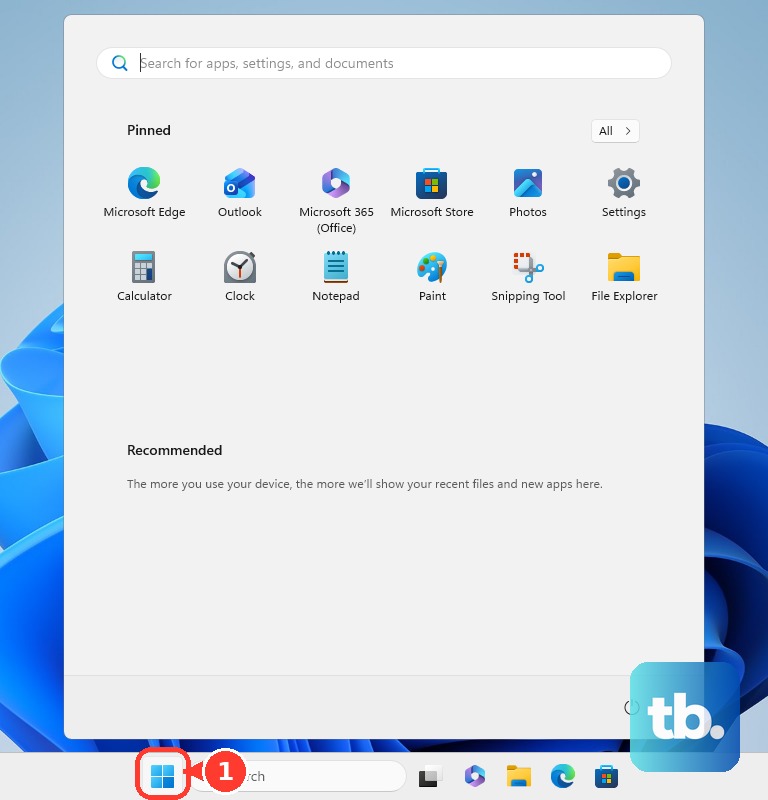
With a working screen available, open Start > Settings > System > Display > Multiple displays, then select Detect. If the external monitor remains blank, continue with the settings checks that match when the problem began.
After an incompatible resolution change, open Settings > System > Display on a working display or in a recovery configuration. Set Display resolution to the recommended value to restore the screen’s recommended resolution.
To check the refresh rate, open Start > Settings > System > Display > Advanced display. Select the affected display and choose a supported value beside Choose a refresh rate. Try a lower supported rate to check whether the picture returns.
If the boot logo appears but the picture disappears as Windows changes video mode, use low-resolution video when the Windows Recovery Environment is visible. Select Troubleshoot > Advanced options > Startup Settings > Restart, then press 3 or F3 for Enable low-resolution video. Use the resulting display to correct incompatible display settings.
Update the graphics driver with a working screen
Once you have usable Windows video, find and update your graphics driver. Open Start > Settings > Windows Update and select Check for updates. For optional drivers, open Advanced options > Optional updates, select the applicable graphics driver if offered, and select Download and install. Restart afterward.
If you need Safe Mode and can see the Windows Recovery Environment, select Troubleshoot > Advanced options > Startup Settings > Restart. Press 4 or F4 for Enable Safe Mode, or 5 or F5 when networking is needed. An encrypted PC may request its BitLocker recovery key.
For a Dell PC, open Dell Drivers & Downloads and identify the computer using its Service Tag. Select Find Drivers, check Operating system, set Category to Video, and select Download for the appropriate driver offered for your installed operating system. Run the installer and restart.
Check hardware diagnostics or arrange repair
For an ASUS desktop motherboard with Q-LED, Q-LED Core, or a diagnostic buzzer, match the illuminated indicator or beep pattern to the exact motherboard manual. Troubleshoot the component identified by that model’s code.
If you are comfortable servicing an ASUS motherboard-based desktop, power it off and unplug it before reseating RAM. Test one memory module at a time in the motherboard manual’s recommended slot, and check the memory compatibility list. On a serviceable desktop with a dedicated graphics card, also check the card’s seating and required power connections with the PC powered off and unplugged.
Arrange monitor repair if a Dell monitor fails its standalone diagnostics. If the monitor passes but the PC fails with a known-working display, arrange PC hardware diagnosis. CPU or socket inspection and power-supply substitution are best handled by a competent repairer.
Frequently Asked Questions
Why does an ASUS USB monitor need a driver?
ASUS MB165B, MB166B, MB168B, and MB169B+ monitors require the matching USB display driver. Before connecting the monitor, open its ASUS product page, select Support, then Driver &Tools, and choose the PC’s operating system. Download and run the matching driver, connect the monitor, and restart Windows if required. Use only operating systems offered for that model.
Could the monitor be too dim to see?
Exceptionally low brightness and contrast settings can make a Dell or Alienware monitor difficult to see. Open the monitor’s on-screen controls using its buttons or joystick and increase those settings. Use the model’s manual for the exact labels and paths.
How do you reconnect a wireless monitor?
On Windows 11, open Start > Settings > System > Display > Multiple displays, select Connect, then select the compatible wireless display. This reconnects a wireless display; it does not repair an HDMI or DisplayPort connection.
What should you check when a DisplayPort daisy chain stops working?
For a compatible Surface and DisplayPort daisy-chain setup, check the monitor manual for its DisplayPort version or MST setting. Connect the first monitor’s output to the next monitor’s input and configure DisplayPort 1.2/MST as the monitor manufacturer specifies. Supported arrangements and setting labels vary by model.