


Fix a monitor with a pink tint by reseating its video cable, bypassing docks or adapters, and resetting unwanted color adjustments. A damaged cable, a color filter, or a monitor fault can each require a different fix. Start with the connection, then check the monitor’s own diagnostic picture before changing computer settings.
The Windows steps use Windows 11 menus, and separate steps cover Mac settings. Monitor menus vary by model, so follow the brand-specific paths only when they match your display.
The short version
- Check the connection: Reseat the cable at both ends, try a suitable replacement, and bypass docks or adapters.
- Test the monitor: Inspect its own menu and run its built-in picture or color diagnostics.
- Undo color changes: Restore the monitor’s picture settings and disable unwanted computer color filters.
- Follow the result: Investigate software when the monitor tests normally, and seek repair when its diagnostic patterns remain discolored after a reset.
| Fix or check | When to use it | Next step |
|---|---|---|
| Reconnect or replace the cable | External monitor looks pink | Check both connectors and try a suitable cable |
| Bypass accessories | You use a dock, dongle, or adapter | Connect directly to the computer |
| Try another output or computer | The direct connection still looks pink | Compare using a known-good cable |
| Power-cycle a Mac display | An external Mac display remains tinted | Disconnect it from the Mac and power, then reconnect |
| Run monitor diagnostics | Connection checks have not helped | Inspect the monitor’s own menu and test patterns |
| Reset monitor colors | Picture adjustments may be responsible | Restore the normal preset or picture defaults |
| Disable Windows color effects | The monitor’s test picture looks normal | Check filters, contrast themes, and Night light |
| Disable HDR temporarily | You use an HDR-capable monitor | Compare the same content with HDR off |
| Correct the display profile | The tint followed a profile change | Select the appropriate profile for the display |
| Disable Mac color effects | The tint appears with your Mac | Check Color filters, Night Shift, and True Tone |
| Remove graphics color overrides | You changed GPU color controls | Undo adjustments in NVIDIA, AMD, or Intel software |
| Reset the driver and restart | Windows software checks have not helped | Reset graphics, then restart Windows |
| Update graphics software | The problem persists on the computer | Check Windows drivers or macOS updates |
| Roll back the graphics driver | The tint began after a driver update | Restore the previous driver if available |
| Reinstall the graphics driver | Rollback is unavailable or ineffective | Uninstall the device and restart Windows |
| Check browser rendering | Only web pages or browser video look pink | Check acceleration and extensions |
| Remove video or game overrides | Only video playback or one game looks pink | Disable the relevant NVIDIA or AMD override |
| Arrange repair | Monitor diagnostics remain discolored after a reset | Contact the monitor manufacturer |
Reconnect the cable and bypass accessories
Check that the video cable is firmly connected to both your computer and monitor. Disconnect it and inspect the connectors for bent pins or debris, then reconnect both ends securely. Replace a damaged cable with one that meets the monitor’s specifications, preferably the cable supplied with the display.
Connect the monitor directly to your computer instead of through a dock, dongle, or adapter. Check the picture before reconnecting those accessories. If the direct connection restores normal colors, reconnect the intermediate devices individually to identify which connection brings back the tint.
Try another compatible video output on your computer, then connect the monitor to another computer using a known-good cable. Compare the results before changing software settings. If the monitor looks normal on the second computer, continue with the original computer’s settings and graphics software.
For an external display connected to a Mac, also disconnect the display from both the Mac and its power source, then reconnect it. If it remains pink, inspect the monitor’s own menu next.
Check the monitor’s own picture test
Open the monitor’s on-screen menu and check whether it has the same discoloration as the computer image. If available, run the monitor’s built-in picture or color test to inspect an image generated by the monitor itself. Menu names and test controls depend on the model.
On Samsung monitors with this feature, open Settings or All Settings > Support > Self Diagnosis > Picture Test, then select OK. Some models place Self Diagnosis under Device Care, or offer the test through Menu or System. Check whether the test picture also looks pink.
On Dell U2725QE and U3225QE monitors, use the joystick to open Others > Self-Diagnostic. Press the joystick and cycle through the gray, red, green, blue, black, and white patterns. For other Dell displays, use your model’s manual to find the diagnostic controls.
A normal built-in test points you toward the connection, source computer, or software settings. Discoloration in the diagnostic patterns points toward a monitor problem. Try the appropriate monitor reset next, and arrange service if its diagnostic colors remain wrong afterward.
Restore the monitor’s picture settings
Undo unwanted picture presets, custom RGB adjustments, or color-temperature changes before compensating for the tint manually. Calibration and RGB adjustments cannot repair a failing connection or panel. A color reset gives you a starting point for further checks.
On Dell U2725QE and U3225QE monitors, open Color > Preset Modes > Standard. To reset the color adjustments, choose Color > Reset Color. You can also open Brightness/Contrast > Auto Color Temp. and select Off to stop ambient-light color adjustment.
For a full reset on those Dell models, open Others > Factory Reset and select Yes at the confirmation. This restores default settings beyond the color adjustments. Check the picture and diagnostic patterns again afterward.
On supported LG monitors, press the bottom-center joystick, move right to Settings, and choose Picture > Picture Reset, then select OK. Gaming models may use Picture Adjust > Picture Reset instead. For a full reset on LG models with that option, open Settings > General > Reset to Initial Settings, then select Yes.
Turn off unwanted Windows color changes
Open Settings > System > Display and turn off Night light. Open Night light to review Strength and turn off Schedule night light if the color change returns automatically. This checks a deliberate warm-color adjustment before you investigate drivers.
Next, open Settings > Accessibility > Color filters and turn off Color filters. If interface colors are altered, open Settings > Accessibility > Contrast themes. Choose None and select Apply.
For an HDR-capable monitor, compare the same content with HDR disabled. Open Settings > System > Display, select the affected display, open HDR, and turn off HDR. If the tint disappears, focus further checks on the HDR settings and connection.
If you changed the display profile before the tint began, review that choice. On Windows 11 builds offering this page, open Settings > System > Display > Color profile and select the affected display. Use Add profile for its correct profile and select Set profile to make it the default, or expand an unwanted profile and select Remove.
Check Mac filters and display colors
On a Mac, open the Apple menu > System Settings > Accessibility > Display. Under Color Filters, turn off Color filters. The Color Tint filter can tint the entire screen, so check this before adjusting the monitor’s RGB balance.
Then open the Apple menu > System Settings > Displays > Night Shift. Turn off Turn on until tomorrow and review Schedule so the warm tint does not return. For a compatible Mac and display, return to Displays, select the affected display, and turn off True Tone to compare its effect.
If the colors still look wrong, open the Apple menu > System Settings > Displays and choose the appropriate profile under Color profile. Some Apple displays and MacBook Pro models use reference modes instead. On those models, select the display and choose its general-use mode under Preset.
Undo graphics software color overrides
Your graphics software can apply color changes separately from the monitor’s controls. Check the application for the graphics hardware driving the affected display, especially if you previously adjusted color channels, gamma, or hue. Available controls depend on the hardware and display connection.
In NVIDIA Control Panel, open Display > Adjust desktop color settings and select the affected display. Select Override to reference mode and apply the change to bypass color enhancements and adjustments. This also bypasses operating system and app color enhancements, so compare the result before keeping it enabled.
In AMD Software, search for Display, open Display Settings, and select the affected monitor. Disable Custom Color to remove its global color adjustments. AMD notes that some options may not be available, depending on your system configuration. For compatible Intel systems using Intel Graphics Command Center, open Display > Color and click Restore to Original Colors.
Restart and update the graphics software
On Windows 11, press Windows + Ctrl + Shift + B to reset the graphics driver. If that does not help, select Start > Power > Restart. Recheck the display before moving on to driver changes.
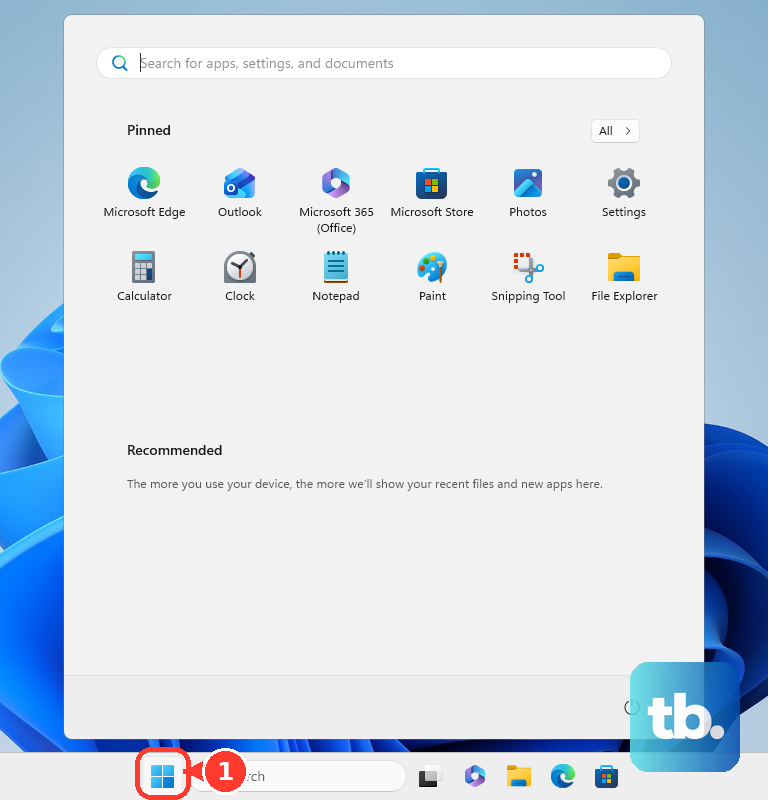
Open Settings > Windows Update and select Check for updates. For optional graphics drivers, open Advanced options > Optional updates, select the applicable graphics update, then select Download & install. You can also follow the steps to find and update your graphics driver if you need to identify the adapter first.
If the tint began immediately after a graphics-driver update, try rolling it back; this requires administrator permissions and an available previous driver. Right-click Start, open Device Manager, expand Display adapters, and right-click your adapter. Select Properties > Driver > Roll Back Driver, choose a reason, and select Yes. Restart if prompted.
When rollback is unavailable or does not help, save your work before reinstalling the device driver. In Device Manager > Display adapters, right-click the adapter, select Uninstall device, and select Uninstall. Restart Windows so it attempts to reinstall the driver.
Mac graphics updates arrive with macOS. Open the Apple menu > System Settings > General > Software Update, install the compatible update offered, and complete any requested restart. Apple display firmware is also delivered through compatible macOS updates.
Troubleshoot tint limited to one app
If only one browser, video, or game looks pink, focus on that application’s rendering settings and color overrides. For Chrome, enter the following address in the address bar to open its system settings.
chrome://settings/systemTurn off Use graphics acceleration when available (Google’s Chrome Help calls it Use hardware acceleration when available), restart Chrome, and check the page or video again. For a suspected color-changing extension, open More > Extensions > Manage extensions and turn off that extension. Compare the affected content after each change.
In Firefox, open the menu and choose Help or Help and Report > Troubleshoot Mode…. Click Restart, then Open at the confirmation. This temporarily disables extensions, custom themes, and hardware acceleration so you can compare the result.
For NVIDIA video-only tint, open NVIDIA Control Panel, choose Video > Adjust video color settings, and select With the video player settings. For a single game using an AMD color override, open AMD Software, choose Display Settings > Game Color, select the game’s application profile, and disable its Custom Color override. Check the same video or game again afterward.
Arrange repair when monitor diagnostics stay pink
If the monitor’s built-in diagnostic patterns remain discolored after a reset, contact its manufacturer about service. Give them the results from the cable swaps, second-computer check, and monitor diagnostics to help narrow down the fault.
For a Dell monitor, find your model’s user guide through Dell Support under Documentation > Manuals and Documents and follow its built-in diagnostic procedure. Dell says to contact Technical Support for repair options if discoloration remains in the diagnostic patterns. For other monitor brands, follow the manufacturer’s model-specific diagnostic and service procedure.
Frequently Asked Questions
Why does the pink or warm tint return after restarting Windows?
A color utility may be loading at startup and reapplying its adjustments. On Windows 11, press Ctrl + Shift + Esc, open Startup apps, right-click the identified color utility, and select Disable. Restart and compare the display.
How can you check whether f.lux is changing the screen color?
With f.lux v4 for Windows, press Alt + End to disable it temporarily and compare the display. On a Mac, open the f.lux menu beside the system clock and choose Quit f.lux. You do not need to install f.lux to troubleshoot a monitor that never used it.
What should you check if your Chromebook screen has a tint?
Select the time, open Settings > Device > Displays, and turn off Night Light. Under Schedule, select Never to prevent automatic activation. Also open Settings > Accessibility > Display and magnification and turn off Color correction and Color inversion if enabled.
Which input color format should your monitor use?
The monitor’s input color format should match the source. On Dell U2725QE and U3225QE monitors, open Color > Input Color Format and choose RGB for an RGB source or YCbCr for a source requiring YCbCr. These controls and menu paths are model-specific.