


To fix a monitor that keeps going black, reconnect its video cable, check its power connections, and lengthen screen-off timers if it happens only during inactivity. Connection faults, power problems, automatic screen shutoff, and graphics issues call for different fixes, so check what still works during the blackout. The Windows steps below use Windows 11 menus.
The short version
- Check connections: Reconnect the video cable at both ends and try a known-working replacement.
- Watch the power: If the power indicator also goes out, check the outlet and monitor power connections.
- Check the timing: Blackouts after inactivity call for checking screen-off, sleep, and screen saver settings.
- Follow the trigger: Gaming, driver updates, and laptop power changes point to different graphics checks.
| Check or fix | When to try it |
|---|---|
| Reconnect or replace the video cable | Picture cuts out intermittently |
| Open the Samsung monitor menu | You need to distinguish signal loss from a power problem |
| Select the Samsung monitor input | The monitor has multiple inputs |
| Check Dell or Alienware power connections | The power indicator also goes out |
| Discharge residual Dell monitor power | A power problem persists |
| Increase Dell monitor brightness | The image may be too dim to see |
| Move the mouse | The display goes dark after inactivity |
| Lengthen Windows inactivity timers | The screen turns off while idle |
| Change the Windows screen saver | A screen saver blanks the picture |
| Disable presence-triggered shutoff | A supported Windows PC turns off the screen when you leave |
| Lengthen Mac display timers | The Mac display turns off while idle |
| Adjust LG automatic standby | A supported monitor uses its own shutoff timer |
| Reset the Windows graphics driver | The computer stays on without a picture |
| Change Windows display-output mode | Output goes to the wrong display |
| Restart Windows Explorer | A cursor remains on a black desktop |
| Compare flickering in Task Manager | You need to distinguish a driver issue from an app issue |
| Update the graphics driver | Flickering points to the driver |
| Roll back the graphics driver | Blackouts began after a driver update |
| Remove an incompatible app | Task Manager stays stable during flickering |
| Test a fixed Windows refresh rate | The display connection is unstable |
| Test with HDR off | Connecting or disconnecting laptop power triggers a blackout |
| Test with G-SYNC off | A game triggers blackouts on compatible NVIDIA hardware |
| Connect a Mac display directly | The display connects through a dock or hub |
| Reconnect and detect a Mac display | The external display stays dark |
| Update macOS | Reconnecting the display does not help |
| Choose a fixed Mac refresh rate | A supported Adaptive Sync display has problems |
| Update Samsung monitor firmware | Your exact model has an available update |
| Update Dell dock firmware | A WD19 or WD22TB4 connection blanks intermittently |
| Substitute a monitor or cable | You need to isolate a Windows display connection |
| Run Samsung monitor diagnostics | Your model offers self-diagnosis |
| Cool an overheating Samsung PC | Video loss accompanies heat or unusually loud fans |
| Check desktop graphics hardware | A serviceable desktop still loses video |
Reconnect the video cable and check the input
Disconnect and reconnect the video cable at both the computer and the monitor. Check for damage, then try a known-working cable if reconnecting it does not help. Keep just one video connection between the computer and monitor while troubleshooting HDMI, DisplayPort, or USB-C display connections.
On a Samsung monitor, press a monitor button during the blackout to bring up its on-screen menu. If nothing appears, press the power button and try again. A visible menu helps distinguish a missing video signal from a monitor power problem.
For a Samsung monitor with multiple inputs, use its buttons or source menu to select the input matching the connected port. Use the model’s manual for the exact controls because button sequences vary. If the input is correct and a replacement cable makes no difference, continue with power and computer checks.
Check power when the indicator goes out
On a Dell or Alienware monitor, check the power connections if the power indicator also goes out. Test the outlet with a working lamp or charger, then connect the monitor directly to another working outlet. Inspect and reconnect its power connections, replacing a faulty cable with a compatible replacement.
For a Dell monitor that still has a power problem, switch it off and disconnect its power cable from both the monitor and outlet. Hold the monitor’s power button for 30 to 60 seconds, then leave it disconnected for about one minute. Reconnect it directly to a working outlet and turn it on.
If your Dell monitor’s picture seems black but may be extremely dim, increase its brightness through the on-screen menu. Use the model’s manual to locate the control. Dell recommends checking at maximum brightness in a well-lit room.
Adjust timers when the screen goes black while idle
Move the mouse when the display goes dark after inactivity. If the picture returns, check screen-off and sleep settings before moving on to hardware checks. A screen saver can blank the screen separately from those timers.
Open Start > Settings > System > Power & battery > Screen, sleep, & hibernate timeouts. Under Turn my screen off after, choose a longer interval, then under Make my device sleep after, choose a longer interval as needed. Check both plugged-in and battery controls where your device provides them.
For the screen saver, open Settings > Personalization > Lock screen > Screen saver. In Screen Saver Settings, choose a different screen saver or increase Wait. This leaves the separate display-off and sleep timers unchanged.
On a Windows 11 PC with a supported presence sensor, open Settings > System > Power & battery and turn off Automatically turn off my screen when I leave. Manufacturers and administrators can limit these controls; if they are missing, continue with the ordinary timers, or ask your administrator about restrictions on a managed device.
On a Mac, open the Apple menu > System Settings > Lock Screen and increase Turn display off on power adapter when inactive, where available. On a Mac laptop, also adjust Turn display off on battery when inactive if shown.
On an LG monitor that offers automatic standby, press the joystick and move right to Settings. Open General > Automatic Standby and choose a longer available interval. Consult your model’s manual if the menus differ, and continue with the computer’s inactivity settings if your monitor does not offer this control.
Restore Windows video output
Press Windows + Ctrl + Shift + B to reset the Windows graphics driver. A beep or brief flicker can indicate that the reset succeeded. If the image returns but later cuts out again, continue to the driver checks below.
To check for an incorrect display-output mode, press Windows + P, press P again, then press Enter to change the selected mode. Repeat if necessary to restore the intended display.
If a cursor remains visible on a black desktop, the Windows shell may have stalled. Press Ctrl + Shift + Esc to open Task Manager, right-click Windows Explorer, and select Restart.
Check the graphics driver and flickering apps
When the blackouts look like flickering, open Task Manager with Ctrl + Shift + Esc. If it flickers along with everything else, investigate the display driver. If it stays stable while other content flickers, investigate an incompatible app.
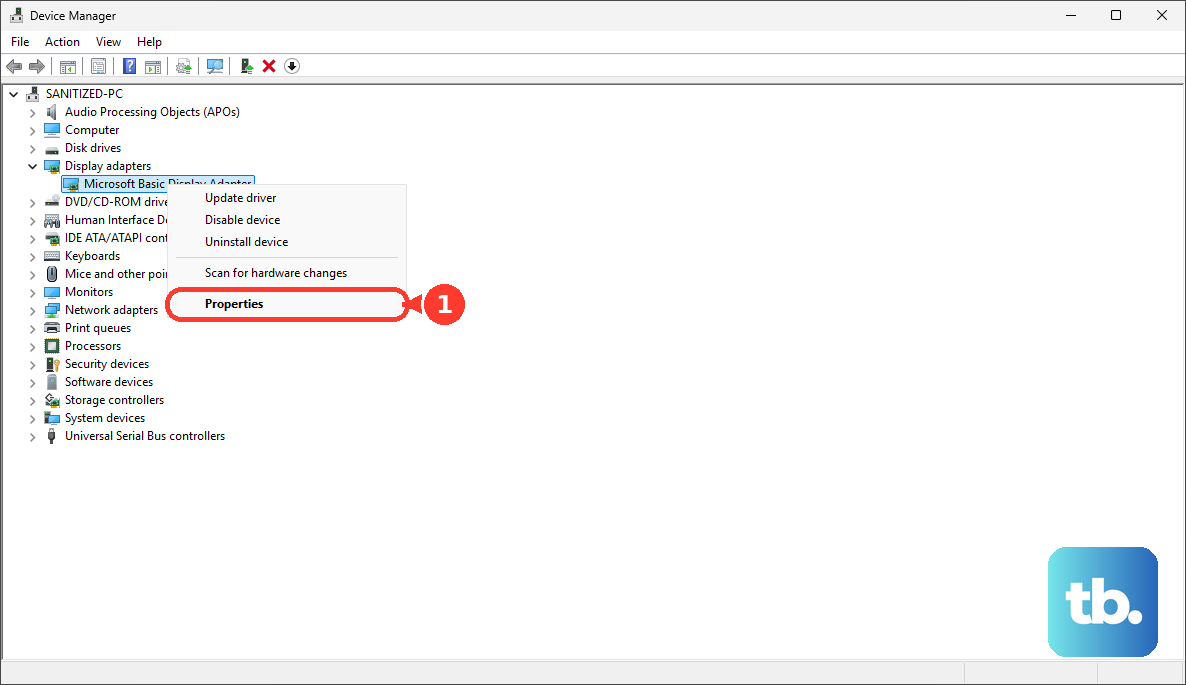
To find and update your graphics driver, open Device Manager and expand Display adapters. Right-click the graphics adapter and select Update driver. If Windows cannot find a suitable update, get the matching driver from the hardware manufacturer’s website.
If the blackouts started after a graphics-driver update, rolling back replaces the current driver with an available previous version. With administrator privileges, open Device Manager > Display adapters, open the adapter’s Properties, and select Driver > Roll Back Driver. Select Yes and restart. If you cannot select an earlier driver, continue with the other checks.
Uninstalling a suspect app removes that app from your PC. If Task Manager stays stable during flickering, open Settings > Apps > Installed Apps, locate the suspect app, and select Uninstall. Select Uninstall again, choose Yes if prompted, then restart and check for flickering before removing another app.
Test refresh rate and HDR settings
Open Settings > System > Display > Advanced display and select the affected monitor. Under Choose a refresh rate, select a supported fixed rate. Trying a lower supported rate can help isolate an unstable connection, but it is a diagnostic check rather than a guaranteed fix.
A brief blackout when connecting or disconnecting laptop power can come from HDR switching. On HDR-capable hardware, open Settings > System > Display, choose the affected HDR-capable display at the top if several are connected, and turn off HDR to check that trigger. Microsoft says these HDR power changes can temporarily turn the screen black.
For gaming blackouts on compatible NVIDIA graphics and displays, open NVIDIA Control Panel > Display > Set up G-SYNC. Uncheck Enable G-SYNC/G-SYNC Compatible and check the affected application again. This helps isolate a possible trigger; if your configuration does not expose the control, continue with the supported refresh-rate check.
Reconnect and update a Mac display
Connect the external display directly to the Mac to bypass a dock or hub. Use a cable and adapter that support the intended resolution and refresh rate, and check your Mac model’s supported display count and bandwidth limits. Those limits depend on the Mac, accessories, and other connected displays.
Disconnect the display from both the Mac and power, then reconnect it. Sleep and wake the Mac; if the display remains dark, open System Settings > Displays, hold Option, and select Detect Displays. Continue with software updates if reconnecting and detecting it do not help.
Open the Apple menu > System Settings > General > Software Update and install the available compatible update. Apple says macOS updates also deliver firmware updates for Apple displays.
On supported Macs running macOS Ventura 13 or later with an Adaptive Sync display, open the Apple menu > System Settings > Displays and select the external monitor. Under Refresh Rate, choose a fixed rate instead of Variable or Adaptive. If your Mac and display do not support Adaptive Sync, continue with connection and firmware checks.
Check monitor and dock firmware
For a Samsung monitor, find the exact model at Samsung Manuals & Software and check for a firmware update. Install an available update using that model’s instructions, since installation methods vary. If an update is not listed for your model, continue with the diagnostic checks below.
If the display connects through a Dell WD19 or WD22TB4 dock, identify the dock at Dell Drivers & Downloads and install its applicable firmware. Dell identifies WD19 firmware 01.00.36 and WD22TB4 firmware 01.00.20 or later as fixes for intermittent blanking in these docking configurations. The connected monitor can be another brand.
Isolate a hardware fault before arranging service
On a Windows 11 computer, substitute a working monitor or cable, changing one component at a time. For a laptop, disconnect external displays and unnecessary peripherals to isolate the failing connection. Use the results to narrow down which component needs further attention.
On a Samsung monitor offering Self Diagnosis, open Menu or Settings, called All Settings on some models. Look under Support or System, then select Self Diagnosis or open Device Care > Self Diagnosis. Follow your model’s diagnostic prompts; if it lacks this feature, use the cable and monitor substitution checks.
If your Samsung PC loses video alongside overheating or unusually loud fans, shut it down, move it to a cooler location, and leave it off for 15 minutes. Ensure airflow is unobstructed and arrange service if overheating returns.
On a user-serviceable desktop with a discrete graphics card, shut down and unplug the computer before checking card seating and required power connectors against the component manuals. Verify that the power supply meets the graphics-card manufacturer’s recommendation. Use professional service if these checks exceed your experience.
Arrange manufacturer service if the display keeps failing across cables and source devices. Do the same if the monitor’s own menu or diagnostics fail.
Frequently Asked Questions
Why does my Alienware OLED monitor go black with a flashing green light?
On the Alienware AW3423DW and AW3423DWF, a slowly flashing green power indicator during Pixel Refresh signals expected panel maintenance. Allow approximately seven minutes for it to finish. Other OLED models have different maintenance timings.
Why does my external display go dark when I close my Mac laptop?
Using your Mac laptop with its lid closed requires connecting it to power and using an external keyboard and mouse. Connect those before closing the lid.
How can I keep a Chromebook display on while it is inactive?
Select the time, then open Settings > System preferences > Power. For While inactive and plugged in and While inactive and on battery, select Keep display on. For closed-lid operation, turn off Sleep when lid is closed. On a managed school or work Chromebook, ask your administrator if these settings are restricted.
How do I stop Ubuntu from blanking the screen?
On Ubuntu’s GNOME desktop, open Activities, search for Power, and open it. Adjust Screen Blank under Power Saving Options, or disable blanking. Other desktop environments use different controls.
What should I try if Firefox triggers the blackouts?
In desktop Firefox, open Settings and find the Performance section, which appears under General or Tabs and browsing. Uncheck Use recommended performance settings, then uncheck Use hardware acceleration when available. Quit Firefox completely and reopen it; restore acceleration if the change does not help.
Should I factory reset my Dell monitor?
Dell includes a factory reset as a troubleshooting option. Resetting restores the monitor’s settings to their defaults, so you lose your customized monitor settings. Use the physical buttons or joystick to open the monitor’s menu, then follow your model’s manual for its reset function and confirmation.