Your microphone works elsewhere, but nobody in Roblox can hear you. Start with the voice connection and mute controls, then check your account access. The device-specific fixes below cover microphone permissions, input settings, and what to do when Roblox stays silent.
Connect to voice and check your mute button
Check the experience’s Description page for voice support. Only its developer can add voice to an experience.
Join an experience that explicitly supports voice. Select the headphone icon to connect. Alternatively, connect through the in-experience Settings > Voice Chat > Connect. On PlayStation, use Join Voice.
Select the microphone icon at the upper left if it has a red slash. That slash means you’re muted. Speak to check whether the green microphone graphic animates. Tip: If voice already shows Connected, test disconnecting and reconnecting through the voice controls.
If voice controls are missing, check your account access
Missing voice controls call for an account-access check. Roblox lists an age-checked account aged 13 or older as the baseline for in-experience voice, with additional restrictions affecting availability by account and region.
On desktop or the web, open the gear icon > Settings > Account info > Age Group > Continue with selfie. On mobile, use More (...) > Settings > Account info > Age Group > Continue with selfie. Complete the facial age-estimation prompts, then join a voice-enabled experience after completing the age check.
For the ID alternative, open Settings > Account Info > Continue with ID > Continue. This option requires a user aged 13 or older with an accepted government-issued photo ID. Allow camera access when prompted, then photograph the requested surfaces of your ID.
Complete the face check and return to Roblox to see the result.
If your estimated age is incorrect and the account is over 13, select Continue with ID under Settings > Account info. For an account estimated under 13, select the pencil icon beside the birthday. Follow the birthday-correction prompts. A linked parent can also correct an under-18 user’s birthday once.
Skip the phone-verification advice in older tutorials. Roblox no longer accepts phone verification alone to unlock voice, and ID verification does not bypass regional restrictions.
Allow microphone access on your phone or Chromebook
These settings restore microphone access blocked by your device. On iPhone, open Settings > Privacy & Security > Microphone, then enable Roblox. If Roblox is missing, or permission is already enabled and voice still fails, contact Roblox Support as Apple directs for app-specific microphone trouble.
To check the iPhone microphone outside Roblox, record a sample in Voice Memos. Play the sample to check its clarity. Record a video with the front camera, then record another video with the rear camera. Play both recordings to check the sound.
If the recordings are unclear, remove any case or film obstructing the microphone openings. Clear debris from the microphone openings. Seek device service if recordings remain unclear outside Roblox.
On Android, open Settings > Apps > See all apps > Roblox > Permissions > Microphone. Select Allow only while using the app. Open Settings > Security & privacy > Privacy > Privacy controls to check the device-wide setting. Enable Microphone access. These are Google’s Android labels; names vary by manufacturer.
On Chromebook, open the time > Settings > Privacy and security > Privacy controls. Enable Microphone access. Turn on the Chromebook’s physical microphone switch if it has one.
Select the launcher beside Roblox in the microphone controls to open its Android permissions. Allow Roblox to access the microphone.
Get Windows using the right microphone
Release your headset’s physical Mute control. Reconnect the microphone. For a Bluetooth headset, confirm that it is paired and connected. Adjust the microphone’s position for speaking.
Open Start > Settings > Privacy & security > Microphone in Windows 11. Turn on Microphone access.
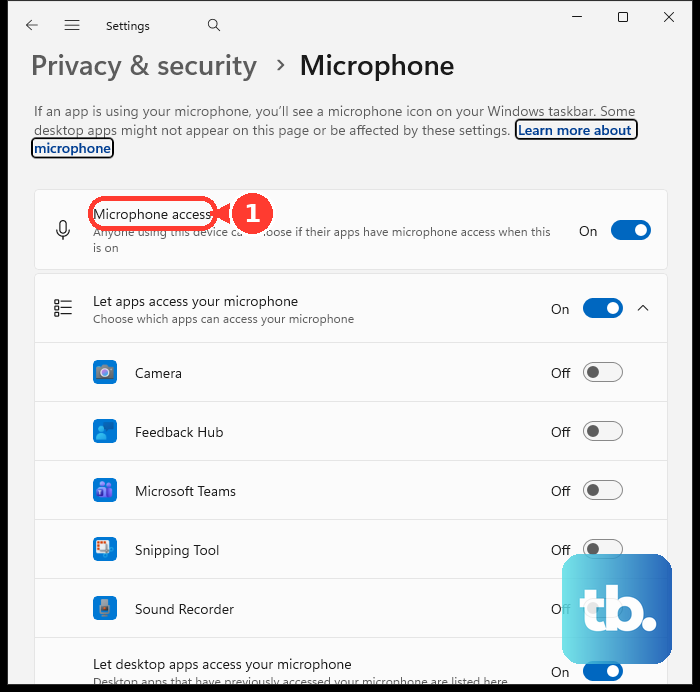
Enable Let apps access your microphone. Enable Let desktop apps access your microphone. Enable Roblox individually if it appears. Desktop applications do not always have a separate entry.
On Windows 10, use Start > Settings > Privacy > Microphone instead: select Change, turn on Allow apps to access your microphone, then turn on Allow desktop apps to access your microphone.
Go to Settings > System > Sound > Input > Choose a device for speaking or recording. Select the microphone you intend to use, then open that microphone’s properties. Select Start test and speak into the microphone.
Select Stop test, then choose Play to hear the recording. Adjust Input volume if the recording is too quiet. If the test fails, run Settings > System > Sound > Advanced > Troubleshoot common sound problems > Input devices.
Tip: If Windows cannot record your voice, focus on the microphone, its connection, and Windows audio settings before returning to Roblox.
When your Mac blocks or selects the wrong input
Roblox needs microphone permission and the correct sound input on your Mac. Check both when your headset is connected but nobody hears you.
Quit Roblox before changing its permission. On macOS Ventura or later, open the Apple menu > System Settings > Privacy & Security > Microphone. On macOS Monterey, Big Sur, Catalina, or Mojave, open the Apple menu > System Preferences > Security & Privacy > Privacy > Microphone. Enable Roblox.
Reopen Roblox and test voice in a voice-enabled experience. If it remains silent, open the Apple menu > System Settings > Sound > Input. Select your intended microphone, whether it is built into the Mac, attached to a display, or connected externally. Adjust the Input volume slider.
For an external microphone or audio interface that still fails, check the manufacturer’s compatibility information. Check the manufacturer’s software updates for that device.
Console and Quest microphone controls
On PS5, press the DualSense mute button to unmute a muted controller microphone. Choose your microphone under Settings > Sound > Microphone > Input Device, then set its sensitivity with Adjust Microphone Level.
If your PS5 party hears you but Roblox players do not, press the PS button, open Game Base, and select your party. Use the voice-chat card’s drop-down to switch from party chat to game chat.
On PS4, open Settings > Devices > Audio Devices > Adjust Microphone Level and speak while watching Input Volume. Set routing through Party > Party Settings > Chat Audio > Prioritise Game Chat. If the meter does not respond, check the headset’s mute control and test another headset or controller.
On Xbox, unmute the headset with its physical mute control; Xbox Wireless Headset owners should also check auto-mute sensitivity in Xbox Accessories. On Quest, accept Roblox’s microphone-access prompt. If you previously denied it, restore microphone access in Roblox’s app permissions within the headset’s system settings; the location depends on the system version.
Only one player cannot hear you
A session mute blocks your voice for an individual listener. Ask that player to open the Roblox menu. Have them select the speaker icon beside your username to unmute you.
If communication between the accounts still fails, check for an accidental block under the gear icon or More (...) > Settings > Privacy & content maturity > Blocked users. Select Unblock beside the person. For a parent-imposed block, this starts a request process. Follow the request prompts for a parent-imposed block, then select Save after removing an accidental block.
Refresh Roblox after the basic checks
If voice access, permissions, and microphone settings are correct, move on to the app itself. Use these general client troubleshooting steps to address a Roblox app problem.
On Windows or Mac, close Roblox, then reopen Roblox. Restart the computer if the problem continues. Roblox recommends restarting before reinstalling.
On Android, open Settings > Apps > Roblox > Force Stop. The app-settings location varies by manufacturer. Reopen Roblox. To check Android updates, open Google Play Store > profile icon > Manage apps & device > Updates available > See details.
Select Update beside Roblox when an update is available. For a persistent Android problem, select Settings > Apps > See All Apps > Roblox > Storage & cache > Clear cache. These are Pixel labels.
If the problem continues, select Clear storage. This removes local app data; other Android devices call it Clear Data. Sign in again after clearing storage.
For an unresponsive Roblox app on a Face ID iPhone, swipe up from the bottom and pause to open the app switcher. On a Home-button iPhone, double-click the Home button instead. Swipe the Roblox preview upward to close it, then reopen Roblox.
Check for a Roblox update through App Store > profile icon > App Updates. Install the Roblox update if one is available.
On Windows, replace the older Microsoft Store client by installing Roblox - Windows from Microsoft Store. The current installed app has a blue icon; the older one has a light-gray icon. Sign in to your existing Roblox account.
Complete the required Xbox-account link. Confirm that you can access the new app, then uninstall the old app.
If desktop client trouble persists, reinstall Roblox through its official download page or the installation prompt shown when launching an experience.
Outages, restrictions, and getting further help
If several players or devices suddenly lose voice, open the Roblox status dashboard. Check Player, Games, the relevant app components, and incident history. Follow updates for a matching incident and retry after recovery.
If Roblox also struggles to load or maintain sessions, test a wired connection instead of Wi-Fi on a device that supports it. Report a problem confined to one experience to its creator.
For a communication restriction, read the moderation notification and follow Violations & Appeals > Appeal when offered, or use the Roblox Support Form when directed. Reinstalling does not remove account moderation. On a school or work device with enforced microphone restrictions, ask the administrator to review microphone access.
For a persistent Roblox-only failure, contact Roblox Support with your username, exact error, device model, OS version, reproduction steps, and recent device or network changes. Explain whether the microphone works outside Roblox and whether multiple voice-enabled experiences fail.
Frequently Asked Questions
Does the Voice data for product improvements setting turn on voice chat?
No. Voice data for product improvements controls data use. It is not the switch that enables voice chat.
Does Android’s green microphone indicator mean another app is blocking Roblox?
No. It shows that an app or service is accessing the microphone, not that a conflict exists. On Android 12 and later, swipe down and tap the green indicator to identify the app or service. Tap again to manage its permissions.
Can Windows repair Roblox without reinstalling it?
For installations that offer the controls, open Start > Settings > Apps > Installed apps > Roblox > More > Advanced options > Repair. If Repair fails, Reset is the next option. These controls are not available for every app package.
Can a parent change permission for voice with friends?
Where the option is available, the linked parent opens Settings > Parental Controls, selects the child, then opens Settings you manage > Communication > Chat and party with friends > Voice Chat with friends. Select Trusted friends instead of No one. This controls the separate voice-with-friends feature; availability depends on account eligibility and region.