

To fix a MacBook Pro SD card reader that isn’t working, reinsert the card correctly, approve its connection on an Apple silicon Mac, then check Finder and Disk Utility. If you use an external reader, reconnect it directly to another compatible port. Save formatting for a detected card with filesystem problems, after copying the files you need elsewhere.
The short version
- Start with the connection: Reinsert the card with its contacts facing down and toward the Mac, without forcing it.
- Approve access: On an Apple silicon Mac, unlock the computer and click Allow when prompted.
- Check Disk Utility: A detected card may need mounting or First Aid, while an absent card needs connection or hardware troubleshooting.
- Protect your files: Formatting deletes everything on the card, so copy needed files elsewhere first.
| Fix or check | When to use it | What it addresses |
|---|---|---|
| Check card compatibility | You use the built-in slot | Unsupported cards or unsuitable adapters |
| Reinsert the card | The card fails to mount | Insertion problems |
| Approve the connection | An Apple silicon Mac requests access | Accessory approval |
| Adjust accessory approval settings | You want automatic approval while unlocked | Future connection prompts |
| Show external disks in Finder | A mounted card is hidden | Desktop and sidebar visibility |
| Mount the volume | Disk Utility detects an unmounted volume | Access to the volume |
| Reconnect an external reader | A USB reader is unavailable | Connection or port problems |
| Bypass or power the hub | The reader connects through a hub | Hub connections and power |
| Shut down and disconnect peripherals | The physical card is absent from Disk Utility | Further connection troubleshooting |
| Check System Information | You need to check reader detection | Hardware visibility |
| Run First Aid | A detected card has disk errors | Filesystem repair |
| Reopen the affected app | One app cannot access the card | App connection problems |
| Review app permissions | Finder works but an app fails | Access to removable storage |
| Import manually in Photos | Photo import does not start | Access to readable photographs |
| Use an external reader | You need another route to the card | Alternative file access |
| Connect the camera | You need photographs from a compatible camera | Import without the SD slot |
| Restart the Mac | Connection trouble persists | Transient connection problems |
| Update macOS | A compatible update is offered | General software troubleshooting |
| Use safe mode | Startup software may interfere | Software isolation |
| Remove a conflicting login item | Troubleshooting points to login software | Automatic startup interference |
| Reformat the card | A detected card has unrepairable or incompatible formatting | A replacement filesystem that erases existing files |
| Run Apple Diagnostics | Hardware trouble persists | Diagnostic results for service |
| Arrange service | The problem remains unresolved | Hardware diagnosis or repair |
Check the card and reinsert it correctly
Start by checking the card and any adapter you use. A microSD or MiniSD card needs an appropriate full-size adapter for the built-in slot. Do not insert an SDIO card or a card thicker than 2.1 mm.
If the card is mounted, wake the Mac and drag the card’s desktop icon to the Trash. Wait until the icon disappears before removing the card. Reinsert it with the metal contacts facing down and toward the computer, without forcing it.
Apple recommends reinserting a card that fails to mount and notes that insertion speed can affect mounting. If it still does not appear, check connection approval and Disk Utility next.
Allow the card to connect
On a MacBook Pro with Apple silicon, unlock the Mac, connect the card or external reader, and click Allow when prompted. Approval for SD cards applies to macOS 13.3 or later. If you previously refused the connection, disconnect and reconnect the card or reader to trigger approval again.
To adjust future approvals, choose Apple menu > System Settings > Privacy & Security > Accessories, then open Allow accessories to connect. Choose Automatically allow when unlocked to approve connections automatically while the Mac is unlocked. Older macOS layouts can differ; reconnect the accessory while the Mac is unlocked to use the approval prompt instead.
On a supervised Apple silicon MacBook Pro, your organization may control accessory approval. Ask your administrator to review the policy controlling Allow accessories to connect if you cannot approve the reader yourself.
Find the card in Finder and Disk Utility
A mounted card can be hidden from the desktop or Finder sidebar. In Finder, choose Finder > Settings, click General, and select the external disk items you want to see on the desktop. Click Sidebar, select the items you want to see in the Finder sidebar, and look for the card there.
Those settings control visibility; they do not mount or repair an undetected card. Open Applications > Utilities > Disk Utility, then choose View > Show All Devices. This shows the physical storage devices as well as their volumes.
If Disk Utility detects the SD-card volume but it is unmounted, select that volume in the sidebar and click Mount. Check Finder again afterward. If mounting fails, continue to First Aid; if the physical card is absent altogether, check the connection first.
Check an external reader and its connections
For a USB-connected reader, disconnect and reconnect it, then try a different compatible port on the Mac. These checks are particularly relevant when macOS reports insufficient power or USB Devices Disabled. They apply to external readers.
When the reader connects through a USB or Thunderbolt hub, connect it directly to the Mac. If you continue using a self-powered hub, connect its AC adapter. Also check the reader’s cable, connections, and power.
If the card remains absent from Disk Utility after choosing View > Show All Devices, shut down the Mac and unplug nonessential devices. Start the Mac and retry the card. This step also applies when you use the built-in reader.
For another detection check, hold Option and choose Apple menu > System Information. Inspect the listings under Hardware for the reader or connected device. If an external reader is listed but does not work, follow its manufacturer’s troubleshooting instructions.
Repair a detected card with First Aid
Back up any accessible files before running First Aid. In Disk Utility, choose View > Show All Devices and make sure you are selecting the SD card. First Aid works on detected storage devices; it cannot repair a physically failed reader.
Select the last volume listed beneath the SD card, click First Aid, then click Run. Work upward through the card’s other volumes, volume groups, and containers when present, finishing with the physical card itself. Skip entries whose First Aid button is unavailable.
Once the checks finish, try accessing the card again. If Disk Utility cannot repair it, preserve any files you can still access before considering formatting. A card that never appears in Disk Utility needs further connection or hardware troubleshooting.
Fix app access or import your photos another way
If Finder can read the card but one app cannot, quit that app and reopen it. If access still fails, choose Apple menu > System Settings > Privacy & Security > Files & Folders. Locate the app and enable access to the relevant storage location if a control is offered, then retry. If no control is offered, continue with the restart and software checks below.
If only a managed application cannot read the card, ask your administrator to inspect its Privacy Preferences Policy Control settings, specifically Removable volumes. The exact controls depend on your organization’s management provider.
When Photos does not import automatically, insert the card or connect its reader, then open Photos and choose File > Import. Select the photos or videos, click Review for Import, then click Import All New Photos, or select individual photos and click Import Selected. If asked about removing the originals, click Keep Items.
A compatible external card reader gives you another way to access the card, including on a MacBook Pro without a built-in slot. Connect the reader, insert the card, and try File > Import in Photos. Successful access provides a workaround, but does not by itself prove the built-in reader has failed.
You can also leave the card in a compatible camera and connect the camera to the Mac. Turn the camera on, select its manufacturer-specified transfer mode, then open Photos and select the camera under Devices. Select photographs and click Import Selected, choosing Keep Items if asked about removing originals.
Restart and check for software interference
For a persistent connection problem, restart your MacBook or Mac by choosing Apple menu > Restart. Sign in again and retry the card. Try this if quitting and reopening the affected app did not restore access.
Back up the Mac before installing a macOS update. Choose Apple menu > System Settings > General > Software Update and install the compatible update offered there using the displayed update or restart button. Enter the administrator password when requested and keep the lid open during installation.
If you need another way to open the update settings, search for Software Update using Spotlight and open the result. Updating is a general troubleshooting step, without a guaranteed fix for this reader problem. If the issue continues, safe mode can help investigate interference from software that loads during startup.
On an Apple silicon Mac, choose Apple menu > Shut Down, then hold the Power button until startup options appear. Select the startup volume, hold Shift, and click Continue in Safe Mode. Test the card, then restart normally afterward.
On an Intel MacBook Pro, start or restart while holding Shift until the login window appears, then log in. Test the card and restart normally afterward. Safe mode helps isolate software interference; it is not a guaranteed SD-reader repair.
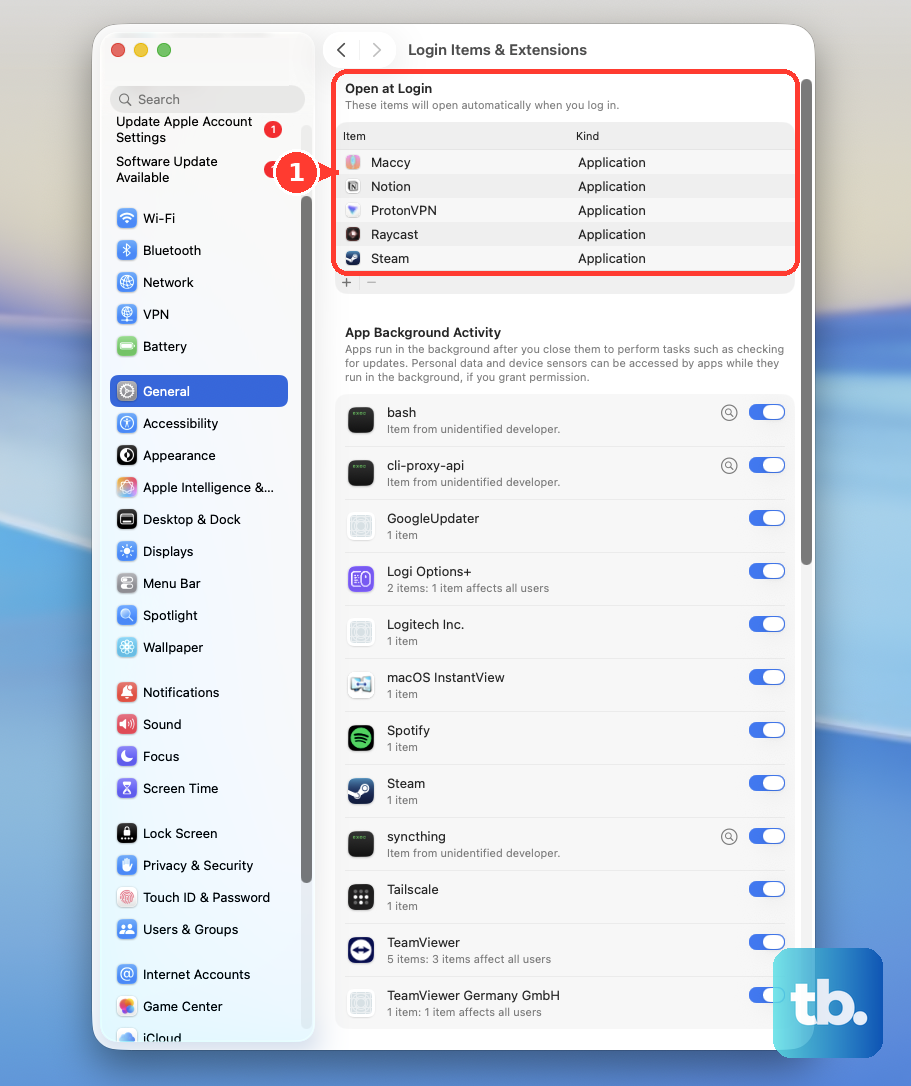
If troubleshooting points to software loaded at login, removing login items changes which entries open automatically, so record them first. Choose Apple menu > System Settings > General > Login Items & Extensions, record the Open at Login entries, then select them and click Remove. Restart; if the problem disappears, restore entries one at a time and restart after each, removing the entry that brings the problem back.
Reformat only after preserving your files
Formatting is an option for a detected card with an unrepairable filesystem or incompatible formatting. It cannot repair a reader that does not detect media. For a card used in a camera, check the camera’s format and partition-scheme requirements before proceeding.
Formatting deletes all files on the card, so copy everything you need elsewhere first. In Disk Utility, choose View > Show All Devices, carefully select the physical SD card, and click Erase. Choose a suitable Scheme for its intended use.
For sharing a card with Windows, select MS-DOS (FAT) under Format for a card of 32 GB or less, or ExFAT for a larger card. Enter a name, click Erase, then click Done. Retry access afterward; continued detection problems call for hardware diagnosis.
Run diagnostics and arrange service
To run Apple Diagnostics, shut down and disconnect external devices except a keyboard, mouse, display, Ethernet connection, and AC power. On an Apple silicon Mac, hold the Power button until Options appears, release it, then hold Command + D until the Mac restarts. On an Intel Mac, start while holding D, or Option + D if necessary.
Follow the available tests and record any reference codes. If offered an offline test without a support-initiated online session, click Run Offline. A passing result does not rule out reader failure, and Apple does not promise a dedicated SD-slot test.
If the problem persists, take the Mac to an Apple Store or Apple Authorized Service Provider for diagnosis. Supply any diagnostic reference codes and explain whether the card is absent from Disk Utility or fails only in a particular app. Service availability depends on the Mac’s model and your region.
Frequently Asked Questions
Why can I read the SD card but not change its files?
The card or its adapter may have a physical write-protection slider. Eject and remove the card, move the slider to the unlocked position, then reinsert it; check the card manufacturer’s instructions for the slider location. This addresses writing restrictions, rather than failure to detect the reader.
Why does my Mac ask to approve a card it has used before?
On an Apple silicon MacBook Pro, if the Mac has been locked for three or more days, you might need to unlock it to use a previously allowed accessory again. Unlock the Mac, and click Allow if an alert asks you to approve the card. If Allow accessories to connect is set to Always ask, you approve every accessory each time it connects.
How can I approve a reader while my MacBook lid is closed?
On an Apple silicon MacBook Pro, first open and unlock the Mac, then connect and approve the external display, mouse, and keyboard. Afterward, you can use those devices to approve additional accessories while the lid is closed.
Should I use an old SMC reset shortcut on an Apple silicon MacBook Pro?
Apple says SMC handling resets automatically on Apple silicon Macs, so you do not need a manual SMC shortcut. Connect the Mac to power, then choose Apple menu > Restart. This is general power and hardware troubleshooting, not a guaranteed SD-reader repair.
Which MacBook Pro built-in slots support UHS-II cards?
The built-in SDXC slots on 14-inch and 16-inch MacBook Pro models introduced in 2021 or later support UHS-II. Apple also lists Default Speed, High Speed, and UHS-I support for those models and the supported MacBook Pro models from 2011 through 2015.
What if ownership permissions block access to a mounted card?
If you are an administrator and the mounted card supports ownership permissions, select it in Finder and choose File > Get Info. Expand Sharing & Permissions, unlock the padlock if necessary, and select Ignore ownership on this volume. The option is not available for every filesystem and does not appear for a drive used for Time Machine backups.
Can a work or school Mac block the card from mounting?
Yes, on supervised Macs running macOS 15 or later enrolled through Device Enrollment or Automated Device Enrollment, storage policy can prevent mounting. Ask your administrator to review Storage management > External storage devices and use Allowed where organizational policy permits; management-console navigation varies by provider. Disallowed blocks mounting, while Read-only also prevents writable external media from mounting.
Which accessory settings keep manual approval enabled?
On an Apple silicon MacBook Pro, Always ask and Ask for new accessories retain manual approval under Allow accessories to connect. Always allow approves connections automatically even while the Mac is locked.