To fix a Mac mini that won't turn on, check its power cord and outlet, hold the power button for about 10 seconds, then release it and press it normally. If it still will not start, disconnect accessories and repeat the power-button procedure. If the Mac appears powered on but shows a black screen, check the display before trying startup repairs.
The short version
- Start with power: Check the cord, its connections, and a working electrical outlet.
- Retry startup: Hold the power button for about 10 seconds, release it, then press and release it normally.
- Remove accessories: Disconnect external drives, hubs, printers, and other accessories before retrying.
- Separate the symptoms: Display checks, safe mode, and Recovery help only when the Mac can power on.
- Know when to get service: Persistent power failure needs assessment, and some M2 Mac mini units qualify for a no-power service program.
| Check or fix | When to use it |
|---|---|
| Power cord and outlet | The Mac does not respond to its power button |
| Power-button retry | The Mac remains unresponsive |
| Apple silicon restart | The Mac responds and remains connected to power |
| Accessory removal | Startup fails with accessories connected |
| Monitor and video connections | The Mac appears on but the screen stays dark |
| Brightness and display detection | A connected display still shows no picture |
| Safe mode | The Mac powers on but startup software may interfere |
| Login item removal | You can reach the desktop and need to isolate startup software |
| Startup options and Recovery | An Apple silicon Mac powers on but cannot start normally |
| Disk Utility First Aid | The Mac reaches Recovery but cannot finish startup |
| macOS reinstallation | Startup still fails after disk repair |
| DFU connection and preparation | You suspect firmware failure on an Apple silicon or T2 Mac |
| Host Finder and network checks | Firmware recovery cannot detect or communicate with the Mac |
| Firmware revival | You need to repair firmware without erasing data |
| Firmware restore | Revival fails and you accept erasing the Mac |
| Hardware assessment | Power checks and accessory removal do not help |
| M2 service program | You have a Mac mini (2023) with M2 and a no-power problem |
Check the power cord and outlet
Make sure the power cord is undamaged and firmly connected to both the Mac mini and a working electrical outlet. Try another compatible power cord if checking the connections does not help. On older models that use an external power adapter, try a compatible adapter.
On the current Mac mini enclosure, the power button is on the underside. Press that physical button to start the Mac. If the Mac appears to turn on but you get no picture, continue with the display checks below.
Hold the power button and retry
To restart an unresponsive computer, hold the Mac mini’s power button for approximately 10 seconds, then release it. Press and release it normally to try turning the Mac on again. This procedure applies to both Intel and Apple silicon Mac minis.
For an Apple silicon Mac that responds, keep it connected to power and choose Apple menu > Restart, or shut it down and turn it on again. Apple says the SMC resets automatically on Apple silicon, with no additional manual reset sequence.
Disconnect accessories before trying again
Disconnect printers, external drives, USB hubs, phones, and other accessories. Hold the power button for about 10 seconds again, release it, then press and release it normally. An attached accessory can prevent startup, so retry after removing those connections.
On an Intel Mac mini, reset the SMC before arranging service: shut down the Mac, then unplug the power cord. Wait 15 seconds, plug the cord back in, wait 5 seconds, then press the power button. This step does not apply to Apple silicon. If the Mac still shows no response after checking power, removing accessories, and resetting the SMC on an Intel model, move to the service options below. Safe mode, Recovery, and software updates require the Mac to power on. If it appears to be running but the monitor stays dark, check the display next.
Rule out a dark or disconnected display
Turn on the monitor and secure its power and video connections. Connect it directly to the Mac mini instead of through a dock, then disconnect and reconnect the monitor’s power and video cables. Use a cable and adapter that support the display’s resolution and refresh rate, and keep the display configuration within your Mac model’s supported limits.
On the current Mac mini enclosure, connect the monitor to a rear Thunderbolt/USB-C port or the rear HDMI port. The front USB-C ports do not provide video output. If your monitor is connected to a front port, move its connection to a supported rear port.
Increase brightness using the monitor’s controls. Supported Apple displays also offer brightness controls in Displays or through an Apple keyboard. Putting the Mac to sleep and waking it can also trigger display detection.
If another screen gives you access to the desktop, open Apple menu > System Settings > Displays, hold Option, and click Detect Displays. On older macOS versions, open System Preferences > Displays instead, then use the same detection procedure.
Try safe mode when startup stalls
Safe mode helps isolate software that loads during startup, but it requires a Mac that powers on. On an Apple silicon Mac mini, start with the Mac off and hold the power button until startup options appear. Select the startup disk, hold Shift, and click Continue in Safe Mode.
On an Intel Mac mini, hold Shift immediately after turning it on and release the key at the login window. Log in, then choose Apple menu > Restart to test normal startup. If normal startup still fails but safe mode works, check the login items.
In the current macOS interface, open Apple menu > System Settings > General > Login Items & Extensions. Removing entries changes which items open automatically at login, so record the Open at Login list first. Select its items, click Remove, and restart.
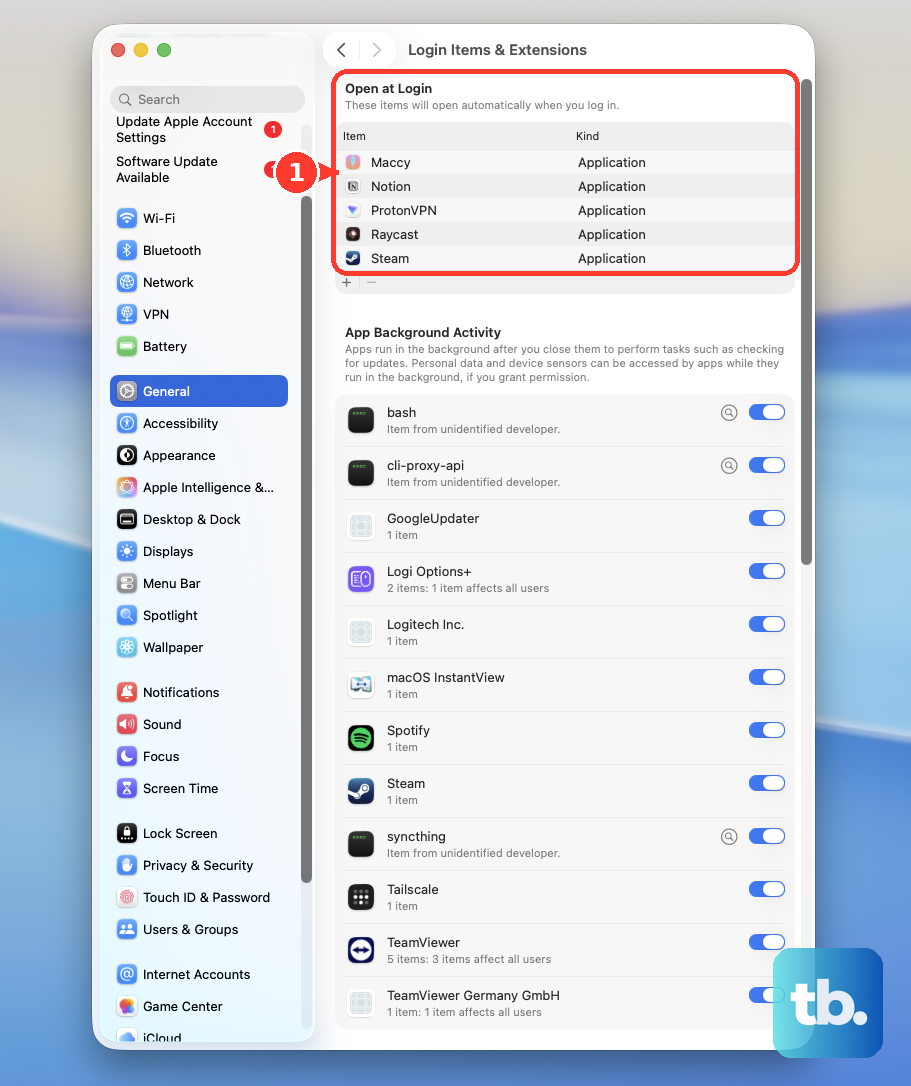
If removing those items fixes startup, add them back individually, restarting after each addition. Removing the item that reproduces the problem will stop it from opening automatically at login. Remove that item; if startup continues to fail, move to disk repair when you can reach Recovery.
Repair the startup disk in Recovery
On an Apple silicon Mac mini, turn the Mac off, then hold its power button until startup options appear. To try a listed working system, select its disk and click Continue. To troubleshoot instead, select Options, then click Continue to enter macOS Recovery.
For an Apple silicon or Intel Mac mini that has reached Recovery but cannot finish startup, back up accessible data before disk repair. Select Disk Utility and click Continue. Choose View > Show All Devices to display the storage hierarchy.
Start with the lowest listed volume, click First Aid, then click Run. Repeat upward through the volumes, volume groups, containers, and finally the storage device, entering the administrator password if requested. Quit Disk Utility and choose Apple menu > Restart. If startup still fails and you can return to Recovery, try reinstalling macOS.
Reinstall macOS without erasing first
If the Mac powers on and reaches Recovery but still cannot finish startup, try reinstalling macOS without first erasing the disk. Reinstallation normally preserves apps and personal files, but back up first when possible. Select the macOS installation or reinstallation option in Recovery and click Continue.
Unlock the disk with your login password if requested. If the installer offers Macintosh HD and Macintosh HD - Data, choose Macintosh HD. Allow installation to finish, including its restarts and temporary blank screens. If you cannot complete the repair, arrange service or consider firmware revival when you suspect firmware failure on an Apple silicon or T2 model.
Revive firmware for a suspected firmware failure
For an Apple silicon or T2 Mac mini with suspected firmware failure, you can try firmware revival before service. You need an internet-connected host Mac running macOS 14 or later with about 60GB free. Use a USB-C cable that supports data and charging, not a Thunderbolt 3 cable.
The connection must use the mini’s model-specific DFU port. Facing the rear ports, Apple specifies the middle USB-C port for Apple silicon Mac minis introduced in 2025 or later, the leftmost USB-C port for other Apple silicon models, and the rightmost USB-C port for T2 models. Match that distinction to your model before connecting the cable.
Connect a USB-C port on the host Mac directly to the mini’s DFU port and disconnect other USB devices from the mini. Unplug the mini’s power, then hold its power button while reconnecting power. Continue holding for up to 10 seconds until Finder on the host detects DFU, and click Allow if prompted.
If the host does not show the Mac, open Finder > Settings > Sidebar and select CDs, DVDs, and iOS Devices. Select Mac under Locations, or retry the cable connection and DFU sequence if detection still fails. If you are using a managed network, it must permit Apple traffic to 17.0.0.0/8.
Once the host detects the mini, click Revive Mac, then Continue. Keep the host Mac awake and complete any volume-selection and authentication prompts. Restart the mini or select its startup disk if requested. Revival does not erase data, so try it before considering a restore.
A firmware restore erases the Mac’s data. If revival fails and you accept that loss, click Restore Mac, then Restore and Update, and complete the network and Apple Account prompts. T2 models subsequently reinstall macOS through Recovery. If you cannot complete the firmware procedure, arrange professional service.
Check service eligibility and arrange repair
If the Mac mini still will not power on after the cord, outlet, power-button, and accessory checks, plus an SMC reset on an Intel model, arrange a hardware assessment. Open Apple’s power troubleshooting page and select Get service. Service availability depends on your model and location.
For a Mac mini (2023) with M2, check the Mac mini no-power service program. Enter the Mac’s serial number in Serial Number and click Submit. The program covers eligible units from the affected manufacturing period of June 16 through November 23, 2024, and no other models qualify.
Coverage lasts three years after the unit’s first retail sale. If eligible, use the program’s service links to arrange an appointment with an Apple Authorized Service Provider or Apple Retail Store. Apple inspects the computer before confirming eligibility.
Frequently Asked Questions
Can a Mac mini turn on automatically when power is connected?
On a Mac mini introduced in 2024 or later running macOS 26.5 or later, open Apple menu > System Settings > Energy while the Mac is operational. Set Start up when power is connected to Always. Afterward, connect power to start the Mac. If it remained plugged in after shutdown, disconnect power for about 30 seconds before reconnecting it.
How can you check for a hardware fault with Apple Diagnostics?
On an Apple silicon Mac mini, hold the power button to reach startup options, then hold Command + D. On an Intel model supporting Apple Diagnostics, hold D at power-on, or Option + D for internet diagnostics. Record any hardware reference codes for service; the Mac needs enough power to start the diagnostic environment.
Can you temporarily stop login items without removing them?
At the login window, click Log In, then hold Shift. This prevents login items and Finder windows from opening, which helps when problems begin as your user session opens.
Should you update macOS after the Mac starts working again?
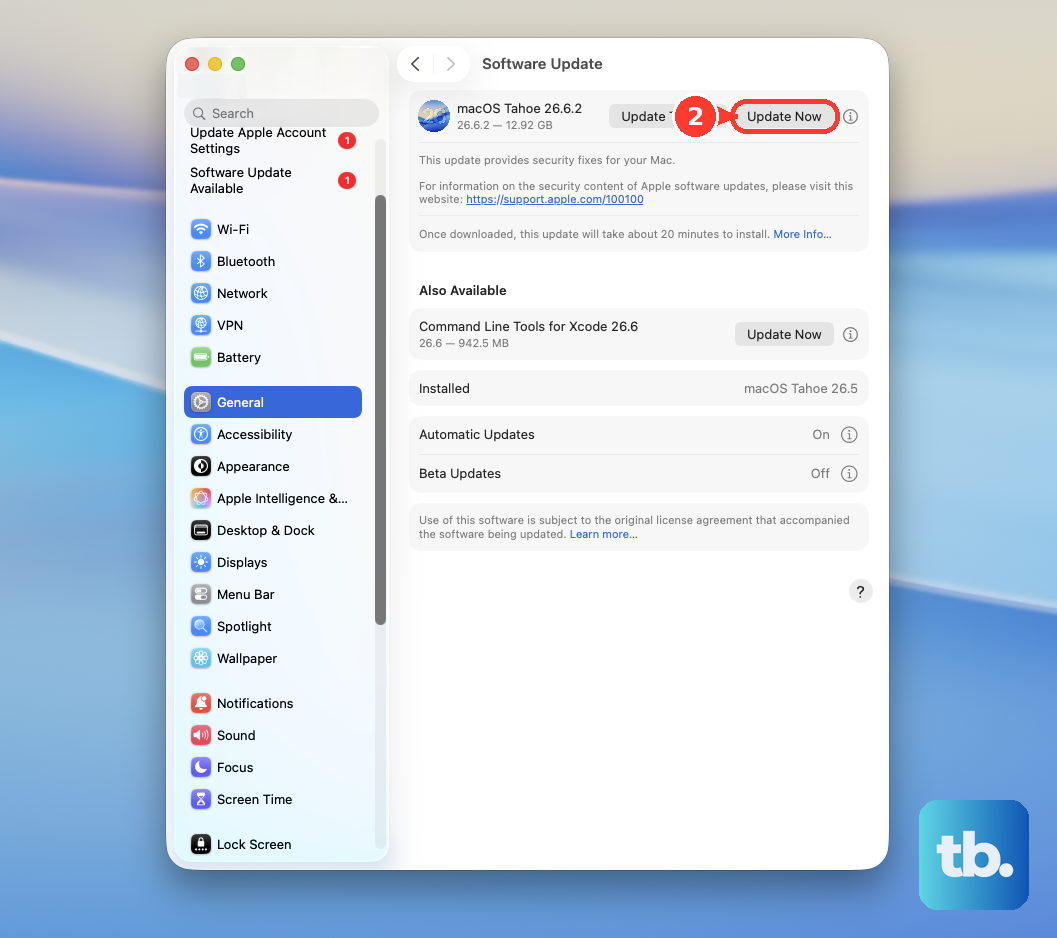
Once you can reach the desktop or safe mode, open Apple menu > System Settings > General > Software Update and install the compatible update offered. Enter the administrator password when requested. In the current interface, click Check for Updates or press Command + R to check again. You can also find Software Update through Spotlight, or through Siri AI search results on a Mac mini with M1 or later running macOS 27 or later.