

Press Num Lock to enable number entry on a Windows keyboard, then turn off Mouse keys if the keypad moves the pointer instead of typing digits. If those settings do not help, check the keyboard’s power and connection before changing drivers. The Windows Settings instructions use Windows 11 menus unless Windows 10 is named, with separate fixes for Mac, Chromebook, and ASUS touchpad number pads.
The short version
- Start with the keypad mode: Press Num Lock and test the digits again.
- Check pointer controls: Turn off Mouse Keys when number keys control the pointer.
- Restore the connection: Reconnect a USB keypad or check wireless power and connectivity.
- Leave drivers until later: Update or reinstall the keyboard driver after checking settings and connections.
| Fix | When to use it |
|---|---|
| Turn on Num Lock | The Windows keypad performs navigation functions |
| Enable NumLock on screen | The physical toggle is absent or unresponsive |
| Use the on-screen keypad | You need temporary numeric input on Windows 11 |
| Turn off Mouse keys in Windows | Digits move or click the pointer |
| Toggle active Mouse Keys with its shortcut | You know the Windows pointer-control feature is on |
| Turn off Filter keys | Windows ignores brief key presses |
| Reconnect USB | An external Windows keypad stops responding |
| Restore wireless power and receiver connectivity | A battery-powered keypad loses its connection |
| Reconnect Bluetooth | A Windows Bluetooth keypad will not connect |
| Restart Windows | A temporary Bluetooth connection problem persists |
| Run Bluetooth diagnostics | A Windows Bluetooth connection still fails |
| Turn off Mouse Keys on Mac | The numeric keypad controls the pointer |
| Turn off Slow Keys | Your Mac ignores brief presses |
| Correct the Mac input layout | Keys produce unexpected characters |
| Reconnect or substitute a Mac keyboard | An external Mac keypad remains unresponsive |
| Charge and pair Magic Keyboard | A rechargeable Apple keyboard will not connect |
| Turn off or pause Chromebook Mouse keys | Your Chromebook uses the keypad for pointer control |
| Activate ASUS NumberPad | The supported touchpad’s digits do not respond |
| Enable the ASUS touchpad | The touchpad containing NumberPad is disabled |
| Open MyASUS and unlock NumberPad | Your supported model has the relevant controls |
| Install Windows and optional driver updates | Windows settings and connection checks fail |
| Reinstall the keyboard device | Driver updates have not resolved the problem |
| Inspect individual keys | Only certain digits fail |
| Check the keypad on another computer | You need to distinguish a keyboard fault |
| Run HP keyboard diagnostics | A supported HP PC needs a hardware check |
Turn on Num Lock
On a Windows keyboard or external numeric keypad with a Num Lock key, press it once and test the number keys. Check that the indicator is lit on keyboards that have one. This key switches the keypad between numeric entry and navigation functions.
If the physical key is absent or unresponsive, use the On-Screen Keyboard to enable numeric entry. This method works on Windows 11 and Windows 10. Open Run, enter the following command, and select OK.
oskSelect Options, check Turn on numeric key pad, and select OK. Click NumLock so it is highlighted, then test the physical keypad again.
For a temporary way to enter numbers on Windows 11, press Windows + Ctrl + O to open the On-Screen Keyboard. Select Options, check Turn on numeric key pad, and select OK, then click the displayed digits. This lets you enter numbers while you troubleshoot the physical keys.
Turn off Mouse keys and input filtering
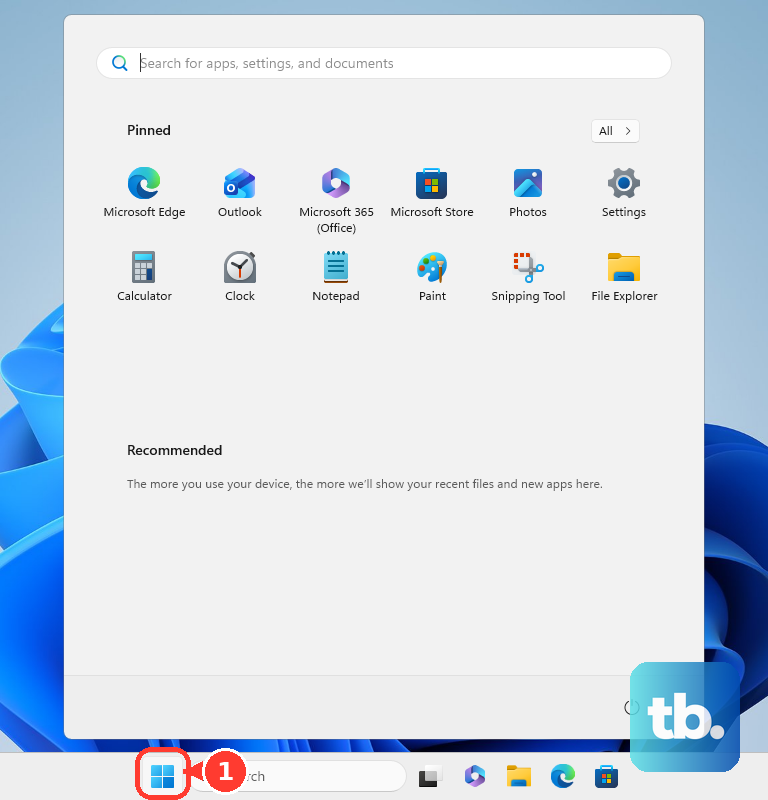
A keypad that moves or clicks the pointer may be assigned to Mouse keys. On Windows 11, open Start > Settings > Accessibility > Mouse, then turn off Mouse keys. Test numeric entry again after changing the setting.
On Windows 11 or Windows 10, you can also press Left Alt + Left Shift + Num Lock to turn off active Mouse Keys. The shortcut toggles the feature, so use your version’s Settings path when you are unsure of its current state.
When brief key presses are ignored or input feels delayed, check filtering next. On Windows 11, open Start > Settings > Accessibility > Keyboard and turn off Filter keys. This setting affects input across the keyboard, including the number pad.
On Windows 10, open Start > Settings > Ease of Access > Mouse and turn off Control your mouse with a keypad. For input filtering on Windows 10, open Start > Settings > Ease of Access > Keyboard and turn off Filter Keys.
Check power and the USB connection
For a USB keyboard or separate USB number pad connected to a Windows PC, disconnect the cable, wait briefly, and reconnect it. Try another USB port and connect directly to the computer instead of through a USB hub. Inspect the cable for damage as well.
Recharge a battery-powered keyboard or standalone keypad, or replace its batteries. If it uses a USB receiver, unplug the receiver, wait about 10 seconds, and reconnect it. After restoring power and the receiver connection, test the keypad again.
Restore a Windows Bluetooth connection
For a Bluetooth keypad that will not connect, open Start > Settings > Bluetooth & devices on Windows 11. Turn Bluetooth off, wait 10 seconds, and turn it back on. Charge the keypad, switch it off and on, put it in pairing mode, and move it closer to the computer.
Removing the device deletes its existing Bluetooth pairing. To replace a stale pairing on Windows 11, return to Settings > Bluetooth & devices, select the keypad’s More options menu, and choose Remove device. Select Add device to pair it again.
If the connection still fails on Windows 11, save your work and select Start > Power > Restart, then retest the keypad. For continued Bluetooth connection trouble, open Microsoft’s Bluetooth troubleshooting page and select Run the troubleshooter in Get Help. Complete the diagnostics for the connection problem; these address Bluetooth connectivity rather than individual keys on an otherwise connected keyboard.
Check number pad settings on a Mac
On a Mac with an external numeric keyboard, open Apple menu > System Settings > Accessibility > Pointer Control and turn off Mouse Keys. Alternatively, press Option + Command + F5 and uncheck Mouse Keys. This releases keypad keys being used for pointer control.
If brief presses are ignored, open Apple menu > System Settings > Accessibility > Keyboard. Turn off Slow Keys, then test short key presses again.
For unexpected characters, open Apple menu > System Settings > Keyboard > Text Input > Edit. Turn on Show Input menu in menu bar, then open the Input menu and select the correct keyboard layout.
If an external keyboard still does not respond, reconnect it securely and try another port or another Mac. Connect a different keyboard to the original Mac as well. These comparisons help distinguish a keyboard fault from a computer fault.
For a rechargeable Magic Keyboard, switch it off and back on using its rear-edge switch. Open Apple menu > System Settings > Bluetooth and turn on Bluetooth. Connect the keyboard with its compatible USB-C or Lightning cable, wait one minute, then disconnect the cable; this charges and pairs it.
Release the keypad on a Chromebook
On a Chromebook with Mouse keys, select the time, then open Settings > Accessibility > Cursor and touchpad. Turn off Mouse keys and test the keypad again.
You can also press Launcher + Alt + 4 to pause active Mouse keys. Turning off Use primary keys alone does not release the numeric keypad, so turn off Mouse keys or use its pause shortcut.
Activate an ASUS touchpad NumberPad
On an ASUS laptop equipped with the illuminated touchpad NumberPad, remove the transparent number-key sticker if it is still attached. Touch the NumberPad icon at the touchpad’s upper-right corner for one second. Once the digits illuminate, tap a digit gently without sliding your finger.
The touchpad itself must also be enabled. On an ASUS Windows 11 laptop with NumberPad integrated into the touchpad, search Windows for Touchpad settings, open it, and set Touchpad to On. If you use a mouse, select Leave touchpad on when a mouse is connected.
On supported models with the relevant controls, open MyASUS and select Device Settings > Input Device Settings. Set Touchpad to Unlock, then set NumberPad Lock to Unlock. ASUS excludes gaming laptops from NumberPad Lock support; if that control is absent, use the touchpad and activation checks for your NumberPad-equipped model.
Update or reinstall the Windows keyboard driver
After the settings and connection checks, you can update or reinstall keyboard drivers. On Windows 11, open Start > Settings > Windows Update and select Check for updates. Install applicable updates before testing again.
For optional drivers on Windows 11, open Settings > Windows Update > Advanced options > Optional updates. Under Driver updates, select and install the applicable device update, then restart when required. Optional drivers appear only when an update is available for your device; otherwise, continue to the reinstall procedure.
The following procedure uninstalls the keyboard device. Save your work before continuing. On Windows 11 or Windows 10, right-click Start, select Device Manager, and expand Keyboards.
Right-click the affected keyboard and select Uninstall device, then select Uninstall. Restart Windows so it can attempt to reinstall the driver, then test the keypad. If the same failure remains, move on to the hardware checks.
Check for individual key or hardware failure
When only particular digits fail, inspect those keys for dirt obstructing their movement. Remove obstructions following the keyboard manufacturer’s cleaning instructions.
Connect an external keyboard or keypad to another computer with any required driver installed. If it also fails there, hardware service or replacement may be necessary.
On a supported HP PC, search Windows for HP PC Hardware Diagnostics for Windows, right-click it, and select Run as administrator. If you need the application, get it from HP’s PC Hardware Diagnostics download page. Open the Input Devices tests, select the keyboard test, and select Run once. Complete the test and retain any Failure ID for support.
Frequently Asked Questions
How do you enable the small number pad built into a Lenovo laptop keyboard?
On Lenovo ideapad and ideacentre keyboards with an embedded keypad, locate the key marked NmLk or NumLock. Check your model manual for the correct combination; Lenovo lists Fn with F8, F7, or Insert, depending on the keyboard. Not every compact laptop has an embedded keypad.
Can PowerToys make number pad keys perform different actions?
Yes, PowerToys Keyboard Manager can apply global or application-targeted remappings. Close PowerToys completely or disable Keyboard Manager in its settings, then retest the keypad. Its remappings stop applying when PowerToys is not running.
Should you reset a Keychron keyboard when its number pad stops working?
A reset restores keyboard settings and loses custom assignments, so use it only when losing those assignments is acceptable. Check the model manual to confirm that the procedure applies to your keyboard, especially for a separate number pad. On a supported model, turn on the keyboard and hold Fn + J + Z for four seconds; rapid red backlight flashes indicate the reset.
Can a BIOS setting make Num Lock turn on at startup?
On the Dell 16 Plus 2-in-1 DB06250, open Keyboard > Numlock Enable in BIOS Setup. Turn on Enable Numlock and save using that model’s BIOS controls. This controls the startup state; it does not repair failed keys or override all later operating-system behavior.