A keyboard stops typing when the connection drops, a wireless receiver loses its link, a battery runs low, or a keyboard setting changes how keypresses work. Start with the checks that restore typing fastest, then move through accessibility settings, drivers, Bluetooth, and device-specific fixes. These steps cover Windows 11, Mac, iPhone, iPad, Android, Chromebook, and Chrome.
Check The Keyboard Connection First
The most common cause is a keyboard that is not making a clean connection to the device.
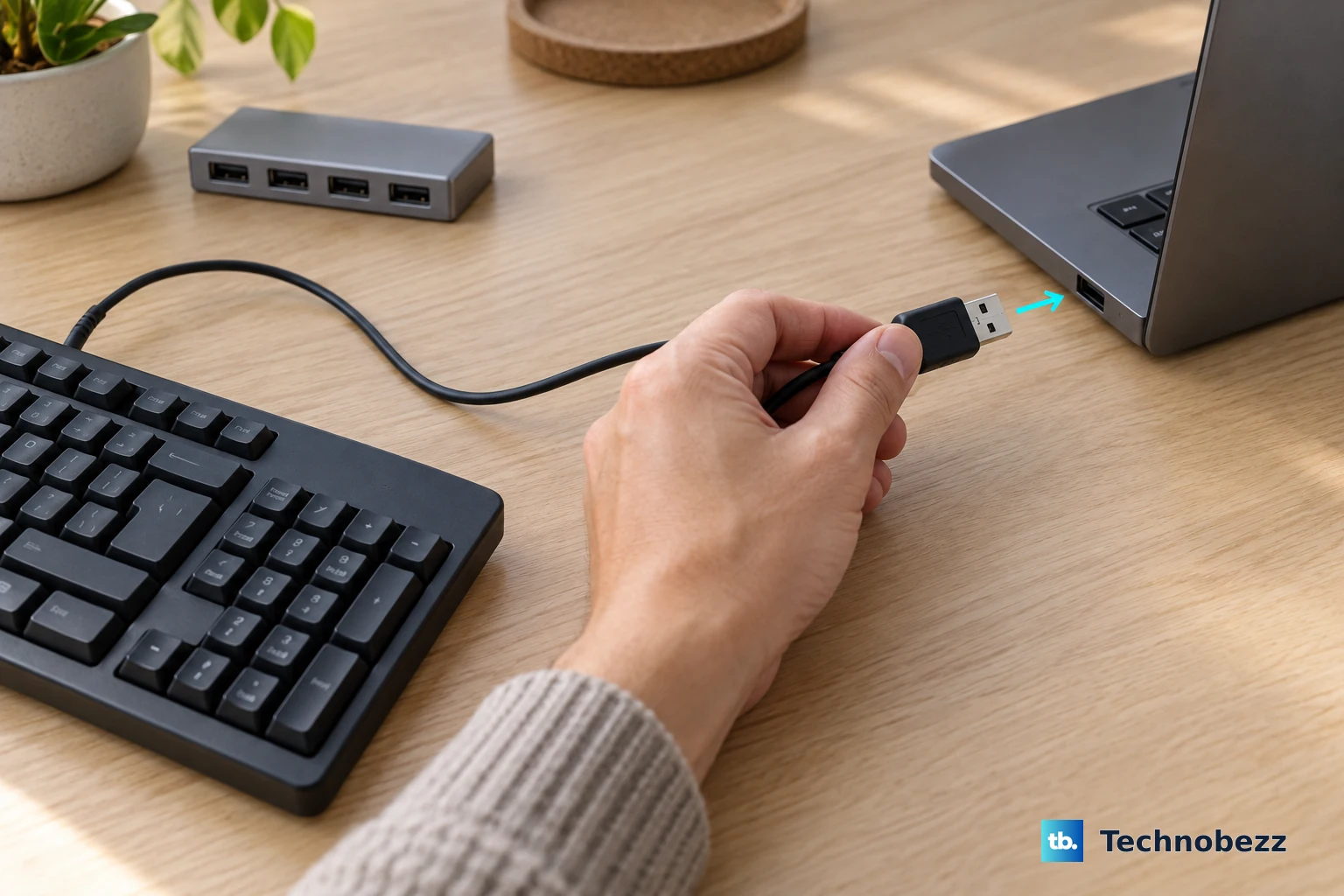
For a wired Windows keyboard, unplug the USB cable, wait for the device driver to unload, then plug it back in.
Try a different USB port.
If the keyboard uses a USB hub, confirm the hub has power.
When the keyboard still will not type through the hub, remove the hub and plug the keyboard directly into the computer.
Check the cable and connector for damage.
On a Mac, disconnect and reconnect the external keyboard, make sure the connector is fully inserted, then test another port or a different Mac.
For a USB wireless keyboard on Windows, unplug the USB wireless receiver, wait about 10 seconds, then plug it back in.
Look on the bottom of the wireless keyboard for a physical Reset button and press it when your model includes one.
Turn Off Settings That Block Normal Typing
Use this pass when keys are ignored, delayed, or controlling the pointer instead of entering text.
- 1.On Windows 11, open Start > Settings > Accessibility > Keyboard, then turn Filter keys off.
- 2.In the same Windows menu, review Sticky keys and Toggle keys when keyboard behavior feels wrong.
- 3.On a Mac, open Apple menu > System Settings > Accessibility > Keyboard, then turn Slow Keys off.
- 4.If Mac number keys move the pointer, open Apple menu > System Settings > Accessibility > Pointer Control, then turn Mouse Keys off.
- 5.On a Mac, hold Caps Lock until its indicator light comes on, and hold Media Eject until the onscreen icon appears.
Use An Onscreen Keyboard To Keep Working
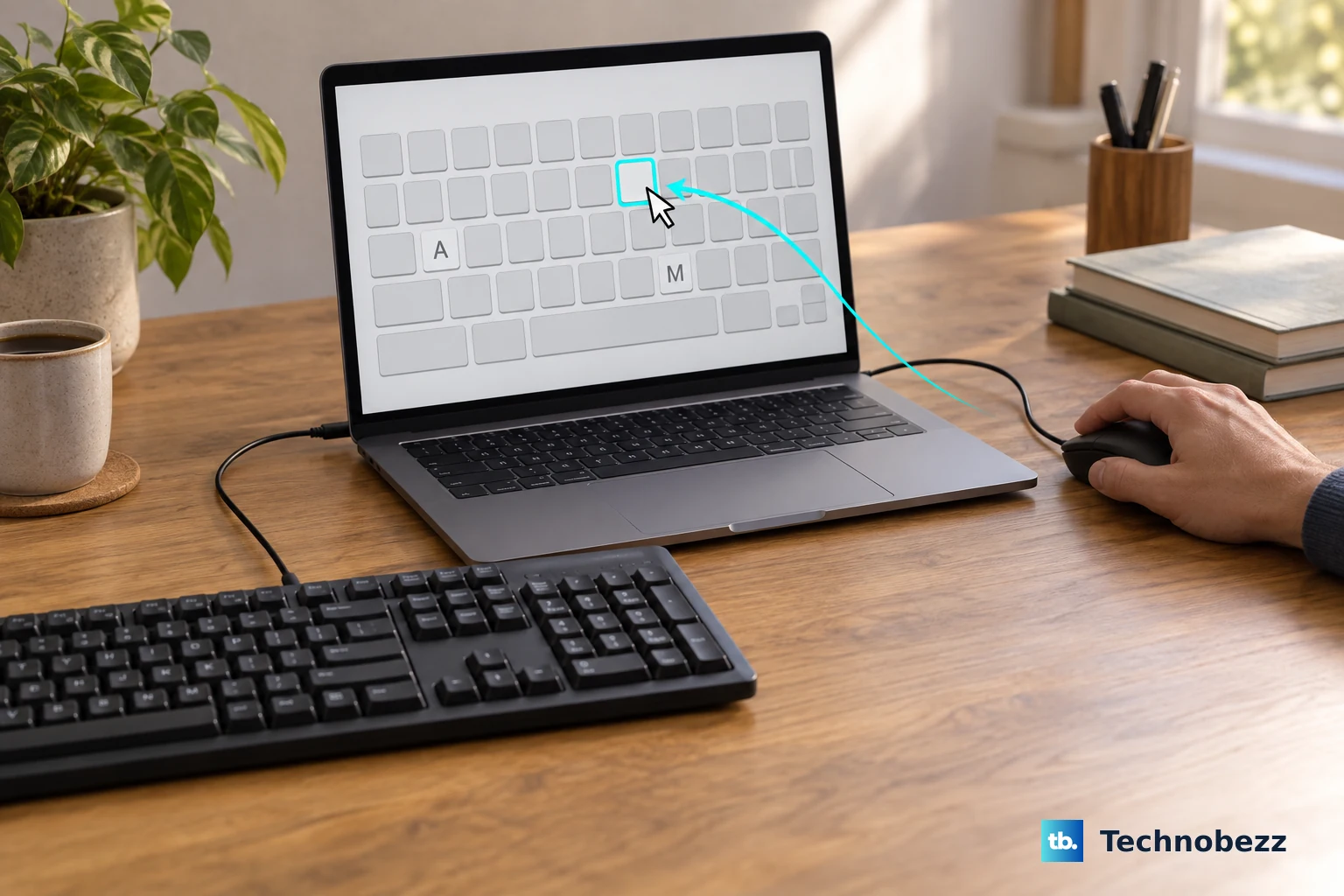
When the physical keyboard will not type, use the device's built-in typing tool long enough to sign in, search settings, or finish a message.
On Windows 11, open Start > Settings > Accessibility > Keyboard, then turn on On-Screen Keyboard. You can also press Windows logo key + Ctrl + O, or choose Accessibility > On-Screen Keyboard from the sign-in screen.
On a Windows touch-screen PC or tablet, tap inside a text box or select the Touch keyboard icon in the taskbar system tray area. If the icon is missing, enable it from the Windows touch keyboard settings.
On a Mac, open the Input menu in the menu bar and choose Show Keyboard Viewer. If the menu is missing, go to Apple menu > System Settings > Keyboard > Text Input > Edit, then turn on Show Input menu in menu bar.
If this method gets you typing but the real keyboard still fails, update drivers on Windows, reconnect Bluetooth keyboards, or jump to the section for your device.
Update Or Reinstall Windows Keyboard Drivers
This method applies when a Windows keyboard is detected inconsistently, stopped after an update, or still will not type after the connection and accessibility checks.
Open Start > Settings > Windows Update > Advanced options. Under Additional options, choose Optional updates, select any listed driver updates, then choose Download and install.
Restart from Start > Shut down or sign out > Restart.
If the keyboard still fails, right-click Start, open Device Manager, expand Keyboards, right-click the keyboard device, choose Update driver, then select Search automatically for updated driver software.
When Windows does not find a driver, choose Search for updated drivers on Windows update.
When the driver is corrupted, save your work, close apps, return to Device Manager, right-click the keyboard device, choose Uninstall device, then select Uninstall.
Restart the PC so Windows attempts to reinstall the driver.
If the keyboard stopped typing right after a driver update, open the device's Properties, choose the Driver tab, select Roll Back Driver, choose a reason, then confirm with Yes.
Reconnect Bluetooth Keyboards And Receivers
Use these steps when a wireless keyboard powers on but does not type, drops from Bluetooth, or depends on a USB receiver.
- 1.For an Apple Magic Keyboard, slide the switch on the back edge off so no green is visible, then slide it back on so green is visible.
- 2.Connect a rechargeable Apple Magic Keyboard to the Mac with a Lightning to USB Cable, USB-C to Lightning Cable, or USB-C to USB-C Cable, wait 1 minute, then disconnect it.
- 3.On a Mac, open Control Center in the menu bar, then open Bluetooth to check the keyboard charge level.
- 4.On Windows 11, open Start > Settings > Bluetooth & devices > Devices, select More options next to the keyboard, choose Remove device > Yes, then pair it again.
- 5.If a Windows Bluetooth keyboard still will not type, open Device Manager > Bluetooth, right-click the Bluetooth adapter, choose Update driver, then select Search automatically for drivers.
Fix Mac And MacBook Keyboard Trouble
This method applies to a MacBook built-in keyboard, an Apple wireless keyboard, or an external keyboard connected to a Mac. Work through power, Bluetooth, layout, and key cleaning in that order.
For a MacBook built-in keyboard that does not respond, connect the Mac to an electrical outlet.
Connect an external keyboard to check for any low-battery alert.
Using the built-in trackpad or a USB mouse, choose Apple menu > System Settings, click Bluetooth, then turn Bluetooth on.
If you cannot use a mouse and the keyboard is connected, press Command + Space bar, type Bluetooth File Exchange, press Return or Enter, then press Return or Enter again to turn Bluetooth on.
When a Mac keyboard types the wrong characters, open Apple menu > System Settings > Keyboard. Under Text Input, click Edit, turn on Show Input menu in menu bar, then use the Input menu to select the correct keyboard layout.
For one unresponsive key on a MacBook (2015 and later) or MacBook Pro (2016 and later), hold the Mac notebook at a 75-degree angle and spray the affected keys left to right with compressed air. On other Mac notebook models, use Apple service guidance instead.
Rotate the notebook to its right side and spray left to right again.
Rotate the notebook to its left side and repeat the same spray pattern.
Repair Phone And Tablet Keyboards
Restart the device.
On iPhone X, iPhone 11, iPhone 12, iPhone 13, or later, hold either volume button and the side button until the power-off slider appears, drag the slider, wait 30 seconds, then hold the side button until the Apple logo appears.
On iPhone 6, iPhone 7, iPhone 8, or iPhone SE 2nd or 3rd generation, hold the side button until the slider appears, drag it, wait 30 seconds, then hold the side button until the Apple logo appears.
Check the active iPhone keyboard.
Go to Settings > General > Keyboard > Keyboards to add, remove, reorder, or change a keyboard layout.
While typing, touch and hold the Emoji button or Switch Keyboard key, then tap the keyboard you want.
Reset the iPhone keyboard dictionary when custom words or shortcuts create bad substitutions.
Open Settings > General > Transfer or Reset iPhone > Reset > Reset Keyboard Dictionary.
For an iPad Magic Keyboard, Smart Keyboard, or Smart Keyboard Folio, disconnect the keyboard from the iPad.
Clean the Smart Connector on the keyboard and on the back or edge of the iPad with a soft, lint-free cloth.
Remove any other iPad case or cover.
Reconnect the keyboard and restart the iPad if it does not respond right away.
On Android with Gboard, restart the device first.
Update Gboard from Google Play.
If Gboard still freezes, lags, or misses taps, open Settings > Apps > Gboard > Force stop, then reopen the keyboard.
To reset Gboard more deeply, open Storage and cache, choose Clear cache, then use Clear data or Clear storage when the problem continues.
For an Android Bluetooth keyboard, put the keyboard in pairing mode.
Open Settings > Connected devices > Pair new device, then tap the keyboard under Available devices.
Keep dictation ready when the keyboard is unreliable.
Get A Chromebook Typing Again
The most common Chromebook cause is a ChromeOS session or hardware state that needs a restart, Guest test, or hard reset.
Turn off the Chromebook and turn it back on.
Use the keys while browsing as a guest.
If the keyboard works in Guest mode, delete the account that has the problem on the Chromebook and add it again.
Diagnostics needs ChromeOS 90 or later. Open Settings, enter diagnostics in the search bar, choose Diagnostics > Input > The internal keyboard, select Test, then follow the onscreen instructions.
Stay in the same window while testing keys.
If the problem continues, turn off the Chromebook, then on most Chromebooks press and hold Refresh and tap Power.
When the Chromebook starts up, release Refresh. On a ChromeOS tablet, hold Volume Up and Power for at least 10 seconds instead, and use Google's hard reset steps for older models that need a battery pull or a reset button. Google warns that a hard reset can delete some files in Downloads.
After a restart, Guest test, and hard reset, factory reset the Chromebook only if the owner account still has keyboard problems.
Fix Chrome Or Work Device Typing Failures
This fixes cases where the keyboard works elsewhere, but Chrome or a managed Windows device will not accept normal typing.
In Chrome, close every tab except the one showing the error.
Quit other apps or programs.
Pause downloads.
Open Chrome > More > Extensions > Manage extensions.
Turn extensions off, use Repair for a corrupted extension, or choose Remove > Remove to uninstall an extension.
If typing fails only in Chrome after that, open Chrome > More > Settings > Reset settings > Restore settings to their original defaults > Reset settings.
On a work or school Windows device, contact your administrator and say the keyboard may need to be allowed by device class or device ID.
Use the Windows 11 Accessibility keyboard settings path for current Windows instructions instead of old Windows 10 Ease of Access steps.
Frequently Asked Questions
Why is my keyboard connected but not typing?
Start with the connection path: reseat the USB cable, bypass an unpowered hub, reconnect the USB receiver, or re-pair Bluetooth. If the connection is solid, turn off keyboard accessibility settings that change how keypresses work.
How can I type if my keyboard is completely dead?
Use Windows On-Screen Keyboard, Mac Keyboard Viewer, the Windows touch keyboard, iPhone Dictation, Android voice typing, or another temporary input method while you fix the physical keyboard.
Should I reinstall my keyboard driver?
Reinstall the Windows keyboard driver after connection checks, accessibility settings, optional Windows Update driver updates, and Device Manager driver updates fail. Restart after uninstalling so Windows attempts to reinstall it.
What should I do if only one MacBook key does not work?
On a MacBook (2015 and later) or MacBook Pro (2016 and later), clean the affected key with compressed air. Hold the Mac notebook at a 75-degree angle, spray left to right, rotate to the right side and repeat, then rotate to the left side and repeat again.