Keyboard delay makes every sentence feel like your device is catching up after the fact. Start with the settings that intentionally slow keystrokes, then move through repeat speed, wireless connections, drivers, and keyboard apps until typing feels immediate again.
Turn Off Slow or Filtered Keystrokes First
Use this fix when letters appear only after you hold a key down, repeated keys are ignored, or typing suddenly feels slowed on purpose. Windows, macOS, iPhone, and Chromebook all include accessibility options that can delay keystrokes.
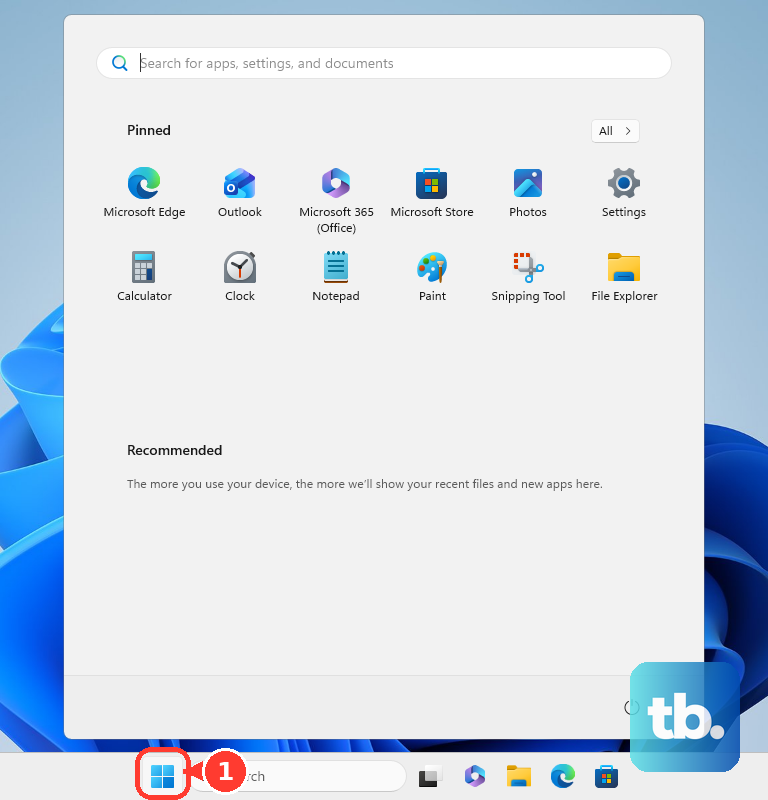
On Windows 11, open Start, go to Settings, choose Accessibility, open Keyboard, and turn Filter keys off.
You can also press and hold Right Shift for eight seconds to turn Filter Keys on or off.
On a Mac, open the Apple menu, choose System Settings, select Accessibility, open Keyboard, and turn Slow Keys off.
On iPhone with an external keyboard, open Settings, go to Accessibility, choose Keyboards & Typing, and adjust Slow Keys or Key Repeat.
On Chromebook, select the time at the bottom right, open Settings, choose Accessibility, then Keyboard and text input, and adjust Slow keys or Bounce keys.
Speed Up Held Key Repeats
Change this when a key works, but holding it down waits too long before it starts repeating.
On Windows 11 version 26H1 with the February 24, 2026 update (build 28000.1643) or later, open Settings.
Choose Accessibility.
Open Keyboard.
Adjust character repeat delay and repeat rate so held keys start repeating sooner and repeat faster.
On Windows 11 version 24H2 and 25H2, open Control Panel, choose Keyboard, and set Repeat delay shorter and Repeat rate faster.
On a Mac, open the Apple menu, choose System Settings, then open Keyboard.
Drag Delay until repeat and Key repeat rate until held keys feel responsive.
Windows 11 version 26H1 moved character repeat delay and rate out of Control Panel and into Settings under Accessibility, so use the route that matches your version. Microsoft does not offer 26H1 as an update to existing PCs, so version 24H2 and 25H2 machines still keep these sliders in Control Panel. Check Settings, System, About if you are unsure which version you have.
Test the change in a plain text field before adjusting it again.
Reconnect USB and Wireless Keyboards
The most common hardware cause is a weak USB or wireless connection between the keyboard, receiver, and computer.
For a wired USB keyboard, unplug the cable, wait briefly, and plug it back in.
Try a different USB port if the delay stays.
Plug the keyboard directly into the computer instead of using a USB hub.
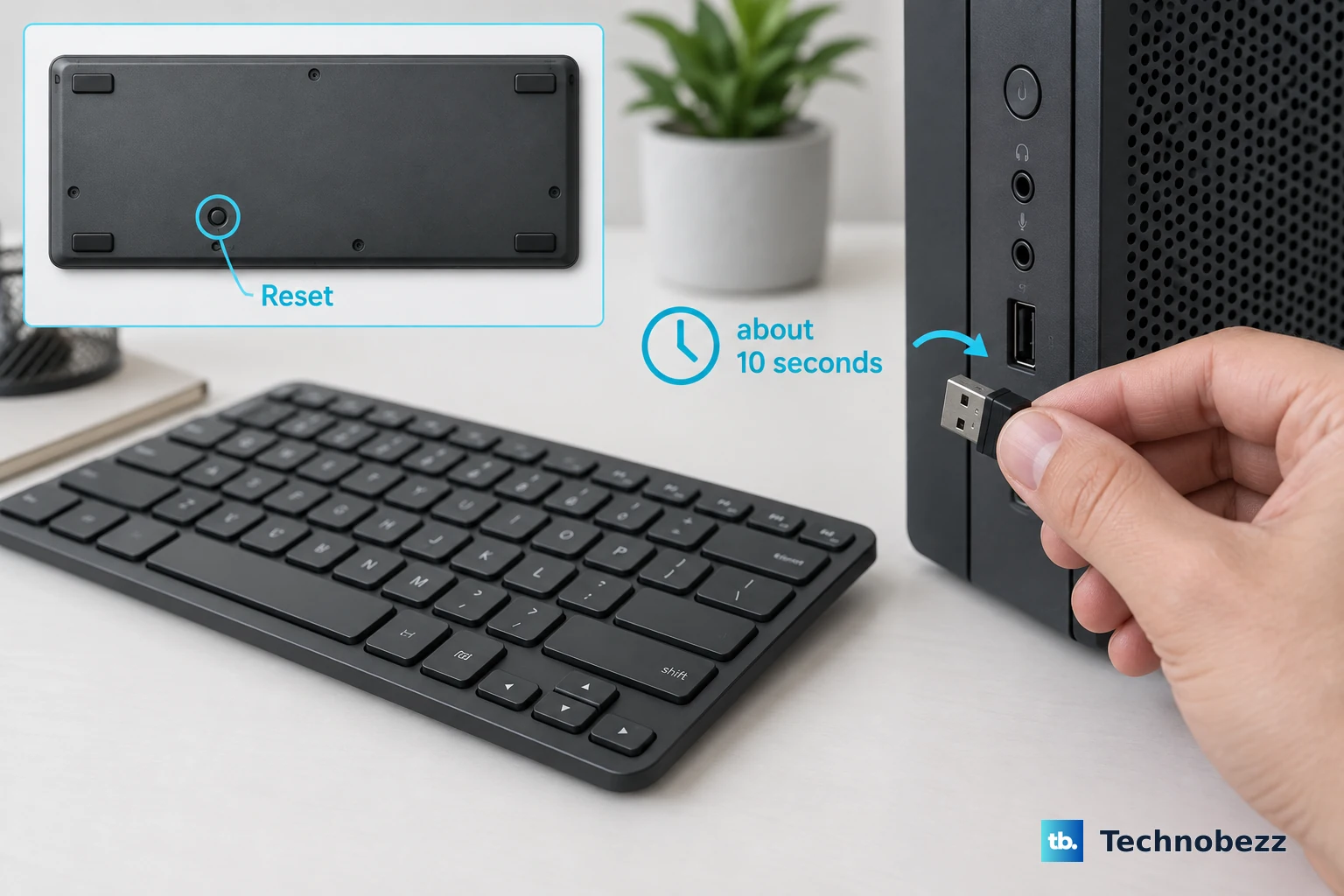
For a wireless USB keyboard or receiver, unplug the receiver, wait about 10 seconds, and plug it back into the USB port.
Look on the bottom of the wireless keyboard for a Reset button and use it when your model has one.
For Logitech wireless keyboards, plug the receiver directly into the computer, move the keyboard closer to the receiver, move the receiver to a front USB port when the computer case blocks signal, and keep other wireless electrical devices away.
For Logitech wired keyboards, use a different USB port and avoid hubs.
Update Windows Keyboard and Bluetooth Drivers
Windows driver issues can show up as delayed input, especially after hardware changes or when a Bluetooth keyboard is involved.
Right-click Start, open Device Manager, expand the keyboard or device category, right-click the keyboard, choose Update driver, then select Search automatically for updated driver software.
Follow the Windows Update route if Windows offers it.
For Bluetooth keyboard latency, open Device Manager, expand Bluetooth, right-click the Bluetooth adapter, choose Update driver, select Search automatically for drivers, and restart the PC.
If Bluetooth lag began after a driver change, open the adapter's Properties, choose Driver, and use Roll Back Driver.
If the adapter still misbehaves, use Uninstall device, restart Windows, or install the latest Bluetooth driver from your PC maker's support site.
If driver updates do not fix the delay, repeat the connection checks and test the keyboard through a direct USB connection or a different receiver path.
Check Mac and Apple Keyboard Settings
For an Apple Magic Keyboard, slide the switch on the back edge off until no green is visible, then slide it on again so green is visible. For an older Apple Wireless Keyboard, hold the power button until the green LED turns off, then press it again until the green LED turns on.
Make sure Bluetooth is on by opening the Apple menu, choosing System Settings or System Preferences, then opening Bluetooth. If you have no mouse and the keyboard still works enough to use shortcuts, press Command-Space bar, type Bluetooth File Exchange, press Return or Enter, then press Return or Enter again to turn Bluetooth on.
Rechargeable Apple Magic Keyboard models can be used while charging. Connect a USB-C or Lightning cable to the keyboard charging port, then connect the other end to the Mac or a power adapter.
On an Apple silicon Mac running macOS Sonoma 14 or later, Game Mode doubles the Bluetooth sampling rate and cuts input latency for wireless accessories. Open a game that uses the full-screen mode built into macOS and Game Mode turns on by itself.
On macOS Tahoe 26, press Command-Esc or click the Game icon in the menu bar to open Game Overlay, click Settings, then click Game Mode. On macOS Sonoma 14 and Sequoia 15, use the Game menu in the menu bar instead.
Clean Up Phone Keyboard Lag
Use this section when the delay is on a phone or tablet keyboard rather than a physical computer keyboard. The right move depends on whether you use iPhone, Gboard, Samsung Keyboard, or SwiftKey.
On iPhone, open Settings, go to General, choose Keyboard, and turn Predictive or Predictive Text off if suggestions feel slow or intrusive.
On iOS 18 and later, inline predictive text can also be turned off or on.
If feedback makes typing feel sluggish on iPhone, open Settings, choose Sounds & Haptics, open Keyboard Feedback, and turn Sound or Haptic off.
For Gboard on Android, open Settings, choose Apps or Apps and notifications, open Gboard, choose Storage and cache, then tap Clear cache.
If lag stays in Gboard, use Clear data or Clear storage.
Inside Gboard, tap the keyboard's Settings, open Advanced, and turn off personalisation.
Under Text correction, turn off Smart Compose or Auto-capitalisation if those changes feel delayed or wrong.
Keep only one or two active Gboard languages for smoother typing.
On Samsung Galaxy phones and tablets, open Settings, choose General management, open Keyboard list and default, select Default keyboard, and choose Samsung Keyboard.
To clear Samsung Keyboard problems, open Settings, choose Apps, tap the sort icon, turn on Show system apps, and tap OK so the preinstalled keyboard appears in the list.
Select Samsung Keyboard, tap Force stop, tap OK when prompted, then open Storage and try Clear cache first.
When cache clearing is not enough, Samsung's reset path is Clear data followed by Delete, which erases your keyboard settings and saved words.
For Microsoft SwiftKey, install the current update, close memory-heavy apps, stop performance-optimizing apps that restrict SwiftKey, reduce multiple languages with Flow, or turn Flow off.
If SwiftKey performance problems persist, enable Microsoft SwiftKey Account Backup & Sync for learned words, then clear cache and data, uninstall SwiftKey, and reinstall it from Google Play or the App Store.
Reconnect iPad and Chromebook Keyboards
This fixes lag caused by keyboard connection settings or a dirty iPad Smart Connector.
Disconnect the iPad keyboard or keyboard folio from the iPad.
Clean the Smart Connector on the keyboard and iPad with a soft, lint-free cloth.
Remove other cases or covers.
Reconnect the keyboard.
Restart the iPad if the keyboard does not respond right away.
On Chromebook, press Alt + Shift + s, open Settings, choose Accessibility, then Keyboard and text input, and adjust Slow keys or Bounce keys.
Use Voice Typing While You Troubleshoot
Voice input will not repair a lagging keyboard, but it can keep you working while you fix it.
- 1.On Windows, place the cursor in a text box, press Windows + H, and wait for the Listening alert before speaking.
- 2.On Windows 11 version 22H2 and later, use voice access for voice-driven text entry instead of older Windows Speech Recognition.
- 3.On iPhone, open Settings, choose General, open Keyboard, turn on Enable Dictation, then tap the Dictate key on the onscreen keyboard.
- 4.On Mac, place the insertion point in an app, press the Microphone key, use the Dictation shortcut, or choose Edit and Start Dictation.
- 5.On Chromebook, open Settings, choose Accessibility, turn on Dictation under Keyboard and text input, then use Search + d or Launcher + d.
- 6.In Gboard, tap a text field, open the keyboard's Settings, choose Voice typing, turn on voice typing, and enable Faster voice typing when your phone supports it.
Check Policies on Work Devices
Company, school, kiosk, or managed PCs can have policies that affect accessibility shortcuts and settings access.
Ask your IT admin whether keyboard accessibility shortcuts or Ease of Access settings are managed.
On some Windows devices, administrators can block accessibility shortcut combinations or block access to Ease of Access settings.
Use the personal-device fixes above only when your account can change the setting.
A screenshot or the exact wording of the blocked setting will help IT identify the policy faster.
Frequently Asked Questions
Why is my keyboard typing late after I press a key?
The usual causes are Filter Keys or Slow Keys, a long repeat delay, a weak USB or wireless connection, Bluetooth driver trouble, or a lagging phone keyboard app.
What replaced Windows Speech Recognition on newer Windows 11 PCs?
Voice access replaced Windows Speech Recognition for Windows 11 version 22H2 and later. Use voice access or Windows voice typing instead.
Can I use an Apple Magic Keyboard while it charges?
Yes. Rechargeable Magic Keyboard models can be used while charging with a USB-C or Lightning cable connected to a Mac or power adapter.
Should I clear keyboard cache or data on Android?
Start with Clear cache for Gboard, Samsung Keyboard, or SwiftKey. Use Clear data or Clear storage only if the delay continues, because it can remove local keyboard data or preferences.