When a keyboard types the wrong letters, ignores normal key presses, or starts serving up strange autocorrect suggestions, the fix is usually a reset in the right place. Start with the setting that matches the symptom, then move to pairing, app data, or hardware resets only when needed.
Here are the current reset paths for Windows 11, macOS, iPhone, iPad, Android, Chromebook, and popular keyboard brands.
1. Choose the Reset That Fits the Keyboard Problem
Use the smallest reset that targets what changed. Wrong symbols or language means the keyboard layout or input method changed.
Keys sticking, repeating, or ignoring presses points to accessibility settings such as Sticky Keys, Filter Keys, Slow Keys, Mouse Keys, or Toggle Keys. Bluetooth keyboard not responding calls for removing the device and pairing it again.
Autocorrect or predictions feel wrong needs a keyboard dictionary, learned words, or keyboard app data reset. Gaming keyboard lighting, macros, or profiles are scrambled needs the maker's reset shortcut or companion app.
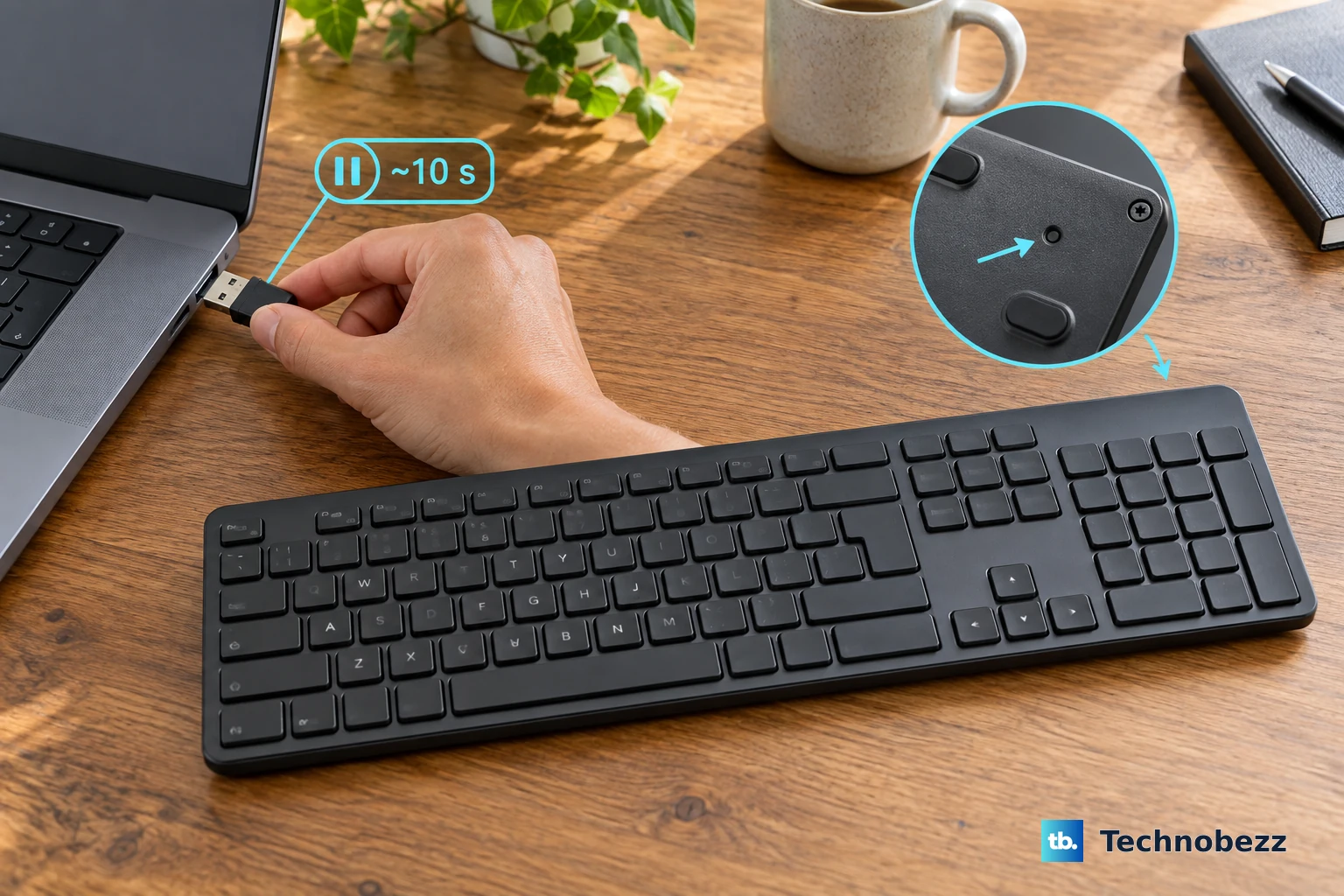
2. Restore a Windows Keyboard Layout
Open Settings. Go to Time & language, then Language & region. Select the ... button next to your language, then choose Language options.
Under Keyboards, select Add a keyboard. Add the layout you want. To remove the wrong layout, go back to Keyboards, select the ... button next to that keyboard, then choose Remove.
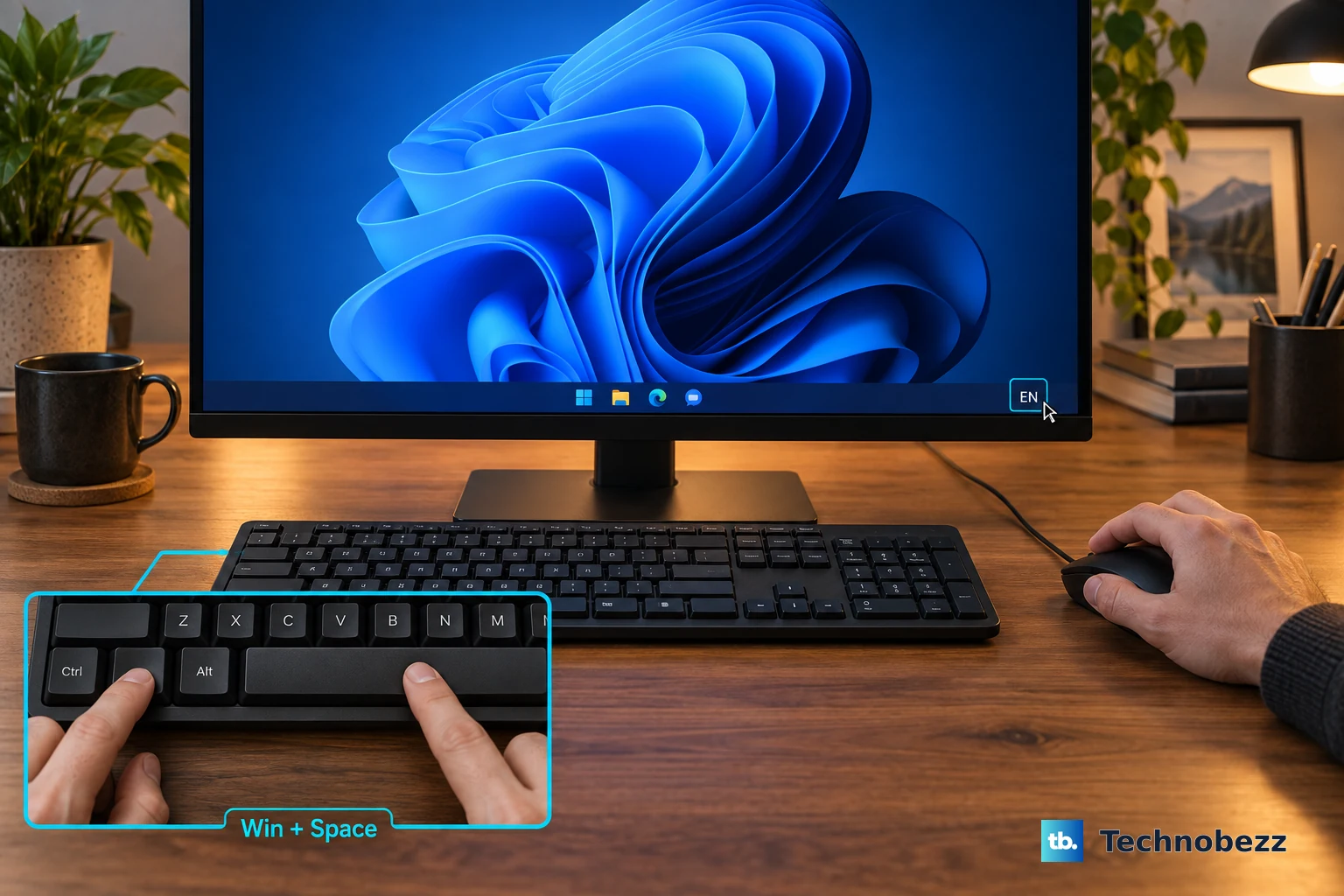
Use this reset when Windows 11 types the wrong letters, symbols, or language. To switch layouts without opening Settings, select the input language icon in the system tray, or hold Windows + Spacebar.
If keys repeat, stick, or trigger unexpected shortcuts, open Settings > Accessibility > Keyboard. Check Sticky Keys, Toggle Keys, Filter Keys, Underline access keys, and the Print Screen toggle, which Microsoft labels Use the Print screen key to open screen capture on one support page and Use the Print Screen button to open screen snipping on another, so look for either.
On Windows 10 that toggle sits under Settings > Ease of Access > Keyboard as Print Screen shortcut. Press Shift five times to toggle Sticky Keys. Hold Right Shift for eight seconds to toggle Filter Keys. Hold Num Lock for five seconds to toggle Toggle Keys.
3. Reconnect Windows Drivers and Bluetooth
If the layout is correct and the keyboard still misbehaves, update the keyboard driver first. Select the taskbar search box, type Device Manager, then open Device Manager.
Find the keyboard device and double-click its name. Open the Driver tab, choose Update Driver, and follow the on-screen instructions.
Then run Windows Update by searching for check for updates. Open it, then select Check for updates.
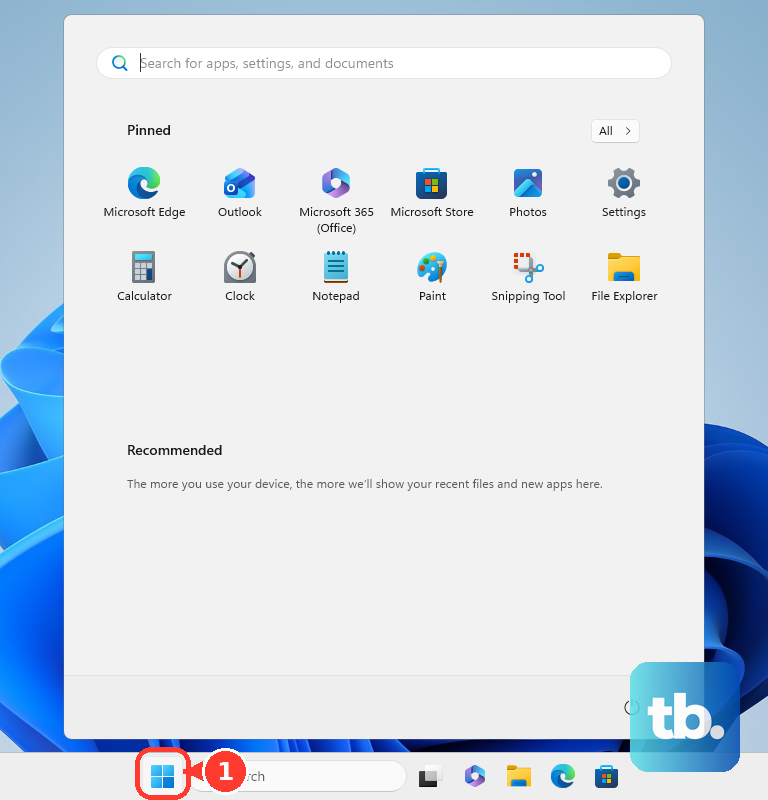
For a Bluetooth keyboard, remove it and pair it again. Open Start > Settings > Bluetooth & devices > Devices. Select More options for the keyboard, choose Remove device, then select Yes. Pair the keyboard again.
When Bluetooth itself is broken, reset the Bluetooth driver. Open Device Manager, select Bluetooth, then right-click the Bluetooth adapter name (it may include the word radio), then choose Uninstall device > Uninstall.
Select Start > Power > Shut down. Wait a few seconds, then turn the PC back on. Windows tries to reinstall the driver on its own.
If it does not, reopen Device Manager. Select Action > Scan for hardware changes.
4. Put Mac Keyboard Settings Back
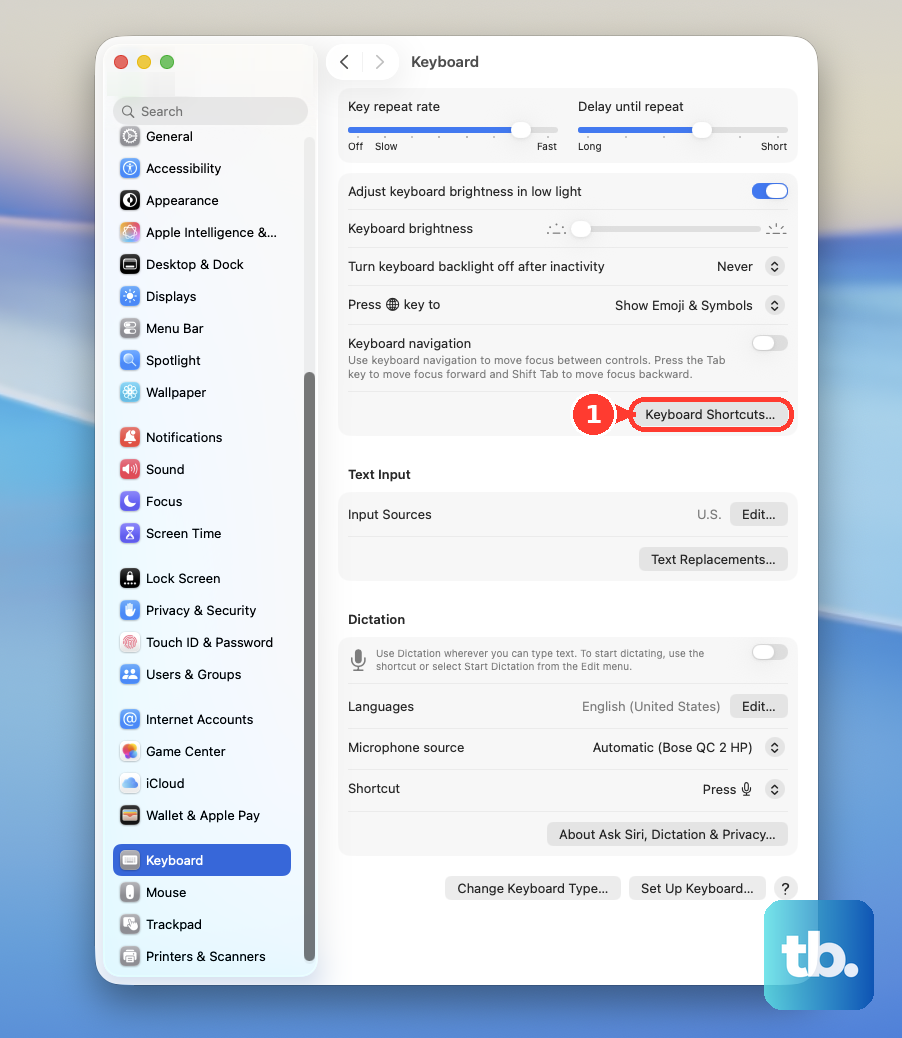
For shortcut problems, go to Apple menu > System Settings > Keyboard > Keyboard Shortcuts > Restore Defaults. If Command, Option, Control, Caps Lock, or Globe acts reassigned, open Apple menu > System Settings > Keyboard > Keyboard Shortcuts > Modifier Keys > Restore Defaults.
For Slow Keys, go to Apple menu > System Settings > Accessibility > Keyboard, then turn off Slow Keys. For Mouse Keys, go to Apple menu > System Settings > Accessibility > Pointer Control, then turn off Mouse Keys.
For a wrong keyboard layout, open Apple menu > System Settings > Keyboard > Text Input > Edit. Turn on Show Input menu in menu bar, then open the Input menu. Select the correct layout.
Skip NVRAM or PRAM as a normal keyboard reset. Apple's current NVRAM reset guidance is for Intel-based Macs only, so it belongs to older Mac system troubleshooting, not everyday keyboard cleanup.
5. Re-Pair a Mac or iPad Keyboard
Magic Keyboard trouble starts with power and pairing.
- 1.Slide the Magic Keyboard switch off until no green is visible.
- 2.Slide it back on until green appears.
- 3.Connect the keyboard to the Mac with a Lightning to USB, USB-C to Lightning, or USB-C to USB-C cable.
- 4.Wait 1 minute.
- 5.Disconnect the cable.
To forget and reconnect a Mac Bluetooth keyboard, open Apple menu > System Settings > Bluetooth. Control-click the keyboard name, choose Forget, then pair it again.
For an iPhone or iPad Bluetooth keyboard, open Settings > Bluetooth. Tap the More Info button next to the keyboard, choose Forget this Device, then pair it again from Settings > Bluetooth.
For Magic Keyboard, Magic Keyboard for iPad Air, Smart Keyboard, or Smart Keyboard Folio, disconnect the keyboard. Clean the Smart Connector on the keyboard and iPad with a soft, lint-free cloth. Remove any other iPad case or cover, then reconnect the keyboard. Restart the iPad if the accessory still does not respond.
6. Reset iPhone and iPad Typing Data
Open Settings. Go to General. Select Transfer or Reset iPhone or Transfer or Reset iPad. Tap Reset, then choose Reset Keyboard Dictionary.
The clean iPhone or iPad keyboard reset is Reset Keyboard Dictionary. It deletes custom words and shortcuts and returns the keyboard dictionary to its default state.
To delete only text replacement entries, go to Settings > General > Keyboard > Text Replacement > Edit. Tap the Remove button, choose Delete, then tap Done.
Reset All Settings also resets the keyboard dictionary, but it resets much more: Bluetooth pairings, Wi-Fi, privacy, accessibility, and display settings. It does not delete apps, photos, or messages.
If the iPad onscreen keyboard is floating, place two fingers on the floating keyboard and spread them apart. You can also tap More, then tap Full.
If the keyboard is split, touch and hold the keyboard button in the lower-right corner. Then slide to Merge or Dock and Merge. Split keyboard is available only on iPad mini and iPad 9th generation and earlier.
7. Clear Android Keyboard Apps
On Android, reset the keyboard app you actually use. For Gboard, go to Settings > Apps & notifications or Apps > Gboard > Storage and cache > Clear cache.
If the problem continues, tap Clear data or Clear storage. That resets Gboard to its default state.
To delete only Gboard learned words, open any app where you can type. Tap a text field. Go to Settings > Dictionary > Delete learned words. Enter the displayed number, then tap Ok.
To stop future personalization, open any typing app. Go to Settings > Advanced, then turn off Personalization.
To reinstall Gboard, install a secondary keyboard first when Gboard is your only keyboard app. Then go to Settings > Apps & notifications > Gboard > Uninstall. Open Play Store, search for Gboard, then choose Install.
If Gboard is preinstalled and Android shows the option, use Settings > Apps > Gboard > More > Uninstall updates after a bad update.
For Samsung Keyboard, open Settings. Search for Samsung Keyboard, choose Samsung Keyboard, then swipe to the bottom. Select Reset to default settings.
Choose Reset keyboard settings, Erase personalized predictions, Erase personalized touch recognition data, or Clear cache. Tap Erase.
Samsung Galaxy devices also let you clear the keyboard from Apps settings. Go to Settings > Apps, tap the sort icon, then turn on Show system apps. Tap OK, choose Samsung Keyboard, tap Force stop, then choose OK. Go to Storage > Clear data > Delete.
This erases all Samsung Keyboard settings, including saved words. To make Samsung Keyboard the default again, use Settings > General management > Keyboard list and default > Default keyboard > Samsung Keyboard. To reset its size and position, go to Settings > General management > Samsung Keyboard settings > Size and transparency > Reset.
For Microsoft SwiftKey, open Microsoft SwiftKey > Account > Data settings. Choose Remove my remote data or Remove my data from this device. To reset a resized SwiftKey keyboard, use Toolbar > ... > Resize > Reset.
8. Fix Chromebook Keyboard Settings
For the wrong Chromebook input method, select the bottom-right time. Open Settings > Device > Keyboard > Change input settings. Under Input methods, add or select the right keyboard language.
To show the input selector on the shelf, go to Device > Keyboard > Change input settings > Inputs and keyboards. Turn on Show input options in the shelf. Switch input methods from the shelf language code, or press Ctrl + Shift + Space or Ctrl + Space.
To restore Chromebook top-row or special key behavior, go to Settings > Device > Keyboard. Under the built-in keyboard, select Remap keyboard keys. Choose each key's action.
For hardware glitches, turn off the Chromebook. Press and hold Refresh, and tap Power. You can also hold Back + Refresh + Power for at least 10 seconds.
Save this one for last: Google says to try a hard reset only after other fixes have failed, because it might delete some files in your Downloads folder. Back up that folder first.
9. Reset Logitech Razer Corsair and SteelSeries Keyboards
Keyboard brand resets are model-specific. Use the matching vendor step for your keyboard.
Logitech Easy-Switch keyboards: press and hold an Easy-Switch button until the status light blinks rapidly. Then pair the keyboard again. The keyboard stays in pairing mode for three minutes.
Logitech Keyboard Folio: press and release Home + O twice. Then press and release Home + B. The LED briefly blinks orange. Turn the keyboard off and on, then pair it again.
Razer keyboards: disconnect the keyboard. Hold Left Ctrl + Esc. Plug the USB cable back in, keep holding for about 5 seconds, then release. The reset is complete when lighting returns to its default effect.
Razer Synapse 4: launch Razer Synapse 4. Open the device, click the help ? icon, then choose RESET. Then select DELETE.
Corsair wired keyboards: unplug the keyboard. Hold ESC. Plug it back in, then release ESC after about 5 seconds when the lighting flashes.
K95 RGB Platinum and MK2 models require holding ESC until the keyboard flashes. Then unplug and plug it back in.
The K55 needs its own sequence: unplug the keyboard. Hold FN + F4 while plugging it back in. Release after 10 seconds when the keyboard flashes. Then open iCUE.
Update the keyboard firmware, ignoring any incompatibility warnings. K55 Pro and PRO XT use the normal ESC method instead.
Corsair wireless keyboards: turn off the keyboard. Hold ESC. Turn the keyboard on while holding ESC. Release after about 2 to 5 seconds.
A lighting flash confirms the reset. SteelSeries Apex keyboards: unplug the keyboard. Hold the OLED Menu Button or Multimedia Button and the Scrollwheel. Plug it back in while holding them.
Keep holding until the keyboard flashes. SteelSeries Apex Pro Gen 3: hold the media button under the scroll wheel until the OLED menu opens. Scroll to About, then press the scroll wheel. Scroll to Factory Reset.
Press the scroll wheel, then select Yes. On a work, school, kiosk, or managed device, keyboard behavior can be controlled by admin settings. Contact your IT admin when layout choices, typing data settings, blocked shortcuts, or Chromebook input methods change back after you reset them.
Frequently Asked Questions
Will resetting my keyboard delete my files?
Almost never. Keyboard resets affect input settings, pairings, shortcuts, dictionaries, learned words, layouts, macros, or app data, and none of those touch your personal files. The one exception is a Chromebook hardware reset: Google warns it might delete some files in your Downloads folder, so back that folder up before you try it.
What is the fastest way to reset a keyboard that types the wrong letters?
Change the keyboard layout or input method first. On Windows, use Settings > Time & language > Language & region. On Mac, use System Settings > Keyboard > Text Input.
How do I reset keyboard predictions without resetting everything?
On iPhone or iPad, use Reset Keyboard Dictionary. On Gboard, use Delete learned words. On Samsung Keyboard, use Erase personalized predictions.
Why does my keyboard reset keep changing back on a work or school device?
Managed devices can enforce keyboard, input, shortcut, and typing-data settings. If your changes do not stick, the device is likely controlled by an organization policy.