


To fix a desktop computer that won't turn on, check the wall outlet, reconnect its power cable, turn on its rear power supply switch if present, and disconnect accessories before checking internal hardware. Look for lights, fans, beeps, or a startup logo to distinguish a power failure from a blank screen or failed startup.
Start with external power checks if the computer shows no activity, or move to display troubleshooting if it has power but no picture. Hardware checks apply regardless of the operating system; the Windows recovery steps below use Windows 11 menus.
The short version
- No activity: Check the outlet, cable, rear power switch, and case button first.
- Power reset: Disconnect accessories and follow the reset procedure for your manufacturer and model.
- Lights but no picture: Check the monitor and video connection before troubleshooting internal components.
- Logo but no startup: Use operating system recovery after the computer can power on.
- Hardware repair: Follow the model's service instructions for internal work and never open a power supply enclosure.
| Check or fix | When to use it | Action |
|---|---|---|
| Wall outlet | No electrical activity | Test the outlet and bypass strips or UPS units |
| Power cable | No response to the power button | Reconnect or try a compatible replacement |
| Rear power switch | Power supply has an on/off switch | Turn it on before pressing the front button |
| Case button | Button sticks or feels damaged | Inspect for damage or obstructing debris |
| Accessory removal | External power checks pass | Disconnect nonessential accessories |
| Dell power reset | Model supports the general procedure | Unplug and hold power for 30 to 35 seconds |
| Dell adapter reset | All-in-one has an adapter indicator | Disconnect for 15 seconds and check the indicator |
| Mac forced restart | Mac remains unresponsive | Hold power for about 10 seconds, then press normally |
| Dell button self-test | PSU has a supported BIST button | Check for a steady LED and spinning fan |
| Dell automatic self-test | Model supports automatic BIST | Reconnect after 15 to 20 seconds and watch the indicator |
| Internal power connections | Serviceable desktop has no power | Disconnect power and reseat required cables |
| Case-switch connection | Front button produces no response | Reconnect its lead using the header diagram |
| Onboard power button | Motherboard includes one | Check whether it starts the computer |
| Assembly inspection | New or recently modified build | Check standoffs and pins for chassis contact |
| Replacement PSU test | Power supply remains suspect | Use a compatible working supply and appropriate cables |
| Monitor connection | Computer has power but no picture | Check input, cable, monitor, and output port |
| Graphics compatibility | CPU lacks integrated graphics | Install a compatible graphics card and connect the monitor |
| Startup codes | Beeps or diagnostic indicators appear | Interpret them using the motherboard manual |
| Memory isolation | Startup checks indicate RAM | Reseat and try one module at a time |
| Graphics-card reseating | Display hardware remains suspect | Disconnect power and reseat the card |
| Minimal hardware test | Initial hardware checks fail | Keep essential components and reconnect others individually |
| Windows graphics reset | Windows is responsive behind a blank screen | Press Windows + Ctrl + Shift + B |
| Display driver reinstallation | Windows opens but display trouble continues | Uninstall the GPU device and restart |
| Windows Startup Repair | Computer powers on but Windows fails | Run the repair from Windows Recovery Environment |
| System Restore | Startup Repair fails and a restore point exists | Revert later system changes |
| Mac disk repair | Mac powers on but startup fails | Run Disk Utility First Aid from Recovery |
| Dell hardware diagnostics | Computer reaches the Dell logo | Press F12 and select Diagnostics |
| Hardware service | Checks fail or parts are damaged | Provide the model, symptoms, and diagnostic codes |
Check what happens when you press power
Press the computer's power button and look and listen for activity. No lights, fan movement, or sounds points to a power problem, so begin with the outlet and cable checks below.
Lights or fans with a blank screen call for display or startup hardware troubleshooting. A manufacturer logo followed by failure means the computer has powered on and needs startup troubleshooting. If it starts and then loses power, follow the steps to troubleshoot a PC that randomly turns off.
Check the outlet and external power connections
Test the wall outlet with a working device, then connect the computer directly to a known-working outlet. Bypass the power strip, surge protector, or UPS during this check. Try starting the computer again before moving on.
Disconnect the power cable and inspect it for damage, then reconnect it securely at both the computer and the outlet. If the computer still shows no activity, try another compatible manufacturer-approved cable or adapter.
If your power supply has a rear on/off switch, make sure it is on. Press the front power button firmly and check whether it sticks, fails to spring back, or has visible damage or obstructing debris. If the button is damaged, have the switch and its wiring checked.
Disconnect accessories and reset power
Remove external drives, printers, USB hubs, phones, and other nonessential accessories. Use the power reset procedure for your manufacturer and model, because the timing and power connection differ. Do not substitute another model's reset instructions.
For Dell desktops covered by Dell's general power procedure, disconnect power and peripherals, then hold the power button for 30 to 35 seconds. Reconnect power and press the button normally. Dell models with separate reset instructions need their own procedure instead.
On a Dell all-in-one with an external adapter and indicator, disconnect the adapter from the wall for 15 seconds and disconnect it from the computer. Reconnect it through a known-working outlet and check the indicator. An indicator that remains unlit calls for adapter service.
For a Mac desktop, disconnect nonessential accessories, hold the power button for about 10 seconds, and release it. Press and release it normally to try starting again. If the Mac remains completely unresponsive after the cable, outlet, and accessory checks, arrange service.
Test a supported Dell power supply
Some Dell desktops have a power supply built-in self-test, also called BIST. Check your model manual to identify the supported test before looking for a button or interpreting an indicator. A desktop without a BIST button does not automatically support the buttonless test.
On a model with a BIST button, turn off the computer and press that button. A passing result requires a steady LED and a normally spinning fan. If the test fails, reconnect the power cable and repeat it once, then seek repair if it fails again.
For a model with Dell's automatic BIST indicator, turn off the computer and disconnect its power cable for 15 to 20 seconds. Reconnect it and watch for the indicator to illuminate for approximately three seconds. Repeat once after a failure, then arrange repair if it still fails.
A passing self-test does not prove that every component or load condition is healthy. Continue troubleshooting the remaining symptom, such as no response from the case button or power without a picture.
Check internal connections on a serviceable desktop
Internal checks are particularly relevant to a newly built or recently modified PC. Follow the computer's service and electrical-safety instructions, disconnect power before reseating parts, and use the motherboard and power supply manuals to identify connectors. Never open the power supply enclosure.
Check the motherboard, CPU, and graphics-card power connections, then reconnect the required cables securely. CPU and PCIe power connectors are not interchangeable. If reconnecting them does not help, keep power disconnected and firmly reconnect the case power-switch lead to the pins specified in the motherboard's front-panel header diagram.
A motherboard with an onboard power button gives you another way to identify a case-switch problem. Locate the button in the motherboard manual and use it as directed. Successful startup points to the case switch or its wiring.
For a recent build, disconnect power and inspect for incorrect motherboard standoffs or connector pins contacting the chassis, then correct the assembly using the component manuals. A compatible known-working power supply can also help isolate the fault, but it must use the appropriate cables. OEM desktops require supplies and pinouts compatible with that exact model, so leave an uncertain replacement to a technician.
Troubleshoot a computer with power but no picture
Turn on the monitor, select the input connected to the computer, and reseat the video cable. Try another cable or monitor if the picture stays blank. Make sure the display is connected to the graphics output actually providing video.
A motherboard video socket requires a CPU with integrated graphics to provide a picture. If your processor lacks integrated graphics, including applicable Intel F-suffix models, install a compatible discrete graphics card and connect the monitor to it. Moving the cable to the motherboard is only a useful test when the CPU supports integrated graphics.
Record any beep sequence, displayed POST code, or diagnostic light that stays on during startup. Use the motherboard manual to interpret it, since codes and indicators vary by model. On MSI boards with EZ Debug LEDs, check the manual for the component identified by the illuminated LED.
When the indications point to memory, disconnect power, reseat the RAM, and test one module at a time in the manual's recommended single-module slot. After startup works, you can check RAM on your computer. If memory isolation does not help, continue with the component identified by the diagnostic code.
On a serviceable PC, disconnect power before reseating the graphics card. If that does not help, test with only the CPU, cooler, one RAM module, power supply, and display, retaining a graphics card when required. Disconnect storage and unnecessary USB or PCIe devices, then reconnect them individually if the computer completes its power-on self-test, or POST. This configuration tests initial hardware startup rather than operating system startup.
When Windows 11 is already running and responsive behind a blank screen, press Windows + Ctrl + Shift + B to reset the graphics driver. Listen for a beep or watch for a flicker.
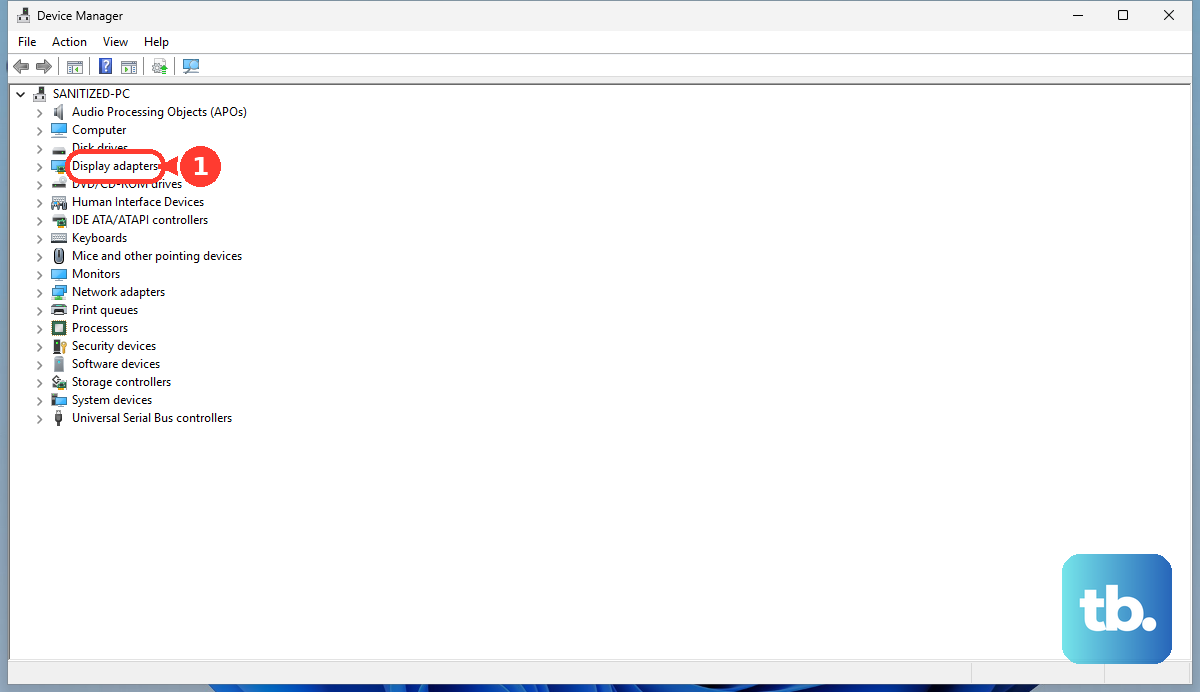
If display trouble continues after you regain a usable desktop, continue with graphics driver troubleshooting. To reinstall the driver on Windows 11, open Device Manager, expand Display adapters, right-click your GPU, and select Uninstall device. Select Uninstall, then restart Windows so it attempts to reinstall the driver.
Use recovery when startup reaches a logo
A computer that reaches its startup logo has moved beyond a complete loss of electrical power. On Windows 11, allow Automatic Repair to open after repeated startup failures, then select Advanced options. If necessary, interrupt startup at the logo twice with the power button and let the third startup proceed, but never interrupt a firmware update.
In Windows Recovery Environment, select Troubleshoot > Advanced options > Startup Repair > Restart. Enter the BitLocker recovery key if requested. To retrieve a saved key, open your Microsoft account recovery keys on another device, sign in, and match the displayed recovery-key ID. Enter its corresponding key on the affected computer.
If Startup Repair fails and a restore point exists, select Troubleshoot > Advanced options > System Restore. Choose an appropriate restore point, selecting Show more restore points if necessary. Select Next, then Finish, and select Restart after completion. System Restore retains personal files while reverting later system changes.
On an Apple silicon Mac, shut down and hold the power button until startup options appear, then select Options > Continue. On an Intel Mac, turn it on while holding Command + R. Authenticate when requested to enter macOS Recovery.
In Recovery, select Disk Utility > Continue, then choose View > Show All Devices. Starting with the last volume, select First Aid, then Run or Repair Disk. Repeat upward through the volumes, containers, and device, then restart the Mac.
Arrange repair when hardware checks fail
Seek hardware service when the computer remains unresponsive after external power checks, a supported power supply test fails repeatedly, or a button or connector is damaged. Provide the model, the activity you observed, and any diagnostic codes to help identify the component needing further checks.
A Dell desktop that reaches its logo can run additional hardware diagnostics before repair. Turn it on, repeatedly press F12 at the Dell logo, and select Diagnostics in the One Time Boot Menu. Record any error and validation codes for the repair technician.
Firmware recovery and CMOS resets require exact model instructions, especially after a failed firmware update or recent hardware change. Do not borrow another motherboard's jumper positions, recovery file, or reset timing. If you cannot identify the supported procedure for your computer, have a technician handle that step.
Frequently Asked Questions
Does a power supply fan that stops spinning mean the supply is broken?
A stopped fan does not automatically mean the supply has failed. Some zero-RPM Corsair power supplies spin their fans only briefly during a jumper test. Use the diagnostic procedure for your exact supply, and leave live jumper tests or electrical measurements to a technician.
Should you reset the SMC on an Apple silicon desktop?
You do not need to perform a manual SMC reset on an Apple silicon Mac because it resets automatically. Do not apply an Intel Mac's manual SMC reset procedure to Apple silicon.
Will resetting Windows keep your files?
To retain personal files during a Windows 11 reset, choose Keep my files; installed apps and settings are still removed. If you choose Remove everything, personal files are deleted too. Review the reset summary before proceeding.
How do you reset power on a Chromebox?
For the Acer, ASUS, and Samsung Chromebox models covered by Google's hardware reset instructions, turn off the device, remove its power cable, and reconnect it. Google also lists LG Chromebase for this procedure. For other models, follow the manufacturer's reset instructions.
Can a Mac firmware repair preserve your data?
A firmware revive preserves data on supported Apple silicon and T2 desktop Macs. A firmware restore erases the affected Mac, so try a revive first when firmware repair is needed. You need another Mac running macOS 14 or later, internet access, and a data-capable USB-C cable.