


To find your Cisco router IP address, connect to its Wi-Fi or LAN and read the Default Gateway, Router, or Gateway field on your computer or phone. Enter that address in your browser to try opening the management interface. The gateway is your starting point, but a router with a separate management interface can use a different address.
Cisco does not have one universal default router address. Use your connected device’s gateway rather than your computer’s own IP address, a DNS server address, or a public IP lookup result. A model’s factory address applies only when its configuration remains unchanged.
The short version
- Connect first: Join the Cisco router’s Wi-Fi or connect to its LAN before checking the address.
- Windows: Run
ipconfigin Command Prompt and read Default Gateway under the active adapter. - Mac and phones: Open your connected network’s details and read Router or Gateway.
- Browser access: Open the address you found, remembering that management restrictions can block access even when the IP is correct.
- Defaults: Use a factory address only for the matching model with an unchanged configuration.
| Device or method | Where to look | Address to read |
|---|---|---|
| Windows Command Prompt | Active adapter in ipconfig output | Default Gateway |
| Windows Control Panel | Active connection’s Details | IPv4 Default Gateway |
| Windows Settings | Connected network’s Properties | Gateway, if displayed |
| Mac System Settings | Connected network’s TCP/IP settings | Router |
| Mac Terminal | /sbin/route -n get default output | gateway |
| iPhone or iPad | Connected Wi-Fi network’s information screen | Router |
| Android | Connected Wi-Fi network’s details | Gateway |
| Chromebook | Connected Wi-Fi network’s Network details | Gateway |
| Linux network applet | Connection Information | Router’s IPv4 address |
| Linux terminal | ip -4 route output | Address after default via |
| RV340 factory configuration | Unchanged LAN configuration | 192.168.1.1 |
| RV340, RV340W, RV345 or RV345P | System Summary in an existing session | LAN or VLAN IP Address |
| RV132W or RV134W | LAN Configuration in an existing session | Local IP Address |
| Compatible Linksys router | Connectivity > Local Network | Router’s local IP address |
| Fing Mobile | Current network scan results | Matched router’s IP address |
Connect to the router you want to manage
Join the Cisco router’s Wi-Fi or connect your computer to its LAN. The gateway field describes your current connection, so checking it on another network gives you that network’s gateway instead. A guest network can prevent access to the router’s management interface.
Check the router’s model before using a printed default address or following a model-specific menu path. A label or manual can identify the model and its factory address, but it cannot establish the address currently in use. Start with the value on a connected device because the LAN address may have changed.
Find the address on Windows
Open Command Prompt while connected to the router’s Wi-Fi or Ethernet network. Run this command to display your adapters and their gateway addresses:
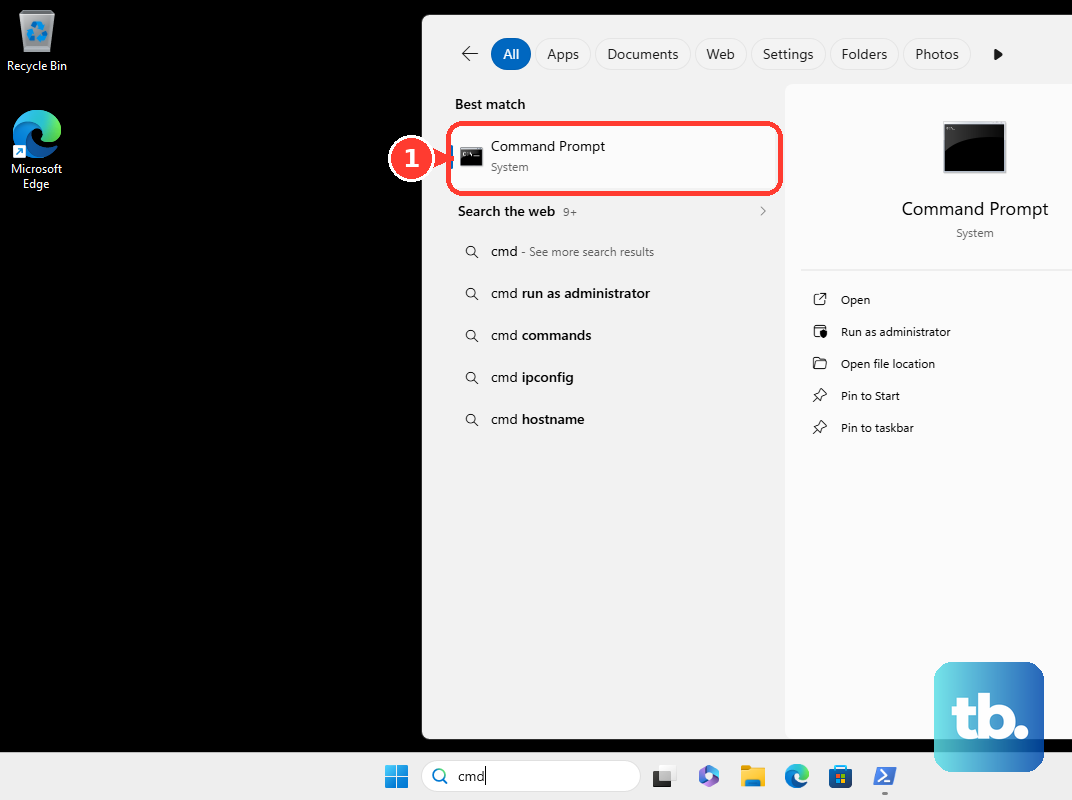
ipconfigFind the active Wi-Fi or Ethernet adapter, then read its Default Gateway value. Use that address as your first browser destination. Do not copy the adapter’s own IPv4 Address, which identifies your computer rather than the router.
If several adapters appear, match the gateway to the adapter connected to your Cisco router’s LAN. A VPN can supply a different gateway, so check which connection you are reading. For additional adapter details, run:
ipconfig /allFor a graphical alternative, open Control Panel > Network and Internet > View network status and tasks. Select your active connection, choose Details, and read IPv4 Default Gateway.
On Windows 11, open Settings > Network & internet > Properties for your connected network and inspect its details for the gateway. If your Windows build does not display that field, use Command Prompt or Control Panel.
Read the Router field on a Mac
Open the Apple menu > System Settings > Network, then select your connected network service. Choose Details > TCP/IP and read Router. Copy that value for browser access.
Use this System Settings path on macOS Ventura and later. For a command-line alternative, open Terminal and run:
/sbin/route -n get defaultRead gateway in the output and check the reported interface. A VPN default route can point somewhere other than your physical router, so compare it with the connected network’s Router field if the result is unexpected.
Check the address on your phone or tablet
On an iPhone or iPad, open Settings > Wi-Fi and tap the connected network’s information button. Read the Router field, then use that address in your browser. Regional interfaces may label the Wi-Fi menu WLAN.
On Android, open Settings > Wi-Fi or WLAN, then select the connected network’s details icon. Read Gateway in the connection details. Menu names vary by manufacturer; if your phone does not show this field, use another connected device or the Fing Mobile method below.
Use network details on Chromebook or Linux
On a Chromebook, open Settings > Network > Wi-Fi and select your connected network. Expand Network and read Gateway. Enter that value in your browser to try reaching the router.
On a Linux desktop with a network applet, open Connection Information and read the router’s IP address listed in the active connection’s IPv4 section. This applet path varies across Linux desktops, so use the terminal method if your desktop does not offer it.
Open a terminal and run the command below. Find the line containing default via, then read the address immediately after it for your connected LAN interface:
ip -4 routeOpen and confirm the management address
Enter the gateway or router address you found in your browser’s address bar. This identifies the connected network’s gateway, which can differ from a dedicated management address. If your router has multiple LAN or VLAN interfaces, match the address to the interface you intend to manage.
For a Cisco RV340 with its factory LAN configuration unchanged, connect a computer to LAN1 and let it obtain an address automatically. Open https://192.168.1.1 in the browser. Cisco specifies this address for the RV340 factory configuration; it is not a universal Cisco default.
If you already have a signed-in browser session on an RV340, RV340W, RV345, or RV345P, open Status and Statistics > System Summary. Read IP Address for the relevant LAN or VLAN interface. A WAN address is not automatically the local management address you need.
In an existing browser session on an RV132W or RV134W, open Networking > LAN > LAN Configuration. Read Local IP Address without changing it. These models also use 192.168.1.1 when their factory LAN configuration is unchanged.
If older Cisco-branded Linksys instructions brought you here, check your actual model before choosing a menu path. On compatible current Linksys local interfaces, connect locally, open myrouter.local, and sign in with the router password. Open Connectivity > Local Network to inspect the router’s IP address without editing it. For affected older products, Linksys has replaced remote Smart WiFi sign-in with local browser access.
Finding the management address does not require changing the router’s configuration. If your next task is updating wireless credentials, follow the steps to change your WiFi router password after reaching the correct interface.
Fix access when the address does not open
First, confirm that you copied the gateway for the connection attached to the Cisco router. VPNs, mesh systems, and bridge or passthrough configurations can complicate the relationship between that gateway and the device you want to manage. Repeat the lookup on a device connected directly to the router’s LAN.
If the address still does not open, check whether your network permits browser management from that connection. Guest isolation, disabled HTTP or HTTPS services, and management VLAN restrictions can block access to a correct IP. For an ISP-owned or business-managed router, ask its administrator for the management address and permitted access method.
For an optional discovery method, get Fing Mobile from the official Fing Mobile page using Get it from Play Store or Get it from App Store. Connect your phone to the router’s Wi-Fi and open Fing. On first use, open Overview and tap Scan current network; afterward, open the devices widget in Overview, which may be labeled with your online-device count, to see the device list. If Fing Desktop already monitors this network, deactivate that monitoring before scanning it from Fing Mobile. Inspect the resulting device inventory for your router.
Match the router using its model or known MAC address before using the displayed IP. A scan must identify the intended device and interface, and guest isolation can prevent useful results. Do not assume that every Cisco-branded device in the results is your router.
Keep factory reset as a last resort. Resetting erases the configuration and restores a known factory address; it does not reveal the previous address. Use the connected-device lookup, a matching discovery result, or your administrator’s access details before considering that recovery step.
Frequently Asked Questions
Can PowerShell show my Cisco router IP address?
Yes, on Windows systems with the built-in NetTCPIP module, you can use Get-NetIPConfiguration in Windows PowerShell. Find your active LAN or Wi-Fi adapter and read IPv4DefaultGateway. This command is specific to the Windows module and does not provide the same method on macOS or Linux.
Can I find the router address from its MAC address?
On Windows, arp -a displays cached address mappings. Match your router’s known LAN-interface MAC under Physical Address and read the corresponding Internet Address. This works only when the mapping is cached on the same local link; a missing entry does not establish that the router is disconnected.
How do I check an IPv6 default gateway on Linux?
You can inspect IPv6 routing information with ip -6 route. On NetworkManager systems, nmcli -f GENERAL.CONNECTION,IP4.GATEWAY,IP6.GATEWAY device show <interface> displays gateway information when you replace <interface> with your connected adapter. Read IP4.GATEWAY or IP6.GATEWAY for the address family you need.
Can traceroute reveal the router address on Windows?
The command tracert /d /h 1 /4 www.microsoft.com requests a responding first hop, which can supply a gateway candidate. Confirm that address against the router’s identity or another lookup method. Filtering, VPNs, and network topology can hide or change the first hop.
Is Cisco FindIT still a supported way to discover the address?
The old FindIT browser discovery utility is retired and unsupported. Use Cisco Business Dashboard discovery and Inventory instead. In an existing dashboard, find your router by its name, model, or serial number, then read IP and use Refresh to update the displayed inventory.