

To find the MAC address your MacBook uses on its connected Wi-Fi network, open the Apple menu > System Settings > Wi-Fi, click Details beside that network, and read Wi-Fi address. For the hardware address, open System Settings > Network, select the network service, then click Details > Hardware and read MAC address.
Each network interface has its own address, so your built-in Wi-Fi and an Ethernet adapter can show different values. A private Wi-Fi address can also differ from the hardware address. The main menu paths below use macOS 27 Golden Gate; private Wi-Fi addressing is available on macOS Sonoma 14 and later, and the Off, Fixed, and Rotating options for Private Wi-Fi Address require macOS Sequoia 15 or later.
The short version
- Connected Wi-Fi: Open Wi-Fi > Details to read the address used for that network.
- Hardware address: Select the connection under Network, then open Details > Hardware.
- Ethernet adapters: Connect the adapter or dock first, then select its own network service.
- Private addresses: Check Private Wi-Fi Address before assuming the network-visible address matches the hardware address.
| Method or place | What to read | When to use it |
|---|---|---|
| Wi-Fi > Details | Wi-Fi address | Connected Wi-Fi network |
| Wi-Fi > Advanced | Wi-Fi MAC address | Separate Wi-Fi MAC lookup |
| Network > service > Details > Hardware | MAC address | Wi-Fi or Ethernet hardware address |
| Terminal hardware-port list | Ethernet Address | Match ports with interface names |
| Terminal interface lookup | Returned MAC address | Check one interface or hardware port |
| Terminal network-service information | Hardware-address field | Look up an exact service name |
Terminal ifconfig | Address following ether | Inspect a selected interface |
| TP-Link router management page | MacBook client's MAC address | Check the address seen by the router |
| Existing TP-Link Tether app | MAC Address in client details | Check a supported device from a phone |
| Ethernet adapter or dock label | Printed Ethernet MAC address | Identify a labeled accessory |
| ARP lookup from another Mac | Address following at | Reachable IPv4 neighbor on the same local segment |
| Apple Remote Desktop | Hardware Address | Existing accessible managed clients |
| Device-management inventory | WiFiMAC or EthernetMAC | Enrolled MacBook with inventory access |
| Private Wi-Fi Address | Off, Fixed, or Rotating | Understand which address the network receives |
Find the address used on your Wi-Fi network
Start with the connected network when you need an address to register that Wi-Fi connection. Open the Apple menu > System Settings > Wi-Fi, then click Details beside the connected network. Read Wi-Fi address and keep it associated with that network's name.
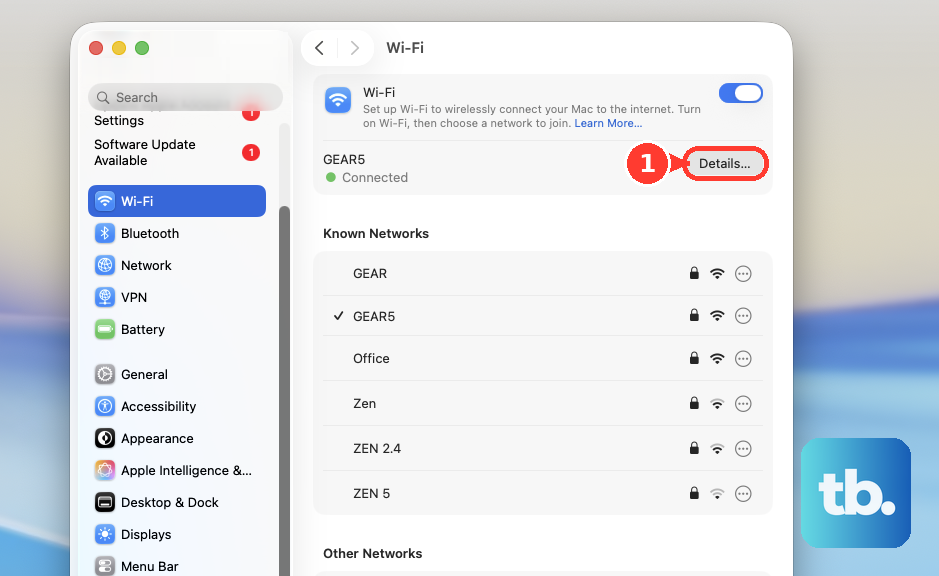
This value can be a private address rather than your Wi-Fi hardware address. When a registration form needs the address that network actually receives, use the connected network's details or its router client record. Copying a hardware address from another screen can give you a different value.
For a separate Wi-Fi MAC lookup, stay in System Settings > Wi-Fi, scroll down, and click Advanced. Read Wi-Fi MAC address there. Use the connected network's Details when your goal is to confirm the address used for that particular connection.
Find the hardware address for Wi-Fi or Ethernet
Open the Apple menu > System Settings > Network and select the network service you need. Click Details, choose Hardware, and read MAC address. Selecting the correct service matters because each interface has its own address.
For a USB-C or Thunderbolt Ethernet adapter or dock, connect the accessory before selecting its network service. Read the address from that service's Hardware settings. If you cannot identify the interface you need, use the Terminal hardware-port list below to match the port with its address.
Check whether the Wi-Fi address is private
On macOS Sequoia 15 and later, open System Settings > Wi-Fi and click Details beside the network. Inspect Private Wi-Fi Address to understand which address the network receives. You do not need to change this setting just to read an address.
Off uses the hardware address, while Fixed uses a stable private address for that network. Rotating changes the private address periodically. If two screens show different addresses, check this setting and confirm that both screens refer to the same interface and network.
Use Terminal to identify the correct interface
In Finder, choose Go > Utilities and open Terminal. Enter the following command and press Return to list the hardware ports and their addresses.
networksetup -listallhardwareportsLocate the relevant Hardware Port, such as Wi-Fi or your Ethernet adapter, and read its Ethernet Address. The Device field identifies the interface name for that port. Do not assume Wi-Fi is always en0; use the value shown for your interface.
For a lookup of one interface, replace en0 in the following command with that port's Device value. Run the command and read the returned address.
networksetup -getmacaddress en0You can alternatively request the address by hardware-port name. For the Wi-Fi hardware port, enter the following command and read its result.
networksetup -getmacaddress "Wi-Fi"To look up a network service, first find its exact name, since service names can be renamed and can differ from hardware-port names. Run this command to list them.
networksetup -listallnetworkservicesRun the following command, replacing Wi-Fi with the exact service name when checking another connection. Read the hardware-address field in the output.
networksetup -getinfo "Wi-Fi"You can also inspect an interface with ifconfig. First run networksetup -listallhardwareports to identify it, then run the following command with en0 replaced by its Device value.
ifconfig en0Read the six hexadecimal pairs following ether. Running ifconfig without an interface lists multiple physical and virtual interfaces, so retain their names when identifying the relevant address.
Confirm the address your router sees
On TP-Link routers with the Advanced > Status client-list interface, sign in to the router's management page and open that path. Choose Wired Clients or Wireless Clients, identify your connected MacBook, and read its MAC address.
If your router uses 192.168.1.1 for its management page, you can log in to the router before opening the client list. Other router brands and firmware use different paths. For Wi-Fi, the client entry can show a private address rather than the hardware address.
With an existing Tether app and a supported TP-Link device, tap Local Device > Clients, then tap the MacBook's client entry. Read MAC Address on its details page. The MacBook must appear as a client, and this value is the address the router sees.
Check an Ethernet adapter or dock label
Inspect the underside of your Ethernet adapter or dock for a MAC-address label and, if present, copy the address associated with its Ethernet interface. Plugable says some of its products carry this labeling. The printed address identifies the accessory's Ethernet interface, separate from your MacBook's built-in Wi-Fi address.
For an accessory without a MAC-address label, connect it and select its recognized network service under System Settings > Network. Open Details > Hardware to read its address there.
Check from another Mac on the local network
An ARP lookup can show the network-visible address of a reachable IPv4 neighbor on the same local network segment. First determine the target MacBook's IPv4 address, then open Terminal on another Mac on that segment. Run the following command, substituting the target address for 192.168.1.50.
ping -c 1 192.168.1.50Next, run the following lookup with the same target address. Read the address following at in the result.
arp -n 192.168.1.50An incomplete entry does not provide a usable MAC address. Network isolation, proxies, or network topology can prevent or alter the result. If the lookup is inconclusive, check the target MacBook's connected network details or its router client record.
Retrieve an address from administrator inventory
If you have appropriate administrator access to an existing Apple Remote Desktop deployment, select the computer list and the accessible MacBook. Choose Report > Network Interfaces and include Hardware Address in the information collected. Select Rebuild Data For Report, click Generate Report, and read the address for the required Interface Name.
For an enrolled MacBook, you can also ask the organization managing it to retrieve its network inventory. The management service needs the Network Information access right, and its console menus depend on the vendor. At the Apple protocol level, an administrator sends DeviceInformation with Queries including WiFiMAC and, where applicable, EthernetMAC, then reads the corresponding QueryResponses values.
Frequently Asked Questions
Is the BSSID your MacBook's MAC address?
No, a BSSID identifies an access point rather than your MacBook. When a form asks for your computer's MAC address, use the address associated with the MacBook's relevant network interface.
Can you look up the MAC address through your Apple Account?
Apple does not document MAC-address retrieval through its Apple Account device list. The device-management inventory option applies to an enrolled MacBook managed by an organization, not your personal Apple Account device list.
Can your organization control the private Wi-Fi address setting?
Yes, a managed network profile can control private Wi-Fi address behavior. If administrator policy restricts changes on your MacBook, ask the organization managing it about the required setting.
Do you need to install anything or reset your network to find the address?
No download, network removal, or reset is required for the built-in methods. You can read the address through System Settings or Terminal without those steps.