


To enable WebGL in Chrome on Windows, macOS, or Linux, open Settings > System, turn on Use graphics acceleration when available, then select Relaunch. Reload the website after Chrome restarts. WebGL is normally available automatically on compatible systems, so this setting is the place to start.
ChromeOS and mobile Chrome do not provide that desktop acceleration toggle. Use the platform-specific update steps below instead, followed by any applicable troubleshooting. The Windows Settings paths below use Windows 11 menus.
The short version
- Desktop setting: Turn on Use graphics acceleration when available under Settings > System, then select Relaunch.
- Confirm the result: Reload your website and test the WebGL version it requires.
- Conditional fixes: Update Chrome and investigate blocked JavaScript, extensions, or graphics drivers if WebGL still fails.
- Experimental options: Save graphics backend changes and the GPU blocklist override for problems that remain after the basic checks.
| Option | Where it applies | When to use it |
|---|---|---|
| Graphics acceleration | Windows, macOS, Linux | First desktop setup step |
| WebGL verification | Platforms supported by the test | Check whether the required WebGL version works |
| Desktop Chrome update | Windows, macOS, Linux | Possible browser compatibility problem |
| ChromeOS update | Devices still receiving updates | Update the integrated browser |
| Android Chrome update | Supported Android devices | Possible browser compatibility problem |
| iPhone or iPad Chrome update | Supported iPhone and iPad installations | Possible browser compatibility problem |
| JavaScript permissions | Desktop Chrome, including ChromeOS | JavaScript is blocked |
| Extension check | Desktop Chrome, including ChromeOS | An extension interferes with the application |
| Settings reset | Desktop Chrome | Altered content settings or extensions cause failure |
| Windows Update driver installation | Windows 11 | An applicable graphics driver update is offered |
| Device Manager driver update | Windows 11 | An outdated or faulty graphics driver is suspected |
| macOS update | Eligible Macs supported by current Chrome | The operating system graphics stack is the cause |
| Windows GPU preference | Windows 11 with multiple GPUs and Chrome listed | Another installed GPU supports WebGL |
| Remove disabling launch switches | Desktop Chrome | Your launcher explicitly disables WebGL or GPU use |
| Windows hardware backend | Windows | A forced backend causes problems |
| WARP software rendering | Windows where WARP initializes | Try a software fallback |
| Android backend selection | Android with compatible graphics drivers | A backend override or compatibility issue is suspected |
| GPU blocklist override | Windows, macOS, Linux, ChromeOS, Android | Experimental troubleshooting of compatibility restrictions |
Turn on graphics acceleration
Open Chrome’s More menu, select Settings, then select System. Turn on Use graphics acceleration when available and select Relaunch. After Chrome restarts, reload the affected website.
You can also reach the setting directly through the address bar. Enter the following address, then turn on the same setting and relaunch Chrome.
chrome://settings/systemIf acceleration is already on, check whether WebGL works before changing anything else. Enabling acceleration does not guarantee that your GPU and drivers support the application.
Check that WebGL works
Open the Khronos WebGL test by entering the address below. A spinning cube confirms that the test can run WebGL.
https://get.webgl.org/A successful WebGL 1 test does not establish WebGL 2 support. If your application requires WebGL 2, enter this separate test address.
https://get.webgl.org/webgl2/On desktop Chrome or Android, you can also inspect graphics status and reported problems through Chrome’s GPU page. Enter the following address and review the graphics information.
chrome://gpuThese pages check capability; they do not turn WebGL on. If the relevant test works but your website still fails, check the website’s JavaScript permissions and possible extension interference.
Update Chrome on your device
On Windows or macOS, open More > Help > About Google Chrome. Chrome checks for updates, and you should select Relaunch when offered. On Linux, update the installed Google Chrome package through your distribution’s package manager.
An update can correct browser defects or compatibility problems, although it is not a separate WebGL switch. If you need help with Chrome’s update behavior, you can manage automatic updates in Chrome. Reload the website after the update finishes.
On a Chromebook still receiving updates, connect to the internet and select the time, then open Settings > About ChromeOS > Check for updates. Allow an available update to download, then select Restart when prompted. Chrome updates as part of ChromeOS.
On a supported Android phone or tablet, open Play Store, tap your profile icon, then open Manage apps & device. Under Updates available, find Chrome and tap Update. Reopen Chrome and retest the website.
For iPhone or iPad, open App Store > Profile, find Chrome under Available Updates, and tap Update. Enter your Apple ID password if prompted, then reopen Chrome and retest the website. Desktop GPU settings and executable launch switches do not apply to the App Store version.
Allow JavaScript and check extensions
On desktop Chrome, including ChromeOS, check permissions if JavaScript has been blocked globally or for the affected website. Open More > Settings > Privacy and security > Site settings > JavaScript, then select Sites can use JavaScript. If the website has its own blocking exception, open that website’s Site settings and change JavaScript to Allow, then reload it. JavaScript is required for WebGL applications, but allowing it cannot repair missing GPU support.
A blocking or privacy extension can also prevent the application from running on desktop Chrome, including ChromeOS. Open More > Extensions > Manage extensions, turn off one suspected extension, and reload the website. Check extensions individually so you can identify which one causes the failure.
To uninstall an identified extension, select Remove, then select Remove again to confirm. Reload the affected website to check whether removing the interference resolves the problem.
If altered content settings or extensions remain the cause, open More > Settings > Reset settings > Restore settings to their original defaults. Select Reset settings, then retest the website. This broader action resets content settings, extensions, and other browser settings; it is not a dedicated WebGL control or a reset of experimental flags.
Update graphics software when needed
On Windows 11, an outdated or faulty graphics driver can prevent WebGL from working. Open Start > Settings > Windows Update > Advanced options > Optional updates. Expand Driver updates if available, select an applicable graphics driver update by its displayed name, and select Download and install.
Restart Windows after installation, then reopen Chrome and retest the website. You can also find and update your graphics driver if you need help identifying the adapter. Driver updates address a graphics problem rather than changing a Chrome preference.
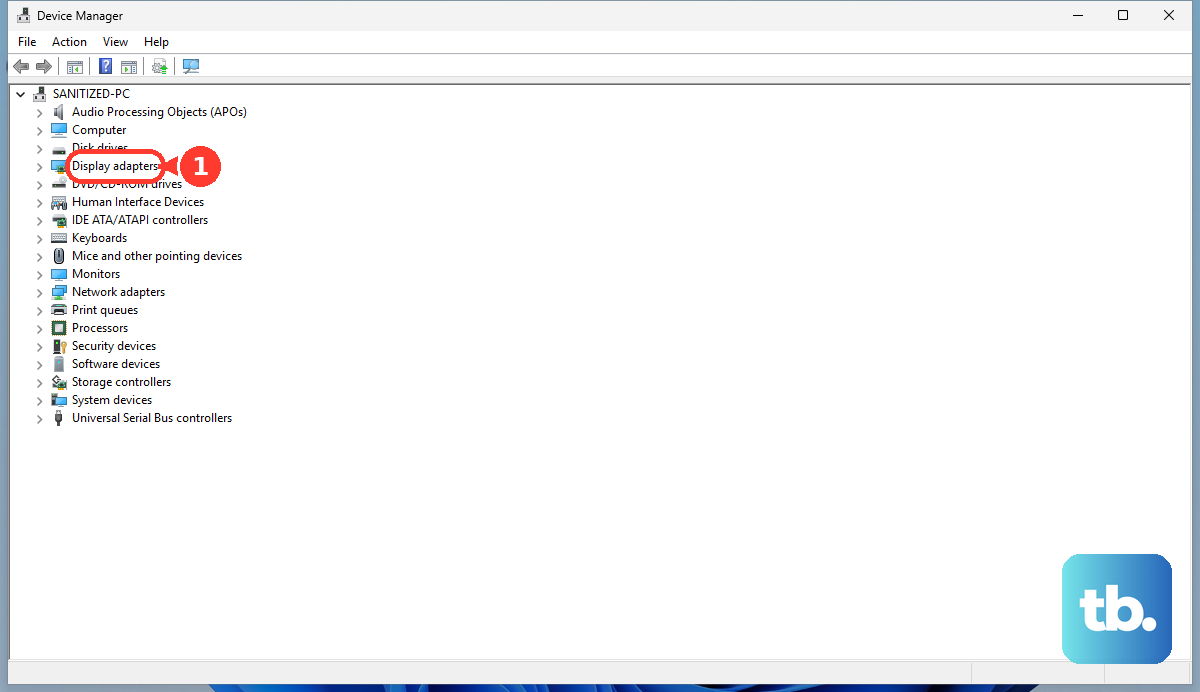
Another Windows 11 route is to open Device Manager and expand Display adapters. Right-click your graphics adapter, select Update driver, then choose the option to search automatically for an updated driver. Install a compatible update offered there and restart Chrome after any required Windows restart.
On a Mac supported by current Chrome, updating macOS can help when the operating system’s graphics stack is the cause. Open the Apple menu > System Settings > General > Software Update and install a compatible update using the displayed update, upgrade, or restart button. Enter your administrator password when requested, then retest Chrome after installation. Available updates depend on your Mac’s eligibility.
Select another GPU on Windows
On Windows 11 computers with multiple GPUs and Chrome listed in per-app graphics settings, you can try another GPU if it supports WebGL. Open Start > Settings > System > Display > Graphics. Under Custom options for apps, select Google Chrome, then select Options.
Under Graphics preference, select High performance, then select Save. Fully restart Chrome and retest the website. This changes GPU selection, so it can help only when the alternative GPU is compatible with WebGL.
Remove launch options that disable WebGL
On desktop Chrome, a switch in your launcher can explicitly disable WebGL. Enter the following address and inspect Command Line for switches supplied by your own launcher.
chrome://versionRemove --disable-webgl if present, since it disables all WebGL versions. Remove --disable-webgl2 if WebGL 2 was specifically disabled. Also remove a deliberately added --disable-gpu when restoring hardware rendering.
On Windows, edit the shortcut’s Properties > Shortcut > Target. On macOS or Linux, edit the command or launcher you use, then fully quit and reopen Chrome after making the change. If your organization controls the launch configuration, ask your administrator to change it.
Restore a compatible graphics backend
On Windows, a forced graphics backend can cause problems even with acceleration enabled. Enter the following address to open the backend selector.
chrome://flags/#use-angleUnder Choose ANGLE graphics backend, select Default to undo a forced backend, then select Relaunch. Keep Use graphics acceleration when available enabled and retest the website. If a backend selection problem remains, select D3D11 to explicitly try the available hardware backend and relaunch again. This does not override enterprise restrictions or guarantee hardware compatibility.
Windows also offers D3D11 WARP under the same selector. This uses software rendering and can be considerably slower than a working GPU. Select it as a fallback, select Relaunch, and check whether the website works. Success depends on the backend initializing and compatibility with the site and drivers.
On Android, the same address opens a selector with different choices that still depend on device and driver support. Select Default to undo an override, or try OpenGL ES and Vulkan individually, selecting Relaunch after each change. Chromium describes the Vulkan backend as experimental. Return to Default if the change does not help.
Use the GPU blocklist override cautiously
If ordinary setup and compatibility checks have failed, Chrome has an experimental override for its GPU compatibility restrictions. It applies to Windows, macOS, Linux, ChromeOS, and Android. Enter the following address to reach it.
chrome://flags/#ignore-gpu-blocklistFor Override software rendering list, select Enabled, then select Relaunch. Reload the website and repeat the relevant WebGL test. Bypassing the blocklist cannot add missing GPU capabilities and may cause instability.
Frequently Asked Questions
Do you need to download a WebGL plugin?
You do not need a separate WebGL installer or plugin. WebGL is included in Chrome.
Should you enable WebGL Developer Extensions or WebGL Draft Extensions?
Leave WebGL Developer Extensions and WebGL Draft Extensions at Default for normal use. They expose development or draft extensions and do not enable ordinary WebGL.
Will turning off graphics acceleration make Chrome use SwiftShader automatically?
No, automatic SwiftShader WebGL fallback has been deprecated and disabled. Explicit SwiftShader launch options have lower security guarantees and are developer or testing options unsuitable for general browsing of untrusted content.
Why can you no longer find the old standalone WebGL experiments?
Chrome 155 and 152 do not include the old generic WebGL or WebGL 2 experiments, or the old Disable WebGL experiment. Instructions that depend on those flag-page entries do not apply to these versions.
Can clearing cookies or cache enable WebGL?
Clearing cookies or cache does not change WebGL capability. It cannot substitute for compatible graphics support or the relevant browser settings.
What mobile operating system does current Chrome require?
Google specifies Android 10 or later for current Chrome on Android and iOS 18 or later for iPhone and iPad. Meeting the browser’s operating system requirement does not guarantee that a particular WebGL application will work.