Bluetooth problems on Windows 11 often point to an outdated, missing, or corrupted driver. If your headphones, mouse, keyboard, or speaker will not connect, start with the update paths Windows and your PC maker already support.
Begin with Windows Update, then move to Device Manager, your manufacturer’s driver page, or Intel’s tools if your PC uses a supported Intel Wireless Bluetooth adapter. Restart whenever Windows or the installer asks for it.
Start with Windows Update
Windows Update is the simplest place to get a Bluetooth driver on Windows 11 because many PC makers and driver publishers deliver updates through it. Open Start, go to Settings, choose Windows Update, and select Check for updates.
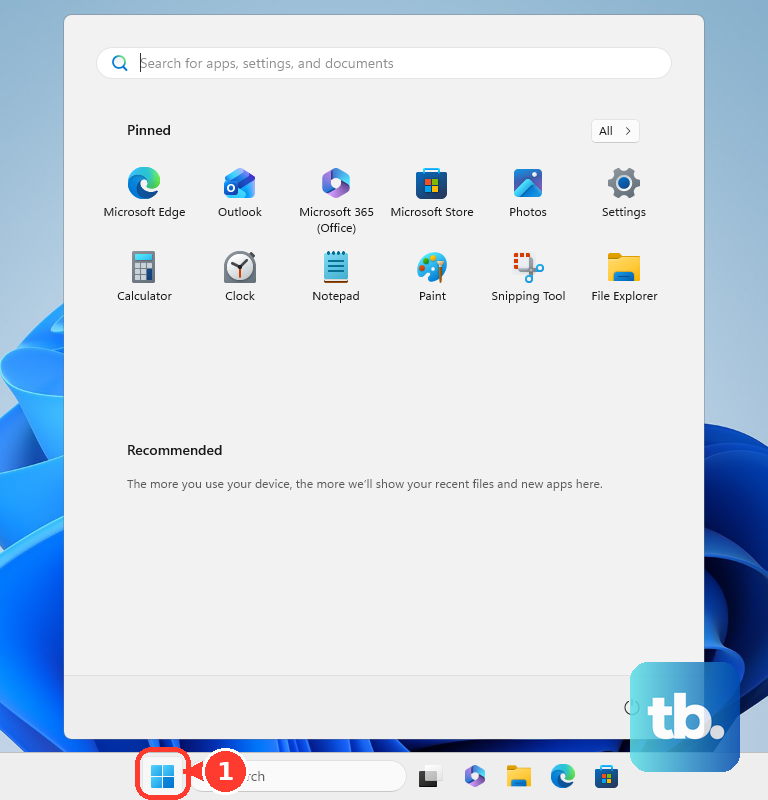
Install every available update, then restart your PC. After the restart, open Start, go to Settings, choose Bluetooth & devices, and turn Bluetooth on.
Surface owners should use the same Windows Update path first. After normal updates install, use taskbar Search for View optional updates, open Driver updates, and install the Surface-named drivers.
Check optional driver updates
Open Start.
Select Settings.
Choose Windows Update.
Open Advanced options.
Select Optional updates.
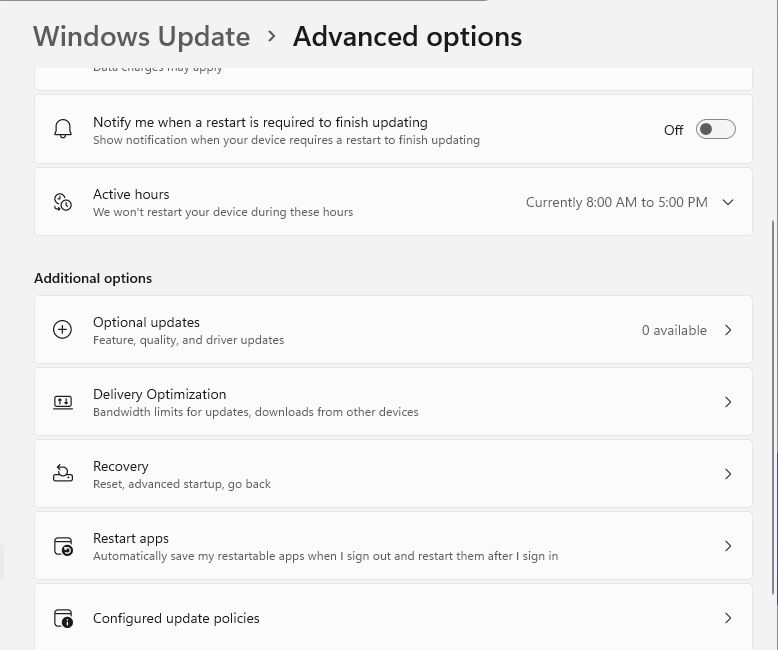
Open Driver updates, choose the Bluetooth or network driver listed there, then select Download and install.
Restart your PC after the driver finishes installing.
Tip: optional driver updates are for cases where Windows Update did not install a newer Bluetooth driver automatically.
Use Device Manager for an automatic search
This fixes an installed Bluetooth adapter that is visible in Windows but needs a newer driver.
Open Start.
Type Device Manager.
Select Device Manager.
Expand Bluetooth.
Right-click your Bluetooth adapter.
Select Update driver.
Choose Search automatically for drivers.
Follow the prompts, then restart your PC.
Get the driver from your PC maker
Your PC manufacturer’s support site is the best source for an OEM-customized Bluetooth driver. Go to the support website for your Dell, HP, Lenovo, ASUS, Acer, Surface, or other PC brand, search by your exact model number or serial number, and download the Windows 11 Bluetooth driver.
Some brands also provide current update apps. Dell uses SupportAssist, HP uses HP Support Assistant, Lenovo uses Lenovo Vantage, ASUS uses MyASUS, and Acer uses Acer Care Center on supported PCs.
If the download is an .exe file, double-click it, follow the installer prompts, and restart when prompted. If this method fails, install the downloaded driver files through Device Manager instead.
Install downloaded driver files manually
Use this when the manufacturer download gives you driver files such as .inf and .sys.
- 1.Open Device Manager from taskbar Search.
- 2.Expand Bluetooth, or open Other devices when the Bluetooth adapter is missing from the Bluetooth section.
- 3.Right-click the Bluetooth adapter, select Update driver, then choose Browse my computer for drivers.
- 4.Select Browse, choose the folder with the downloaded driver files, then select OK.
- 5.Select Next, choose Close when it finishes, and restart if prompted.
Reinstall a corrupted Bluetooth driver
When Bluetooth disappears or behaves strangely after a driver problem, reinstalling the adapter can make Windows load the driver again. Open Device Manager, expand Bluetooth, right-click your Bluetooth adapter, and choose Uninstall device.
Restart your PC. Windows automatically reinstalls the Bluetooth driver after the restart.
When Windows does not reinstall it automatically, open Device Manager, select Action, then choose Scan for hardware changes. On ASUS PCs, check Delete the driver software for this device during uninstall only when you are about to install the Bluetooth driver from ASUS support.
Roll back a bad Bluetooth update
Use this after Bluetooth stops working right after an update. Windows can roll back only when it still has a previous Bluetooth driver version available.
Open Device Manager and expand Bluetooth.
Right-click the Bluetooth adapter and select Properties.
Open the Driver tab.
Select Roll Back Driver and follow the prompts.
Restart after the rollback completes.
Use Intel Bluetooth options
Use these options on Windows 11 PCs with supported Intel Wireless Bluetooth adapters.
- 1.Open Intel’s official Wireless Bluetooth Drivers for Windows 10 and Windows 11 page.
- 2.Confirm that your Intel wireless adapter is supported.
- 3.Download BT-24.60.0-64UWD-Win10-Win11.exe.
- 4.Double-click the file to launch the installation.
- 5.Use Intel Driver & Support Assistant from Intel’s Bluetooth driver page when you want automatic detection.
Handle managed PCs and old advice
On a work or school PC, Bluetooth driver updates may be controlled by your organization.
Ask your IT team to check whether Windows driver updates are allowed, approved, or blocked for your device.
Skip the old Realtek Bluetooth workaround for Windows 10 version 1903 and 1909 upgrade blocks.
Do not use Dell Update or Alienware Update as the current Dell path; Dell points users to SupportAssist or the web scan instead.
After any driver change, open Start, go to Settings, choose Bluetooth & devices, and turn Bluetooth on. That step confirms Bluetooth is enabled. To confirm the driver itself is working, select Add device and pair a Bluetooth device, or reconnect one you already paired, and check that it connects.
Tip: avoid third-party driver download sites because the verified paths point to Microsoft, your PC maker, Intel, or managed Windows update tools.
Frequently Asked Questions
Where do I download a Bluetooth driver for Windows 11?
Start with Windows Update. If that does not provide one, use your PC manufacturer’s support website or support app. For supported Intel adapters, use Intel’s official Wireless Bluetooth page or Intel Driver & Support Assistant.
Why is Bluetooth missing after updating Windows 11?
The Bluetooth driver may be corrupted or not reinstalled correctly. Use Device Manager to uninstall the Bluetooth adapter, restart the PC, then scan for hardware changes if Windows does not reinstall it automatically.
Should I use Device Manager or the manufacturer website?
Use Device Manager for a quick automatic search or to install driver files you already downloaded. Use the manufacturer website when you need the OEM-customized Bluetooth driver for your exact PC model.
Can I roll back a Bluetooth driver in Windows 11?
Yes, when Windows still has a previous driver version available. Open Device Manager, go to the Bluetooth adapter’s Properties, use the Driver tab, and select Roll Back Driver.