Realtek audio or network problems often come down to an old, missing, corrupted, or mismatched driver. The right fix starts with Windows Update, then moves through Device Manager, your PC maker, Realtek, or Microsoft Update Catalog when needed. Use these paths in order so you install the package Windows and your hardware vendor expect.
1. Start with Windows Update first
Select Start > Settings > Windows Update.
Select Check for updates.
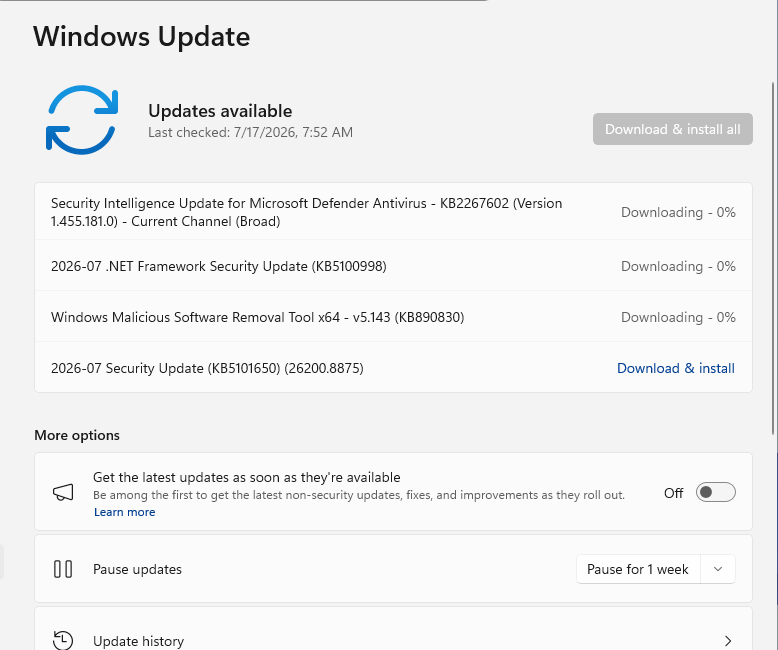
Install the available updates Windows offers.
Restart the PC after the updates finish.
Use this first on a Windows 11 PC because Microsoft lists Windows Update as the recommended automatic path for updated hardware drivers.
2. Check Optional updates for Realtek packages
This fixes Realtek drivers that Windows offers separately from regular updates.
- 1.Select Start > Settings > Windows Update.
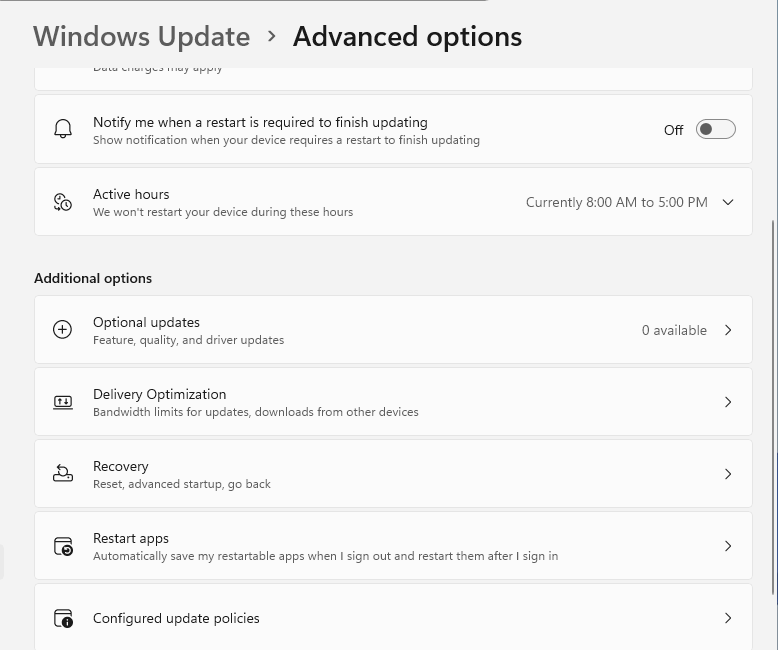
- 2.Select Advanced options, then make sure Receive updates for other Microsoft products is turned On.
- 3.Under Additional options, select Optional updates > Driver updates.
- 4.Select the Realtek audio, network, or other Realtek driver listed for your device.
- 5.Select Download and install.
- 6.Restart Windows after the driver installs.
3. Search through Device Manager
Right-click Start, then select Device Manager.
Expand Sound, video and game controllers for Realtek audio, or expand Network adapters for Realtek network hardware.
Right-click the Realtek device and select Update driver.
Select Search automatically for updated driver software.
If Device Manager shows Search for updated drivers on Windows update, select it and follow the Windows Update prompt.
4. Reinstall a corrupted Realtek driver
Save your work and close open apps.
Next, right-click Start, then select Device Manager.
Expand Sound, video and game controllers or Network adapters.
Right-click the Realtek device and select Uninstall device.
Select Uninstall.
Right-click Start > Shut down or sign out > Restart.
After the restart, Windows attempts to reinstall the Realtek driver automatically.
5. Roll back after a bad Realtek update
Right-click Start, then select Device Manager.
Expand the category for the Realtek device.
Right-click the Realtek device and select Properties.
Select Driver > Roll Back Driver.
Choose a reason, select Yes, and restart when Windows prompts you.
6. Get model specific drivers from your PC maker
Many laptops, desktops, and motherboards use Realtek drivers customized by the PC or board maker, so use the exact model's support page before a generic Realtek package.
Dell users can use SupportAssist > Home > Update software > Start, Dell's website scan, Dell Drivers & Downloads with a Service Tag or model, or Dell Command | Update > Check on supported Dell systems.
HP users can use HP Support Assistant > My Dashboard > Updates.
Lenovo users can use Lenovo Vantage > System Update > Check for Updates.
ASUS users can use MyASUS > System Update or the ASUS support site's Driver & Tools page.
MSI and GIGABYTE users should search the official support or download page for the exact product model, choose the Windows version or OS, download the listed Realtek audio or network driver, and run the included installer.
7. Download a manual package from Realtek or Microsoft
This covers manual driver installs after Windows Update and the manufacturer page do not supply the package.
Open Realtek Downloads and choose the relevant product family, such as Computer Peripheral ICs > PC Audio Codecs > High Definition Audio Codecs Software, or use Product Search.
On the Realtek High Definition Audio Codecs Software page, review Description, Version, Update Time, and File Size, then download the matching Windows package from Realtek instead of a third-party mirror.
For Windows 11 audio systems, use Windows Update or the OEM path first because the Realtek High Definition Audio Codecs page lists legacy Windows labels through Windows 10.
For Microsoft Update Catalog, search for Realtek plus the device name, hardware ID, or driver version, then select Search.
Choose the matching Windows version, architecture, and class, then select Download.
Extract a CAB package when needed, then right-click Start > Device Manager, expand the device category, right-click the Realtek device, and select Update driver.
Select Browse my computer for drivers > Browse..., choose the extracted driver folder, select OK > Next > Close, and restart when prompted.
8. Skip old shortcuts that no longer apply
Older Windows 10 instructions use Start > Settings > Update & Security > Windows Update > Check for updates, but free Windows 10 support ended on October 14, 2025, so use the Windows 11 paths above on supported PCs.
Dell's older Dell Update and Alienware Update apps are deprecated because support expired at the end of 2024; Dell points users to SupportAssist or the website scan instead.
Realtek Audio Console and Realtek Audio Control change audio settings, not drivers.
On a work or school PC, your organization can control driver delivery through Windows Update policy, including Do not include drivers with Windows Updates, Enable optional updates, or Intune Devices > Windows updates > Driver updates.
Frequently Asked Questions
Should I use a third-party driver updater for Realtek drivers?
No. The verified Microsoft and OEM paths point to Windows Update, the PC or motherboard maker, Realtek, or Microsoft Update Catalog instead of third-party driver-updater apps or download portals.
Is Realtek Audio Console a driver updater?
No. Realtek Audio Console and Realtek Audio Control are settings apps, not driver update tools.
Why is Roll Back Driver unavailable for my Realtek device?
Windows shows Roll Back Driver only when a previous driver is available, and the action requires administrator permission.
Can administrators install Realtek drivers without Device Manager?
Yes. After extracting an INF-based Realtek driver package, an administrator can run pnputil /add-driver "C:\path\to\driver\*.inf" /subdirs /install from an elevated Command Prompt.