A Dell laptop or desktop can lose sound after a Windows update, a failed driver install, a muted app, or the wrong output device. Start with the Dell driver matched to your exact PC, then move through the Windows repair paths that handle broken, rolled-back, or missing audio drivers. By the end, you will know whether the problem is the driver, the audio app, Windows settings, or the hardware itself.
Get the Dell audio driver from Dell first
Open Dell Drivers & Downloads at dell.com/support/home.
Under Identify your product, enter your Service Tag, Dell EMC Product ID, or Model, then select Search.
Choose Browse all products when you do not have the tag or model in front of you.
On the driver page for your Dell PC, expand the Audio category.
Select Download, run the downloaded file, follow the prompts, and restart when Windows asks.
Use the Service Tag path whenever possible because Dell audio packages can be model specific.
Let Dell automatic updates pick the match
The most common cause of a bad Dell audio driver download is choosing a package built for a different Dell model or Windows version.
Go to Dell Drivers & Downloads and identify the PC.
Under Automatic Updates, select Check for updates.
Follow the on-screen prompts while Dell scans the system and offers the drivers that match that PC.
Install the recommended audio update, keep the browser open until the process finishes, and restart the computer.
Update drivers inside SupportAssist
SupportAssist is Dell’s current app route for many home PCs running Windows 10 version 1809 or later 64-bit or Windows 11. It can find driver updates without making you sort through driver categories.
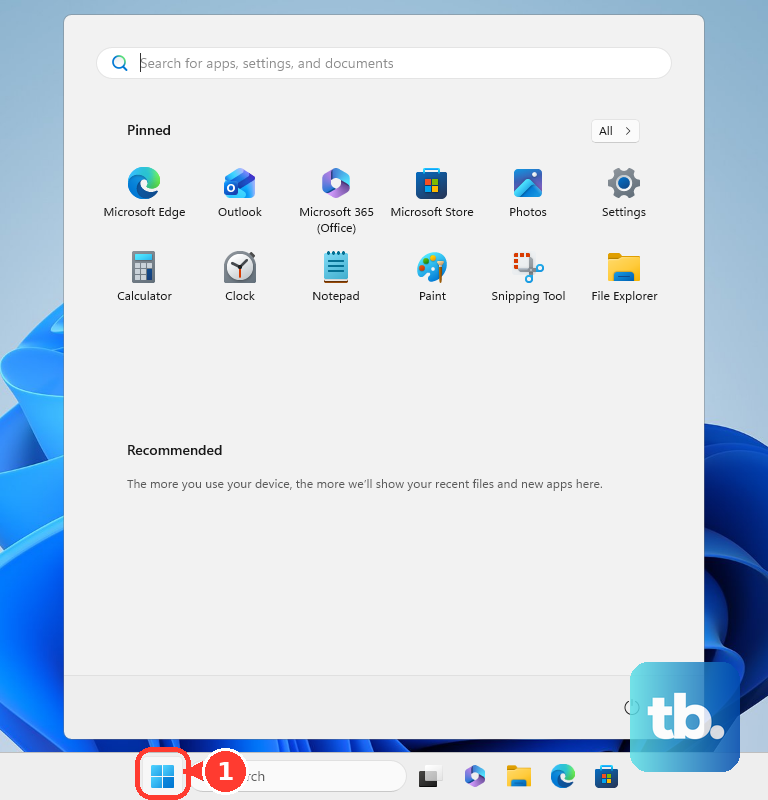
Open the Windows Start menu, search for SupportAssist, and open SupportAssist.
Go to the Home tab, choose Update software, then select Start. When updates are detected, select View updates and install the driver updates you need.
If SupportAssist does not find or install the audio driver, use Dell Drivers & Downloads in a browser and download the audio driver manually by Service Tag.
Fix silent sound before reinstalling anything
A driver is not always the problem. Open Start, go to Settings, choose System, then open Sound.
Under Output, select the speakers, headset, monitor, or other device you want to hear. For app-specific problems, open Volume mixer and make sure the app is not muted and its volume is set correctly.
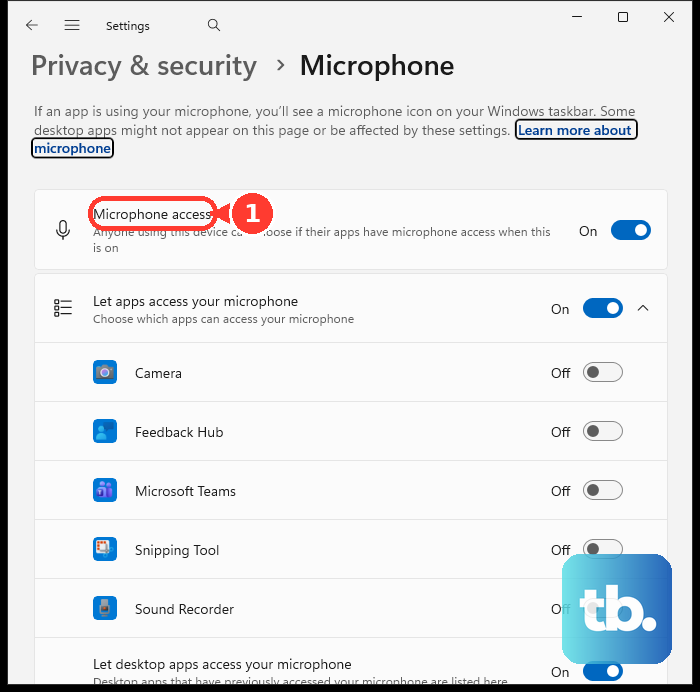
When several apps or devices have conflicting levels, use Start, Settings, System, Sound, Volume mixer, then Reset. For microphone trouble, open Settings, Privacy & Security, Microphone and allow microphone access for the device and apps.
Calling apps can override Windows choices, so check the audio settings inside Teams, Zoom, Google Meet, or Discord and select the speaker and microphone you want.
Repair the driver in Device Manager
Open Start, type Device Manager, and select Device Manager.
Expand Sound, video and game controllers.
Right-click the audio device, choose Update driver, then select Search automatically for drivers.
Follow the prompts and restart.
If sound is still broken, right-click the audio device again, choose Uninstall device, confirm the uninstall, and restart the PC so Windows can reinstall the audio driver.
When a new update caused the sound problem, open the device’s Properties, select the Driver tab, choose Roll Back Driver, follow the prompts, select Yes, and restart when prompted.
Use Attempt to remove the driver for this device during uninstall only when a normal reinstall does not help.
Check Windows Update for driver updates
On Windows 11, open Start, Settings, Windows Update, then select Check for updates. Install available updates and restart.
For optional driver updates on Windows 11, go to Start, Settings, Windows Update, Advanced options, Optional updates, then Driver updates. Select the driver updates you want, choose Download and install, and restart.
On Windows 10, use Start, Settings, Update & Security, Windows Update, then Check for updates. Microsoft ended Windows 10 support on October 14, 2025, but this remains the documented update path for Windows 10 devices.
Optional drivers are not installed automatically unless your update settings or device policies allow them, so check Optional updates when Dell’s tools do not offer a newer audio package.
Install the audio app your Dell model needs
This applies when the driver installs but headset detection, microphone switching, or audio enhancements still do not work. Many Dell systems using Realtek audio need a companion app, and the exact app varies by model.
Open Dell Drivers & Downloads, identify the PC, then use This Device or Show downloads for only this PC.
Install the required audio companion app listed for that system, such as Dell Optimizer or Waves MaxxAudio Pro.
For Dell Optimizer-supported systems without Dell Optimizer, install the platform-specific Waves UWP only when that platform supports it.
Do not install Waves UWP when Dell Optimizer is present.
If an analog headset microphone on the 3.5 mm jack is disabled, use the integrated microphone with headset output, or use a wireless or USB headset while you install the supported Dell audio components.
Handle model-specific and hardware-level fixes
The most common reason sound stays broken after a driver reinstall is that another component, audio service layer, or hardware state is still blocking normal playback.
For affected Inspiron 14 5420, Inspiron 15 3520, Inspiron 16 5620, Vostro 3420, Vostro 3520, and Vostro 5620 laptops with Cirrus High Definition Audio problems, open Control Panel, choose Uninstall a Program, right-click Cirrus High-Definition Audio Driver, select Uninstall, reboot, then reinstall the latest audio driver package from Dell Support.
When audio remains broken after the audio driver work, return to Dell Drivers & Downloads, identify the PC, and look for updates in the BIOS and Chipset categories.
Download and install each update, restart after installation, then shut down the computer, disconnect power and external devices, hold the power button for 15 to 20 seconds, reconnect power and devices, and test audio again.
Separate driver trouble from hardware trouble
Use these final checks to separate a driver problem from a device, app, or hardware problem.
- 1.Run the Windows audio troubleshooter from Start, Settings, System, Sound, then follow the prompts under Advanced for Output devices.
- 2.Open the Get Help app, search for audio troubleshooter, select Yes if diagnostics consent is requested, and follow the prompts.
- 3.For Bluetooth headphones or speakers, open Start, Settings, Bluetooth & devices, select Add device, pair the device again, then update Bluetooth drivers with SupportAssist if audio still fails.
- 4.For a Dell monitor with built-in speakers over HDMI, open Start, Settings, System, Sound, then choose the monitor under Output.
- 5.Restart the computer and press F12 several times during startup, open the One Time Boot Menu, choose Diagnostics, and follow the prompts for a full hardware check.
Do not use Dell Update or Alienware Update as the current consumer fix path. Dell ended support for those apps on December 31, 2024, and points users to SupportAssist or Dell Drivers & Downloads instead.
IDT High Definition Audio CODEC instructions belong to older Dell notebook models, not current Realtek or Cirrus systems. For a work or school Dell PC, contact the IT desk when Dell or Windows blocks driver installation, because managed Windows devices can receive approved drivers through company update policies.
Frequently Asked Questions
Where should I download Dell audio drivers?
Use Dell Drivers & Downloads and identify the PC by Service Tag, model, or automatic detection. That keeps the audio driver matched to your Dell model and Windows version.
Is SupportAssist required to fix Dell audio drivers?
No. SupportAssist is Dell’s current automatic update route for many home PCs, but you can also download the audio driver manually from Dell Drivers & Downloads.
Why does my Dell headset microphone not work after installing the Realtek driver?
Many Dell systems also need the model-specific audio companion app, such as Dell Optimizer or Waves MaxxAudio Pro. Install only the app Dell lists for your exact PC.
Should I use Device Manager or Dell Support first?
Start with Dell Support or SupportAssist for the model-specific driver. Use Device Manager afterward to update, reinstall, or roll back the audio device when the Dell driver does not fix the problem.