


To disable IPv6 in Windows, press Windows + R, run ncpa.cpl, open your connection’s Properties, uncheck Internet Protocol Version 6 (TCP/IPv6), and select OK. This changes only that connection and works in Windows 11 and Windows 10, including Home editions. You need administrator rights.
Microsoft discourages disabling IPv6 and warns that removing its binding from an adapter can produce an unsupported Windows configuration. If you want Windows to favor IPv4, Microsoft recommends changing the address preference while leaving IPv6 enabled.
The short version
- One connection: Uncheck Internet Protocol Version 6 (TCP/IPv6) in that adapter’s properties.
- Windows 11: You can reach the same checkbox through Settings > Network & internet > Advanced network settings.
- Command option: Administrator PowerShell can disable the IPv6 binding for a named adapter.
- Recommended alternative: Prefer IPv4 through the registry while keeping IPv6 enabled.
- Broader change: The
DisabledComponentsregistry value affects IPv6 components across Windows and requires a restart.
| Method | What it changes | Main consideration |
|---|---|---|
| Network Connections | IPv6 binding on one adapter | Works in Windows 11 and Windows 10 |
| Advanced network settings | The same adapter binding | Windows 11 route to the checkbox |
| Wi-Fi Hardware properties | The Wi-Fi adapter binding | Another Windows 11 route |
Disable-NetAdapterBinding | IPv6 binding on the named adapter | Requires administrator PowerShell |
Set-NetAdapterBinding | The same adapter binding | Alternative PowerShell command |
| Prefer IPv4 through the registry | Windows address selection preference | Keeps IPv6 enabled and requires a restart |
| Disable components through Registry Editor | IPv6 components across Windows | Leaves internal loopback available and requires a restart |
| Disable components through Command Prompt | The same registry value | Requires an administrator shell and a restart |
Disable IPv6 through Network Connections
Start with the adapter you want to change, such as your Wi-Fi or Ethernet connection. The checkbox affects only the selected connection, so changing Wi-Fi does not also change Ethernet.
Press Windows + R to open Run. Enter the following command, then press Enter.
ncpa.cplRight-click your connection and select Properties. On the Networking tab, uncheck Internet Protocol Version 6 (TCP/IPv6), then select OK. Repeat these steps for any other adapter where you need IPv6 disabled.
You can also open Control Panel > Network and Internet > Network and Sharing Center > Change adapter settings. This takes you to the same connection controls, where you can open the adapter’s Properties.
Find the checkbox in Windows Settings
In Windows 11, open Settings > Network & internet > Advanced network settings, then expand the relevant adapter. Beside More adapter options, select Edit. Uncheck Internet Protocol Version 6 (TCP/IPv6), then select OK.
For Wi-Fi, you can also open Settings > Network & internet > Wi-Fi > Hardware properties. Beside More adapter options, select Edit, uncheck Internet Protocol Version 6 (TCP/IPv6), and select OK. Both routes change the same adapter binding as Network Connections, so you only need one of them. If your Settings interface differs, use the Network Connections method.
Disable an adapter binding with PowerShell
Open Windows PowerShell using Run as administrator. Run this command to identify your adapters and their IPv6 bindings.
Get-NetAdapterBinding -ComponentID ms_tcpip6Find the adapter name you want to change. Run the following command, replacing Wi-Fi with the exact name returned for that adapter.
Disable-NetAdapterBinding -Name "Wi-Fi" -ComponentID ms_tcpip6This changes the selected adapter’s IPv6 binding, just like unchecking the box. If the command fails, confirm that PowerShell is running as administrator and that the adapter name matches the name returned by the first command.
You can use the following command to make the same change. Replace Wi-Fi with your adapter’s name again; you only need to run one of the two disable commands.
Set-NetAdapterBinding -Name "Wi-Fi" -ComponentID ms_tcpip6 -Enabled $falseThe ComponentID selector with ms_tcpip6 avoids depending on the Windows display language.
Prefer IPv4 while leaving IPv6 enabled
Use this option if your goal is to make Windows prefer IPv4 addresses. Microsoft recommends it over disabling IPv6 because it keeps IPv6 available while changing address selection.
Back up the registry before editing it. Open Registry Editor as administrator and go to the following location.
HKEY_LOCAL_MACHINE\SYSTEM\CurrentControlSet\Services\Tcpip6\ParametersCreate or edit the value named DisabledComponents, using the type DWORD (32-bit) Value. Set Base to Hexadecimal, enter 20 in Value data, and select OK. Hexadecimal 20 is decimal 32.
Restart Windows to apply the preference. If the computer is unresponsive when you need to restart it, follow the steps to restart a computer that is frozen.
Disable IPv6 components across Windows
Use the broader registry setting when you need to disable IPv6 components across Windows. Internal IPv6 loopback remains available, so the setting does not remove every part of IPv6 from the operating system.
Back up the registry, then open Registry Editor as administrator. Go to the following location and create or edit DisabledComponents as a DWORD (32-bit) Value.
HKEY_LOCAL_MACHINE\SYSTEM\CurrentControlSet\Services\Tcpip6\ParametersSet Base to Hexadecimal and enter ff in Value data. Select OK, then restart Windows. Microsoft identifies 0xff as the correct value; do not substitute the older 0xffffffff recommendation.
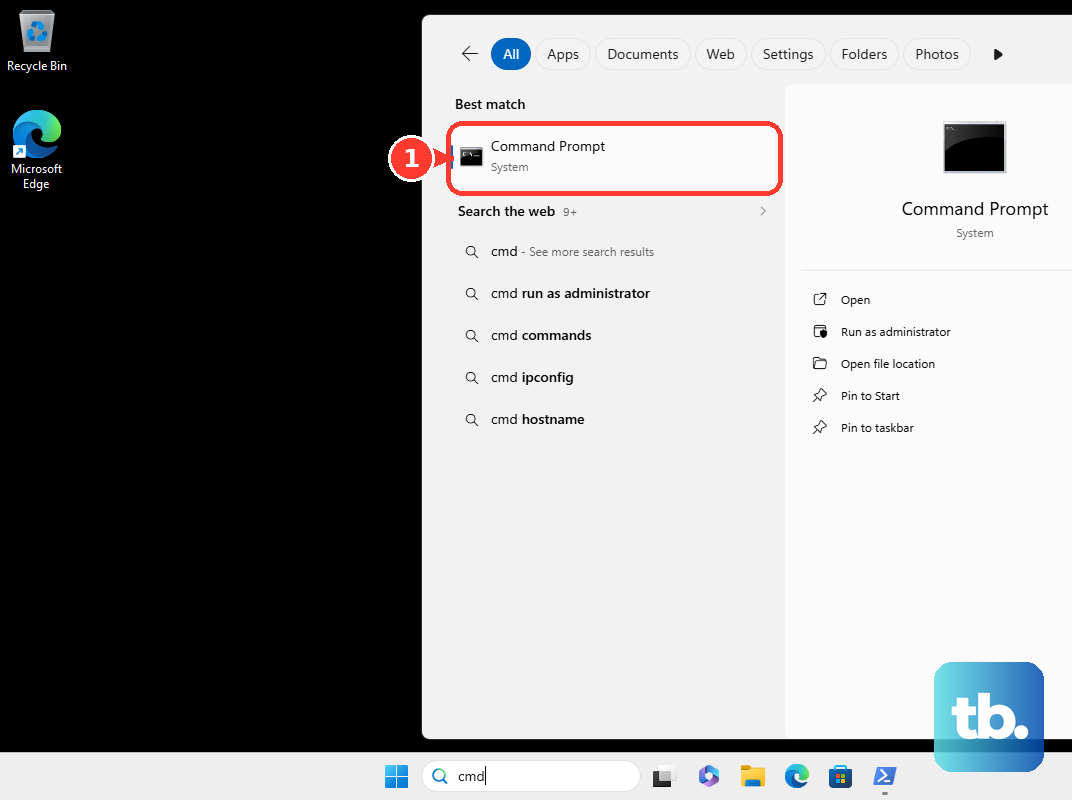
To make the same change with a command, open Command Prompt using Run as administrator. Run the following command, then restart Windows. Its decimal value 255 equals hexadecimal ff.
reg add "HKLM\SYSTEM\CurrentControlSet\Services\Tcpip6\Parameters" /v DisabledComponents /t REG_DWORD /d 255 /fChoose either Registry Editor or Command Prompt because both write the same setting. The IPv4 preference also uses DisabledComponents, so entering ff replaces an existing 20 preference setting.
Check your change and resolve mismatches
After using the checkbox or adapter command, return to the selected connection’s Properties and inspect Internet Protocol Version 6 (TCP/IPv6). If another connection still has IPv6 enabled, change that adapter separately if needed. To undo the checkbox change, check Internet Protocol Version 6 (TCP/IPv6) again and select OK.
The registry method does not change the adapter checkbox state, so a checked box does not mean your registry change failed. Confirm the value you entered in DisabledComponents and complete the required Windows restart.
Turning off the whole network adapter or enabling Airplane mode does not disable IPv6 alone. Browser, VPN, router, and firewall controls also affect different parts of your connection, so choose the control that matches what you need to change.
Frequently Asked Questions
Can you disable IPv6 only in Firefox?
You can disable IPv6 DNS resolution in Firefox without disabling Windows IPv6 or changing other applications. Enter about:config in the address bar and press Enter; if a warning appears, select Accept the Risk and Continue. Search for network.dns.disableIPv6 and select its Toggle button to set the value to true.
Can you turn off IPv6 inside Proton VPN?
You can change IPv6 behavior in the Proton VPN Windows app. Open Settings > Connection > Advanced Settings > IPv6 support and turn the switch off, leaving IPv6 leak protection on. If connected, select Reconnect to apply the change. This controls VPN behavior rather than permanently disabling IPv6 across Windows.
Can you disable IPv6 through an eero router?
Yes, open the eero app and go to Settings > Advanced networking > IPv6, then turn the toggle off. Your network restarts automatically to save the change. This affects the network your PC uses rather than disabling the Windows IPv6 stack.
Does disabling Teredo also disable native IPv6?
No, disabling Teredo affects only that IPv6 transition technology. If you disable 6to4 or ISATAP, those changes are also limited to the named tunnels and leave native IPv6 unaffected.
Can you uninstall IPv6 or use a Microsoft Fix it download?
You cannot use historical IPv6 uninstall instructions for Windows 11 or Windows 10, where IPv6 is an integrated component. Microsoft has also discontinued Easy Fix, previously called Fix it. Use the adapter controls or registry settings instead.
Does the old Chrome disable IPv6 shortcut switch still work?
No, Chromium removed the --disable-ipv6 and --enable-ipv6 launch switches. Adding the old switch to your Chrome shortcut is not a supported current method.