


To disable a laptop keyboard in Windows 11, open Device Manager, select the internal keyboard, and choose Disable device if available. On a Mac, use Karabiner-Elements to disable the built-in keyboard while an external keyboard is connected. Connect your replacement keyboard before disabling the internal one.
Choose between disabling the built-in keyboard so you can keep typing on another keyboard and temporarily blocking all keyboard input. Keyboard-locking apps often block external keyboards too, so check how you will unlock input before starting.
The short version
- Windows: Start with Device Manager, then consider PnPUtil after identifying the internal keyboard precisely.
- Mac: Use Karabiner-Elements to disable the built-in keyboard when your external keyboard connects.
- Temporary locking: BlueLife KeyFreeze and KeyboardCleanTool block input across keyboards, including external ones.
- Restoring input: Keep the reversal steps and an alternative way to control the laptop ready before starting.
| Method | Best use | Main limitation |
|---|---|---|
| Windows Device Manager | Disable the internal keyboard | Some drivers do not allow disabling |
| Windows PnPUtil | Target a specific keyboard by command | Requires administrator access and the correct instance ID |
| Windows device uninstall | Remove the keyboard device temporarily | Windows can reinstall it immediately |
| Windows Group Policy | Block a matching keyboard persistently | Requires Pro, Enterprise, or Education |
| BlueLife KeyFreeze | Temporarily lock Windows keyboard input | Blocks external keyboards too |
| Karabiner-Elements | Keep typing on an external Mac keyboard | Requires installation and macOS permissions |
| KeyboardCleanTool | Temporarily lock Mac keyboard input | Blocks input across keyboards |
| HP x360 physical modes | Automatically disable the keyboard area | Supported modes and affected components vary by model |
| Lenovo Yoga physical modes | Disable the keyboard and pointing device | Requires a supported convertible model |
| Lenovo Chromebook physical modes | Disable the keyboard while using the touchscreen | Applies to supported convertibles |
| Surface keyboard detachment | Disconnect a non-wireless keyboard | A charged Flex Keyboard stays connected wirelessly |
| Surface Type Cover folding | Stop key presses with the cover folded back | Applies to supported Type Covers on older Surface models |
| Linux xinput | Disable a keyboard in an X11 session | Does not block native Wayland input |
| Linux Sway commands | Disable keyboard events in Sway | Does not apply to every Wayland desktop |
| Hardware disconnection | Physically disconnect a separate keyboard cable | Requires model-specific service instructions |
Prepare a way to keep controlling the laptop
Connect an external keyboard before changing the internal keyboard's device settings. Keep a mouse or trackpad available, particularly when restoring input requires selecting a control. For a temporary locking app, learn its unlock action before activating it.
You will not find a general keyboard-off switch in Settings on Windows, System Settings on macOS, or standard Chromebook Settings. Manufacturer controls depend on the exact model, so check that your laptop supports a physical mode or keyboard control before relying on it.
Disable the keyboard in Windows Device Manager
To find the laptop's own keyboard entries, unplug every external keyboard and any wireless receiver, and turn off any Bluetooth keyboard. Then right-click Start, open Device Manager, and expand Keyboards. Device Manager hides disconnected devices unless you turn on Show hidden devices in the View menu, so each entry still listed belongs to the laptop. Note those entries, then reconnect your external keyboard.
Under Keyboards, right-click an entry you noted and select Properties. Open the Driver tab, choose Disable device, and select Yes. Repeat this for each entry you noted.
Restart if Windows requires it, then check that your replacement keyboard remains usable. To restore the internal keyboard, return to the same device and select Enable device. If Disable device is missing, that device does not offer this option.
You can also right-click an entry you noted under Keyboards, select Uninstall device, and select Uninstall. Treat this as temporary removal: Microsoft says Windows can rediscover and reinstall an attached device immediately or at the next restart. Uninstalling therefore does not guarantee even a useful temporary pause.
Target the Windows keyboard with PnPUtil
PnPUtil is included in Windows and can target an individual keyboard without another download. Open Command Prompt using Run as administrator, select Yes, and run this command to list connected keyboard devices:
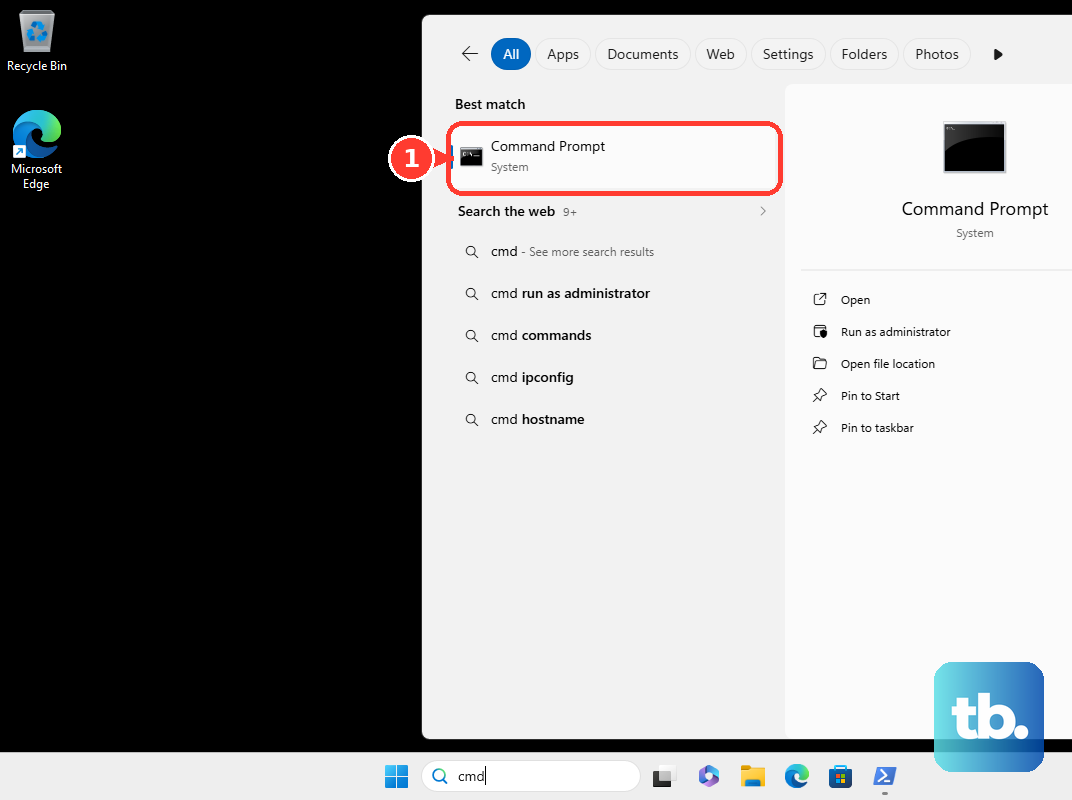
pnputil /enum-devices /connected /class KeyboardRun it once with every external keyboard disconnected. Because /connected lists only connected devices, each instance ID it shows then belongs to the laptop. Reconnect your external keyboard, then replace INSTANCE_ID below with one of those identifiers, keep the quotation marks, and run the command:
pnputil /disable-device "INSTANCE_ID"Restart if required. If Windows becomes unresponsive during that step, follow the steps to restart an unresponsive computer. To restore the keyboard, open Command Prompt using Run as administrator and run:
pnputil /enable-device "INSTANCE_ID"Hardware and driver restrictions still apply, so PnPUtil cannot guarantee that every internal keyboard will accept disabling. If it fails, do not substitute another keyboard's ID. Microsoft recommends PnPUtil as the replacement for the older DevCon approach.
Block keyboard installation on Windows Pro
On Windows 11 Pro, Enterprise, or Education, you can apply a device-installation Group Policy to an already installed keyboard. This requires administrator access and is unavailable on Home. Use the keyboard’s device instance ID, which Microsoft describes as uniquely identifying one device in the system, so the policy cannot also match your replacement keyboard.
Find that instance ID with the PnPUtil listing in the previous section, run with every external keyboard disconnected. Run this command to open the policy editor:
gpedit.mscOpen Computer Configuration > Administrative Templates > System > Device Installation > Device Installation Restrictions. Open Prevent installation of devices that match any of these device instance IDs and select Enabled. Select Show..., enter the instance ID, and select OK.
Check Also apply to matching devices that are already installed, then select Apply and OK. Restart to apply the restriction. To restore the keyboard, remove the restriction and reinstall the device if necessary.
Temporarily lock keyboard input in Windows
Download BlueLife KeyFreeze using Download on its product page. Extract the archive and run KeyFreeze. Its initial countdown locks both the keyboard and mouse.
For keyboard-only locking, cancel the countdown by clicking X, right-click the notification-area icon, and select Lock Keyboard. Press Ctrl + Alt + F to unlock; open Options to change that shortcut. External keyboard input is blocked too, so use a device-specific Windows method if you need to keep typing on another keyboard.
Disable or temporarily lock a Mac keyboard
To keep an external keyboard working while disabling the built-in one, get Karabiner-Elements through its Download option. Complete installation and the required macOS permissions, then open Karabiner-Elements > Devices. For your external keyboard, enable Disable the built-in keyboard while this device is connected.
If the internal keyboard is not identified correctly, locate it and enable Treat as a built-in keyboard. Disconnect the external keyboard or turn off Disable the built-in keyboard while this device is connected to restore the internal keyboard. The current release supports macOS 13 through macOS 27 on supported Intel and Apple silicon Macs.
For a temporary lock, install KeyboardCleanTool and complete its requested permissions. Version 8 requires macOS 13 or later; select Start Cleaning Mode to block the keyboard, modifier keys, and Touch Bar. With the default configuration, press and hold a trackpad or mouse button for three seconds to unlock.
KeyboardCleanTool blocks input across keyboards, and its options can also block pointer controls. Choose Karabiner-Elements if you need to continue typing on an external keyboard.
Use supported convertible and detachable modes
On a supported HP x360 notebook, place the screen in stand, tent, tablet, or book mode to disable the keyboard area automatically. Return it to clamshell or flat mode to restore the keyboard. Depending on your model, changing modes can also disable the touchpad, fingerprint reader, and keyboard-mounted power button.
On the Lenovo Yoga 7i 2-in-1 Aura Edition, 14-inch generation 11, rotate the display into stand, tent, or tablet mode to disable the keyboard and pointing device. Return to notebook mode to restore them. Check your model's instructions before applying this behavior to another Lenovo convertible.
On the Lenovo 500e Chromebook Gen 4s, rotate the screen into stand, tent, or tablet mode to disable the physical keyboard and use the touchscreen. Return to laptop mode to restore typing. This method does not apply to a conventional Chromebook with a fixed laptop hinge.
To disconnect a non-wireless Surface Pro 13-inch Keyboard, pull the keyboard and Surface apart at the magnetic connector. Reattach it to restore operation. A charged Surface Pro Flex Keyboard remains usable wirelessly after detachment, so detaching that model does not disable it.
On Surface Go and Surface Pro 7+ or earlier with supported Type Covers, fold the cover behind the display to stop its key presses from being detected. Unfold it to resume typing. Use this procedure only with the supported Type Covers, since newer Surface Pro keyboards have separate model instructions.
Disable an individual keyboard in Linux
On an Xorg or X11 desktop, use xinput to identify and disable the internal keyboard. Run this command and find the keyboard's device ID:
xinput listReplace ID with the internal keyboard's actual ID in the following command. The change normally affects the current graphical session rather than firmware or the boot console:
xinput disable IDRestore the keyboard with the command below. Under Xwayland, xinput does not disable the physical keyboard in native Wayland applications, so use a method that matches your desktop if those applications still receive input.
xinput enable IDFor a Sway session, identify the internal keyboard with this command. Use its actual identifier in place of IDENTIFIER in the subsequent commands:
swaymsg -t get_inputsDisable that keyboard's events with the following command. This applies to Sway and is not a universal command for GNOME or KDE desktops:
swaymsg 'input "IDENTIFIER" events disabled'Run the next command to restore input. For persistence, place input "IDENTIFIER" events disabled in the Sway configuration.
swaymsg 'input "IDENTIFIER" events enabled'Consider hardware disconnection for your model
If your keyboard has a separately disconnectable cable, ask a technician about physical disconnection using your laptop's exact service manual. Dell reserves the keyboard-removal procedure for the Dell Pro 14 Plus/2-in-1 PB14255 for authorized service technicians.
A removable cable alone does not mean the manufacturer supports using the laptop with its keyboard disconnected. Confirm that your model can operate in the intended configuration before arranging hardware work. If your keyboard driver permits disabling, you can reverse that software change without opening the laptop.
Frequently Asked Questions
Can Fn Lock or Num Lock disable the whole laptop keyboard?
No, Fn Lock and Num Lock change particular keyboard functions. Keyboard-backlight controls change lighting. None provides a complete keyboard disable.
Will Filter Keys or Mac Mouse Keys turn the keyboard off?
No, Filter Keys and Slow Keys reject or delay some presses rather than disabling all input. Mac Mouse Keys repurposes keys to control the pointer.
Can PowerToys disable only the built-in keyboard?
No, PowerToys Keyboard Manager cannot distinguish the built-in keyboard from an external keyboard. It also does not intercept every reserved key combination or password screen.
Does shutting down an Apple silicon Mac make its keyboard inactive?
No, Apple says keyboard or trackpad input can still start an Apple silicon Mac, even after changing BootPreference. Shutting down therefore does not make the keyboard inert.