Instagram does not have a separate switch that hides only your Following list from everyone. The workable fix is to make your account private, then control who is allowed to follow you. A private account hides your Followers and Following lists from people who are not approved followers, while approved followers can still see them.
Start with the real privacy limit
The most common cause of confusion is that Instagram treats your Following list as part of profile visibility, not as its own private field.
Make your account private to hide the Following list from people who are not approved followers.
Keep in mind that approved followers can still open the list. To stop one of them from seeing it, remove that follower or block the account.
Make your Instagram account private in the app
This fixes visibility for people who are not already approved followers.
Tap your profile picture in the bottom right.
Tap Menu in the top right.
Under Who can see your content, tap Account privacy.
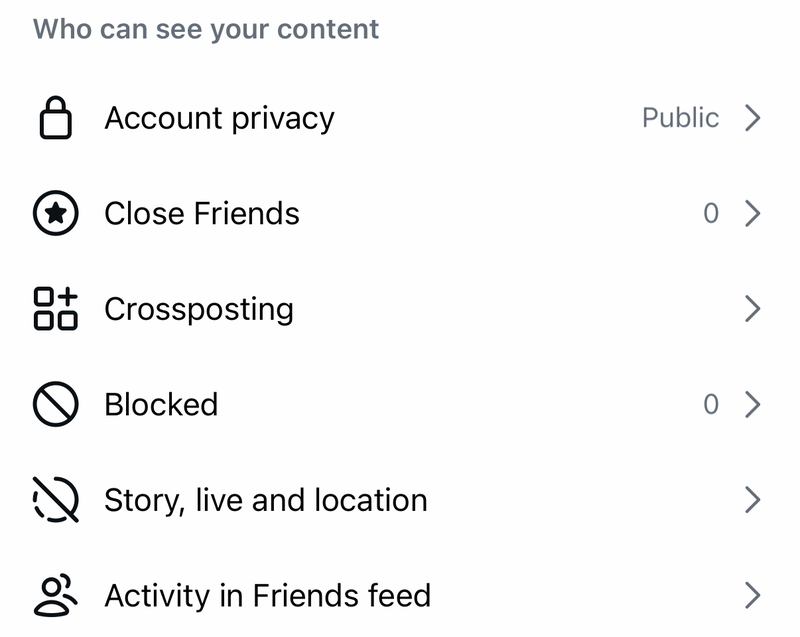
Turn on Private account.
Tap Switch to private to confirm.
Use Instagram.com from a browser
You can make the same privacy change from Instagram on the web. Go to Instagram.com, open More, then choose Settings.
Open Account privacy, turn on Private account, then choose Switch to private if Instagram asks you to confirm.
If this method fails, use the Instagram app and turn on Private account from Account privacy.
Switch from a professional account first
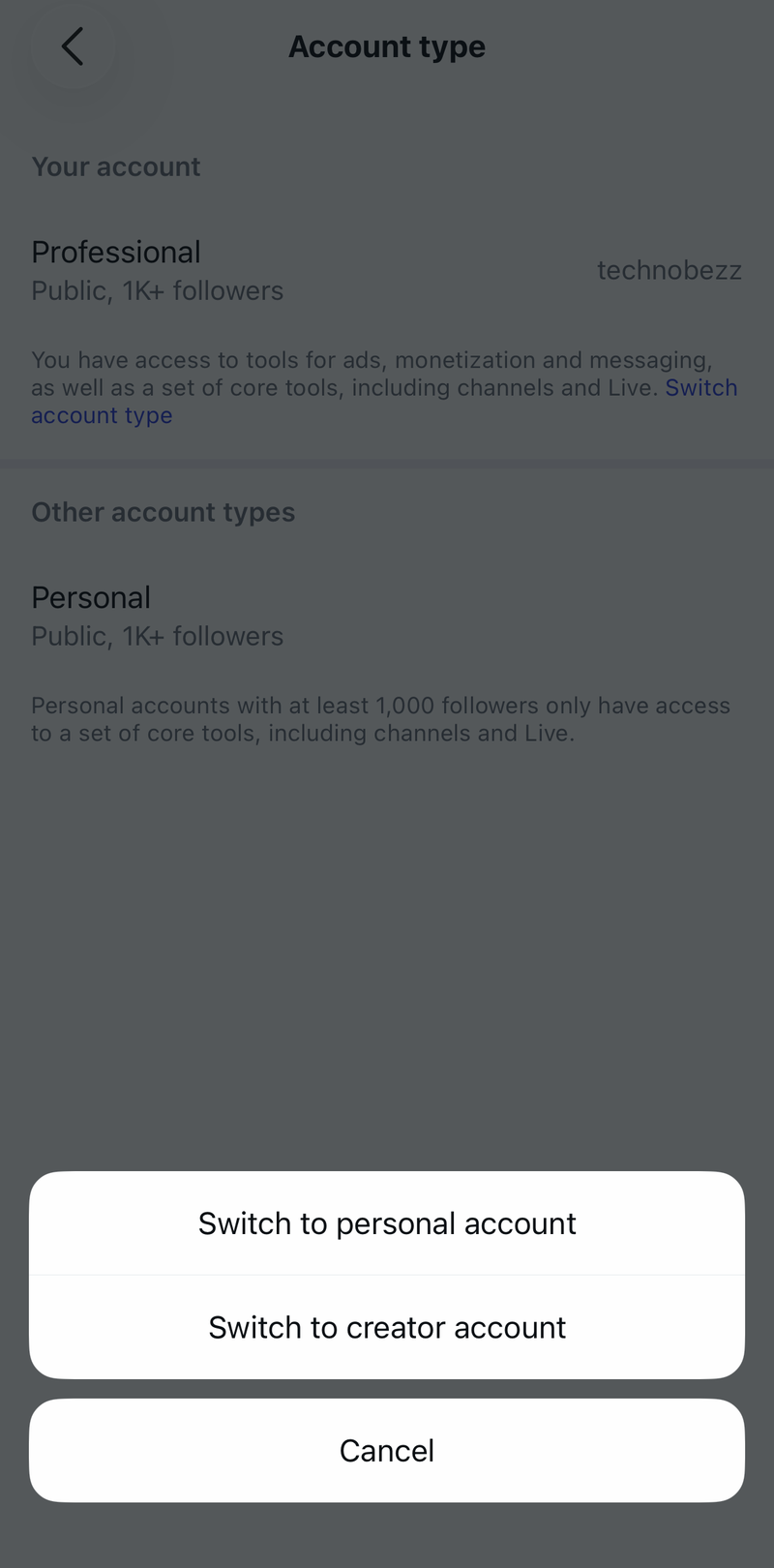
Business, Creator, and other Professional accounts need to switch back to a personal account before using private-account controls.
- 1.Open your profile and tap Menu.
- 2.Go to Settings and activity, then open Account type and tools.
- 3.Tap Switch account type.
- 4.Choose Switch to personal account.
- 5.Open Account privacy, turn on Private account, then confirm with Switch to private.
Remove followers who should not see the list
This applies after your account is private. Approved followers can still see your Following list, so privacy depends on who remains on your follower list.
Tap your profile picture in the bottom right, then tap Followers at the top of your profile.
Find the person you want to remove and tap Remove to the right of their name.
Tap Remove again to confirm. Instagram does not notify the person when you remove them.
Block a specific person
Use blocking when one account should not see your profile, posts, Stories, Followers list, or Following list.
- 1.Go to the person's profile.
- 2.Tap the three-dot menu in the top right.
- 3.Tap Block.
- 4.Choose whether to block only that account or also other accounts they may have or create.
- 5.Tap Block to confirm.
Check teen account privacy
Instagram Teen Accounts are private by default for teens under 16 and for teens under 18 when signing up. That default privacy keeps the Following list limited to approved followers.
A teen under 16 needs a parent's permission before the account can change from private to public, and that permission runs through parental supervision on Instagram. Set up parental supervision first, then open Profile or tap the profile picture, go to Menu, and use Account privacy or Teen Account settings to start the request.
When Instagram asks for approval, use the prompt to request permission to change the account to public. Staying private is the setting that keeps non-followers from seeing the list.
Use deactivation or deletion only for full profile hiding
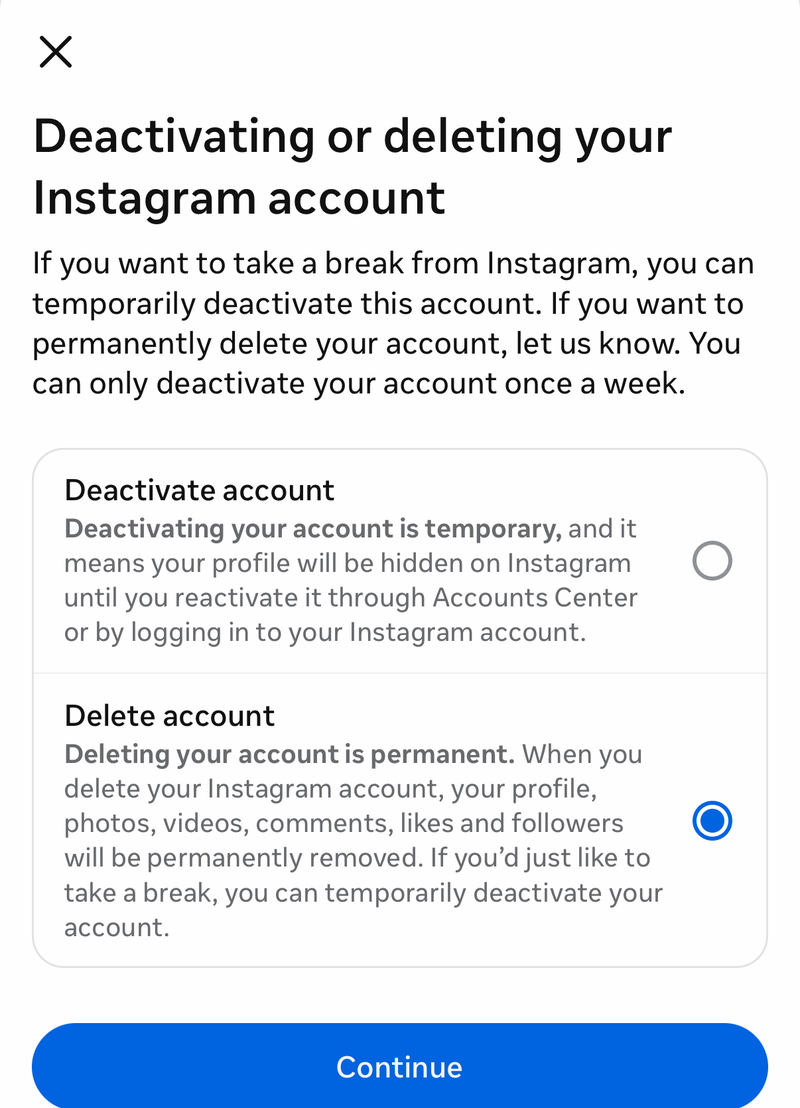
Deactivation hides your whole Instagram profile, not just the Following list. In the app, go to Profile, Menu, Accounts Center, Personal details, Account ownership and control, then Deactivation or deletion. Select your Instagram account, choose Deactivate account, tap Continue, and follow the prompts.
Deletion is broader and eventually removes the profile from public access. Use the same Deactivation or deletion path, select the account, choose Delete account, tap Continue, and follow the prompts. Deletion may include a cancellation period before permanent removal.
If this method feels too broad, use the narrower controls instead: make the account private, remove approved followers, or block specific accounts.
Skip old tricks and third-party tools
This fixes time wasted on settings that do not hide the Following list.
Do not rely on uninstalling Instagram, logging out, removing app permissions, muting someone, restricting someone, hiding Stories, using Close Friends, turning off Activity Status, or changing phone-level privacy settings.
Those controls affect app access, interactions, Stories, feed visibility, online status, or device permissions. They do not change who can open your Instagram Following list.
Avoid third-party apps, browser extensions, AI assistants, voice assistants, and follower tools that claim they can add an Instagram-only hide Following list control. Use Instagram's own Account privacy, follower removal, blocking, deactivation, or deletion controls instead.
Frequently Asked Questions
Can I hide my Instagram Following list from everyone?
No. Instagram does not offer a separate setting that hides only your Following list from everyone. A private account hides it from non-approved followers, but approved followers can still see it.
Can someone still see my Following list after I make my account private?
Yes, if they are already an approved follower. Remove them from your followers or block them if you do not want that person to see your list.
Can a Business or Creator account hide its Following list by going private?
Not while it remains a Professional account. Switch to a personal account first, then turn on Private account.
Does restricting or muting someone hide my Following list from them?
No. Restrict and Mute affect interactions or feed visibility, not access to your Following list. Remove the follower or block the account instead.