Deleting Instagram sounds bigger than it is because the app and the account feel tied together. If you delete the Instagram app, the app leaves that device, but your Instagram account, posts, followers, DMs, and Meta account stay intact. Use the right removal path below so you do not confuse uninstalling the app with deleting the profile.
Check what disappears and what stays
Start by separating the app on your device from your Instagram account online.
- 1.Find the Instagram app on the device where you want it removed.
- 2.Delete or uninstall Instagram to remove the local app from that device.
- 3.Leave the account alone if you want your posts, followers, DMs, and Meta account to remain.
- 4.Reinstall Instagram later from the App Store, Google Play, or Microsoft Store.
- 5.Use Accounts Center only when you mean to deactivate or permanently delete the Instagram profile itself.
Delete Instagram from an iPhone or iPad
Touch and hold the Instagram icon on the Home Screen.
Tap Remove App.
Tap Delete App.
Confirm with Delete.
To remove it from App Library instead, swipe left past all Home Screen pages to App Library, touch and hold Instagram, tap Delete App, then tap Delete.
Tip: if you find Instagram through Spotlight, touch and hold Instagram there, then use Remove App, Delete App, and Delete.
Use iPhone Storage when space is the problem
Open Settings, tap General, then open [Device] Storage.
Tap Instagram and choose Delete App when you want to remove the app and its related local data.
Choose Offload App when you want to free the storage used by the app while keeping its documents and data. To let iOS do that automatically for unused apps, open Settings, tap Apps, open App Store, then turn on Offload Unused Apps; the app can show a cloud icon when it is ready to reinstall.
If deleting from storage fails, check Screen Time restrictions before trying the Home Screen method again.
Allow app deletion when the option is missing
This method applies when Instagram stays on the iPhone or iPad and the normal delete option is unavailable. The usual consumer fix is to allow app deletion in Screen Time.
Open Settings, then tap Screen Time.
Go to Content & Privacy Restrictions.
Open iTunes & App Store Purchases, tap Deleting Apps, and set it to Allow.
On a school or employer device, open Settings, then General, then VPN & Device Management. If a profile appears under Mobile Device Management, contact the organization’s IT admin because the device may be managed.
Uninstall Instagram on Android
On most Android phones with Google Play, remove Instagram from the Play Store.
- 1.Open Google Play Store.
- 2.Tap your Profile icon.
- 3.Go to Manage apps & devices, then Manage.
- 4.Select Instagram.
- 5.Tap Uninstall.
Archive or clear Instagram instead of uninstalling
The most common cause of confusion is that Android archiving, Samsung data clearing, and hiding the icon are not the same as uninstalling Instagram.
On Android devices that support app archiving, open Settings, then Apps, then Instagram, and tap Archive. Archiving removes app data but keeps the icon and personal data so the app can be restored if it is still available.
To let Android archive unused apps automatically, open Google Play Store, tap your profile photo, go to Settings, then General, and turn on Automatically archive apps. Google Play may archive unused apps when storage is low.
On Samsung Galaxy, open Settings, then Apps, then Instagram, then Storage, and tap Clear cache to clear cache only. Tap Clear data, then Delete, to reset local app data and settings without deleting the Instagram account.
Remove saved login or delete the actual account
Uninstalling Instagram removes the app from the device, but saved login information can still be removed from the Instagram login screen before you uninstall. Go to the Instagram login screen, tap Options in the top right, tap Remove profiles from this device, then tap Remove next to the account you want cleared. Removing login information only takes the account off that iPhone or Android device; it does not deactivate or delete the Instagram account.
To permanently delete or temporarily deactivate the Instagram profile, use Instagram or instagram.com while logged in. Go to your profile, open the menu or More, choose Accounts Center, then Profiles and personal details, select Manage next to the account type, open Deactivation or deletion, choose your Instagram profile, then select Delete account or Deactivate account and continue through the prompts.
Older paths such as Edit Profile followed by Temporarily disable my account, or a direct permanent deletion page, are not the current Accounts Center route. Use Accounts Center and Deactivation or deletion for the current profile controls.
If account deletion or deactivation does not show the account you expect, sign in to the correct Instagram profile and open Accounts Center again.
Remove Instagram from a computer
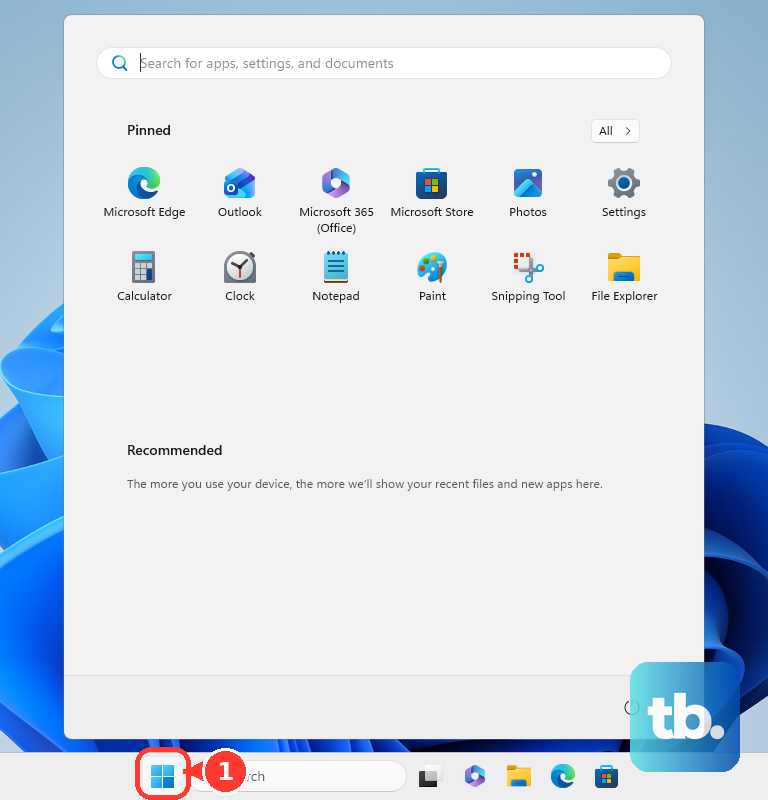
On Windows, open Start, then All apps, find Instagram, right-click or press and hold it, and choose Uninstall. On Windows 11, you can also use Start, Settings, Apps, Installed apps, Instagram, More, then Uninstall.
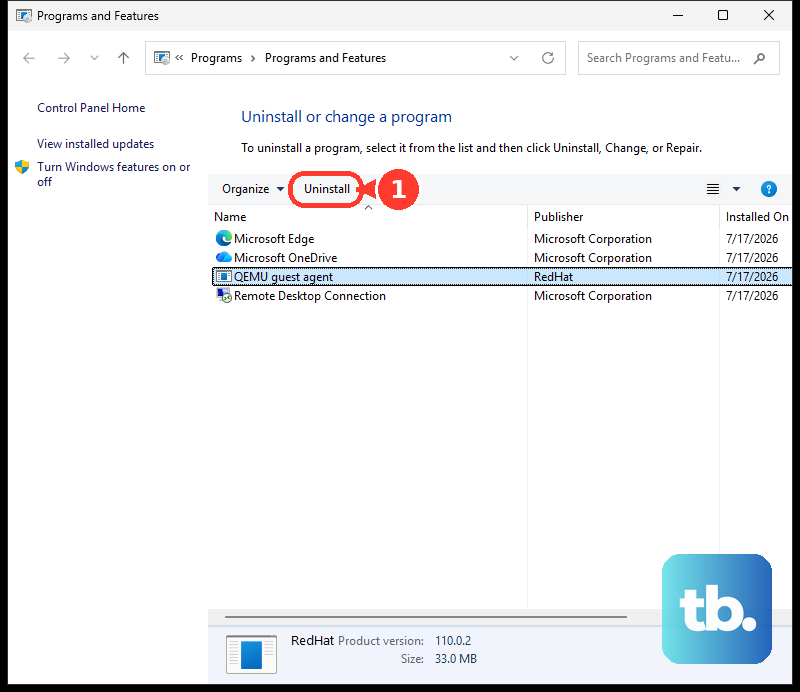
If Instagram is installed as a traditional Windows desktop program, search for Control Panel, then go to Programs, Programs and Features, Instagram, and choose Uninstall or Uninstall/Change.
For a Microsoft Edge web app, open edge://apps, choose Details on the Instagram app card, then Uninstall. For a Chrome web app on desktop, open the Instagram web app, choose More, then Uninstall [app name], and confirm with Remove; Chrome also offers Also delete data from Chrome.
On a Mac where Instagram was added to the Dock as a Safari web app, open Finder, then Go, then Home, then Applications, and drag the Instagram web app to the Bin.
Frequently Asked Questions
Will deleting the Instagram app delete my account?
No. Uninstalling the app removes Instagram from that device only. Your account, posts, followers, DMs, and Meta account remain.
Can I get Instagram back after deleting the app?
Yes. Reinstall it from the App Store on iPhone or iPad, Google Play on Android, or Microsoft Store on Windows.
Is offloading Instagram the same as deleting it?
No. On iPhone and iPad, offloading frees the storage used by the app but keeps its documents and data.
Does clearing Instagram data on Samsung delete my account?
No. Clearing data resets local app data and settings on the device, but it does not delete your Instagram account.











