
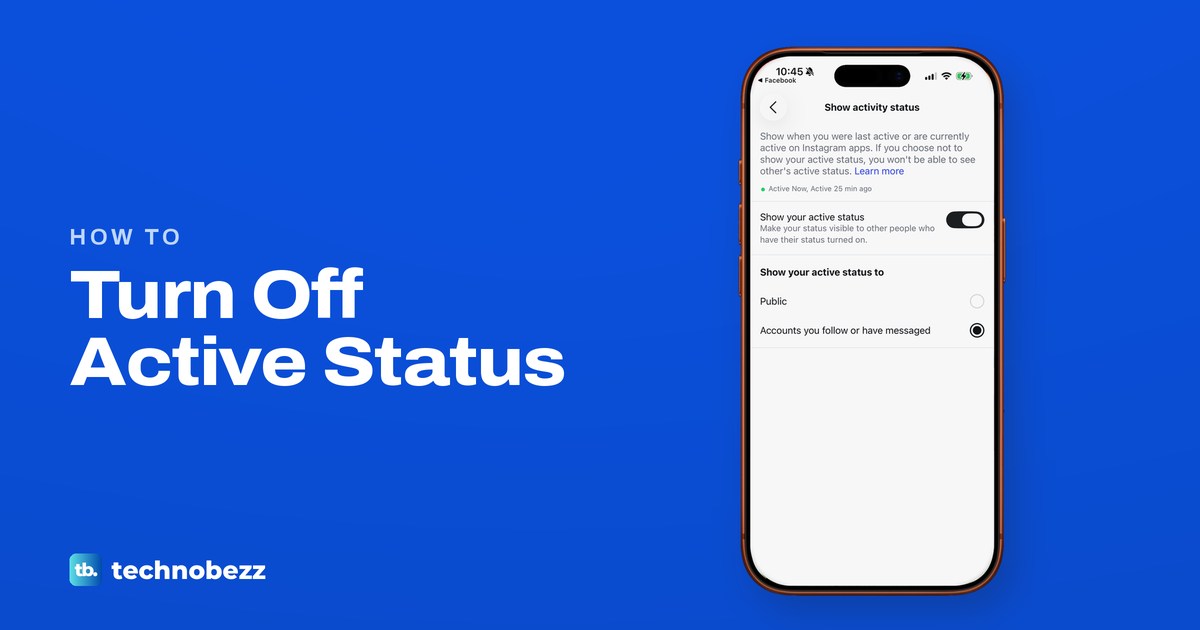
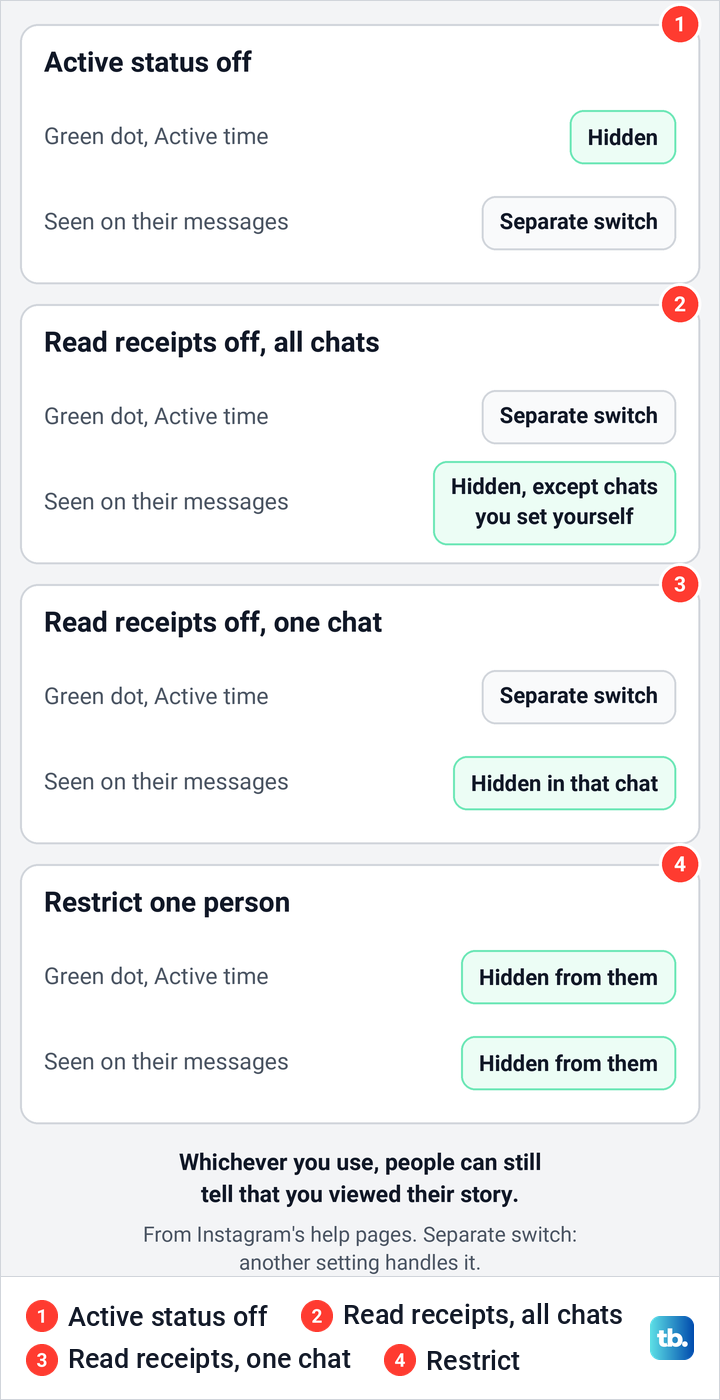
To turn off active status on Instagram, tap your profile picture, tap the menu in the top right, then under How others can interact with you tap Messages and story replies > Show activity status and turn off Show your active status. Your green dot and "Active" time stop showing next to your profile picture in chats, and you stop seeing everyone else's. It is the setting other apps call last seen.
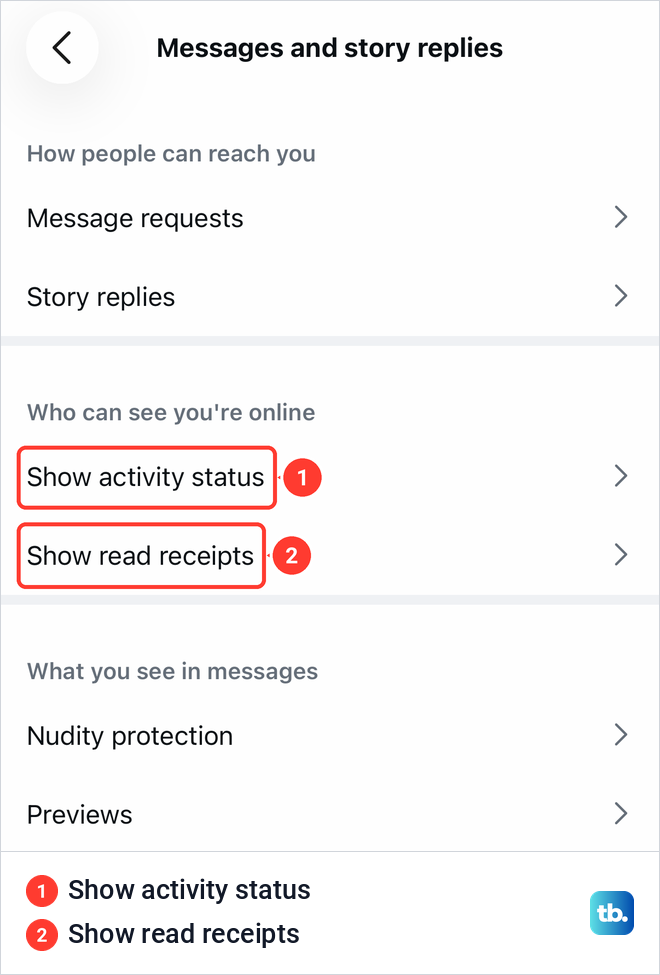
To turn off read receipts, go back to Messages and story replies, tap Show read receipts and turn off Read receipts. Each chat also has its own Read receipts switch under the chat name > Privacy & safety, and a chat you set there keeps its own setting. In the Instagram app on our iPhone with iOS 26.6, both rows sit together under a heading that reads Who can see you're online.
To hide both from one person only, restrict them. Instagram's switch also does nothing for Threads, which keeps its own online status.
The short version
- Active status: Settings and activity > Messages and story replies > Show activity status, then turn off Show your active status.
- It works both ways: with yours off, you can't see anyone else's activity either.
- Read receipts: Messages and story replies > Show read receipts, then turn off Read receipts, or use Privacy & safety inside one chat.
- One person only: restrict them, and they can't see when you're online or whether you've read their messages.
- Threads is separate: it has its own Online status setting.
Where to find each switch
Instagram spreads these controls over three places: your settings, each chat's details and the Restrict list. The table shows where each one lives and what it changes.
| What you want | Where to go | What happens |
|---|---|---|
| Hide when you're online, in the app | Profile > Menu > Messages and story replies > Show activity status > Show your active status | No green dot or Active time for anyone, and you stop seeing theirs |
| Hide when you're online, on a computer | instagram.com > More > Settings > Messages and story replies > Show Activity Status | The same switch, in the browser |
| Stop Seen in every chat | Profile > Menu > Messages and story replies > Show read receipts > Read receipts | Others stop seeing when you've read their messages, except in chats you set yourself |
| Stop Seen in one chat | The chat > its name at the top > Privacy & safety > Read receipts | That chat keeps this setting whatever the all-chats switch says |
| Hide both from one person | Profile > Menu > Restricted, or the chat > their name > Options > Restrict | They can't see when you're online or whether you've read their messages |
| Hide your online status on Threads | Threads > Profile > Menu > Privacy > Online status > No one | Threads stops showing you as online |
The labels in the first and third rows are the ones the Instagram app showed on our iPhone. The computer, one-chat, Restrict and Threads rows follow Instagram's Help Center.
Turn off active status in the Instagram app
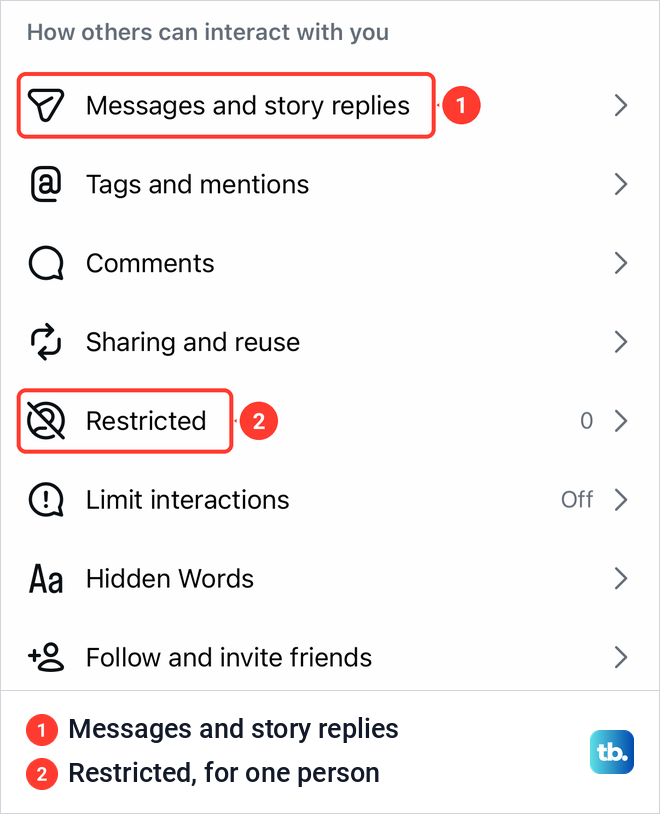
Open your profile by tapping your profile picture in the bottom right, then tap the menu in the top right to open Settings and activity. Scroll down to the heading How others can interact with you. On our iPhone, Messages and story replies was the first row there, above Tags and mentions, Comments, Sharing and reuse and Restricted.
Tap Messages and story replies. The screen is split into three groups, and the middle one, Who can see you're online, holds the two settings this guide is about. Show activity status controls the green dot, and Show read receipts controls Seen. Message requests and Story replies sit above them, and Nudity protection and Previews below.
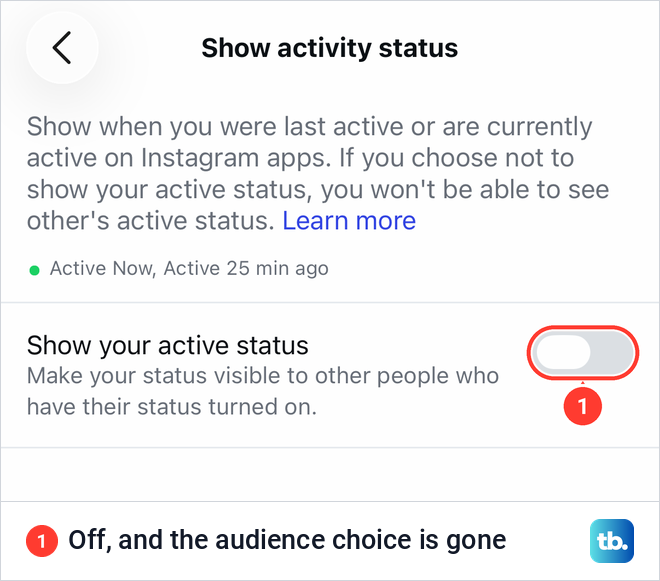
Tap Show activity status. The screen opens with Instagram's own warning: "If you choose not to show your active status, you won't be able to see other's active status." Below it is the switch, Show your active status, with the line "Make your status visible to other people who have their status turned on." On our iPhone it was on, and a second group below it asked who should see the status.
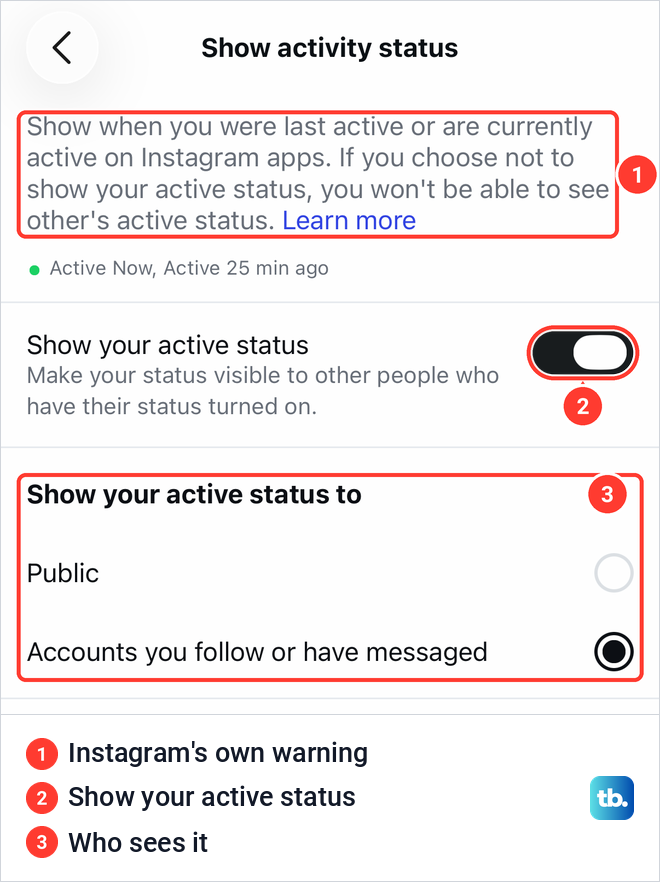
Tap the switch so it turns grey. When we turned it off, the audience choices below it disappeared at once and no confirmation appeared. We switched it straight back on, and the audience choice came back as it was before.
The Android app uses the same taps, word for word. To show your status again, come back to this screen and turn the switch back on. Older guides send you through Privacy > Activity Status, but the current route runs through Messages and story replies.
Choose who sees your active status
While the switch is on, the same screen has a group called Show your active status to with two options: Public, and Accounts you follow or have messaged. Ours was set to the second. That matches the audience Instagram's help describes: "people you follow and anyone you message will see when you were last active or currently active on Instagram."
The screen gives no more detail about Public, and Instagram's activity status help does not describe it. Going by the labels, Accounts you follow or have messaged is the narrower choice, so pick it if you want fewer people to see you online rather than nobody. To hide your status from everyone, turn the switch off instead. Instagram's help gives examples of the activity labels in the inbox, such as Active 25m ago or Active yesterday, and inside a chat, such as In the chat.
Turn off active status on a computer
Instagram's Help Center gives a matching path for instagram.com in a browser. Click More in the bottom left, then Settings. Below How others can interact with you, click Messages and story replies, click Show Activity Status and click the switch next to it to turn it off.
The trade-off is the same as in the app: with your status off, you won't see anyone else's either. The steps start from the same How others can interact with you heading as in the app.
Turn off read receipts for all chats
Read receipts are what put Seen under a message once you have opened it. Instagram's help says they "allow others in a chat on Instagram to see when you've viewed their message", and you can turn them off for every chat or for one chat at a time.
Go back to Messages and story replies and tap Show read receipts. On our iPhone that screen held a single switch, Read receipts, with the line "Others can see when you've read their messages." It was on. Turn it off, and others in your chats stop seeing when you've read their messages.
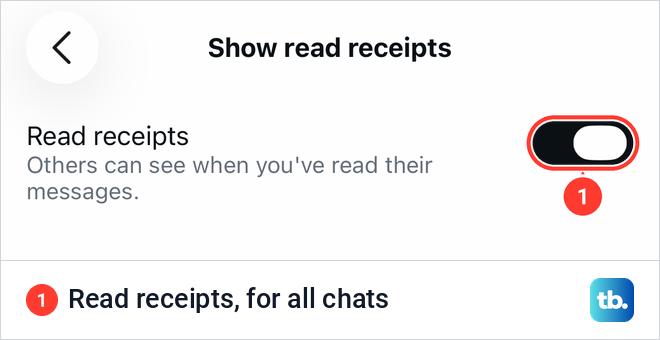
There is one exception. A chat where you changed read receipts yourself keeps that setting. Instagram's example: if you turned read receipts on in one chat and then turn them off for all chats in Settings and activity, that chat still has them on.
Change read receipts in the Instagram app on your phone, even if you usually message from a computer. Instagram's help gives the steps for its iPhone, iPad and Android apps only.
Turn off read receipts for one chat
To stop Seen in one conversation only, tap Messages at the bottom of the app and open the chat. Tap the chat name at the top, tap Privacy & safety and turn off Read receipts. That stops others in the chat seeing when you've read someone's message, and you turn it back on the same way.
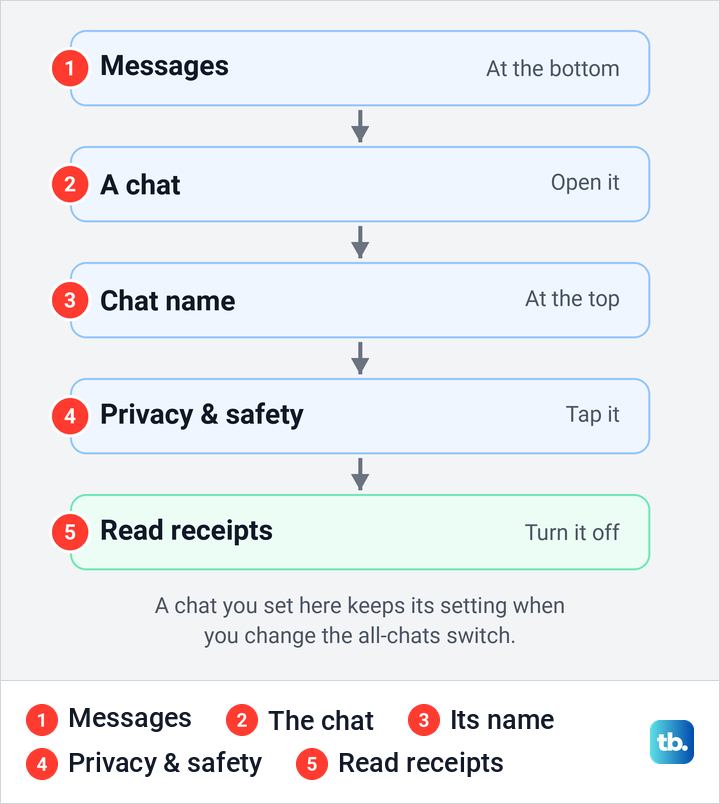
A chat you set this way keeps its setting when you later change the all-chats switch, as described above. If the chat details will not open, start with our fixes for an Instagram chat that will not load.
Hide your status and Seen from one person
The activity status screen has no way to pick out one person, but Restrict does the job. Instagram's help puts it first in its list of what happens when you restrict someone: "They won't be able to see when you're online or if you've read their messages." That covers both the green dot and Seen for that one account, and your other settings still apply to everyone else.
Restrict changes a little more than that. Your chat with them moves from your main inbox to Message Requests, and you can read their messages without them knowing you've seen them. Their new comments on your posts are visible only to them unless you approve them.
To restrict someone from your settings, open Settings and activity and tap Restricted, which our iPhone listed under How others can interact with you (2 in the first picture above). Then tap Next, search for the account and tap Restrict next to their username. From a chat, tap their name at the top, tap Options in the top right, tap Restrict, then tap Restrict again to confirm.
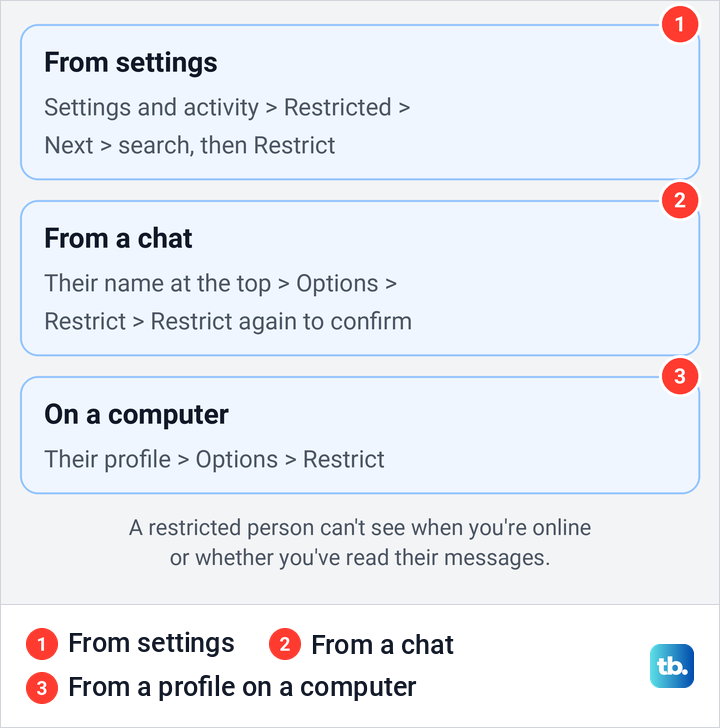
On a computer, restrict from the person's profile: open it, click Options in the top right and click Restrict. The Restricted accounts page in the browser's Settings lists people you have already restricted, with an Unrestrict button next to each. If you share a group chat with someone you restricted, Instagram warns you that you'll see a restricted account's messages there.
If the problem is who can message you at all rather than what they see, you can stop message requests on Instagram instead. Blocking is the stronger step, and people aren't notified when you block them.
What people can still see
Neither switch hides everything. When you view someone's story, they can tell you've seen it, and a photo you like shows your like to anyone who can see the post. Instagram's help also lists your name, username, profile picture, bio, links and follower and following counts as always public, whatever your privacy settings.
Marking a chat as unread does not take back a Seen. It only serves as a reminder in your own inbox and won't mark messages as unread for others in the chat, nor change your activity status. It is also limited to creator accounts.
A missing green dot on someone else's chat proves little on its own, because they may have turned theirs off, or yours may be off. Our guide explains how to tell whether someone blocked you from the signs that do count. If you want to disappear from Instagram for a while rather than just look offline, deactivate your Instagram account instead.
Sleep mode and the Instagram map
Sleep mode changes what people see rather than hiding it. Instagram's help says your activity status changes to In sleep mode, the green active dot becomes a moon icon, and people who message you get an auto-reply saying you won't be notified. Most people can still use Instagram and send and receive messages while it is on.
To set it, go to Settings and activity > Time management > Sleep mode, turn on the switch and choose the days and times. It runs for up to 24 hours a day, and teen accounts are in sleep mode from 10 PM to 7 AM by default. On our iPhone, Time management sat in the How you use Instagram group near the top of Settings and activity.
The Instagram map works on its own timer. Your map location is off by default, but if you share it, Instagram's help says it updates each time you open Instagram and disappears if you haven't opened the app within 24 hours. To stop sharing, tap Messages, then Map at the top of the inbox, then Settings in the top right, and choose not to share with anyone. Tap Share Location at the bottom to save that choice.
The map setting is separate from your phone's permission, so to stop Instagram getting your location through your phone's Location Services, turn off location for Instagram in your iPhone settings. If you want quiet rather than invisibility, turn off notification alerts on your iPhone for Instagram instead.
Threads and Facebook keep their own switch
Instagram's switch covers Instagram only. Meta's Threads help says so plainly: "If you turn off your Instagram Activity Status, your Threads online status can still be on and visible to others on Threads." In the Threads app, tap your profile picture, tap the menu in the top right, tap Privacy, then Online status, and choose No one.
Threads follows the same rule as Instagram: when you turn off your online status, you won't see when others are online. For users aged 13 to 17, Threads online status is off by default.
Facebook and Messenger have their own Active Status as well. Meta's Facebook help says that turning it off in one app, such as Messenger, can leave you showing as active in another, such as Facebook. If you use them, turn off active status on Facebook too.
If you still look active
Start with the account. Instagram lets you be logged in to one account at a time, so if you switch between accounts, open Settings and activity while the one you want hidden is in use. Then check Threads and a shared map location. If people see a moon instead of a dot, sleep mode is on.
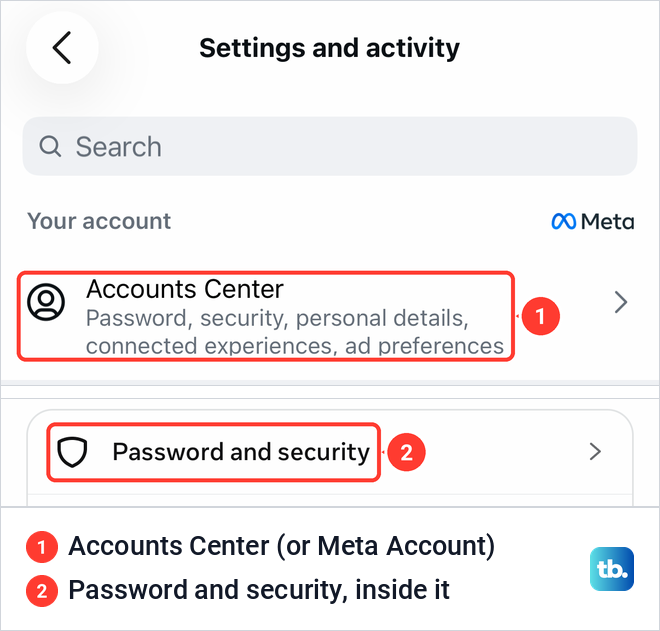
If someone else could be using your account, look at Where you're logged in. Open Settings and activity, tap Meta Account at the top (still called Accounts Center on some accounts, including ours), then Password and security, then Where you're logged in. On our Instagram login, Accounts Center opened with Password and security as the first setting below the profiles card. If those rows are missing, Instagram's help gives a fallback: Security, then Login Activity.
If Where you're logged in lists a device you don't recognize, log it out and secure a hacked Instagram account before anything else. If Messages and story replies will not open at all, work through our fixes for Instagram DMs not working.
How we tested this guide
We tested this in the Instagram app on an iPhone with iOS 26.6, switching Show your active status off and straight back on.
Frequently Asked Questions
If I turn off my active status, can I still see when others are active?
No. With your activity status off, you won't be able to see anyone else's, and the app's own screen gives the same warning. You see others only when both of you have it on.
Can I hide my active status from just one person?
Yes, by restricting them. A restricted person won't be able to see when you're online or whether you've read their messages. Your other settings still apply to everyone else.
Who can see my active status on Instagram?
It depends on the choice under Show your active status to. Accounts you follow or have messaged matches what Instagram's help describes: people you follow and anyone you message. The screen also offers Public, which Instagram does not explain further, and with the switch off, nobody sees your status.
Does turning off active status stop Seen in my chats?
Read receipts have their own setting. On the Messages and story replies screen, tap Show read receipts and turn off Read receipts. Each chat also has its own Read receipts switch under Privacy & safety.
Can I turn off read receipts on a computer?
Change it in the Instagram app, under Messages and story replies > Show read receipts > Read receipts. Instagram's help gives the read receipt steps for its iPhone, iPad and Android apps only.
Can people still see that I viewed their story?
Yes. When you see someone's story, they'll be able to tell that you've seen it, and neither switch changes that.
Does turning off active status on Instagram hide me on Threads?
No. Meta says your Instagram activity status doesn't change your Threads online status. Turn it off in Threads under Profile > Menu > Privacy > Online status.
Does marking a chat as unread undo Seen?
No. Marking a chat as unread is only a reminder for you and won't mark messages as unread for others in the chat. It is also only available for creator accounts.