

To create a new folder in Microsoft Word on Windows, select File > Save As > Browse, choose its parent location, and select New Folder. Name and open the folder, enter your document’s file name, then select Save. These steps cover Word for Microsoft 365 and Word 2024 on Windows 11; the folder operation also applies to Windows 10.
The short version
- Windows: Select File > Save As > Browse, then select New Folder.
- Mac: Select File > Save as, choose your destination, and select New Folder.
- Existing cloud document: In Word for Microsoft 365 on Windows, select Save a Copy to save a separate copy in a new folder.
- Folder first: Create a folder in File Explorer or Finder, then select it when saving from Word.
| Method or option | Where it applies | Route or control |
|---|---|---|
| Create while saving | Word desktop on Windows | Save As > Browse > New Folder |
| Save a cloud document copy | Word for Microsoft 365 on Windows | Save a Copy > Browse |
| Open saving with a shortcut | Word desktop on Windows or Mac | F12 on Windows; Command + Shift + S on Mac |
| Add a toolbar button | Word for Microsoft 365 on Windows | Add Save As to the Quick Access Toolbar |
| Use the classic save dialog | Word for Microsoft 365 on Windows | Change keyboard saving under File > Options > Save |
| Create in File Explorer | Windows 11 | New > Folder |
| Create with a keyboard shortcut | File Explorer on Windows 10 or 11 | Ctrl + Shift + N |
| Create a local Mac folder | Word for Microsoft 365, 2024, or 2021 on Mac | Select On My Mac, then New Folder |
| Create an online Mac folder | Word for Microsoft 365 or 2024 on Mac | Online Locations > New Folder |
| Create in Finder | Mac | File > New Folder |
| Group saved files in Finder | Mac | New Folder with Selection |
| Save a web copy | Word for the web in a Windows browser | Save to another folder > New folder |
| Move a saved cloud document | OneDrive website | Move to > New folder |
| Create in a synced folder | Windows or Mac with OneDrive configured | Create inside the synced OneDrive folder |
| Use the bottom add button | OneDrive personal accounts on Android or iOS, where shown | + > Folder |
| Use Android’s top add button | OneDrive on Android | Add > Create folder |
| Use the iOS top add button | OneDrive on iPhone or iPad | + > Create a Folder |
| Create in Apple Files | iPhone or iPad with a compatible location | New Folder |
| Move an Android document | Files by Google, device storage | Move to > Add new folder |
| Copy an Android document | Files by Google, device storage | Copy to > Add new folder |
| Create a library folder | SharePoint with appropriate permissions | + New > Folder |
| Enable library folder creation | SharePoint library owners or users with design permissions | Library settings > Advanced settings |
| Set a default destination | Word for Microsoft 365 on Windows | Default local file location |
| Restore first save location selection | Word for Microsoft 365 on Windows, where the setting appears | Turn off Create new files in the cloud automatically |
| Activate the folder button by voice | Windows 11 with voice access configured | Say Click New Folder |
Create the folder while saving on Windows
With your document open, select File > Save As > Browse. If Save As isn’t on the File menu because you opened the document from OneDrive or SharePoint, use the Save a Copy steps below instead. Go to the location that should contain your new folder, then select New Folder. Enter a folder name and select OK when the naming box has that button, or press Enter when you type the name directly beneath the folder.
Open the new folder before completing the save. Enter the document’s file name, then select Save.
For a keyboard shortcut, press F12 in Word on Windows to open Save As, then follow the same folder creation steps. You can also press Alt + F, followed by A, to reach the Save As screen.
For an existing OneDrive or SharePoint document in Word for Microsoft 365 on Windows, select File > Save a Copy. Choose the destination, using Browse to open the filesystem browser, then select New Folder. Name and open the folder, then select Save; this creates a separate copy of the document.
Create a folder in Word on Mac
In Word for Microsoft 365, Word 2024, or Word 2021 on Mac, select File > Save as, or press Command + Shift + S. If you opened the document from OneDrive or SharePoint in Word for Microsoft 365 for Mac, the File menu shows Save a Copy instead of Save as; select it to save a separate copy. When online locations are displayed and you want a local folder, select On My Mac. Go to the parent folder, expanding the dialog with its disclosure arrow if necessary.
Select New Folder and enter the folder’s name. Enter the document’s name in Save As, then select Save.
For an online folder in Word for Microsoft 365 or Word 2024 on Mac, select File > Save as, then select Online Locations if local folders are displayed. Choose a connected, writable service such as OneDrive and the intended parent folder. Select New Folder, name it, enter your document’s name in Save As, and select Save.
Create the folder before returning to Word
On Windows 11, press Windows + E to open File Explorer, open the parent location, and select New > Folder. Type a name and press Enter. Return to Word and select File > Save As, browse to that folder, and select Save.
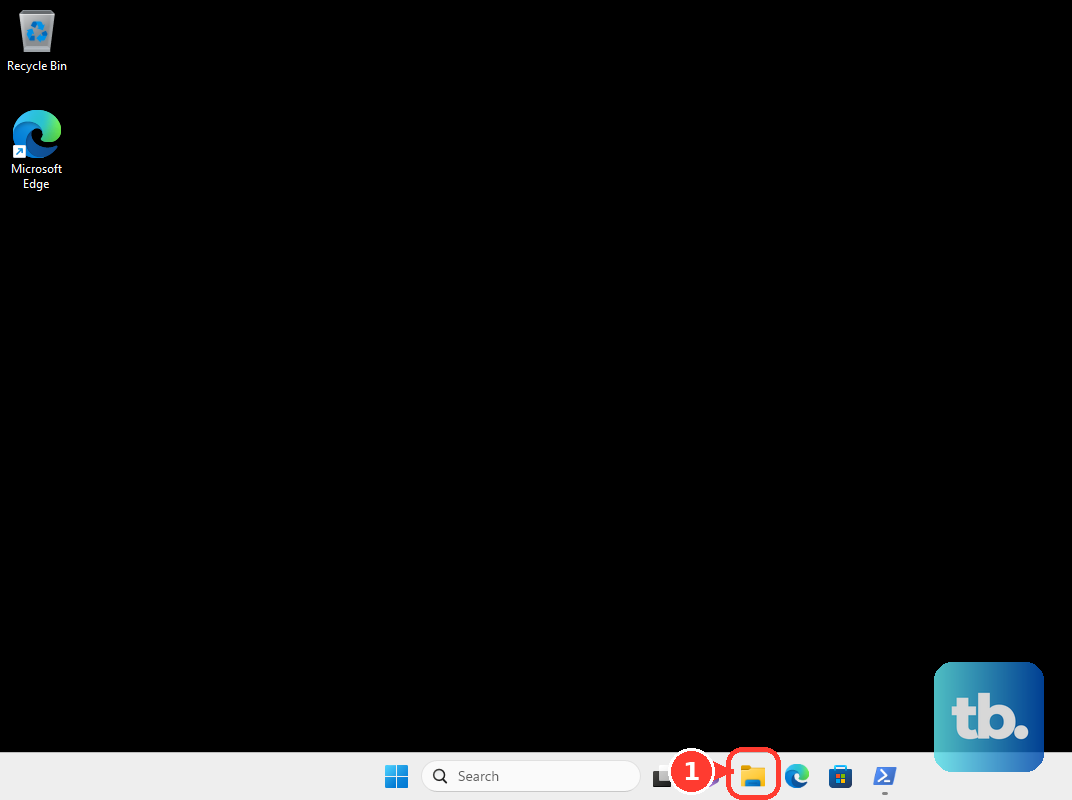
On Windows 10 or Windows 11, you can instead open the intended parent location in File Explorer and press Ctrl + Shift + N. Enter the folder’s name and press Enter, then select it when saving from Word.
On a Mac, open Finder and go to the parent location, or click the desktop. Select File > New Folder, or press Shift + Command + N. Name the folder, press Return, and choose it when saving your document in Word.
For a document already saved on your Mac, select it and any related files in Finder. Hold Control while clicking a selected item, then select New Folder with Selection. Enter the folder name and press Return.
Save a web document into a new folder
In Word for the web, you can use the Windows browser accessibility keyboard workflow to create a folder while saving a copy. Press Alt + Windows + F, then A, then A. Enter the copy’s name.
Press Tab until you reach Save to another folder, then press Spacebar. Continue with Tab to New folder and press Spacebar. Enter the new folder’s name.
Press Tab to reach Create, then press Enter. Finally, press Tab to reach Save and press Spacebar to save the copy.
Organize a document already saved in OneDrive
On the OneDrive website, select the saved Word document and choose Move to. In the destination pane, go to the parent location and select New folder. Name the folder, select it as the destination, then select Move.
With OneDrive already configured on Windows or Mac, you can also open its synced folder in File Explorer or Finder. Create a folder there using the platform’s folder creation steps, then save the Word document into it. OneDrive syncs the folder and document to the connected account.
Prepare a folder in OneDrive on your phone
On Android, open OneDrive and go to the location where you want the folder. Tap Add at the top, choose Create folder, enter a name, and tap OK. Save or move your Word document into the resulting folder.
On iPhone or iPad, go to the intended location in OneDrive and tap the + button at the top, then select Create a Folder. Under Folder name, replace New folder with your preferred name and tap Create. Save or move your Word document into that folder.
These top button layouts apply to personal and work or school accounts, but your personal account may instead show a + button at the bottom on Android or iOS. In that layout, tap +, select Folder, enter its name, and select OK. Choose the folder as your Word save destination in the same account.
Use your phone’s file manager
On iPhone, open Files and the desired location, then tap More > New Folder; when iPhone Duo is open, tap the New Folder button instead. On iPad, open Files and the desired location, then tap New Folder. Name the folder and use it through a compatible save destination, or use the saved document’s Move command to put it there.
Folder creation in Files depends on the storage provider. If the location has no New Folder control, it does not permit folder creation there; choose a location that permits creation and is accessible through your save destination.
On Android with Files by Google, find a saved document accessible in device storage. In list view, tap More beside it, then Move to. Choose the parent destination, tap Add new folder, enter a name, and tap Move to folder.
Create a folder in a SharePoint library
In SharePoint in Microsoft 365 or SharePoint Server Subscription Edition, open the destination document library with appropriate permissions. Select + New > Folder. In Create a folder, enter the folder name in Name, select Create, and save your Word document to that library folder.
If folder creation is disabled, a library owner or someone with design permissions can enable it. With those permissions, open Settings > Library settings > Advanced settings. Under Folder, find Make "New Folder" command available, select Yes, then select OK and return to the library. Without those permissions, ask the library owner to enable the command.
Frequently Asked Questions
Can you make the new folder Word’s default save location?
Yes, in Word for Microsoft 365 on Windows, create the folder first, then select File > Options > Save. Check Save to Computer by default so new files save locally rather than to the cloud, then enter its path in Default local file location, or use Browse to select it, then confirm with OK. This changes the default destination; it does not create the folder.
Can you add a Save As button to Word’s toolbar?
In Word for Microsoft 365 on Windows, select Customize Quick Access Toolbar > More Commands. Under Choose commands from, select File Tab, then select Save As > Add > OK. Use the added button to open Save As, then create your destination folder.
Can keyboard saving open the classic save dialog?
Yes, in Word for Microsoft 365 on Windows, select File > Options > Save. Select Don't show the Backstage when opening or saving files with keyboard shortcuts, then confirm with OK. Use the save keyboard shortcut and create your folder in the classic dialog.
Can you copy an Android document into a new folder instead of moving it?
Yes, Files by Google can create a separate copy of a document accessible in device storage. In list view, tap More beside the saved document, then Copy to, and select Internal storage and the parent destination. Tap Add new folder, enter its name, and tap Copy to folder.
Can you choose a folder before Word automatically creates a new cloud file?
In Word for Microsoft 365 on Windows builds that show the option, select File > Options > Save and uncheck Create new files in the cloud automatically. For a new document, use Save As to create and choose its folder. This option applies only when the setting appears in your build.
Can you activate New Folder with Windows voice access?
Yes, on Windows 11 with voice access already configured and listening in a supported language, open the save dialog and navigate to the parent folder. If the dialog’s controls are accessible to voice access, say Click New Folder, enter the folder name, activate the applicable confirmation, and save the document. This uses voice access’s general control command.