To connect Bluetooth headphones to your PC, put the headphones in pairing mode, turn on Bluetooth in Windows Settings, then select Add device > Bluetooth and choose your headphones. These steps use Windows 11 menus; a Windows 10 pairing path (Settings > Devices > Bluetooth & other devices > Add Bluetooth or other device > Bluetooth) is included in the pairing section. After pairing, select the headphones as your sound output if audio still comes from the PC’s speakers.
The short version
- Prepare the headphones: Activate pairing mode using the controls for your specific model.
- Pair in Windows: On Windows 11, open Settings > Bluetooth & devices, turn on Bluetooth, and select Add device > Bluetooth. On Windows 10, open Settings > Devices > Bluetooth & other devices and select Add Bluetooth or other device > Bluetooth.
- Choose the sound output: Select your connected headphones under Output in Sound settings.
- Check the hardware: If your PC lacks built-in Bluetooth, plug in a compatible USB Bluetooth adapter.
| Method or control | When to use it |
|---|---|
| USB Bluetooth adapter | Your PC has no built-in Bluetooth |
| Headphone pairing controls | Prepare your specific model for discovery |
| Windows Settings | Pair through Add device > Bluetooth |
| Quick settings | Pair from the taskbar or Windows + A |
| Windows sound output | Send audio to connected headphones |
| Volume mixer | Correct one app’s output, volume, or mute state |
| Google Meet audio controls | Select connected headphones for a call |
| Automatic reconnection | Use headphones already paired with your PC |
| Release another device’s connection | Your WH-1000XM6 connects to a phone or another computer |
| Sony sound controls | Reconnect a WH-1000XM6 through Sound settings |
| Bluetooth and headphone restart | Retry a failed connection nearby |
| Bluetooth devices discovery | Expand discovery when this setting is available |
| Remove and pair again | Replace a saved pairing that fails to connect |
| Get Help | Run Bluetooth diagnostics |
| Device Manager | Search for a Bluetooth driver update |
| Windows Update | Check for available updates |
| Manufacturer support | Find a driver for your exact PC and Windows version |
Get your PC and headphones ready
Your PC needs a functioning Bluetooth adapter to pair with Bluetooth headphones. If it has no built-in Bluetooth, plug in a USB Bluetooth adapter that supports your installed Windows version. Once Windows recognizes the adapter, use the Windows pairing steps below.
Put the headphones into pairing mode before searching for them on the PC. The button, timing, and any passkey depend on the model, so follow your headphones’ instructions. Turning them on and activating pairing mode can be separate actions.
For Sony WH-1000XM6 headphones, the first power-on automatically activates pairing mode. When pairing them with an additional device, hold the Bluetooth button for at least approximately five seconds. Select WH-1000XM6 in Windows, and enter 0000 only if Windows requests a passkey for that model.
Put AirPods into pairing mode
For AirPods 1, 2, or 3 and AirPods Pro 1 or 2, leave the earbuds inside the open case. Hold the rear setup button for about five seconds, until the light flashes white. Then select your AirPods from the Windows Bluetooth device list using the pairing steps below.
With AirPods 4 or AirPods Pro 3, leave the earbuds inside the open case and double-tap the front of the case until the light flashes white. For AirPods Max, hold the listening mode button for about five seconds until the light flashes white. Select your AirPods from the Windows Bluetooth device list once they are in pairing mode.
Pair your headphones in Windows Settings
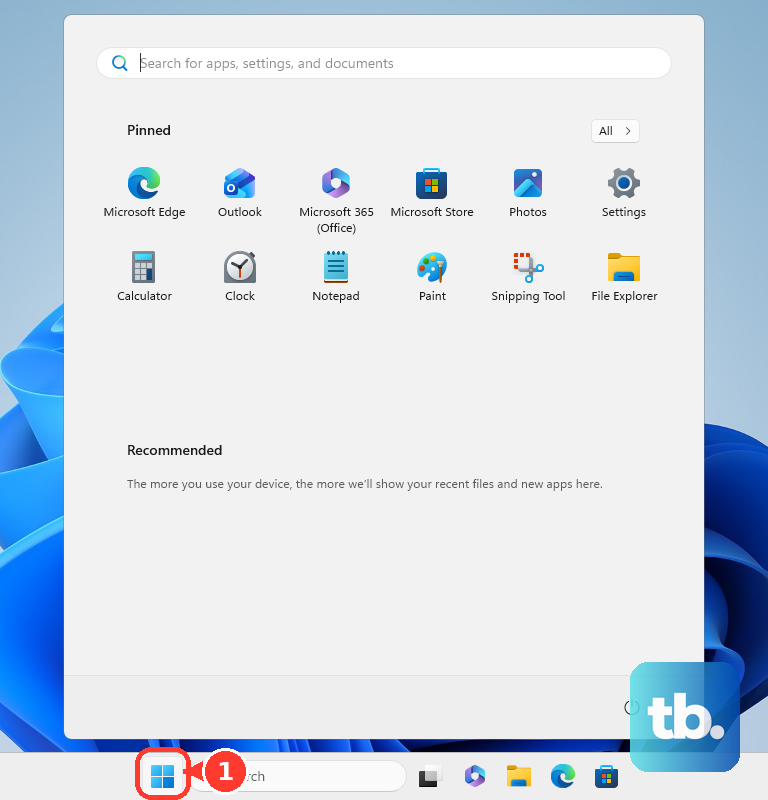
On Windows 11, open Start > Settings > Bluetooth & devices, then turn on Bluetooth. Select Add device, choose Bluetooth, and select your headphones’ model name. Keep the headphones in pairing mode while Windows searches for them. On Windows 10, open Start > Settings > Devices > Bluetooth & other devices, turn on Bluetooth, select Add Bluetooth or other device > Bluetooth, then choose the headphones and select Done after pairing.
On Windows 11, you can also press Windows + I to open Settings, then choose Bluetooth & devices. That shortcut opens the settings interface; you still need to select Add device > Bluetooth and choose the headphones. If they do not appear, continue with the discovery checks below.
Connect through quick settings instead
Put the headphones in pairing mode and select the taskbar’s Network, Sound, or Battery icon. Turn on Bluetooth, then select the Manage Bluetooth devices chevron beside it. Choose your headphones under New devices, scrolling past Your devices if necessary, and select Done when pairing finishes.
On Windows 11, pressing Windows + A also opens quick settings. You can alternatively open Settings > Bluetooth & devices > Add device > Bluetooth on Windows 11 to pair there. Older instructions may recommend Windows + K, but on Windows 11 that opens Cast for displays.
Send sound to the connected headphones
If sound still comes from the PC’s speakers after pairing, open Start > Settings > System > Sound on Windows 11. Under Output, select your Bluetooth headphones. You can also select the taskbar Sound icon and choose the headphones as the output.
If only one app plays through the wrong device, open Start > Settings > System > Sound > Volume mixer on Windows 11. Under Apps, select the headphones as that app’s Output device, then check its volume and mute state. Checking the selected output also helps when fixing a headset that is not working.
Calling services can have their own audio selection after Windows connects the headphones. In Google Meet on your Windows computer, open More options > Settings > Audio and choose the connected headphones for the speakers and, if desired, the microphone. Selecting the intended microphone is also a check when troubleshooting microphone problems on your computer.
Reconnect headphones you have already paired
Previously paired headphones can reconnect automatically when you turn them on, enable the Windows 11 PC’s Bluetooth, and bring them within range. Another active connection can interfere with reconnection, so check for that before creating a fresh pairing.
For Sony WH-1000XM6 headphones that reconnect to a previously used phone or computer, turn off Bluetooth on that other device or power it off. Then reconnect from the Windows PC. This releases the connection when the other device occupies it.
With the WH-1000XM6 turned on, right-click the Windows 11 taskbar speaker icon, select Sound settings, and select WH-1000XM6 under Output and Input. If it is unavailable there, select More sound settings > Playback, right-click WH-1000XM6, and select Connect. Repeat under Recording if needed; Sony provides this reconnection route for the WH-1000XM6.
Fix headphones that do not appear or connect
Check that Airplane mode is off in quick settings, then open Settings > Bluetooth & devices on Windows 11. Turn Bluetooth off, wait a few seconds, and turn it back on. Turn the headphones off and on, activate pairing mode, and retry near the PC.
On Windows 11 installations with the discovery control, open Start > Settings > Bluetooth & devices > Devices. Under Device settings, set Bluetooth devices discovery to Advanced, then search again. If that control is missing, continue with the saved-pairing check or the troubleshooter.
Removing the device deletes its saved pairing from Windows. For headphones already listed but failing to connect, open Start > Settings > Bluetooth & devices > Devices on Windows 11, select More options beside the headphones, then choose Remove device and select Yes. Put the headphones back into pairing mode and add them again.
If pairing still fails, open Get Help. In Search, enter Bluetooth troubleshooter and follow the diagnostic instructions.
Update the Bluetooth driver if pairing still fails
A Bluetooth driver problem can affect detection, pairing, or the connection itself. On Windows 11, open Device Manager, expand Bluetooth, and right-click the Bluetooth adapter. Select Update driver > Search automatically for drivers, then restart your computer afterward.
Another update route on Windows 11 is Settings > Windows Update > Check for updates. For a model-specific Bluetooth driver, use your PC manufacturer’s support page and select the package for your exact computer and Windows version. On a Dell PC, open Dell Drivers & Downloads and identify the computer before downloading its compatible driver.
Frequently Asked Questions
Can I connect Bluetooth headphones through a Windows notification?
Yes, when both your Windows 11 PC and headphones support Swift Pair. On Windows 11, open Settings > Bluetooth & devices > Devices and turn on Show notifications to connect using Swift Pair. Place the headphones near the PC and activate pairing mode, select Yes if Windows asks to enable Swift Pair, then select Connect in the device-found notification.
Can Sony headphones stay connected to my phone and PC together?
You can connect supported Sony multipoint headphones to both devices. Pair the headphones with your phone and PC, then connect them to the phone. In Sony | Sound Connect, open My Device, select Connect to 2 devices simultaneously, and enable Connect to 2 devices simultaneously. Select the phone and PC from Paired; both should appear under Connected.
Do I need to turn on Bluetooth LE Audio?
You can enable LE Audio if you have Windows 11 22H2 or later, compatible Bluetooth hardware, an audio codec, manufacturer drivers, and LE Audio headphones. On a compatible Windows 11 PC, open Settings > Bluetooth & devices > Devices and turn on Use LE Audio when available under Device settings, then pair normally. If your PC does not support LE Audio, the switch is absent; continue with the standard Bluetooth pairing steps.
Can a Windows PC play audio through two Bluetooth listening devices?
You can use Shared Audio on a compatible Windows 11 PC with Bluetooth LE Audio broadcast support and supported receiving devices. Pair and connect both devices, open quick settings from the taskbar, select Shared Audio, choose the two devices, and select Start sharing. Availability depends on compatible hardware, drivers, and the rollout.