Connect your PS4 controller to a Windows 11 PC with a data-capable micro-USB cable, or pair it over Bluetooth by holding SHARE + PS until the light bar flashes and selecting it in Windows Bluetooth settings. Then open a compatible game or use Steam Input if the game needs additional controller support. These steps use Windows 11 menus and apply to Sony’s DUALSHOCK 4 controller.
The short version
- USB connection: Connect the controller’s micro-USB port to your PC with a compatible data-capable cable.
- Bluetooth pairing: Hold SHARE + PS until the light bar flashes, then select the controller in Windows Bluetooth settings.
- Game compatibility: Steam Input can help supported games recognize your connected controller.
- Missing Bluetooth: Plug in a USB Bluetooth adapter compatible with Windows 11, then pair the controller.
| Option | When to use it | Main requirement or limitation |
|---|---|---|
| USB cable | Connect directly to the PC | Data-capable micro-USB cable |
| Bluetooth through Settings | Pair wirelessly | Functioning Bluetooth hardware |
| Bluetooth through Quick Settings | Pair from the taskbar | Current Windows 11 Quick Settings |
| USB Bluetooth adapter | Add missing Bluetooth hardware | Adapter compatible with Windows 11 |
| Sony USB wireless adapter | Connect through an existing Sony receiver | CUH-ZWA1-series adapter and compatible application |
| 8BitDo USB Wireless Adapter 2 | Use a dedicated controller receiver | One controller per adapter |
| 8BitDo product page | Check compatibility before buying | Review controller and Windows requirements |
| Steam Input | Add controller handling for supported games | Controller detected in Steam |
| Native game support | Use the game’s own controller implementation | Game must support DUALSHOCK 4 |
| Non-Steam game shortcut | Try Steam’s handling with another game | Compatibility varies by game and launcher |
| Steam download | Install Steam for Steam Input | Select Install Steam |
| reWASD | Emulate an Xbox controller | Commercial software subject to game restrictions |
| reWASD product page | Choose a download | Review licensing requirements |
| PS Remote Play | Play from your PS4 or PS5 | USB connection, console account and suitable network |
| PS Remote Play product page | Get the Windows application | Use Sony’s download |
| Fresh Bluetooth pairing | Fix a previously paired controller | Remove its saved pairing first |
| Advanced Bluetooth discovery | Find a controller missing from discovery | Available on versions exposing this setting |
| Windows Bluetooth diagnostics | Investigate pairing failures | Run the Bluetooth troubleshooter |
| Bluetooth adapter reinstallation | Recover malfunctioning Bluetooth hardware | Adapter must appear in Device Manager |
| Controller hardware reset | Address controller connection problems | Recessed reset button near L2 |
| Close conflicting utilities | Resolve overlapping controller software | Restart Steam afterward |
| Remove unused controller drivers | Clean up unneeded dependencies | Confirm no application still needs them |
| Administrator policy review | Investigate restrictions on a managed PC | Organizational administrator required |
Connect the controller with a USB cable
Plug a compatible data-capable cable into the controller’s micro-USB port, then connect the other end to a USB port on your PC. Open a game or application that supports DUALSHOCK 4. Sony lists USB as a Windows PC connection method.
Check that your cable supports data when choosing one. If the controller connects but your game ignores it, the game may need Steam Input or another compatibility tool. Continue with the Steam setup below for supported games.
Pair the controller over Bluetooth
Disconnect the controller’s USB cable and hold PS until the controller turns off. Then hold SHARE + PS until the light bar flashes. Keep the controller in pairing mode while you add it on the PC. Sony’s DUALSHOCK 4 support page lists Windows PCs under USB and its USB wireless adapter rather than in its Bluetooth device list, so a USB cable remains the fallback if Bluetooth pairing fails.
Open Start > Settings > Bluetooth & devices and turn on Bluetooth. If you need help with that control, follow the steps to enable Bluetooth in Windows 11. Select Add device > Bluetooth, then select the controller from the discovered devices.
You can also pair through current Windows 11 Quick Settings. With the controller’s light bar flashing, select the taskbar Network, Sound or Battery icon, turn on Bluetooth, and select the Manage Bluetooth devices chevron. Select the controller under New devices, then select Done.
If your PC has no built-in Bluetooth, plug in a USB Bluetooth adapter that supports Windows 11, then repeat the pairing procedure. The adapter supplies the Bluetooth radio, while controller compatibility still depends on your game or software. If Windows cannot discover or reconnect the controller, continue to the Bluetooth fixes below.
Set up Steam Input for your games
Connect the controller before starting Steam. If you need Steam, open its official download page and select Install Steam. Open Steam > Settings > Controller and check that the controller is detected.
For games without native support, open External Gamepad Settings > PlayStation Controller Support in the same Controller settings and choose the option that enables it for games without native support. Valve supports PlayStation 4 controllers through Steam Input. This handles input for supported games after your controller connects to Windows.
If Steam Input causes problems in a game with native DUALSHOCK 4 support, try the game’s own controller implementation. In Steam’s Library, right-click the game and select Properties > Controller > Disable Steam Input. Launch the game with the controller connected; the required connection type and supported features vary by game.
Add a game from outside Steam
Open Steam’s Games menu and select Add a Non-Steam Game to My Library. Select the installed game and add its shortcut. Launch it through Steam to try Steam’s controller handling.
Adding a shortcut does not guarantee compatibility with every game or launcher. If the game cannot work with Steam’s launch and input handling, another compatibility tool may be an option, subject to that game’s restrictions.
Connect through a dedicated controller receiver
Before buying an 8BitDo USB Wireless Adapter 2, check controller and Windows compatibility on its official product page. Each adapter handles one controller. Headphone output and touchpad clicking are unavailable through this adapter.
Connect the adapter to your PC and press its Pair button. Hold SHARE + PS on the controller for three seconds, then wait for the adapter’s LED to remain lit. If needed, hold SHARE + Up for three seconds to select Xinput mode; SHARE + Left selects Dinput mode.
If you already have Sony’s CUH-ZWA1-series USB wireless adapter, turn off the controller, disconnect its USB cable and insert the adapter into your PC. Push the adapter inward and hold it for at least three seconds until its indicator flashes rapidly, then hold SHARE + PS for at least three seconds. Steady lights indicate successful pairing. Use this connection with compatible Windows applications.
Use reWASD for virtual Xbox controller output
reWASD lets your connected DUALSHOCK 4 provide virtual Xbox controller output. It is additional commercial software, and individual games may restrict remapping tools. Review the licensing requirements and choose the appropriate download on the official reWASD product page.
Connect your DUALSHOCK 4 to Windows, open reWASD and select the controller. Choose the magic wand icon below its image, select Xbox 360 as the emulation target, then select Apply. Start the game after applying the configuration.
Older controller tutorials may direct you to install ViGEmBus, but its developer has retired the driver and client libraries, which receive no updates. Existing installations may continue working, but that does not establish support for current Windows 11 versions.
Use the controller with PS Remote Play
For PS Remote Play on Windows 11, get the Windows application through Sony’s PS Remote Play product page and connect your controller to the PC by USB. You need a PS4 or PS5 console, its account and a suitable network connection. Sony specifies USB for this Windows controller setup.
On a PS4, open Settings > Remote Play Connection Settings and enable Enable Remote Play. Then open Settings > Account Management > Activate as Your Primary PS4 and select Activate. Open PS Remote Play on your PC, select Sign In, use the console’s account, and select PS4.
For a PS5 host, open Settings > System > Remote Play on the console and enable Enable Remote Play. With the controller connected to your PC by USB, open PS Remote Play, select Sign In, use the console’s account, and select PS5.
Fix Bluetooth discovery and reconnection problems
If Windows cannot discover the controller, hold SHARE + PS until its light bar flashes. On Windows 11 versions exposing the discovery setting, open Start > Settings > Bluetooth & devices > Devices. Under Device settings, choose Advanced for Bluetooth devices discovery, then retry discovery while the light flashes.
Removing the device removes its saved Bluetooth pairing from Windows. If a previously paired controller no longer connects, open Start > Settings > Bluetooth & devices > Devices, open More options for the controller, and select Remove device, then Yes. Hold SHARE + PS until the light bar flashes, then add the controller again.
If the discovery setting is missing or pairing still fails, run Windows Bluetooth diagnostics. Open Start > Settings > System > Troubleshoot > Other troubleshooters, then select Run beside Bluetooth. For broader connection failures, continue with the steps to fix Bluetooth in Windows 11.
Resolve conflicting controller software
If overlapping controller utilities, remappers or virtual controllers are running, close the other controller software. Restart Steam and check the controller again. For a game with native DUALSHOCK 4 support, you can also try disabling Steam Input through that game’s Properties > Controller settings.
Frequently Asked Questions
What if the Bluetooth adapter appears in Device Manager but malfunctions?
Uninstalling the Bluetooth adapter removes it from Windows. Open Device Manager > Bluetooth, right-click the PC’s Bluetooth adapter, select Uninstall device, then select Uninstall. Shut down your PC and turn it back on. If Windows does not reinstall the adapter automatically, open Device Manager and select Action > Scan for hardware changes.
How do you reset a DUALSHOCK 4 that still has connection problems?
This resets the controller at the hardware level. Turn off and unplug your PS4, then use a small tool to hold the recessed Reset button near L2 on the controller’s back for approximately three to five seconds. Repeat the PC connection procedure afterward. Sony’s console recovery check is to connect the controller to the PS4 by USB and press PS.
Can workplace Bluetooth policies prevent the controller from connecting?
Yes, a Bluetooth service allowlist or minimum encryption requirement can prevent a connection on a managed Windows 11 PC. Ask your administrator to review ./Device/Vendor/MSFT/Policy/Config/Bluetooth/ServicesAllowedList and ./Device/Vendor/MSFT/Policy/Config/Bluetooth/SetMinimumEncryptionKeySize. These policies apply to managed Pro, Enterprise, Education and supported IoT editions, and changes require organizational administration.
Should you uninstall old ViGEmBus or HidHide components?
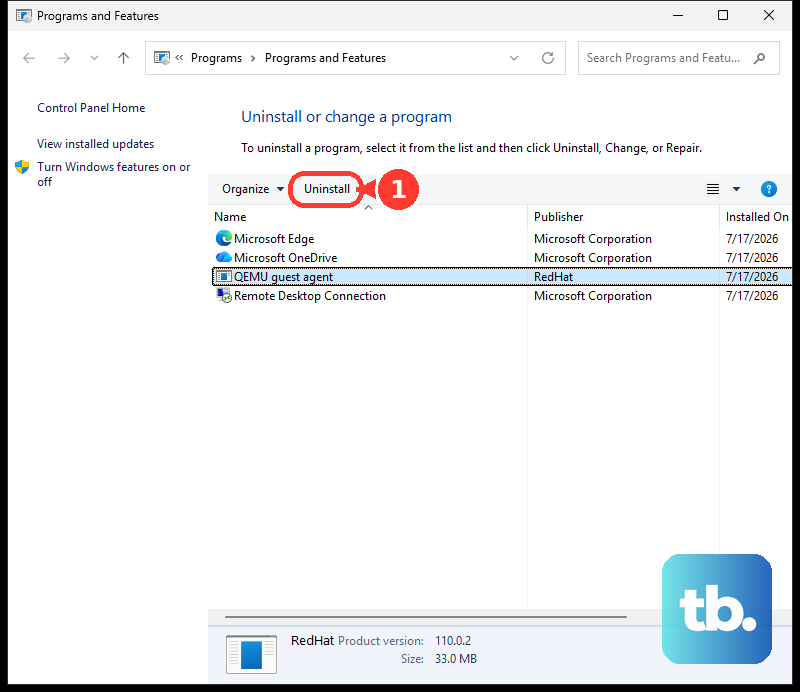
Remove them only if no application still needs them, because removing a dependency can stop its associated remapper from working. Open Control Panel > Programs and Features, locate ViGEm Bus Driver or HidHide, right-click the relevant entry and select Uninstall. HidHide itself should not be treated as deprecated simply because ViGEmBus is retired.