


To clear browser history on Instagram, open your profile, tap Menu, then select Your activity > Link history > Clear all and confirm with Clear. To remove cookies, cache and website storage too, open a website link inside Instagram and choose Options > Browser settings > Clear cookies and cache > Clear browsing data.
Your visited-link list, browser website data and recent searches have separate controls. Clear the categories you want to remove, then turn off the browsing-history setting if you want to stop recording future links.
The short version
- Clear the list: Use Your activity > Link history > Clear all to remove listed visits.
- Remove one link: Tap the close (×) control beside an entry and confirm with Clear.
- Clear website data: Use Clear cookies and cache inside Instagram’s Browser settings.
- Stop future recording: Turn off Enhanced browsing, or Allow link history if your account shows that setting.
- Keep records separate: Searches and visits made in Safari, Chrome or another browser need their own cleanup.
| Action | Where to go | What it removes |
|---|---|---|
| Clear all Instagram links | Your activity > Link history | Every entry in the visible list |
| Remove one Instagram link | close (×) beside an entry | The selected listed visit |
| Clear links from Instagram’s browser | Browser settings > Clear link history | The visited-link list |
| Clear Instagram website data | Browser settings > Clear cookies and cache | Cookies, cache and website storage |
| Turn off enhanced browsing | Browser settings > Enhanced browsing | Link history and other browsing information, with deletion taking up to 90 days |
| Turn off link history | Browser settings > Allow link history | The visible list immediately, with completed deletion taking up to 90 days |
| Clear searches in the app | Your activity > Recent searches | Recent Instagram searches |
| Clear searches on the desktop website | Search > Clear all or Remove | All or selected recent searches |
| Clear searches on the mobile website | Bottom Search, then top Search | All or selected recent searches |
| Clear Safari visits on iPhone | Safari settings > Clear History and Website Data | Safari history and website data for the chosen timeframe |
| Clear Safari visits on iPad | Safari sidebar > History | Safari history for the chosen timeframe and profile |
| Clear Chrome data on Android | More > Delete browsing data | The selected Chrome data categories |
| Clear Chrome data on iPhone or iPad | More > Delete Browsing Data | The selected Chrome data categories |
| Clear Chrome data on a computer | More > Delete browsing data | The selected Chrome data categories |
| Clear Instagram cache on Pixel | Instagram app settings > Storage & cache | Temporary app files |
| Clear Instagram cache on Galaxy | Instagram app settings > Storage | Temporary app files |
| Remove selected Chrome visits on a computer | More > History > History | Selected browser history entries |
| Remove selected Chrome visits on Android | More > History | Selected browser history entries |
| Remove selected Chrome visits on iPhone or iPad | More > History > Edit | Selected browser history entries |
| Clear Samsung Internet data | Settings > Personal browsing data | History and any other selected categories |
| Clear Edge data | Settings > Privacy, search, and services | The selected Edge data categories |
| Remove a website’s Firefox data | History > Manage history | The website’s history and associated data |
Clear all links from your Instagram activity
Open the Instagram app on your Android phone, iPhone or iPad and go to your profile. Tap Menu, then select Your activity under How you use Instagram. On iPad, your profile picture is on the left.
Choose Link history, tap Clear all, then tap Clear to confirm. This removes the entries from your visible visited-link list. Repeat the cleanup for any other Instagram accounts you use.
The list contains visits from the last 30 days and excludes links visited in Instagram chats. Clearing it removes the listed entries, but does not guarantee immediate deletion of every associated Meta record. Cookies, cache and website storage need a separate cleanup.
Remove individual links
To remove selected visits, open your profile and follow Menu > Your activity > Link history. Tap the close (×) control beside the website you want to remove, then tap Clear. Repeat for any other entries you want gone.
You can keep the rest of the list, though visiting a removed website again can create another recent entry. Old visits leave the visible list after its 30-day window. That window does not guarantee that all associated information has been erased.
Clear link history from the Instagram browser
Open a website link inside Instagram, tap Options in the upper right, then select Browser settings. With Enhanced browsing enabled, tap Clear link history and confirm with Clear. This clears the same visited-link list available through Your activity.
If you already cleared that list through your profile, you do not need to clear it again here. If Clear link history is missing from your browser settings, check Your activity > Link history. The controls available to you vary by location and rollout.
Clear cookies and cache
Open a website link inside Instagram to access its browser controls. Tap Options, choose Browser settings, then tap Clear cookies and cache. Finish by tapping Clear browsing data.
This removes cookies, cache and website storage from Instagram’s browser. To remove both stored website data and the list of websites you visited, clear your link history as well. Clearing either category does not replace the other action.
Use Instagram’s controls for websites you opened inside the app. Clearing Safari or Chrome affects data in those browsers and does not erase Instagram’s account link list. Visits made in an external browser need cleanup in that browser too.
Turn off future link recording
Open a website link inside Instagram and go to Options > Browser settings. Turn off Enhanced browsing to stop future recording and make Link history unavailable. Meta says fully clearing link history and other browsing information can take up to 90 days.
If your account shows Allow link history instead, turn that setting off and tap Don’t allow. Your visible list clears immediately, but completed deletion can take up to 90 days. Use the toggle your account shows.
Turning off recording prevents a new list from building after cleanup. Meta says Activity from other businesses and device settings do not affect Enhanced browsing, so those controls cannot replace the toggle inside Instagram’s browser.
Clear your Instagram searches
In the Instagram app, open your profile and select Menu > Your activity > Recent searches. Tap Clear all, then tap Clear all again to confirm. This clears searches separately from your visited websites.
On Instagram’s desktop website, select Search, then choose Clear all beside Recent or Remove beside an individual search. On the mobile website, tap Search at the bottom, then Search at the top and use Clear all or Remove. These website controls clear searches rather than the app’s link history.
Clear visits made in Safari or Chrome
For visits made in Safari on iPhone, open Settings > Apps > Safari > Clear History and Website Data. Choose the timeframe, then tap Clear History. This applies when you opened Instagram or an outgoing link in Safari.
On iPad, open Safari and choose Show Sidebar > History > More > Clear. Choose a Clear Timeframe, select the relevant profile when prompted, then tap Clear History.
In Chrome on Android, open More > Delete browsing data and choose a duration. Use More options to select Browsing history, plus Cookies and site data or Cached images and files if you want those removed too. Tap Delete data to finish.
For Chrome on iPhone or iPad, choose More > Delete Browsing Data > Time Range and select a duration. Open Browsing Data, select the categories, tap Confirm, then tap Delete Browsing Data.
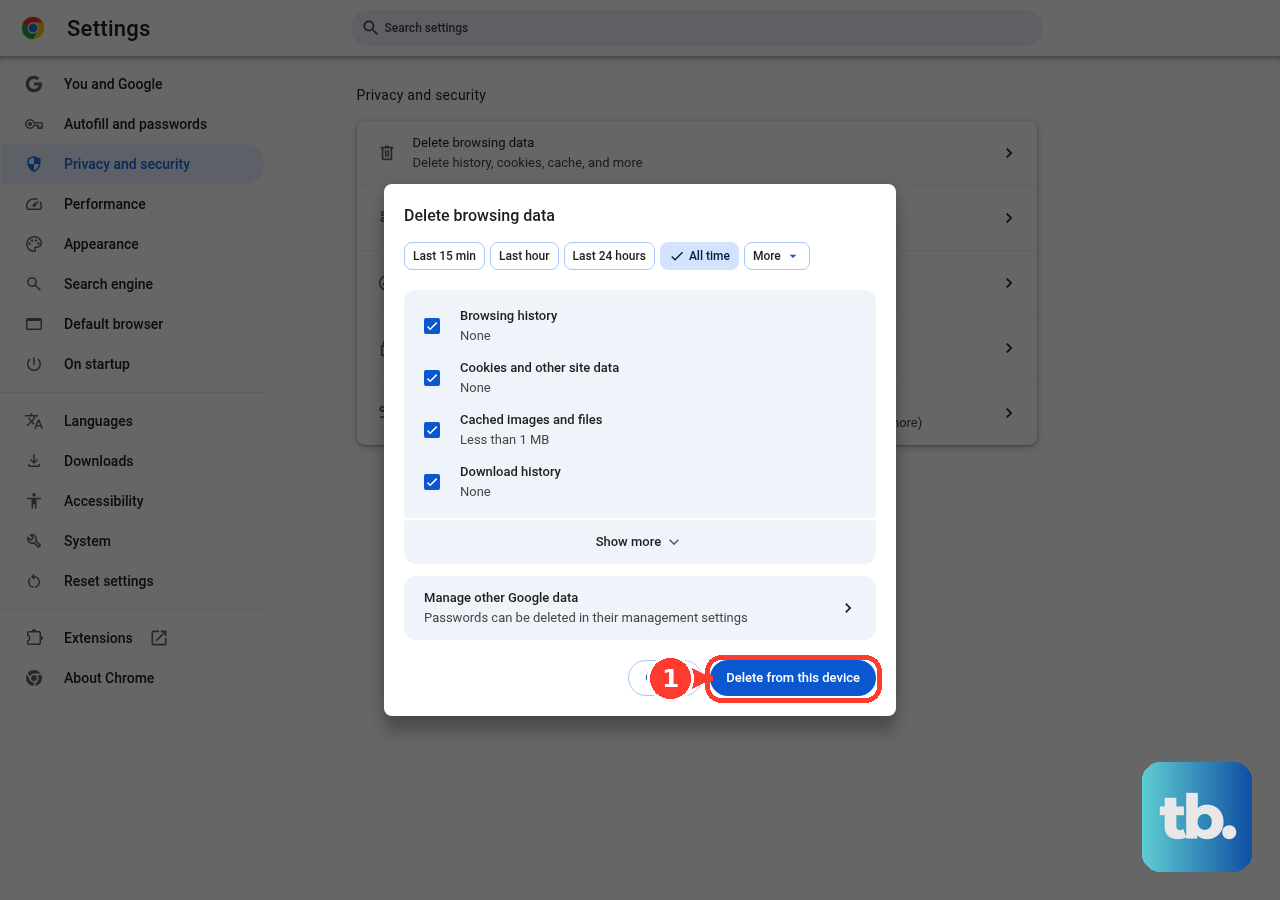
On a computer, open Chrome and select More > Delete browsing data. Choose the time range and select Browsing history, then choose Delete data. If you are signed in to Chrome, this also removes that data from your other devices and your Google Account. Each Chrome route clears Chrome’s records separately from Instagram’s account list.
Clear local app files separately
Android’s Clear cache removes temporary app files, so use it for local cleanup rather than account link history. On Google Pixel, open Settings > Apps > See All Apps > Instagram > Storage & cache > Clear cache. On Samsung Galaxy, use Settings > Apps > Instagram > Storage > Clear cache.
Clearing app storage or data resets local app information, while uninstalling removes the installed app. Use Instagram’s own controls to delete account link history; a local reset is not a substitute. On iPhone and iPad, offloading preserves documents and data, while deleting the app removes its related local data.
Check missing link history controls
If Link history is missing, open a website inside Instagram and check Options > Browser settings. The feature is unavailable when Enhanced browsing is off. Availability also varies by location, so your account may show different controls.
If you see Allow link history, use that setting to stop future recording and clear the visible list. If you only need to remove stored website data, use Clear cookies and cache. Resetting the app cannot replace an unavailable account-history control.
Frequently Asked Questions
Can I clear Instagram Link history from a computer?
Instagram does not offer a current official desktop command for clearing its in-app Link history. Use the Android, iPhone or iPad app for that list; clearing desktop browser history affects visits made in that browser.
Can I delete only selected Instagram visits from Chrome?
Yes, if you made those visits in Chrome. On a computer, open More > History > History, search for Instagram or the destination website, select the entries, then choose Delete > Remove. On Android, use More > History > Remove beside an entry; on iPhone or iPad, use More > History > Edit, select entries, then tap Delete > Done.
How do I clear Instagram visits made in Samsung Internet?
Open Samsung Internet and choose Tools menu > Settings > Personal browsing data > Delete browsing data. Select Browsing history and any additional categories, then tap Delete data > Delete. Samsung Internet does not support automatic history deletion.
How do I remove Instagram browsing history in Microsoft Edge?
Open Settings and more > Settings > Privacy, search, and services > Clear browsing data, then select Choose what to clear beside Clear browsing data now. Choose a Time range and the categories to remove, then select Clear now. With sync enabled, synced categories clear across synced devices.
Can Firefox remove all saved information for one website?
You can use Firefox’s Forget About This Site option on a computer to remove a website’s history and associated data. Open Menu > History > Manage history, search for the website in Search History, right-click the result, then choose Forget About This Site > Forget. This affects Firefox’s records, not Instagram’s account link history.
Does private or incognito browsing erase existing Instagram history?
No, private or incognito browsing does not erase existing Instagram history. It prevents some future local browser records, so you still need the relevant deletion controls to remove existing entries.