
Your Samsung Galaxy A26 5G stores temporary files and cached data that builds up over time. If you've noticed slower performance, app glitches, or even weird charging behavior, clearing the cache is one of the first things to try. Here's how to do it properly on your A26 running One UI 7.
Wipe the System Cache Partition
This is the most thorough way to clear cached data on your A26 5G. It wipes the system-level cache without deleting your apps, photos, or personal files. And it's specifically recommended if you're dealing with charging hiccups like the phone not charging properly or showing incorrect battery time remaining.
Turn off your phone completely. Press and hold the Volume Up and Power buttons together until the Samsung logo shows up, then release both. Your phone will boot into recovery mode. Use the volume keys to scroll down to Wipe cache partition and press the Power button to select it. Confirm the action, then reboot.
I've seen this fix clear up odd behavior after software updates and resolve the intermittent charging stops some A26 owners have reported. It takes about a minute and costs you zero data.
Clear Individual App Cache
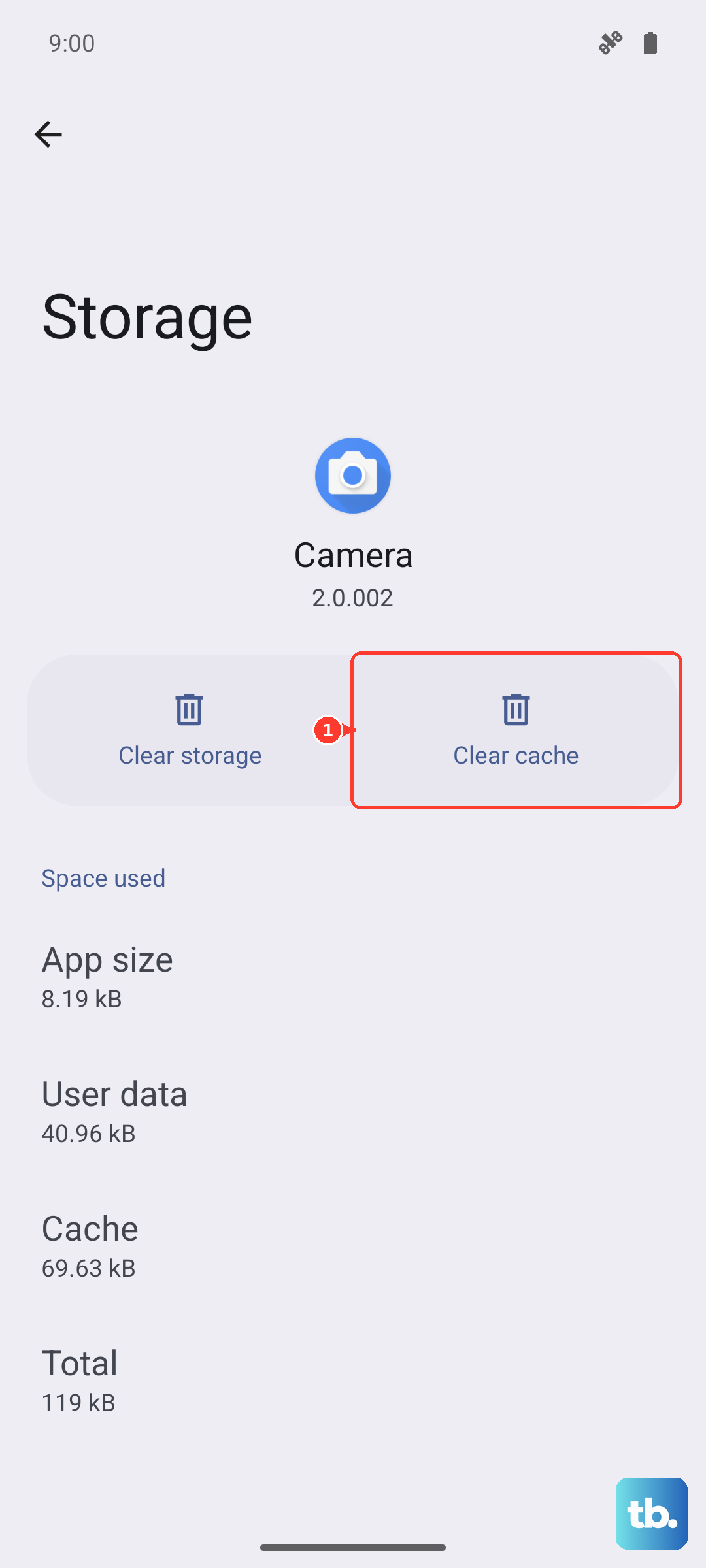
Go to Settings > Apps and tap on any app that's been acting up. On the app info page, tap Storage, then tap Clear cache. This only clears temporary files, your login info and personal data stay put.
Social media apps, browsers, and streaming services are usually the biggest cache hogs on the A26. Check those first if you're trying to free up space in a hurry.
Run Device Care for a Quick Cleanup
Open Settings > Battery and device care > Storage and tap Clean now. This automatically clears cached data and temporary files across all apps at once. It's the fastest way to reclaim space without going app by app.
You can also tap Optimize now on the main Device Care screen to close background apps and scan for battery drains. Making this a weekly habit keeps your A26 running like new.
Clear Browser Cache
Open Samsung Internet browser, tap the menu (three lines), and go to Settings > Personal browsing data > Delete browsing data. Check Cached images and files and tap Delete data. For Chrome, head to Menu > Settings > Privacy and security > Clear browsing data and select cached files from there.
Browser caches can balloon into gigabytes if you haven't cleared them in a while, especially if you stream video or browse image-heavy sites.
Restart Your Phone
A simple restart clears temporary system caches and frees up RAM. Press and hold the Power and Volume Down buttons together for about 10 to 15 seconds, and your A26 will force restart. Or just press and hold the Power button and tap Restart from the menu that pops up.
Doing this once a week prevents a lot of the sluggishness and odd behavior that builds up from prolonged uptime.
Use Auto Cleanup Features
Go to Settings > Battery and device care > Storage and look for any auto-delete options. You can also offload photos and videos to Samsung Cloud or Google Photos to keep thumbnails on your phone without the full files eating up space.
If you're still running into storage warnings after clearing cache, check your Downloads folder and chat apps for media files you no longer need, those tend to pile up quietly.











