
Keeping your Galaxy Tab S9 updated is one of the best things you can do for its performance and security. Samsung pushes monthly security patches and major One UI upgrades annually, bringing new features and important fixes directly to your tablet.
Check for and Install an Update
Open Settings > Software update > Download and install. Your Tab S9 will check for any available updates. If one is found, tap Download and then Install now.
Make sure your tablet is connected to a Wi-Fi network and has at least a 30% charge. I'd recommend plugging it into a charger, especially for a large One UI upgrade. These downloads can be several gigabytes, so a stable connection is key.
Set Up Automatic Downloads
You can have your tablet handle the download part automatically. Go to Settings > Software update and tap the three-dot menu in the top right. Here, you can enable Auto download over Wi-Fi.
This means the update files will download in the background when you're on Wi-Fi. You'll still need to manually tap to install it, but you won't have to wait for the download when you're ready.
Update Using a Computer with Smart Switch
If your tablet is low on storage or the over-the-air update keeps failing, Samsung's Smart Switch software for Windows or Mac is a great alternative. Download and install Smart Switch on your computer from Samsung's website.
Connect your Tab S9 to the computer using a USB-C cable. Open Smart Switch, and it should detect your device. If an update is available, you'll see an Update button. The software will handle the entire process through the computer's internet connection.
If the Update Gets Stuck or Fails
A force restart often clears up a stuck update process. Press and hold the Volume Down button and the Side (Power) button together for about 10 seconds until the Samsung logo appears and the tablet restarts.
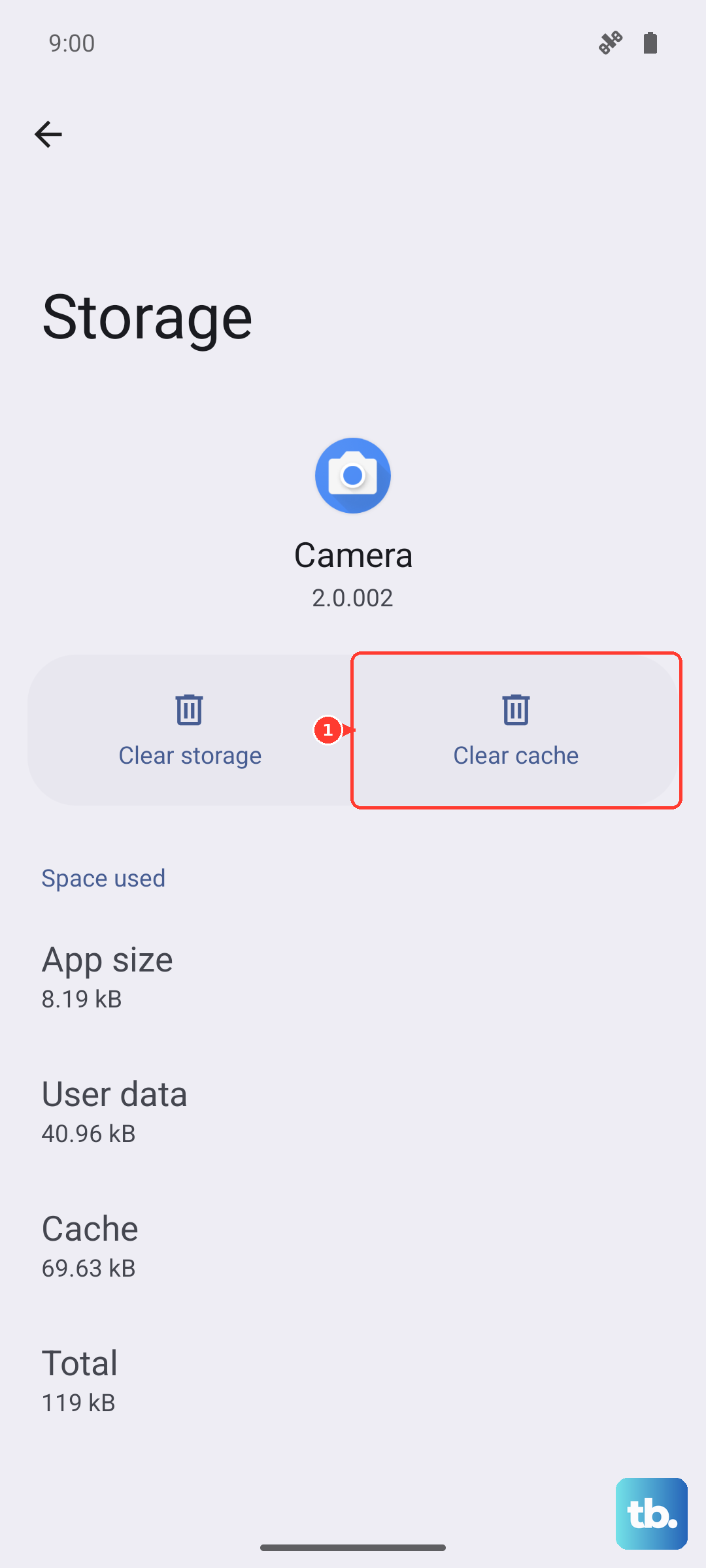
If that doesn't work, try clearing the cache for the update service. Go to Settings > Apps, tap the filter menu and select Show system apps. Find and tap Software update, then go to Storage > Clear cache. Try checking for the update again.
For more persistent issues, you can wipe the system cache partition. Turn off the tablet, then press and hold Volume Up and the Side button until the Samsung logo appears. Use the volume keys to highlight Wipe cache partition and press the Side button to select it. Reboot and try the update once more.
Check Your Current Software Version
It's useful to know exactly what version you're running. Go to Settings > About tablet > Software information. Here you'll see your One UI version, Android version, and the Android security patch level.
This information is handy if you're checking online to see if a specific update has started rolling out for your model or region.
Prepare Your Tablet Before a Major Update
Before installing a significant One UI version jump, it's a smart move to back up your data. You can use Samsung Cloud or Google One. Go to Settings > Accounts and backup and choose your backup method.
Also, ensure you have plenty of free storage. A major Android/One UI update can require 5GB or more of free space. You can check and manage storage under Settings > Battery and device care > Storage.
Why Updates Are Essential for Your Tab S9
Those monthly security patches are not just minor tweaks. They patch critical vulnerabilities that could be exploited by malware. Installing them is your first line of defense for your data and privacy.
The annual One UI upgrades are where you get tangible new features, interface refinements, and deeper system optimizations that can improve battery life and overall smoothness. Samsung builds these improvements for your specific hardware, so skipping them means missing out on what your tablet is fully capable of.











