If your Samsung Galaxy A36 is feeling a bit sluggish, apps are crashing, or you're seeing odd glitches after the One UI 7 update, clearing out cached data is often the fastest fix. This temporary data builds up to help apps load faster, but sometimes it gets corrupted and causes more problems than it solves.
Start with a Simple Restart
Before diving into deeper settings, try a quick reboot. Press and hold the Power button until the menu appears, then tap Restart. This clears the phone's active memory and can resolve minor software hiccups instantly. I'd make this your first step every time.
If the phone is completely frozen and won't respond to the screen, you'll need to force a restart. Press and hold the Volume Down and Power buttons together for about 10 seconds until you feel a vibration and see the Samsung logo.
Use Device Care for a Quick Cleanup
Samsung's built-in maintenance tool is your best friend for routine cleaning. Swipe down from the top of your screen to open the Quick Panel and tap the Device Care icon (it looks like a speedometer). You can also find it in your Settings app.
Once inside, just tap the Optimize now button. This single action will close background apps, clear temporary app caches, and scan for any security issues. It's the quickest way to give your A36 a performance boost without touching your personal files.
Clear Cache for Specific Problem Apps
When one particular app is acting up, maybe your social media feed won't refresh or a game keeps crashing, you can target its cache directly. Go to Settings, then tap Apps. Find and select the troublesome app from the list.
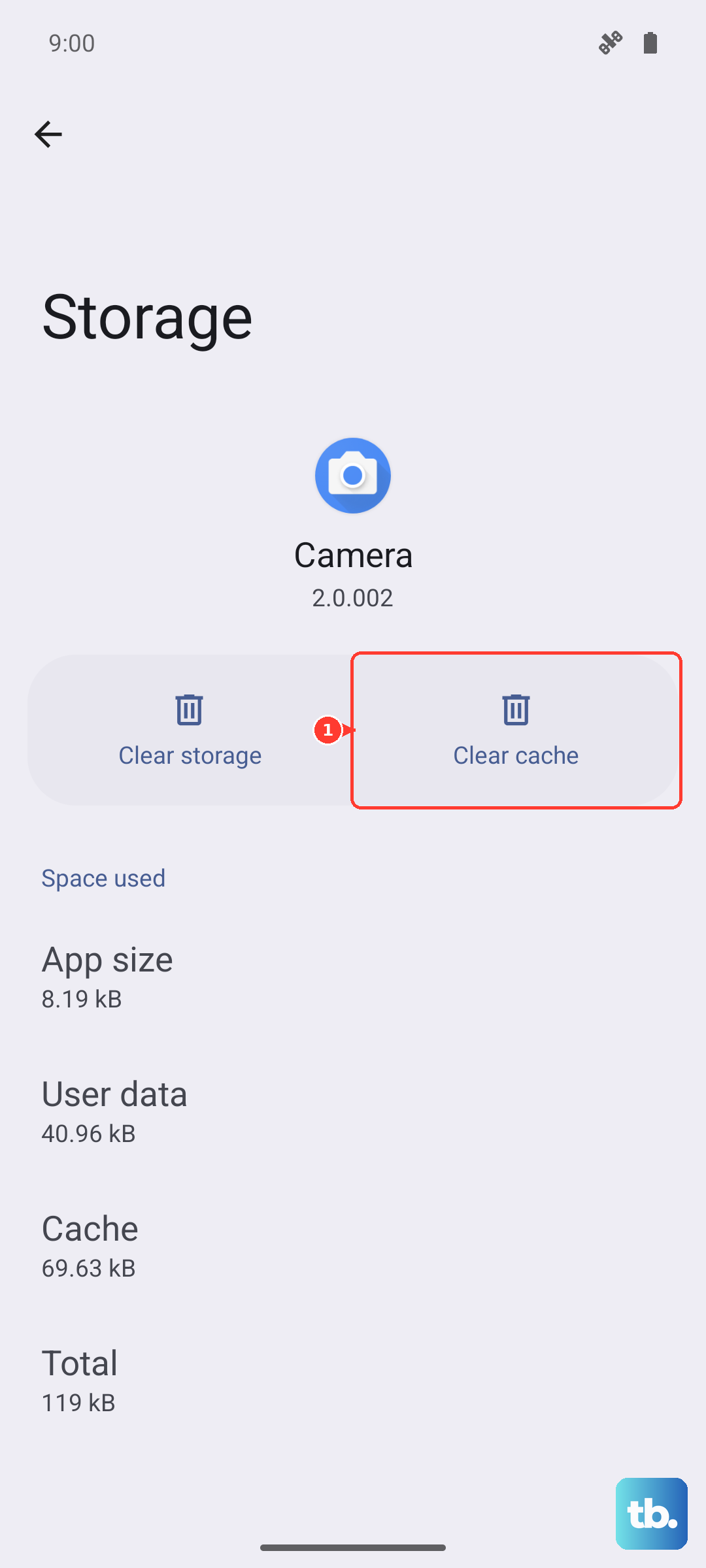
On the app's info page, tap Storage, then tap the Clear cache button at the bottom. This only deletes temporary files, so you won't lose your login information or saved data. It's a safe first step for troubleshooting any single app.
Wipe the System Cache Partition
For more persistent issues like lag, battery drain, or bugs that appeared after a system update, you need to clear the system cache partition. This is different from app cache and deals with the Android operating system itself. Don't worry, it won't delete your photos, messages, or apps.
First, power off your Galaxy A36 completely. Once it's off, press and hold the Volume Up and Power buttons simultaneously. Release both buttons the instant you see the Samsung logo appear on the screen. This will boot you into the Android Recovery Mode menu.
Use the Volume Down button to navigate down the list until Wipe cache partition is highlighted. Press the Power button to select it. On the next screen, use the Volume buttons to highlight Yes and press Power again to confirm. When it's done, make sure Reboot system now is highlighted and press Power one last time to restart your phone normally.
Manage Your Browser Cache
If you use Samsung Internet, your browsing cache can get quite large. Open the browser, tap the menu icon (three horizontal lines), and go to Settings. Tap Personal browsing data, then Delete browsing data.
Make sure Cached images and files is checked. You can uncheck things like History and Passwords if you want to keep those. Tap Delete data to finish. For Google Chrome users, the path is Menu > Settings > Privacy and security > Clear browsing data.
Free Up Space with Storage Management
Running low on storage can slow everything down. Go back into Device Care and tap Storage. Here, you'll see a breakdown of what's using space. Tap on categories like Images or Videos to review and delete files you don't need.
For a more automated approach, look for the Clean button in this menu. It can identify duplicate files, large unused apps, and temporary files you can safely remove with a single tap. Enabling features like battery protection, which limits charging to 85%, can also help with long-term battery health and performance.
Check for Software Updates
Sometimes, performance issues are caused by known software bugs. Samsung has been releasing updates for One UI 7 to address initial launch problems. Make sure you're running the latest version.
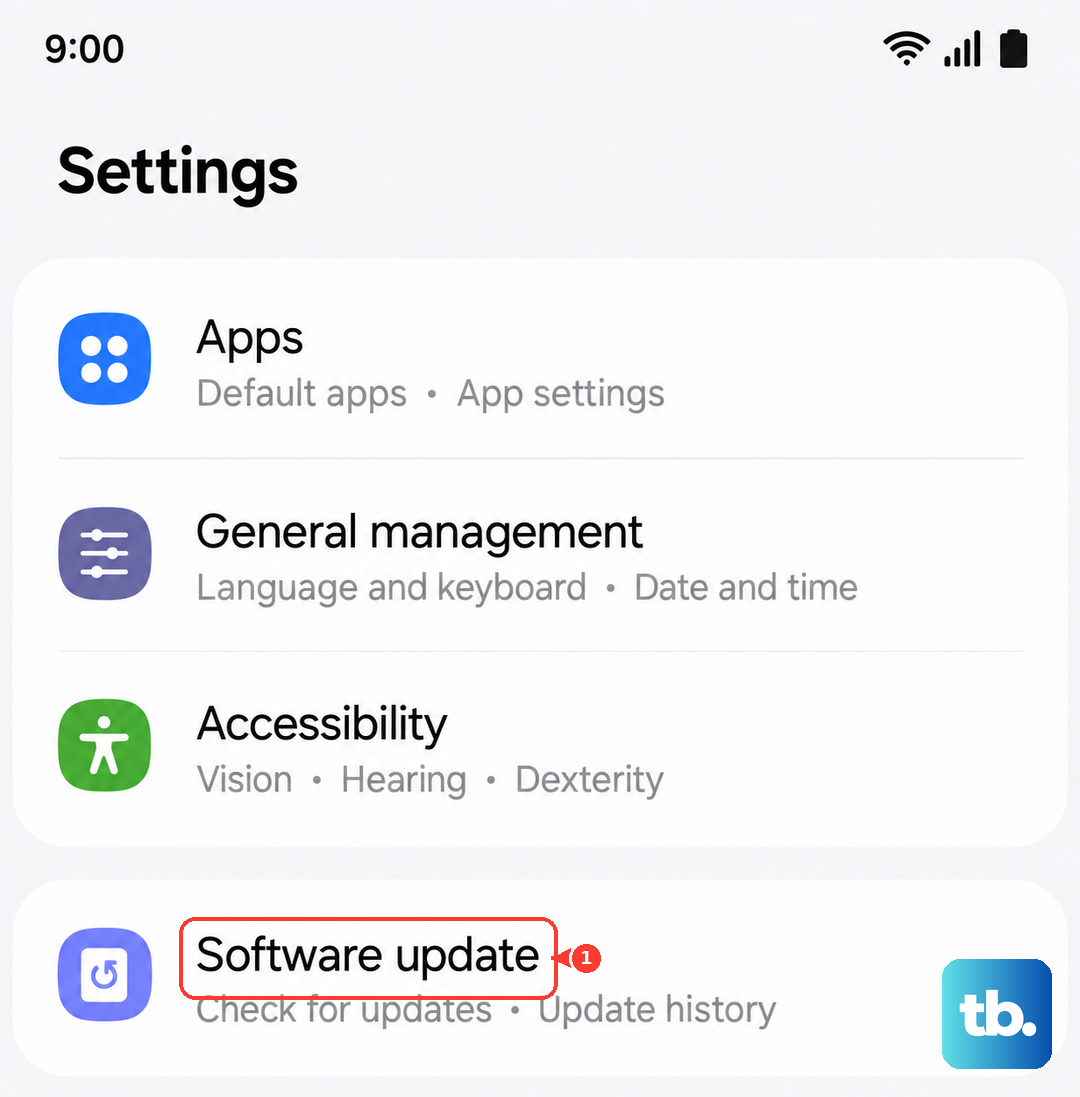
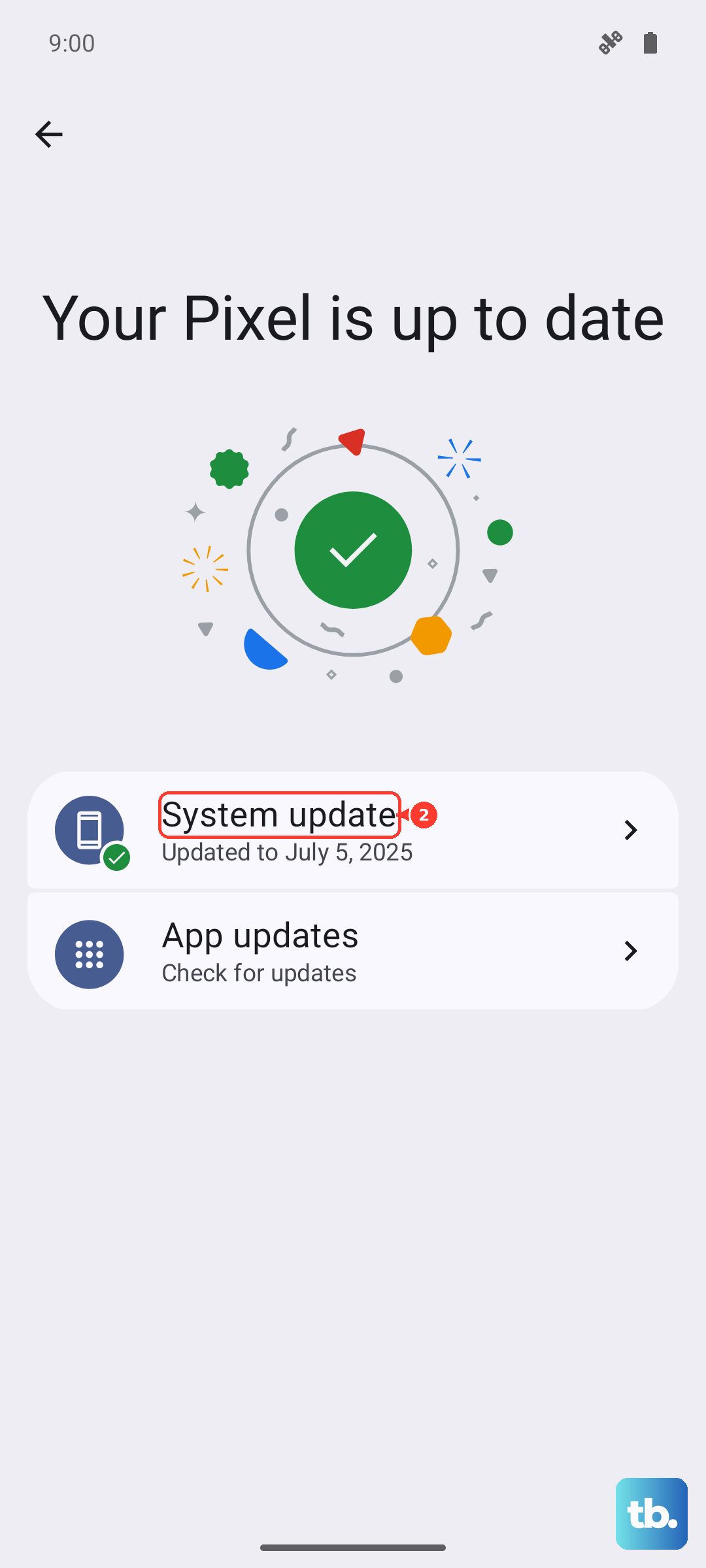
Go to Settings > Software update and tap Download and install. If an update is available, it's a good idea to install it while connected to Wi-Fi. After a major update, following up with a cache partition wipe, as shown earlier, can prevent leftover data from causing conflicts.