
Keeping your Samsung Galaxy S25+ on the latest software is one of the best things you can do for its performance and security. Samsung pushes out monthly security patches and major One UI upgrades annually, which often include new features and battery optimizations tailored for your device.
Check for and Install an Update
Open your phone's Settings app and scroll down to Software update. Tap on Download and install. Your S25+ will check with Samsung's servers to see if an update is available for your specific model and carrier.
If an update is found, tap Download. Once the download finishes, you can tap Install now to proceed immediately. I'd recommend making sure your phone is plugged into a charger and connected to a stable Wi-Fi network before you start.
Set Up Automatic Downloads
You can save yourself a step by letting your phone handle the download part. Go back to Settings > Software update. Here, you can toggle on Auto download over Wi-Fi.
With this on, your Galaxy S25+ will automatically download updates when it's connected to Wi-Fi and charging. You'll still get a notification to tap and install it, but the big download won't eat into your mobile data or wait for you to manually start it.
Use Samsung Smart Switch on a PC or Mac
If an over-the-air update keeps failing, or if your phone is low on storage, updating via a computer is a reliable alternative. First, download and install the Samsung Smart Switch application on your Windows PC or Mac from Samsung's official website.
Connect your S25+ to the computer using a USB-C cable. Open Smart Switch, and if an update is available, you'll see a prompt. The app will download the update file to your computer and then install it directly onto your phone, which can often bypass issues with the phone's own update process.
If an Update Gets Stuck or Fails
A force restart is the first thing to try if the update process freezes. Press and hold the Volume Down button and the Side button simultaneously for about 10 seconds. Release when you see the Samsung logo, and your phone will reboot.
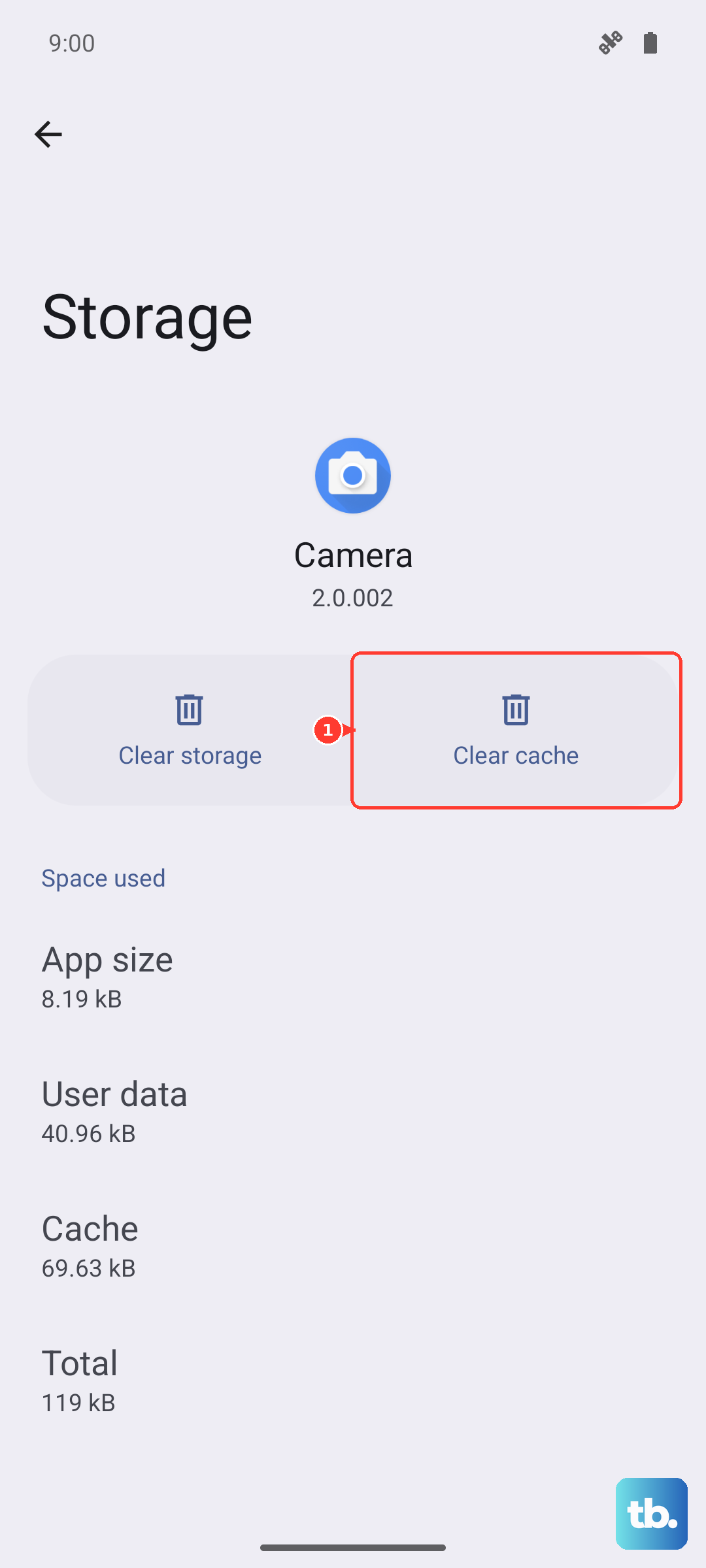
If the update still won't proceed, you can clear the cache for the update service itself. Go to Settings > Apps, tap the three-dot menu and select Show system apps. Find and tap Software update, then go to Storage and tap Clear cache. Try checking for the update again.
For more persistent issues, you can wipe the system cache partition. Turn off your phone, then press and hold the Volume Up and Side buttons together. When the Android Recovery screen appears, use the volume buttons to highlight Wipe cache partition and press the side button to select it. This doesn't delete any personal data and can resolve update glitches.
Verify Your Current Software Version
It's useful to know exactly what version you're running, especially if you're troubleshooting a specific bug. Head to Settings > About phone > Software information.
This screen shows your Android version (like Android 15), your One UI version (like One UI 7.0), and the all-important Android security patch level. This date tells you how recent your security updates are.
Preparing for a Major One UI Update
Before installing a large annual upgrade, it's a good practice to back up your data. You can do this by going to Settings > Accounts and backup > Back up data. Choose what you want to save to your Samsung Cloud or Google account.
Also, ensure you have plenty of free storage. A major One UI update can require 5GB or more of free space. If you're tight on space, consider offloading some photos or videos to cloud storage or your computer before proceeding.
Regular updates are crucial for patching security vulnerabilities that are discovered monthly. For your S25+, updates also deliver performance tweaks and can address specific issues, like improving battery life after the initial setup period or optimizing connectivity with newer Wi-Fi 7 routers. Installing them keeps your phone running as Samsung intended.











