
If your Galaxy S25 FE is feeling sluggish or you're seeing odd glitches after an update, clearing out the cached data is a great first step. This temporary data helps apps load faster, but it can sometimes become corrupted and cause problems. Wiping the cache partition is a safe way to refresh your phone's system without touching any of your personal photos, messages, or apps.
Wipe the System Cache Partition
This process clears the Android system cache, which is different from individual app caches. It's particularly useful for fixing random freezes, battery drain, or performance hiccups, especially after installing a new software update. First, power your phone off completely.
Next, connect your phone to a computer using a USB-C cable. This step is crucial for accessing the recovery menu on newer models like the S25 FE. Now, press and hold the Volume Up button and the Side key (power button) at the same time.
Keep holding both buttons until you see the Samsung logo appear, then release them. You'll boot into the Android Recovery screen. Use the Volume Down button to navigate and highlight the "Wipe cache partition" option.
Press the Side key to select it. You'll then need to confirm by selecting "Yes" using the same method. Once it's complete, "Reboot system now" will be highlighted. Press the Side key one more time to restart your phone normally.
Clear Cache for Individual Apps
Sometimes just one app is acting up. To clear its cache, go to Settings > Apps. Find and tap on the problematic app, then select Storage. You'll see two options: "Clear cache" and "Clear data."
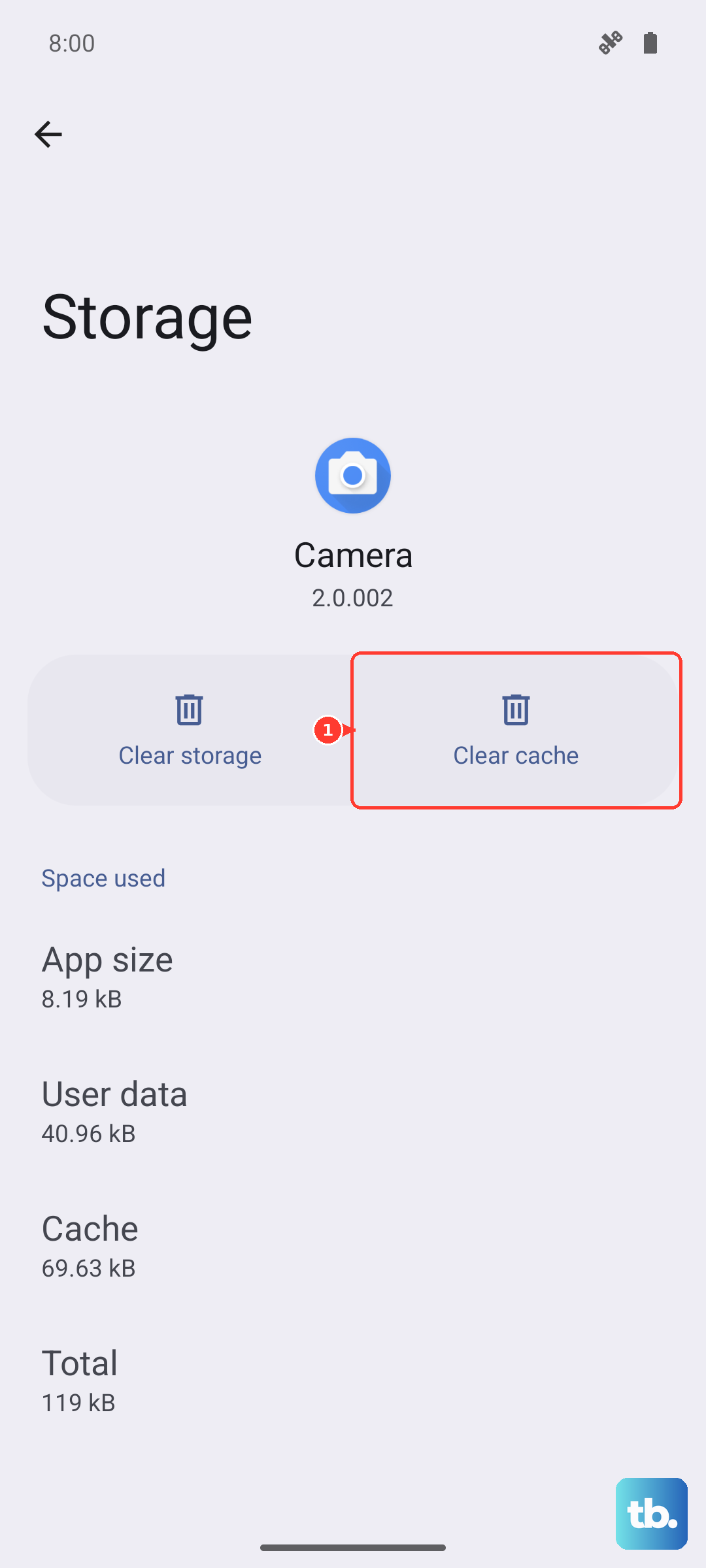
Tap "Clear cache" to delete the temporary files. This won't erase your login information or saved preferences within the app. If the app is still misbehaving, you can try "Clear data," but be aware this will reset the app to its freshly installed state, deleting your accounts and settings within it.
Use Device Care for a Quick Cleanup
For a broader sweep, Samsung's Device Care tool is your best friend. Open Settings > Battery and device care. Tap on Storage and then hit the blue Clean now button.
This automatically scans for and removes cached data from all your apps, along with other junk files. It's the fastest way to reclaim a gigabyte or two of space. You can also tap into the "Apps" section here to see which ones are using the most storage and manage them individually.
Clear Your Browser Cache
If web pages aren't loading correctly, your browser cache might be the culprit. In the Samsung Internet app, tap the menu (three lines), go to Settings > Personal browsing data, and select Delete browsing data.
Make sure "Cached images and files" is checked, then tap "Delete data." If you use Chrome, open its menu, go to Settings > Privacy and security > Clear browsing data, select "Cached images and files," and tap "Clear data."
Manage Messages and Media Storage
Text message threads, especially group chats full of photos and videos, can silently eat up storage. Open your Messages app, tap the three-dot menu, and go to Settings. Look for an option like "Delete old messages" to automatically remove texts past a certain date.
For a more hands-on approach, go through conversations and long-press on media-heavy messages to delete them individually. Also, check your Gallery's "Trash" or "Recently deleted" album to permanently remove photos you've already deleted.
Enable Adaptive Features for Long-Term Health
To help prevent future slowdowns, make use of your S25 FE's built-in smarts. In Settings > Battery and device care > Battery, ensure "Adaptive battery" is turned on. This learns your usage patterns to optimize power.
You can also tap "More battery settings" and enable "Adaptive power saving." For charging, the phone may limit speed if it gets too warm, which is normal protection for the battery. Using an official Samsung 45W adapter gives you the fastest possible wired charging when conditions are right.
Perform a Regular Restart
Don't underestimate a simple reboot. It clears the phone's active memory (RAM) and stops any minor software glitches. Hold the Side key and tap "Restart," or use the quick method: press and hold Volume Down + the Side key for about 10 seconds until the screen goes black and the phone restarts.
Doing this once a week can help maintain smooth performance. If you're dealing with occasional display flicker, a restart is often the quickest fix, as it resets the software driving the screen.











