
If your Samsung Galaxy A55 is starting to feel a bit sluggish or apps are crashing more than they should, clearing out the cache is a great first step. It's like giving your phone a quick refresh without losing any of your important stuff.
Use Device Care for a Quick Cleanup
Your A55 has a handy built-in tool for this. Swipe down from the top of your screen and tap the gear icon to open Settings. From there, scroll down and tap Battery and device care.
On the main Device Care screen, you'll see a big blue button that says Optimize now. Give that a tap. The phone will run a quick scan, close unnecessary background apps, and clear out cached data from all your applications at once.
This is the fastest way to free up some space and give your phone a performance nudge. I'd make a habit of doing this once a week.
Clear Cache for a Specific App
Sometimes one particular app is the problem. Maybe your social media feed won't load new posts, or a game is stuttering. You can target that app directly.
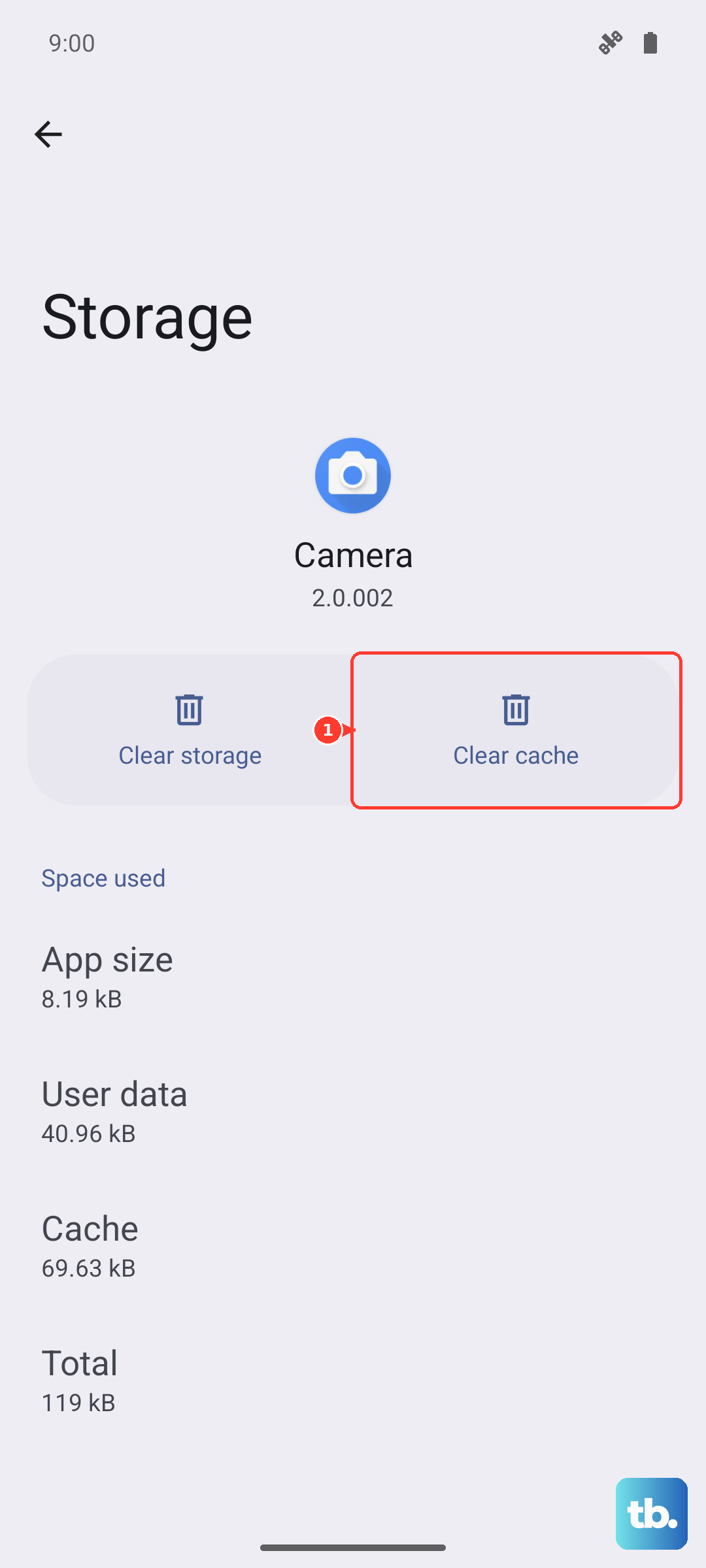
Go back to Settings and tap Apps. You'll see a list of all your installed applications. Find and tap on the troublesome app. On its info page, tap Storage.
Here, you'll see two buttons: Clear cache and Clear data. Tap Clear cache. This only deletes temporary files the app created, so you won't lose your login or any saved progress inside the app.
Wipe the System Cache Partition
For more persistent issues like lag after a software update or random glitches, you can clear the system cache. This is different from app cache and is a very safe procedure that doesn't touch your photos, messages, or accounts.
First, turn your Galaxy A55 completely off. Now, press and hold the Volume Up button and the Side (power) button at the same time. Keep holding them both.
When you see the Samsung logo appear on the screen, let go of both buttons. You'll soon boot into a blue and black menu called Recovery Mode. Use the Volume Down button to scroll down the list until Wipe cache partition is highlighted.
Press the Side button to select it. On the next screen, use the Volume button to highlight Yes and press the Side button again to confirm. Once it's done, the option Reboot system now will be highlighted. Press the Side button one more time to restart your phone normally.
Clear Your Browser's Cache
If web pages aren't loading correctly or look outdated, your browser's cache might be the culprit. If you use Samsung Internet, open the app and tap the three-line menu in the bottom right. Go to Settings > Personal browsing data.
Tap Delete browsing data. On the next screen, make sure Cached images and files is checked. You can uncheck things like history or passwords if you want to keep those. Then, tap Delete data at the bottom.
For Google Chrome users, tap the three-dot menu in the top right, go to Settings > Privacy and security, and then tap Clear browsing data. Select Cached images and files and tap Clear data.
Manage Your Message Storage
Group chats full of photos and videos can silently eat up a lot of space over time. Open your Messages app and tap the three-dot menu in the top right corner. Go to Settings.
Look for an option like Delete old messages. You can often set it to automatically delete messages after a certain number of days. For a more hands-on approach, just go into your biggest group chats and manually delete old threads packed with media.
Set Up Storage Maintenance
You can put some of this cleanup on autopilot. Head to Settings > Battery and device care > Storage. Tap the three-dot menu in the top right and select Storage settings.
Here, you might find options like Auto delete for trash or duplicate files. You can also enable Samsung Cloud or link your Google Photos account to automatically back up your pictures and videos, keeping your phone's internal storage clearer.
Don't Forget a Simple Restart
It sounds too easy, but it works. A full restart clears out the phone's working memory (RAM) and can resolve a lot of temporary hiccups. Just press and hold the Side button until the power menu appears, then tap Restart.
If your screen is frozen and you can't get to the menu, you can force a restart. Press and hold the Volume Down button and the Side button together for about 10 seconds until the screen goes black and the phone reboots.











