

iPhone 17 uses a USB-C cable and compatible USB-C power adapter for wired charging, or a MagSafe or Qi2 charger for wireless charging. For Apple’s advertised fastest wired charging on iPhone 17, iPhone 17 Pro, and iPhone 17 Pro Max, choose a USB Power Delivery adapter rated at 40W or higher. You can also reuse a compatible adapter you already own, though a lower-powered one may charge more slowly.
Check your exact model before buying because iPhone 17e has different charging limits. Match both the charger and its power supply to your model and the speed you want.
The short version
- Wired connection: Use a USB-C-to-USB-C cable with a compatible USB-C power adapter.
- Fast wired charging: Choose 40W or higher with USB Power Delivery for iPhone 17, Pro, or Pro Max.
- Wireless choice: Check the exact MagSafe or Qi2 charger’s output and required power supply.
- iPhone 17e: Choose a 20W-or-higher adapter for its advertised wired charging speed, or MagSafe or Qi2 for up to 15W wirelessly.
| Option or check | What to look for | When it helps |
|---|---|---|
| Exact iPhone model | Model information in Settings | Separating iPhone 17e from other models |
| USB-C wall charging | Compliant USB-C cable and adapter | Everyday wired charging |
| Fast wired charging | 40W or higher with USB Power Delivery | Fastest advertised wired charging on iPhone 17, Pro, and Pro Max |
| Existing USB-C adapter | Compatible iPad, Mac, or other adapter | Reusing equipment you own |
| iPhone 17e equipment | 20W or higher wired, up to 15W wireless | Matching the 17e’s specifications |
| Apple MagSafe generation | Listed charger model and suitable 30W adapter | Up to 25W on iPhone 17, Pro, and Pro Max |
| Third-party Qi2 charger | Exact output and required power supply | Up to 25W Qi2 on standard iPhone 17 |
| Wireless certification | Matching certification entry and WPC ID | Checking a Qi or Qi2 purchase |
| Ordinary Qi charger | Qi certification and correct placement | Reusing a pad or built-in charging surface |
| Case and accessory fit | Clear space between phone and charger | Fixing slow or failed wireless charging |
| Other USB power sources | Compatible connection and output specification | Computer, supported display, car, or battery pack charging |
| USB-A charger | USB-A-to-USB-C cable | Slower charging with an older adapter |
| Multi-port adapter | Power available to the phone’s port | Checking power shared with other devices |
| Charging status | Settings > Battery | Checking messages and estimates on iOS 26 |
| Charging limits | Settings > Battery > Charging | Explaining charging that stops below full |
| Apple wired adapter | 40W Dynamic Power Adapter with 60W Max | Choosing an Apple adapter compatible with the family |
| Current Apple MagSafe Charger | Compatible phone and separate power adapter | Choosing Apple’s wireless charging equipment |
Check which iPhone model you have
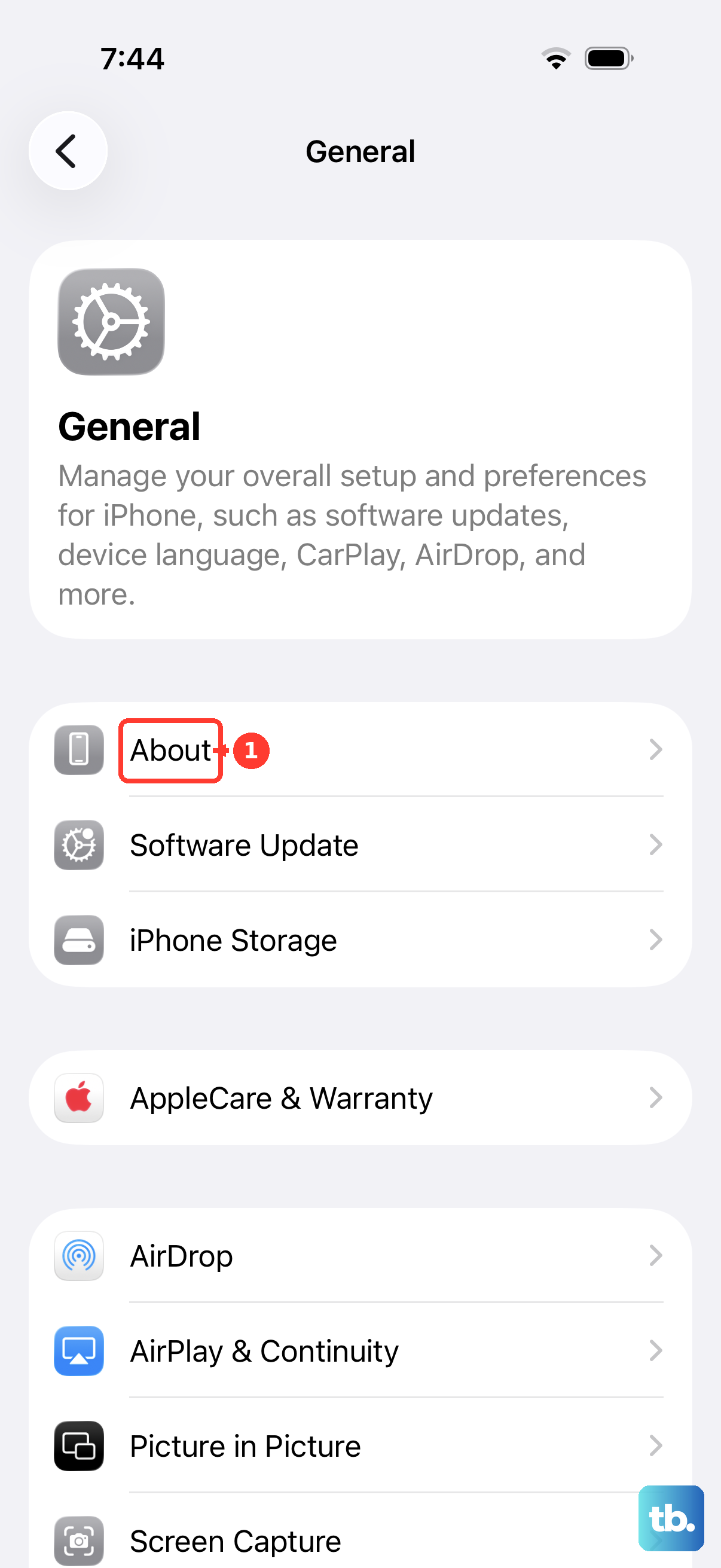
Open Settings > General > About and check your model and iOS version. Distinguish iPhone 17, iPhone 17 Pro, iPhone 17 Pro Max, and iPhone 17e before comparing charger specifications.
For iPhone 17e, Apple advertises approximately 50% charge in 30 minutes with a USB-C cable and a 20W-or-higher adapter. If you prefer wireless charging, choose MagSafe or Qi2 equipment for up to 15W. The standard iPhone 17’s 25W wireless specification does not apply to the 17e.
Choose your cable and wall adapter
Use the included USB-C cable or another USB-C-compliant cable. Connect one end to your iPhone’s USB-C port and the other to a compatible USB-C power adapter, then plug the adapter into an outlet. Apple supports compliant third-party adapters and cables, so your charger does not need to be Apple branded.
You can reuse an existing compatible USB-C iPad adapter, Mac laptop adapter, or another USB-C adapter. Apple supports 20W adapters and higher-wattage adapters such as those used with Mac laptops. A compatible lower-powered adapter remains useful, but it does not establish the iPhone 17’s advertised 20-minute charging performance.
If you want to reuse a USB-A charger, connect it with a USB-A-to-USB-C cable. Apple says iPhone 15 and later, including the iPhone 17 family, charge from USB-A at no more than 7.5W. Treat this as a slower charging option.
Match the adapter to your wired charging goal
For iPhone 17, iPhone 17 Pro, or iPhone 17 Pro Max, choose a USB-C adapter rated at least 40W that supports USB Power Delivery. Pair it with a USB-C charging cable for Apple’s advertised approximately 50% charge in 20 minutes. Actual charging time varies with conditions.
Check the wattage printed on the adapter before buying or reusing it. Apple places this information on the top or bottom of its adapters. For iPhone 17e, use its separate 20W-or-higher recommendation for approximately 50% charge in 30 minutes.
If you want an Apple option, review Product Information and Compatibility on the 40W Dynamic Power Adapter with 60W Max product page. Apple lists iPhone 17, iPhone 17 Pro, iPhone 17 Pro Max, and iPhone 17e as compatible. The advertised 20-minute charging performance applies to the first three models.
With a multi-port charger, check the output available to your iPhone’s port while other devices are connected. Apple says multi-port adapters, computers, and hubs can divide available power. Disconnect the other devices when comparing charging speed.
Choose MagSafe or Qi2 wireless equipment
For up to 25W MagSafe charging on iPhone 17, iPhone 17 Pro, or iPhone 17 Pro Max, check the charger or cable for model A3502, A3503, A2580, or A3250. Pair one of those chargers with a USB-C adapter rated at least 30W that supports at least 15V/2.0A. Check both the wattage and voltage requirements.
Connect the MagSafe charger to power first and place it face up on a clear, flat surface, then attach your iPhone. If you attached the phone before connecting power, remove it, wait three seconds, and reattach it.
If you are buying Apple’s current MagSafe Charger (1 m), review Product Information and Compatibility before choosing it. Match the charger’s capabilities to your phone’s wireless limit, especially if you have an iPhone 17e.
For a third-party Qi2 charger, check the exact product’s output because a Qi2 label alone does not establish 25W charging. To reach the standard iPhone 17’s advertised maximum Qi2 speed, choose equipment supporting 25W and use the power supply required by its manufacturer. Keep the iPhone 17e’s wireless limit of up to 15W in mind.
Before buying a third-party pad, stand, charging station, or portable wireless charger, open the WPC certified products page and select Visit the Qi Certified Product Database. Find the exact product, then match its certification entry and WPC ID to the charger you plan to buy.
Reuse other compatible charging sources
You can use an ordinary Qi-certified wireless pad with the iPhone 17 family. Many ordinary Qi chargers provide up to 7.5W, so expect a slower option than the higher-powered MagSafe and Qi2 combinations. You can also use Qi-certified charging surfaces in cars, furniture, hotels, and airports.
Connect the Qi charger to its supplied or manufacturer-recommended power adapter and place it on the recommended surface. Position your iPhone display-up over the charging area, then check for the charging icon after a few seconds.
To charge from a computer, connect your iPhone to its USB-C port with a compliant USB-C cable. You can also use a compatible USB-C external battery pack. For a car’s USB-A port, use a compliant USB-A-to-USB-C cable, and check the source’s output specification before expecting fast charging. Apple says car and hub ports can charge more slowly.
Check charging messages and limits
On iOS 26, connect your charger, then open Settings > Battery. Check for Slow Charger or Incompatible Charger and review the charging-time estimate. You may also see Slow Charger and the estimate on the Lock Screen.
A Slow Charger message does not by itself mean the charger is faulty. Check the adapter’s output and whether other connected devices are sharing its power before deciding to replace it.
If charging stops below full, open Settings > Battery > Charging and review Charge Limit. When the limit is 100%, Optimized Battery Charging is available and can delay charging beyond 80%. A charging pause can reflect these settings rather than an incompatible adapter.
Fix slow or failed wireless charging
Remove cards or other objects between your iPhone and the wireless charging surface. If your phone still will not charge, or charging remains slow, remove a thick, metal, or battery case and reposition the phone centrally. Check for the charging icon again after a few seconds.
Disconnect USB power when checking wireless charging because Apple says the wired connection takes priority. Recheck the wireless charger’s required power adapter and, for MagSafe, its model number. If you connected MagSafe to power after attaching the phone, remove the phone, wait three seconds, and reattach it.
Frequently Asked Questions
Does Apple’s 40W Dynamic Power Adapter include a charging cable?
The charging cable is sold separately from the 40W Dynamic Power Adapter with 60W Max. You can use the USB-C cable included with your iPhone or another USB-C-compliant cable.
What comes with the current Apple MagSafe Charger?
The current MagSafe Charger (1 m) includes its integrated USB-C cable. You need a separate power adapter, and Apple recommends a 30W adapter for up-to-25W charging on compatible phones.
Can you choose a charging limit between 80% and 100%?
Yes, Charge Limit lets you choose from 80% to 100% in five-percentage-point increments.
Can a USB-C display charge an iPhone 17?
Some USB-C displays supply charging power to iPhone 17, iPhone 17 Pro, and iPhone 17 Pro Max. Apple’s display-connection instructions exclude iPhone 17e; for that model, use a compatible USB-C power adapter, computer USB-C port, or external battery pack.