


Check your iPhone’s Wi-Fi data usage through your router’s device reports in eero or Google Home, or with a monitoring app such as WifiMan from DataMan. Router reports require access to manage the network, while WifiMan tracks usage by Wi-Fi network on your phone. The cellular counters in iPhone settings measure cellular traffic.
The short version
- eero: Open Activity and select your iPhone to view its recorded internet usage.
- Google Home: Open Home > Wifi > Devices and read the downloaded and uploaded amounts under your iPhone.
- Phone monitoring: WifiMan from DataMan tracks Wi-Fi usage separately for each network.
- Settings counters: The cellular totals and Connectivity Assist figures do not measure total Wi-Fi traffic.
| Option | What you can check | Requirement or limitation |
|---|---|---|
| eero | Recorded internet usage and live transfer speeds | Network management access; reporting unavailable in bridge mode |
| Google Home | Your iPhone’s uploads and downloads on that network | Access to a Google or Nest Wifi network |
| WifiMan from DataMan | Usage grouped by Wi-Fi network | iOS 16.6 or later; location permission identifies the network |
| DataMan | Real-time cellular and Wi-Fi usage | iOS 16.6 or later |
| Data Remaining | Wi-Fi usage with hourly and daily charts | iOS 17 or later |
| Home Screen and Today View widgets | A monitoring app’s usage measurements | An installed app offering a Wi-Fi widget; steps below use iOS 27 |
| Lock Screen widget | Data Remaining’s Wi-Fi usage measurements | Data Remaining Pro; iOS 17 or later |
| iPhone settings counters | Cellular usage | The iOS 27 counters below exclude total Wi-Fi consumption |
| Low Data Mode | A control for reducing background traffic | iOS 13 or later; does not measure usage |
Check recorded usage in eero
For an eero network you manage, open the eero app and select Activity. View usage by device, then select your iPhone. If you need the companion app, get it from the official eero app page.
You can view one week of usage with any eero account. eero Plus adds daily and monthly views with up to three months of history. Select the available view that covers the period you want to check.
These figures include internet uploads and downloads but exclude transfers between devices on the same local network. Usage reporting is unavailable when eero runs in bridge mode. If your network uses bridge mode, use a phone monitoring app such as WifiMan from DataMan for per-network tracking.
Find your iPhone’s usage in Google Home
With access to a Google or Nest Wifi network, open Google Home and select Home > Wifi > Devices. Find your iPhone and read the downloaded and uploaded amounts beneath it.
Google documents real-time, today, seven-day, and 30-day reporting for the network’s total usage. The total next to Devices represents the whole network’s internet traffic, so read the amounts under your iPhone’s entry for its individual figures.
To get the app, open the official Google Home page and select Get the app. Google Home has replaced the older Google Wifi app, which is no longer downloadable. The usage you inspect here covers traffic on that Google or Nest Wifi network.
Track usage on your phone with WifiMan
For tracking by Wi-Fi network, get WifiMan from DataMan from its official App Store listing. Choose Johnny Ixe’s app; Ubiquiti WiFiman is a different product. WifiMan from DataMan requires iOS 16.6 or later.
Open WifiMan from DataMan and inspect its per-network usage statistics. The developer says the app automatically tracks usage by SSID, the Wi-Fi network name, and provides real-time statistics, maps, and export. Location permission is needed to identify the current SSID, so that permission matters when you want your usage grouped by network.
Check usage with other monitoring apps
If you use DataMan, open the app to inspect its usage statistics. Its developer advertises real-time cellular and Wi-Fi tracking on iPhones running iOS 16.6 or later.
With Data Remaining, open the app and configure your data plan and reset day. You can then inspect its separate Wi-Fi usage and hourly and daily charts. Data Remaining requires iOS 17 or later.
Match the router entry to your iPhone
When identifying your phone in a router report, check the identity it uses for that Wi-Fi network. On iOS 18 and later, open Settings > Wi-Fi, tap the More Info button beside the network, and check Private Wi-Fi Address. To help match the router entry, find your iPhone’s MAC address for that network.
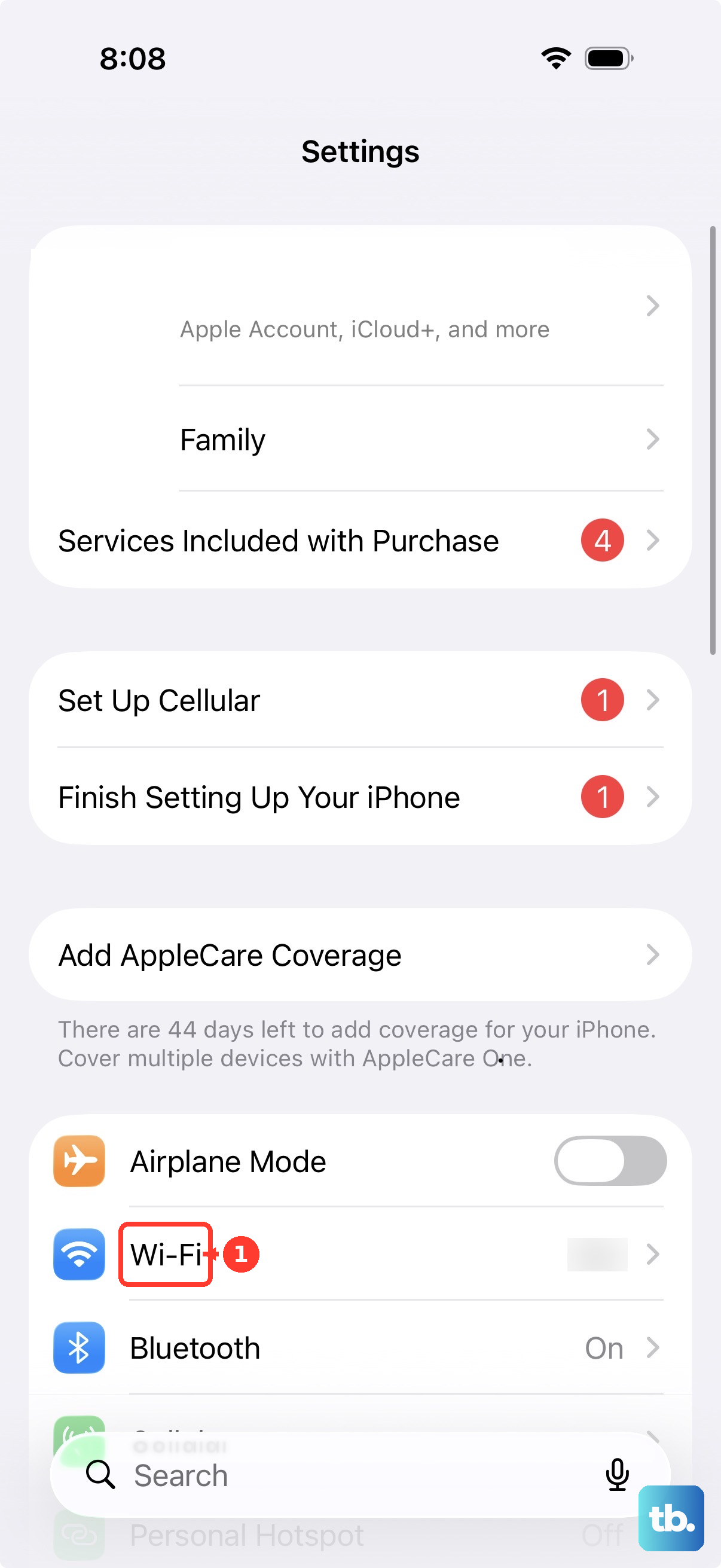
The choices on iOS 18 and later are Off, Fixed, and Rotating. The Fixed option retains a private address without periodic rotation, and you do not inherently need to turn privacy off to measure usage. On older iOS versions, Private Wi-Fi Address has an on/off control instead of those three choices.
Add a usage widget
After configuring an app that offers a Wi-Fi widget, such as WifiMan from DataMan or Data Remaining, you can display its measurements on your Home Screen. On iOS 27, touch and hold an empty area until the apps jiggle. Tap Edit > Add Widget, then select the monitoring app’s widget and choose its size.
Tap Add Widget, followed by Done, to finish. For Today View, first swipe right from the Home Screen, then follow the same widget-adding controls. The widget displays the monitoring app’s measurements; it does not create an Apple system Wi-Fi counter.
For your Lock Screen, Data Remaining includes detailed Wi-Fi and cellular widgets among its Pro features, and the app requires iOS 17 or later. With its Wi-Fi widget available, touch and hold the Lock Screen, tap Customize, then tap Add Widgets and select the app’s Wi-Fi usage widget. Swipe down from the widget list, then tap Done.
Read the settings counters correctly
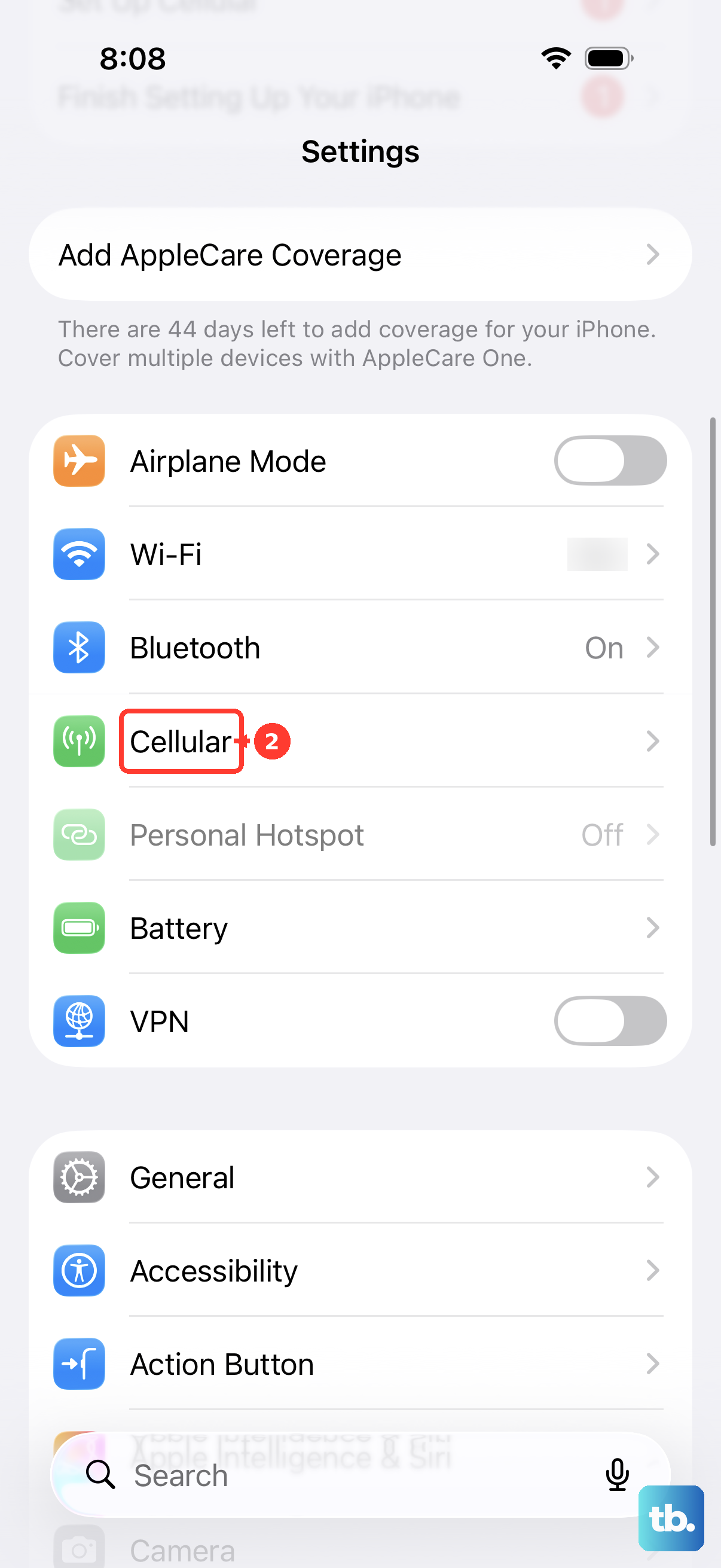
On iOS 27, open Settings > Cellular, scroll to the app list, and tap Show All to see per-app cellular totals. Those numbers exclude Wi-Fi consumption. Opening System Services also shows cellular usage, so use your router report or monitoring app for Wi-Fi measurements.
On iOS 27, the figure associated with Connectivity Assist under Settings > Wi-Fi also measures cellular data. The feature allows cellular service to supplement Wi-Fi, but its counter does not measure total Wi-Fi traffic.
Reduce usage with Low Data Mode
To reduce traffic on a particular Wi-Fi connection, open Settings > Wi-Fi and tap the Info button beside the connected network. Turn on Low Data Mode. This setting is available on iOS 13 and later and is configured separately for each Wi-Fi network.
Apple says Low Data Mode reduces background activity and some downloads. It does not display consumed megabytes or gigabytes, so continue checking your router report or monitoring app for the amount used.
Frequently Asked Questions
Can eero show how much bandwidth my iPhone is using right now?
Yes, open the eero app, select Devices, then select your iPhone to see live upload and download speeds, refreshed every five seconds. These figures measure current transfer speed rather than accumulated monthly usage. They are available to all eero customers except those whose networks run in bridge mode.
Does DataMan include daily history and export?
Daily history and export require DataMan Pro. If you want those reporting features, you need the optional Pro subscription.
Why did Data Remaining stop updating in the background?
Data Remaining’s developer says background updates stop when you force-close the app. Avoid force-closing it when you want its background updates to continue.
Can I track Wi-Fi usage without a VPN or login?
Yes, WifiMan from DataMan requires neither a VPN nor a login. DataMan also advertises cellular and Wi-Fi tracking without a VPN or login.