

To look up the MAC address on your iPhone, open Settings > General > About and scroll to Wi-Fi Address. That is the hardware address; your phone uses a private address on each Wi-Fi network by default, so a router can show a different value.
The short version
- Hardware address: read Wi-Fi Address in General > About.
- Network address: read Wi-Fi Address in that network's Wi-Fi details.
- Saved network: on iOS 16 and later, use Edit in Wi-Fi and authenticate if prompted.
- Privacy: leave private addressing enabled unless the network requires the hardware address.
| Method | What it does | Estimated time | Use it when |
|---|---|---|---|
| About | Shows the hardware address | Under a minute | You need the phone's hardware MAC |
| Connected network details | Shows the network's address | Under a minute | You need to match a router entry |
| Saved network details | Shows a remembered network's address | Under a minute | You are disconnected on iOS 16 or later |
| Turn private addressing off | Makes the network use the hardware MAC | Under a minute | The network requires it |
| ASUS router | Cross-checks the connected device's MAC | A few minutes | You have router login access |
| Apple Configurator | Exports the Wi-Fi MAC address | A few minutes | You have the iPhone and a Mac |
These estimates assume that the phone is usable, router credentials are already available and any required app is installed. Start with the phone's Settings unless you specifically need a router cross-check or a Mac export.
Find the hardware MAC address in About
Open Settings, tap General, then tap About. Scroll down and read the value beside Wi-Fi Address, taking care to choose the Wi-Fi entry rather than the Bluetooth address.
Use this value when an administrator specifically asks for your hardware Wi-Fi MAC address. Reading it does not require changing the network's private-address setting, so leave that setting alone while you check the phone's information.
Check the address your Wi-Fi network sees
Open Settings and tap Wi-Fi. Tap the More Info button beside the connected network's name to reach that network's settings.
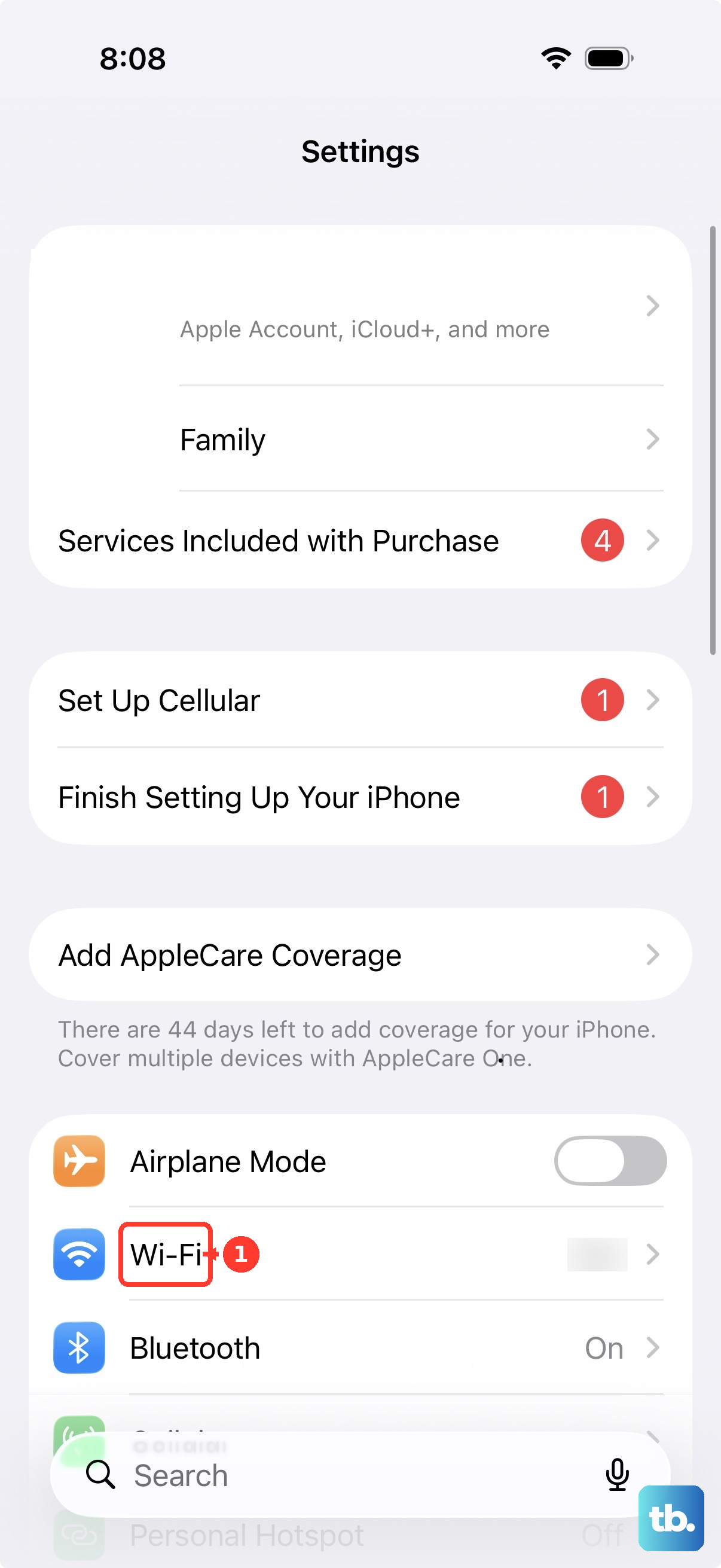
Read the value beside Wi-Fi Address on the network's details screen. Use this value to match your iPhone to a router entry for that connection, rather than starting with the hardware address in About.
On iOS 18 and later, check Private Wi-Fi Address: Off uses the hardware address, while Fixed and Rotating use private addresses. On iOS 14 through iOS 17, check the on or off switch instead; older screens can label it Private Address.
Inspect a saved network while disconnected
On iOS 16 and later, open Settings > Wi-Fi and tap Edit. Authenticate with Face ID, Touch ID or your passcode if prompted, then tap More Info beside the saved network.
Read Wi-Fi Address and check Private Wi-Fi Address for that network. Because private addresses are specific to each network, information from your home connection should not be used to identify your phone on a workplace connection.
Use the hardware address when the network requires it
For a network that requires the hardware address, return to its details under Settings > Wi-Fi > More Info. On iOS 18 and later, tap Private Wi-Fi Address, then choose Off.
On iOS 14 through iOS 17, turn off the Private Wi-Fi Address switch instead. Older screens can call this switch Private Address; it controls private addressing for that network.
Keep private addressing enabled on networks that support it. Fixed uses a private address that does not rotate, while Rotating changes the private address every two weeks.
Read the address through an ASUS router
Use an ASUS router as an optional cross-check while the iPhone is connected to its Wi-Fi. Connect a computer to the same router by Wi-Fi or cable, enter the router's LAN IP address or type http://www.asusrouter.com in its browser, then sign in with the router's username and password.
On ASUS firmware with this layout, open Network Map and click Clients to display Client status. Screens and menu names can vary by model and firmware, so use ASUS client status instructions if the screen differs.
Private addresses can make the client appear as Unknown or with an imprecise name. Confirm its identity by matching the client's MAC address to Wi-Fi Address in the iPhone's details for the same network, then read the matching entry.
When private addressing is enabled, the router sees the private address used for that connection. A difference from About is expected in that case, so compare the network-specific address before deciding that you selected the wrong device.
View hardware information on a Mac
Open Apple Configurator on your Mac and connect the iPhone with a USB cable. If the phone asks you to trust the computer, tap Trust and enter the device passcode if requested.
Select the recognized iPhone, then choose Actions > Export > Info. Choose the CSV format and include the Wi-Fi MAC address in the information to export, using Apple's device information export instructions if needed.
Click Export and name the file. To review it, select the exported file in Finder and press Space bar, then read the Wi-Fi MAC address rather than the Bluetooth MAC address.
When you cannot reach the address
If the phone stays black, start with turning on an iPhone that will not start so you can reach Settings. Charging or a force restart may be needed before you can read anything on the screen.
If a Mac does not recognize the connected iPhone, try another USB cable that supports data and charging. Approve Allow if the Mac asks to connect the accessory, and approve Trust if the iPhone asks to trust the computer.
Frequently Asked Questions
Is my iPhone's MAC address the same as its IP address or serial number?
No, these identify different things: a MAC address identifies the device to a Wi-Fi network, while an IP address supports network communication. In About, choose Wi-Fi Address rather than the serial number, IMEI or Bluetooth address.
Should I reset network settings to find my MAC address?
Do not reset network settings, erase your iPhone or forget the network just to find an address. Resetting or erasing changes the private address on the next join; forgetting a network can also change it, subject to timing exceptions.
On iOS 18 and later, forgetting a network also forgets its private address unless less than 24 hours have passed since you last made the phone forget that network. Before iOS 18, that exception is two weeks; read about Reset Network Settings on iPhone before using it for a separate connection problem.
Can I get the MAC address from a Mac?
Yes, use Apple Configurator with the iPhone connected and recognized. Select the device and use Actions > Export > Info to export a CSV containing its Wi-Fi MAC address, as described above.
Can my workplace retrieve my iPhone's Wi-Fi MAC address?
For an iPhone enrolled in device management, your administrator may be able to retrieve its Wi-Fi MAC address. Ask them to check what your enrollment allows before relying on that option.
Why does my router show a different MAC address?
Your iPhone uses private addressing by default, so the network can see a different address from the hardware address. Check that network's Wi-Fi Address and Private Wi-Fi Address setting before comparing the router entry with About.
Does a rotating private address stay the same?
No, Rotating changes the private address every two weeks. Fixed keeps a private address from rotating, while Off makes the network use the hardware address.