

Your iPhone 17 accepts a physical SIM card if it has a SIM tray; models without a tray use eSIM only. Check the left edge for a tray, then confirm the regional model in Settings > General > About. These checks also apply to iPhone 17 Pro, iPhone 17 Pro Max, and iPhone 17e.
Hardware support, an installed SIM, and active service are different things. A tray confirms physical-SIM capability, while an EID identifies eSIM hardware. Neither tells you on its own which SIM currently supplies your service. To check for an active eSIM line, look in Settings > Cellular for a line below eSIMs that is turned on.
The short version
- Physical SIM: A tray on the left edge means your iPhone accepts a physical SIM card.
- Regional differences: Check the original sales market, because your current location does not determine the phone's hardware.
- eSIM capability: An EID identifies eSIM hardware but does not confirm an active eSIM plan.
- Installed plan: Inspect the cellular plan controls without deleting a plan or starting a conversion.
| Check | What it tells you | Limit or condition |
|---|---|---|
| Model number in Settings | Your regional A-number | Tap the displayed part number first |
| Apple's regional model list | Whether that model has a tray | Match the exact iPhone model |
| Original sales market | Regional SIM options | Use the market the phone was sold for |
| Mainland China, Hong Kong, or Macao variant | Which regional SIM arrangement applies | Mainland-China iPhone 17e differs from the other listed models |
| Left-edge SIM tray | Physical-SIM capability | Does not identify active service |
| Tray contents | Whether a physical card is installed | An installed card may not be activated |
| Model number inside the slot or connector | Regional hardware variant | Works without opening Settings |
| Market-specific technical specifications | SIM support for that market | Use the exact model's specifications |
| EID in About | eSIM hardware | Does not identify the current line |
*#06# identifier display | eSIM capability when EID appears | Applies to models supporting this display |
| Delete eSIM control | An installed eSIM | Inspect without selecting it |
| Convert to eSIM control | Evidence of a physical-SIM line | Conditional on iOS 27 and carrier support |
| Set Up Cellular or Add eSIM | An eSIM setup entry point | Does not confirm an installed eSIM |
| Finder or Apple Devices | EID and other identifiers | Connect an EID-capable iPhone |
| iTunes on Windows | Device identifiers | Select the connected iPhone |
| Apple Account website | EID in the device record | The iPhone must be registered to your account |
| Another signed-in iPhone or iPad | Identifiers in the iPhone's record | Displayed identifiers can vary |
| Info on the Hello screen | Identifiers before setup | For an unconfigured iPhone |
| Original packaging | EID on the barcode label | The box must match your iPhone |
| Your organization's administrator | EID inventory and provisioned service | Management can restrict eSIM controls |
Look for the SIM tray on the left edge
Remove any case covering the frame and inspect the left edge for a SIM tray and its eject hole. On iPhone 17, iPhone 17 Pro, iPhone 17 Pro Max, and iPhone 17e, a tray means the phone accepts a physical SIM. Apple says models without a SIM tray support eSIM only.
This check works regardless of the iOS version or activation state, including when you cannot power on the phone. You only need to open the tray if you want to check for an installed card or read the model number inside the slot.
Confirm your regional model
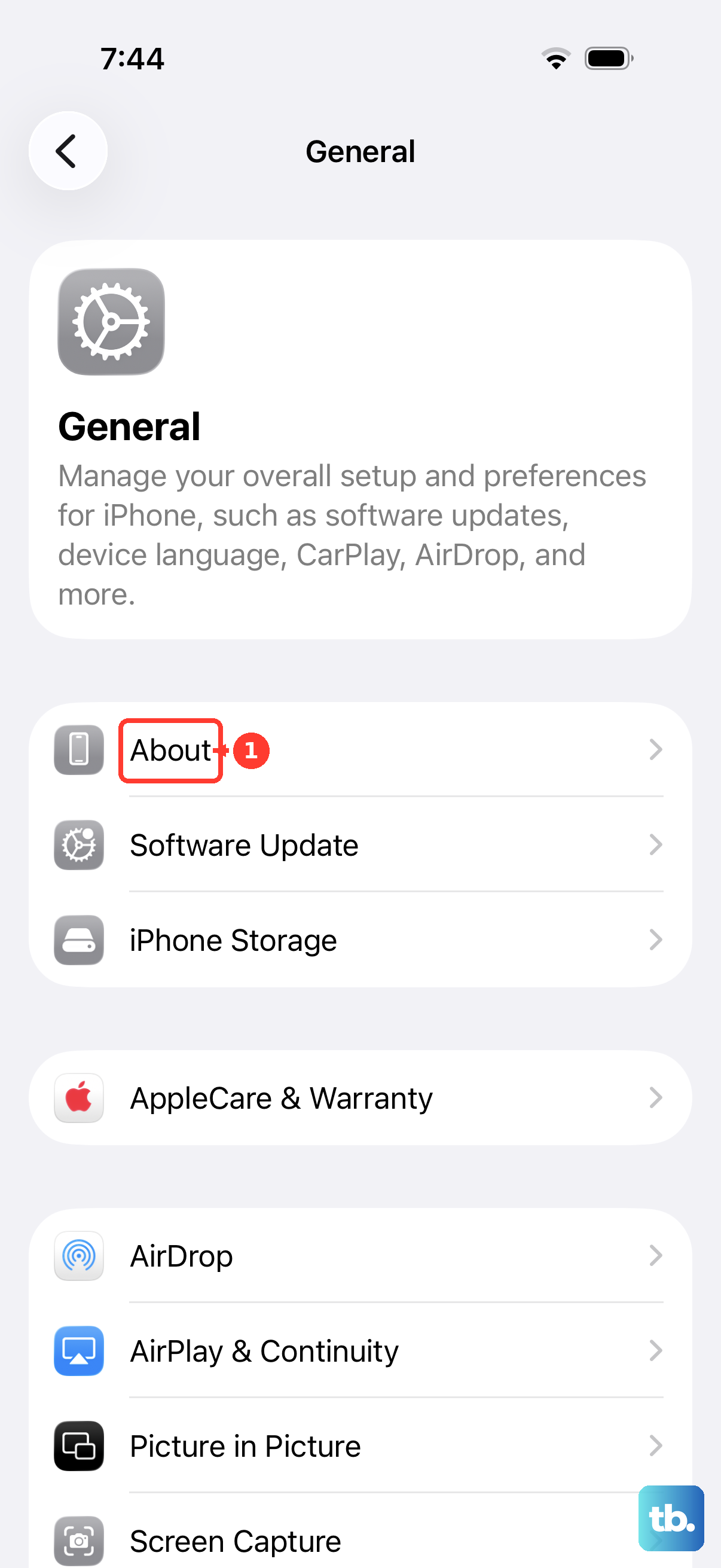
Open Settings > General > About and find Model Number. Tap the value beside it to change the displayed part number into an A-number. Locate your model on Apple's model identification page, or match it to the numbers below.
- iPhone 17: A3258 and A3519 have no tray; A3520 and A3521 have a tray.
- iPhone 17 Pro: A3256 and A3522 have no tray; A3523 and A3524 have a tray.
- iPhone 17 Pro Max: A3257 and A3525 have no tray; A3526 and A3527 have a tray.
- iPhone 17e: A3575 has no tray; A3634 and A3635 have a tray.
If you cannot unlock or power on the phone, read the hardware model number instead. On a tray-equipped model, remove the tray using the steps below and inspect the upper, display-facing side inside the slot under bright overhead light. On a trayless model, inspect the upper, display-facing side inside the USB-C connector. Match that A-number to the corresponding model above.
Check the original sales market
Use Apple's SIM-type list to check the market your phone was originally sold for. iPhone 17, iPhone 17 Pro, iPhone 17 Pro Max, and iPhone 17e sold for the United States, U.S. Virgin Islands, Canada, Mexico, Japan, Guam, United Arab Emirates, Saudi Arabia, Bahrain, Kuwait, Qatar, and Oman are eSIM-only. Apple's model identification page also lists Puerto Rico among trayless markets.
Other regional versions generally support nano-SIM and eSIM, with a model-specific exception for mainland China. Mainland-China iPhone 17, iPhone 17 Pro, and iPhone 17 Pro Max support two physical nano-SIM cards, while their Hong Kong and Macao counterparts support eSIM. Mainland-China iPhone 17e supports either eSIM or a physical nano-SIM, so keep it separate when comparing these models.
For another check, open Apple's technical specifications for your exact model and original sales market, then find SIM Card. The standard iPhone 17's U.S. specifications describe eSIM-only operation, while its UK specifications list nano-SIM plus eSIM and dual-eSIM support. Use the corresponding specifications for Pro, Pro Max, or 17e, rather than applying the standard model's page to every phone.
Check whether a physical SIM is installed
On a tray-equipped phone, insert a SIM-eject tool or paper clip into the hole beside the tray. Push toward the phone without forcing it, then withdraw the tray and inspect it for a nano-SIM. For more detail on handling the tray, follow the steps to remove the SIM card from an iPhone.
Mainland-China iPhone 17, iPhone 17 Pro, and iPhone 17 Pro Max can hold cards on both sides of the tray, so inspect both sides on those models. Reinsert the tray completely in its original orientation. A card's presence does not establish that it is activated, and an empty tray does not establish that an eSIM is activated.
Find the EID on your phone
On an eSIM-capable variant, open Settings > General > About and scroll to EID. That identifier establishes that the phone has eSIM hardware. It does not establish that your current number uses eSIM.
AT&T also describes a keypad shortcut for checking eSIM capability on iPhone models that support the identifier display. Open Phone, select Keypad, and enter *#06#. Look for EID among the displayed identifiers, keeping the phone's regional hardware differences in mind.
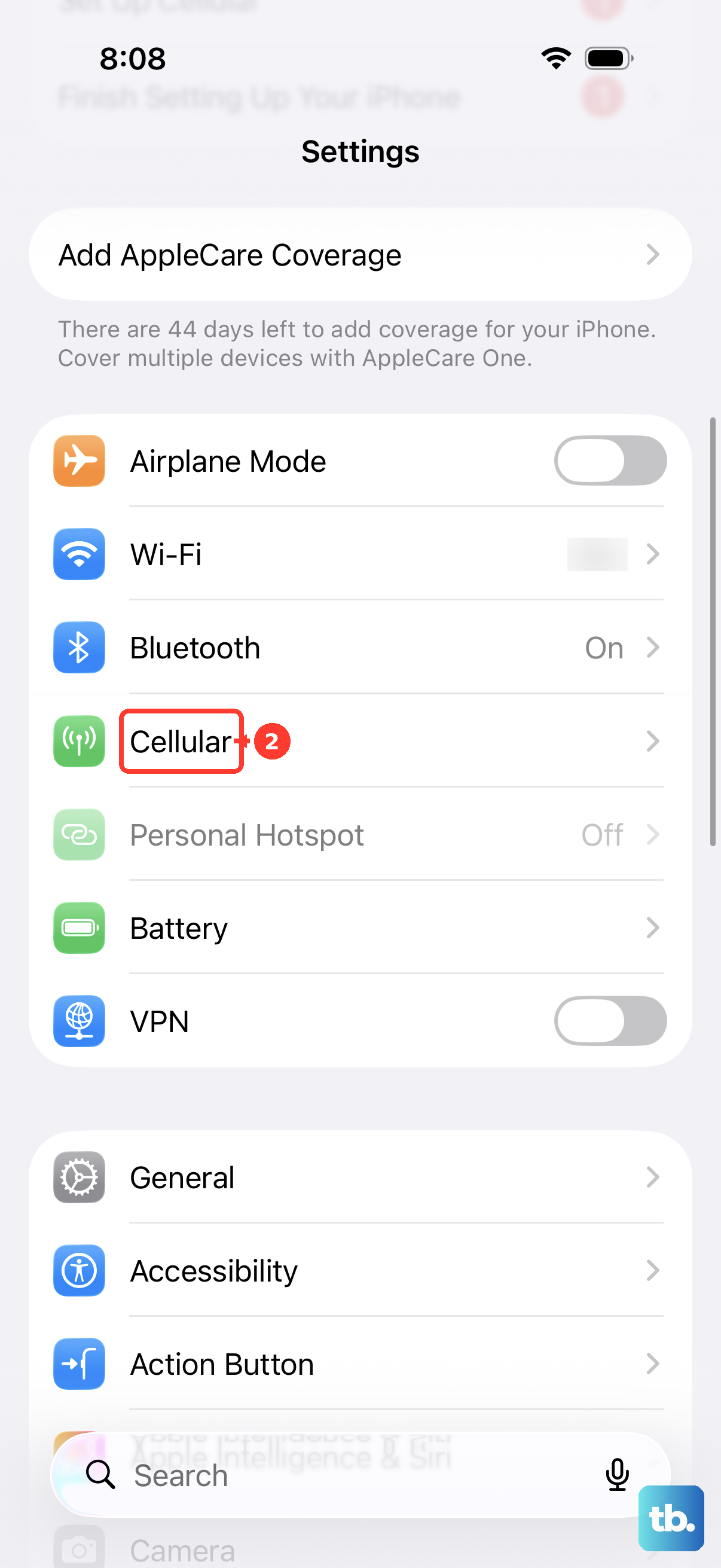
You can also open Settings > Cellular and look for Set Up Cellular or Add eSIM. These are eSIM setup entry points, not confirmation that an eSIM already supplies your service. Carrier and regional restrictions apply, so inspect the options without activating or transferring a plan just to check.
Inspect the installed cellular plan
Open Settings > Cellular to inspect your installed plans. With a single plan, look for Delete eSIM, but do not select it. An explicit control with that wording identifies an installed eSIM.
With multiple plans, select the relevant plan and inspect its controls. Apple's removal instructions use Delete Plan for this configuration, but that generic wording alone is less conclusive than Delete eSIM. Labels and available controls can vary with your configuration and management restrictions.
On iOS 27, a variant supporting both physical SIM and eSIM offers another check with participating carriers. Open Settings > Cellular, select Set Up Cellular or Add eSIM, then choose the number associated with a physical SIM. Look for Convert to eSIM and stop without starting the conversion.
Availability of that conversion for the selected number is evidence of a physical-SIM line. Its absence does not prove eSIM use because conversion depends on carrier support. If the controls are inconclusive, use the tray and regional model to establish hardware support, while keeping that result separate from the current service. To check for an active eSIM line, open Settings > Cellular and look for a line listed below eSIMs that is turned on. For help with your cellular service, contact your carrier.
Read identifiers with a computer
For an EID-capable variant, connect your iPhone to a computer and select it in Finder on macOS Catalina or later, or in Apple Devices on Windows. In Finder, select General, then click Phone Number or the device model to reveal EID and other identifiers. In Apple Devices, click Phone Number or the device model to reveal those identifiers.
Finding EID through a computer establishes the same eSIM capability as finding it on the phone. It does not establish that the line currently supplying your service uses eSIM. To check that, open Settings > Cellular on your iPhone and look for a line below eSIMs that is turned on.
Check your Apple Account device record
For an iPhone registered to your Apple Account, you can inspect its identifiers through Apple's account website. Sign in only through Apple’s own app or website, and never share a code, password, or remote access with someone who contacts you.
Sign in to the Apple Account website, select Devices, then select your iPhone. Look for EID in the device information. On an eSIM-capable variant, this identifies the hardware without establishing whether an eSIM plan is active.
Resolve missing controls on a managed iPhone
If your organization manages the iPhone, missing eSIM setup or deletion controls are not conclusive. Apple lets administrators restrict eSIM additions and removals, so those controls may reflect a management restriction.
Ask your organization's administrator to inspect the device's EID inventory and provisioned cellular service. Apple provides an EID device-information query for administrators, while the console labels depend on the management provider. This gives you an assistance route when the controls on the phone do not settle the question.
Frequently Asked Questions
Can you check for an EID before setting up an iPhone 17?
Yes, on an unconfigured iPhone 17-family device, tap the bottom-right Info button on the Hello screen. Inspect the identifiers for EID, which identifies eSIM capability rather than active service.
Can the original iPhone box tell you whether it supports eSIM?
Check the barcode label on the matching original packaging for EID. An EID identifies eSIM capability, but it does not tell you whether an eSIM plan is installed or active.
Can you check your iPhone's identifiers from another Apple device?
Yes, on another iPhone or iPad running iOS 10.3 or later and signed in to the same Apple Account, open Settings and select [your name]. Scroll down, select the target iPhone, and inspect its identifiers. The identifiers displayed can vary.
Can you use iTunes on Windows to view the identifiers?
Yes, Apple also lists current iTunes on Windows as an alternative for viewing identifiers. Connect your iPhone, select it in iTunes, then click Phone Number or the device model to reveal them.
Does having two IMEI numbers mean your iPhone uses eSIM?
No, an IMEI alone, or two IMEIs, does not determine SIM type. Check EID for eSIM capability and inspect the installed plan's controls for evidence of an installed eSIM.
Do these regional SIM tray differences apply to iPhone Air?
No, iPhone Air is eSIM-only across markets. If you are comparing it with an iPhone 17, keep its SIM support separate from the regional configurations of iPhone 17, Pro, Pro Max, and 17e.