

To check your iPhone battery life, open Settings > Battery and turn on Battery Percentage to show the remaining charge in the status bar. The same screen lets you review battery usage, inspect app activity, and open your battery health information. On an iPhone with Face ID, you can also swipe down from the top-right corner to read the percentage in Control Center.
The short version
- Remaining charge: Turn on Battery Percentage under Settings > Battery.
- Battery usage: Review Daily Usage, then select View All Battery Usage for more history.
- App activity: Scroll down in Battery and tap an app to inspect its usage details.
- Battery condition: Open Battery Health on iPhone 15 and later, or Battery Health & Charging on supported earlier models.
| Place or option | What you can check | Where to start |
|---|---|---|
| Status bar icon | Remaining charge and charging state | Look at the battery icon |
| Status bar percentage | Remaining battery percentage | Turn on Battery Percentage in Battery |
| Control Center | Percentage on Face ID iPhones | Swipe down from the top-right corner |
| Home Screen widget | iPhone and connected accessory levels | Edit > Add Widget > Batteries |
| Today View widget | Battery levels in Today View | Swipe right from the Home Screen |
| Lock Screen widget | Charge for the identified device | Customize > Add Widgets |
| Today View access while locked | Your widget from the Lock Screen | Check Today View and Search in passcode settings on iOS 26 |
| Daily Usage | Today's consumption and comparison | Settings > Battery |
| View All Battery Usage | Daily graphs and screen activity | Open Battery and select a day in the history |
| App usage details | Individual app and system activity | Scroll down in Battery |
| Last charge and insights | Charge history and applicable suggestions | Settings > Battery |
| Battery Health & Charging | Capacity and condition on supported iPhone 14 and earlier models | Open Battery in Settings |
| Battery Health | Health, capacity, cycles, and dates on iPhone 15 and later | Open Battery in Settings |
| Charging estimate | Estimated time to the charging target | Check Battery or the Lock Screen while charging |
| Charging messages | Slow, incompatible, or paused charging information | Settings > Battery |
| Optimized Battery Charging notification | Expected full-charge time | Check the Lock Screen when the feature is active |
| VoiceOver | A spoken battery reading | Settings > Accessibility |
| Assistive Access | Battery level on its Home Screen | Settings > Accessibility |
| iPhone Mirroring | Your iPhone's battery settings from a Mac | Open an established mirroring connection |
| Administrative query | Battery level on an enrolled iPhone | An authorized administrator uses device management |
Show your remaining battery percentage
Open Settings, tap Battery, then turn on Battery Percentage. This works on current iPhones, including Face ID models and iPhone SE models from the second and third generations. Older instructions saying Face ID iPhones cannot show a percentage in the status bar are outdated.
For a quick check on an iPhone with Face ID, swipe down from the top-right corner to open Control Center. Read the battery percentage there when you want to check the charge without changing the status bar setting.
The battery icon also gives you a visual reading through its fill, which indicates the remaining charge. On iOS 27, yellow indicates Low Power Mode, the charging icon indicates charging, and gray indicates that charging is paused.
Add a battery widget where you need it
A Batteries widget lets you check charge from the Home Screen and can also show connected accessories. Touch and hold an empty area of the Home Screen, then tap Edit > Add Widget > Batteries. Choose a size, tap Add Widget, then tap Done.
To put the widget in Today View, swipe right from the Home Screen or Lock Screen. Touch and hold an empty area, tap Edit > Add Widget > Batteries, and choose an appearance. Tap Add Widget, then Done.
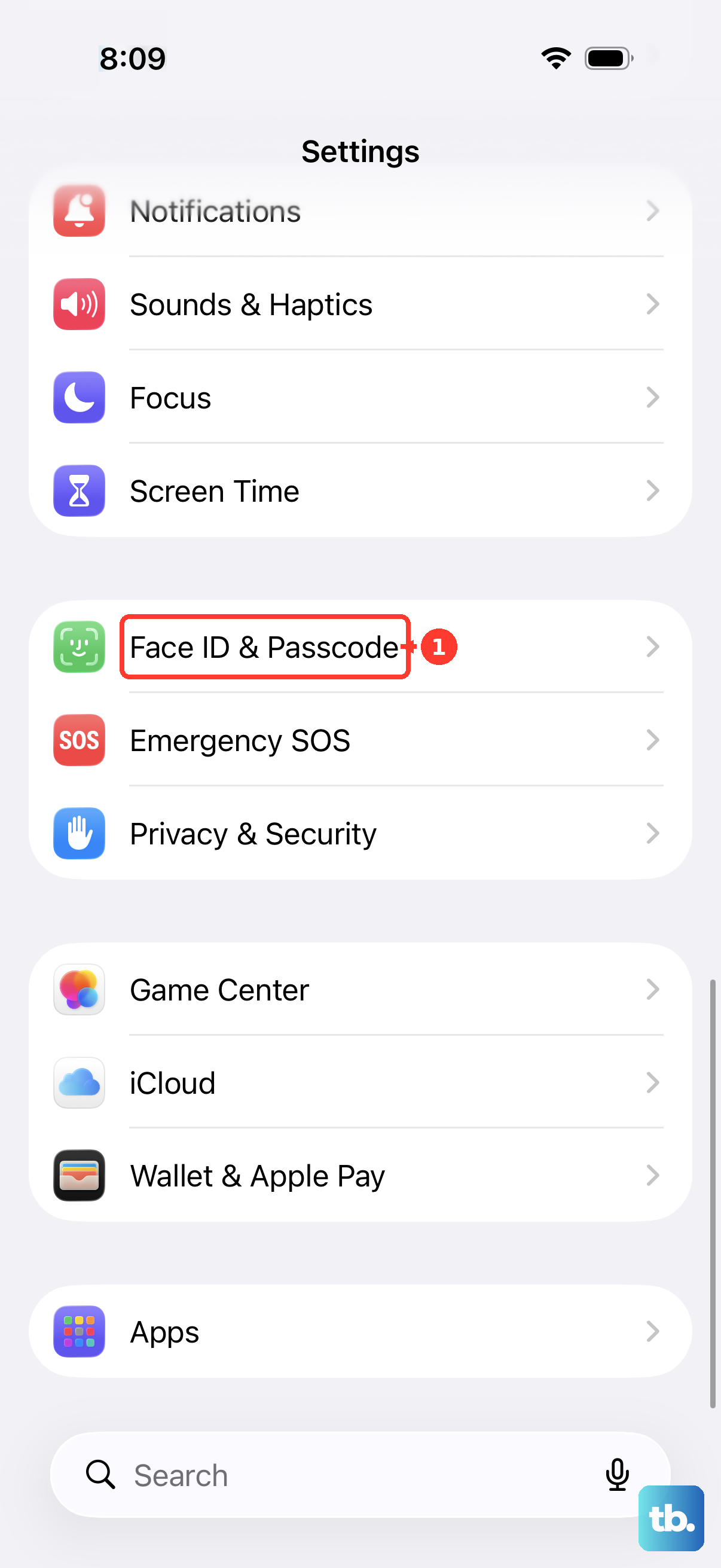
If you cannot access Today View while locked, check your lock-screen access setting. On iOS 26, open Settings > Face ID & Passcode or Settings > Touch ID & Passcode, then turn on Today View and Search under Allow Access When Locked. Swipe right on the Lock Screen to view the widget, or use Today View from the Home Screen instead.
For a widget directly on the Lock Screen on iOS 16 and later, touch and hold the Lock Screen, then tap Customize > Add Widgets. Select Batteries and tap or drag a widget into place. Swipe down from the widget list, then tap Done. When accessories are connected, check which device the widget identifies before reading its level.
Review daily battery usage and history
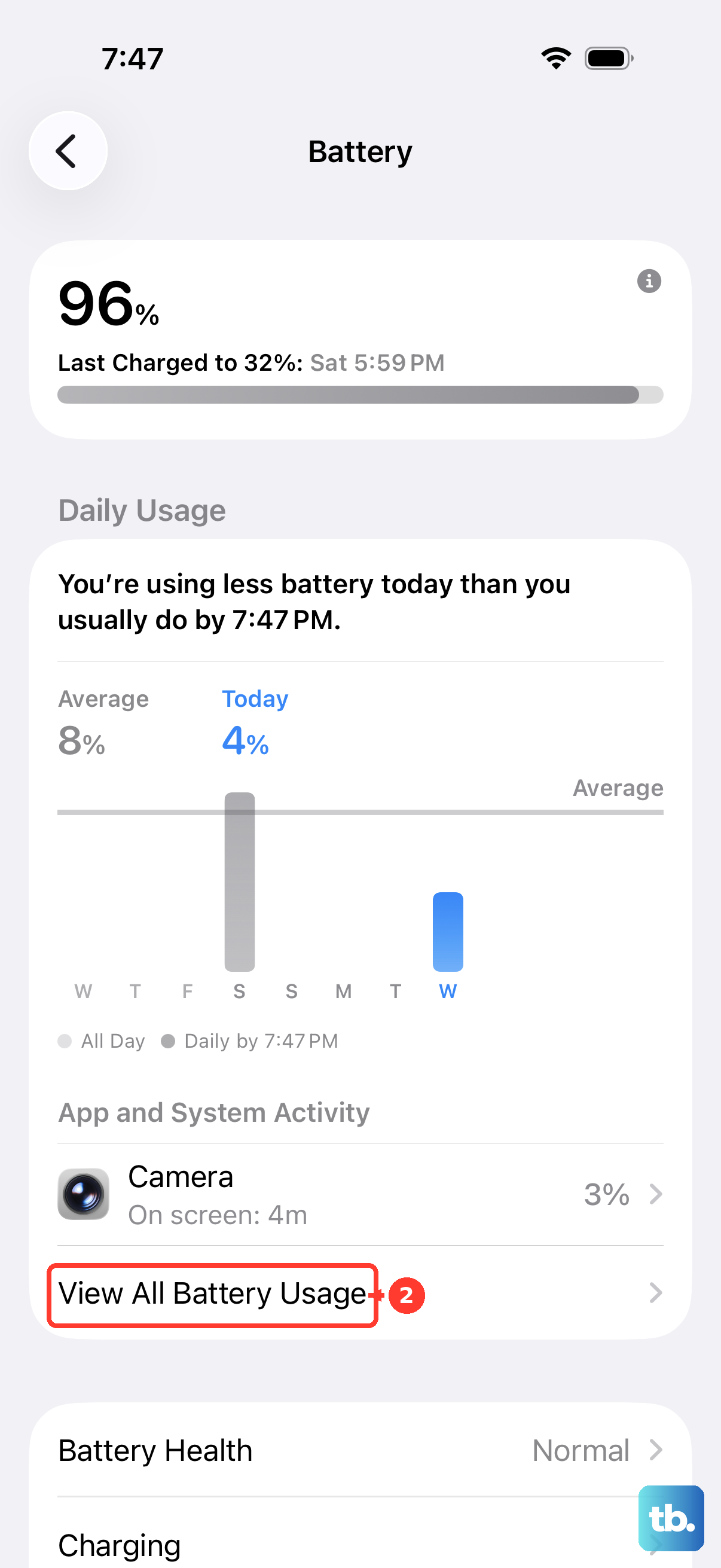
To see how much battery you have used today, open Settings > Battery and review Daily Usage. On iOS 27, this shows today's consumption and a comparison with previous days. The redesigned battery interface is also used in iOS 26.
For a closer look, tap View All Battery Usage, then tap a day to inspect its graphs and screen activity. The current history view covers today plus the preceding seven days.
On iOS 18, open Settings > Battery and use Last 24 Hours or Last 10 Days to inspect the battery graphs and screen activity. That older interface also includes Battery Usage by App; its labels differ from the current iOS 27 history view.
See which apps used your battery
On iOS 27, scroll down in Settings > Battery to review battery use by individual apps and system activities. To examine a particular day, select View All Battery Usage, tap that day, then scroll down.
Tap an app to open its details. Where available, these include On screen, Background, Cellular coverage, and Notifications. Read those details alongside the day's screen activity to understand the usage shown.
Check your last charge and battery suggestions
Open Settings > Battery to review the last full charge and when your iPhone was disconnected. You can check this information alongside your battery usage.
Look above Daily Usage for insights or suggestions when they apply. Tap a suggestion to open its related setting. These messages appear only when relevant, so you may not see a suggestion every time you check.
Check battery health on your iPhone model
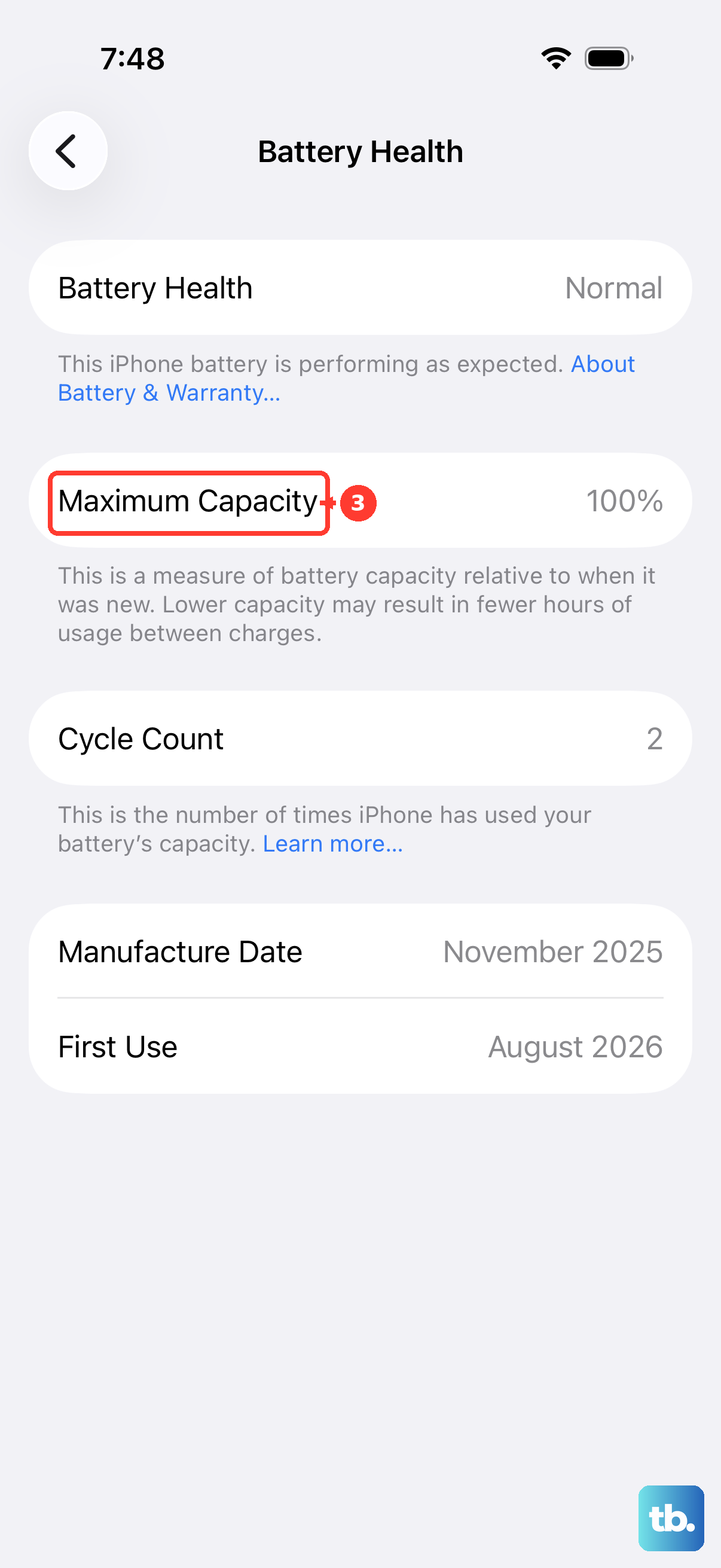
On iPhone 15 and later, open Settings > Battery > Battery Health. Review the battery's capacity and health, along with its cycle count, manufacture date, and first use date.
If you have an iPhone 14 or earlier model supported by the current iOS release, open Settings > Battery > Battery Health & Charging. Review the capacity and condition there. Use this model-specific path when your menu has the longer name.
Check charging progress and investigate charger messages
While charging on iOS 26 or the current battery interface, open Settings > Battery, or look near the top of the Lock Screen. The estimate shows the time to 80%, or the time to 100% or your charge limit when the battery is already above 80%.
For a phone not charging when plugged in, check Settings > Battery for charging-hold information or a charger message. Slow Charger messages are available on iOS 18 and later, while Incompatible Charger was introduced with iOS 26. A Slow Charger message can also appear on the Lock Screen.
Check battery settings from your Mac
If you already have an established iPhone Mirroring connection, open iPhone Mirroring on your Mac. In the mirrored iPhone, open Settings > Battery to inspect the battery screen.
iPhone Mirroring requires iOS 18 or later and macOS 15 or later on a Mac with Apple silicon or a T2 chip. Your devices must use the same Apple Account with two-factor authentication, with Wi-Fi and Bluetooth enabled and the locked iPhone nearby. Apple says iPhone Mirroring is unavailable in the EU; you can use the battery checks directly on your iPhone instead.
Query an enrolled iPhone as an administrator
If you are an authorized administrator managing an enrolled iPhone, you can issue the DeviceInformation command with the BatteryLevel query. This requires the Device Information access right.
The management-console menu path depends on your device management vendor. Apple provides no universal consumer menu for this administrative query, so use Settings > Battery for a direct check on your own iPhone.
Frequently Asked Questions
Can your iPhone read the battery level aloud?
Yes. Open Settings > Accessibility > VoiceOver and turn on VoiceOver, then touch or drag across the battery indicator to hear it read aloud. VoiceOver changes the gestures used to operate your iPhone.
How do you show the battery level in Assistive Access?
On an iPhone configured for Assistive Access, make sure Assistive Access is inactive, then open Settings > Accessibility > Assistive Access. Enable Battery Level to display it on the Assistive Access Home Screen.
Where can you see when Optimized Battery Charging will finish?
When Optimized Battery Charging is active, check its Lock Screen notification for the expected full-charge time. On models with Charge Limit, this feature is available when the limit is 100%.
Why does iPhone Duo show details for more than one battery?
On iPhone Duo running iOS 27, you can see details for each battery in Battery Health. You also get an overall Battery Health status.