Your HP computer can get updates from several places, and the right one depends on what you need fixed. Start with the built-in HP tool, then use Windows Update, HP’s driver page, Device Manager, or ChromeOS settings when the first check does not cover the problem.
Here is the clean path to current HP updates without using retired tools or guessing at the wrong model package.
Start With HP Support Assistant
For most HP Windows laptops and desktops, HP Support Assistant is the fastest place to check HP driver, software, and BIOS updates. It needs Windows 10 RS4 (version 1803) or later and does not run on ARM-based HP PCs or on Windows in S mode; on those, use Windows Update and HP’s Software and Driver Downloads page instead.
- 1.In Windows, search for and open HP Support Assistant, or select the HP Support Assistant icon in the taskbar.
- 2.Open My Dashboard and choose your computer.
- 3.Select Updates and wait while HP Support Assistant analyzes the system.
- 4.Select the listed updates you want to install.
- 5.Download and install the selected updates, then select Restart if prompted.
Install HP Support Assistant If It Is Missing
Open HP’s HP Support Assistant page in your browser.
Select Download now or Download, then install the current app.
Open HP Support Assistant, go to My Dashboard, choose your computer, and select Updates.
Use HP Support Assistant for HP desktop and notebook PCs; HP also supports installing it on another manufacturer’s PC when you need HP printer or HP PC support.
Tip: open Settings in HP Support Assistant and turn on software update checks on a weekly schedule.
Use Windows Update For Regular Drivers
Windows Update installs recommended hardware drivers automatically on Windows 11 HP PCs. It is the right second stop after HP Support Assistant because Microsoft also delivers approved driver updates through Windows.
Open Start, then Settings, then Windows Update, and select Check for updates. Install the updates Windows finds, then restart from Start, Shutdown or sign out, and Restart.
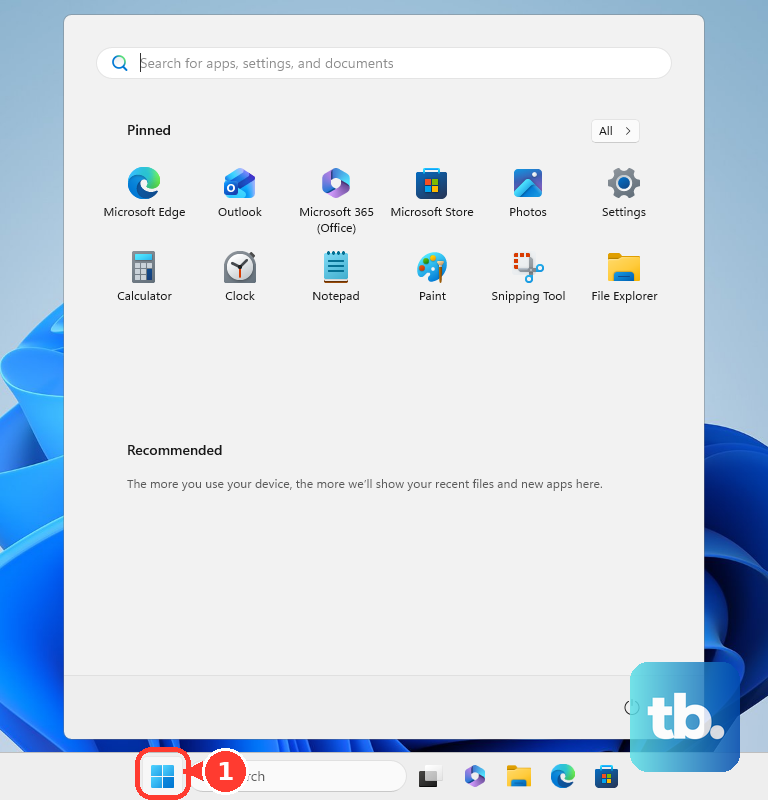
For optional drivers, go to Start, Settings, Windows Update, and Advanced options. Turn Receive updates for other Microsoft products on, open Optional updates, choose the listed driver updates, and select Download and install.
Find Updates By HP Model Number
Use HP’s Software and Driver Downloads page when HP Support Assistant does not show the update you expected, or when you need the driver, firmware, software, or BIOS package for an exact HP model. This method applies to HP laptops, desktops, workstations, and other HP products with available downloads for the selected operating system.
Go to HP Customer Support - Software and Driver Downloads and choose Laptop or Desktop.
Type the model name, serial number, or product number, then open the product page for your computer.
Choose the operating system if HP asks for it.
Expand the category you need, such as Driver, Firmware, Software, or BIOS.
Select Download, run the downloaded installer, and follow the on-screen instructions.
Let HP Detect Your Computer
If you do not know the model number, HP can identify the computer from the driver download page.
- 1.Open HP Software and Driver Downloads.
- 2.Choose Laptop or Desktop.
- 3.Select Let HP detect your product.
- 4.Install HP Support Solutions or the HP web product detection software when prompted.
- 5.Allow detection, then download and install the updates listed for the detected computer.
Fix One Device In Device Manager
The most common reason to use Device Manager is that one device still fails after the normal update tools run.
Right-click Start and open Device Manager.
Expand the category for the problem device, such as audio, Bluetooth, display, keyboard, or network hardware.
Right-click the device, select Update driver, then choose Search automatically for updated driver software.
If Windows does not find a driver, select Search for updated drivers on Windows update and continue through Windows Update.
If you already downloaded an HP driver, return to Device Manager, right-click the device, and select Update driver. Choose Browse my computer for drivers, select Browse..., choose the folder where the HP driver was downloaded or extracted, select OK, then select Next.
After a bad driver update, right-click the device, open Properties, select the Driver tab, and use Roll Back Driver when Windows has a previous driver available.
Handle BIOS Updates Carefully
Use a BIOS update only when HP lists one for your exact model and system board. Confirm the update is newer than the installed version and applies to your computer before you run it.
Prepare the computer first: connect it to AC power, close all open applications, temporarily disable your antivirus software, and suspend BitLocker by searching Windows for Manage BitLocker and selecting Suspend protection. Have the BitLocker recovery key on hand — if BitLocker is not suspended, the key may not be recognized after the restart, and without it you can lose data or have to reinstall Windows. After the update finishes, open Manage BitLocker and select Resume protection, then re-enable your antivirus software.
Open HP’s Software and Driver Downloads page, go to your computer’s product page, and select BIOS.
Review the available BIOS updates and Details, then select Download.
If HP Download and Install Assistant appears, select Download only, then Next, then Save.
Run the downloaded BIOS update file, approve User Account Control, and follow the HP BIOS Update and Recovery prompts.
On supported HP business desktops, notebooks, and workstations, turn on the computer, press f10 repeatedly, select Check HP.com for BIOS Updates in BIOS Setup, and follow the on-screen instructions.
Update An HP Chromebook
Connect your HP Chromebook or Chromebase to the internet.
ChromeOS checks for updates and downloads them automatically. When the Update device notification appears at the bottom right next to the date, select Restart.
For a manual check, select the time at the bottom right and open Settings.
Select About ChromeOS at the bottom left, then select Check for updates under Google ChromeOS.
When an update downloads, select Restart when prompted.
Tip: in About ChromeOS, open Additional details to check the update schedule or see whether updates are managed by an administrator.
Skip Older HP Update Tools
The most common outdated advice is to use HP SoftPaq Download Manager or HP System Software Manager for HP computer updates.
HP retired HP SoftPaq Download Manager on July 31, 2019, and replaced it with HP Image Assistant for new products.
HP System Software Manager is deprecated, so use HP Support Assistant, Windows Update, HP’s Software and Driver Downloads page, or Device Manager for a home PC.
For a work-managed HP business PC, contact your IT team before installing firmware or drivers yourself. Your organization can manage HP updates through HP Image Assistant, Microsoft Intune, Microsoft Configuration Manager, or the HP Client Updates Catalog. HP Connect does a narrower job: it remotely configures, secures, and updates the BIOS on supported HP Pro, Elite, Z, and Point-of-Sale PCs managed with Microsoft Intune, rather than general driver and software updates.
Frequently Asked Questions
What is the best way to get HP updates for this computer?
On an HP Windows PC, start with HP Support Assistant. It checks your specific computer for HP driver, software, and BIOS updates, then lets you download and install the listed updates.
Should I use Windows Update or HP Support Assistant?
Use both on Windows 11. HP Support Assistant checks HP’s own update recommendations, while Windows Update installs recommended hardware drivers and offers optional driver updates.
Can I update my HP computer without knowing the model number?
Yes. On HP Software and Driver Downloads, choose Laptop or Desktop, select Let HP detect your product, and install HP’s detection component when prompted.
Are BIOS updates the same as normal HP driver updates?
No. BIOS updates affect the computer’s firmware. Install one only when HP lists it for your exact model and it is newer than the version already on the computer.