Your Wi-Fi network name is the SSID that phones, laptops, TVs, and smart home devices see in the Wi-Fi list. To change it, edit the SSID on the router, mesh system, ISP gateway, or hotspot that broadcasts it.
Changing the saved Wi-Fi entry on a phone or laptop will not rename the network. Use the path that matches your equipment, select Save, SAVE, Apply, or Save Changes, then reconnect your devices to the new name.
Start with the device that broadcasts your Wi-Fi
For a standard home router, the Wi-Fi name lives in the router's wireless settings. Look for Wireless, WiFi Settings, Network, or Network Name (SSID).
Use the router or provider app when your equipment is app-managed. NETGEAR uses WiFi Settings, ASUS uses Settings > Network > Main network profile, TP-Link Deco uses More > Wi-Fi Settings, and Google Home uses Home > Wifi > Network settings.
Use a browser admin page when the router supports local web management. After you save the new name, reconnect devices with the updated network information.
Change the name from your router settings page
This fixes the main Wi-Fi name broadcast by a consumer router with local browser administration.
Connect your phone or computer to the router's Wi-Fi network.
Open a browser and go to the router admin address, such as tplinkwifi.net or 192.168.0.1 for TP-Link, www.routerlogin.net for NETGEAR, http://www.asusrouter.com for ASUS, or 192.168.1.1 for many Verizon and Fios routers.
Sign in with the router admin credentials.
Open the SSID field for your router brand. On TP-Link, go to Advanced > Wireless > Wireless Settings > Network Name (SSID); on NETGEAR, go to Wireless > Name (SSID); on ASUS firmware 3.0.0.6.102_35404 or later, go to Network > Main network profile > Network Name (SSID); on earlier ASUS firmware, go to Wireless > General and set Network Name (SSID) for each band.
Type the new Wi-Fi name and select SAVE or Apply.
Fix devices that disconnect after the rename
The most common cause is that the router now broadcasts a new SSID, so devices saved to the old name need the updated network information.
Open Wi-Fi settings on a device that needs to reconnect.
Select the new Wi-Fi name from the available networks.
Enter the Wi-Fi password for that network.
Repeat the reconnect step on the rest of your devices.
Use your router app when it has one
App controls are the fastest path for supported mesh systems and newer routers.
- 1.For NETGEAR routers and extenders supported by the Nighthawk app, open Nighthawk, tap WiFi Settings, select the network, enter the new Wi-Fi name, and tap Save.
- 2.For ASUS Router or ASUS ExpertWiFi, open the app, go to Settings > Network > Main network profile, tap Network Name (SSID), edit the name, and tap Apply. That path applies to firmware 3.0.0.6.102_35404 or later; on earlier firmware the app uses Settings > WiFi > Wireless Settings > Network Settings instead.
- 3.For TP-Link Deco, connect your phone to Deco Wi-Fi, open the Deco app, tap More > Wi-Fi Settings, update the Wi-Fi name, and tap Save.
- 4.For Nest Wifi or Google Wifi, open Google Home, tap Home > Wifi > Network settings, enter the new network name, and tap Save. Google requires network names to be 1 to 31 characters, with no accidental leading or trailing space.
Change it through your internet provider app
Open the app for the internet provider that manages your home gateway.
For Xfinity, go to WiFi > WiFi details > Edit WiFi settings, change the Wi-Fi name, and save.
For AT&T, sign in to Smart Home Manager and scroll to the My Wi-Fi card.
Choose Change next to the name or password, select X to clear the existing name, enter the new name, and select Save.
For Verizon, open the Verizon Home app and go to Connections > Network > Wi-Fi Management.
Turn the network switch on, tap Edit Wi-Fi, edit the Wi-Fi name, and save.
For Spectrum, open My Spectrum, select Services > Internet, tap the arrow next to your network info, edit the Wi-Fi network name, and save.
Use the provider app first when your gateway came from your internet company.
Use a provider web portal or gateway page
This fixes the Wi-Fi name when the provider app is unavailable or your provider uses account-based router management.
For Verizon Fios Quantum Gateway or Verizon Fios Advanced router, sign in to My Verizon and select Home.
Open Services > Internet, go to My Network, choose the network to manage, enter the new credentials, and select Save Changes.
For AT&T, connect a device to the AT&T network and open http://192.168.1.254/.
Use the Device Access Code from the label on the device, update the Wi-Fi name, and save.
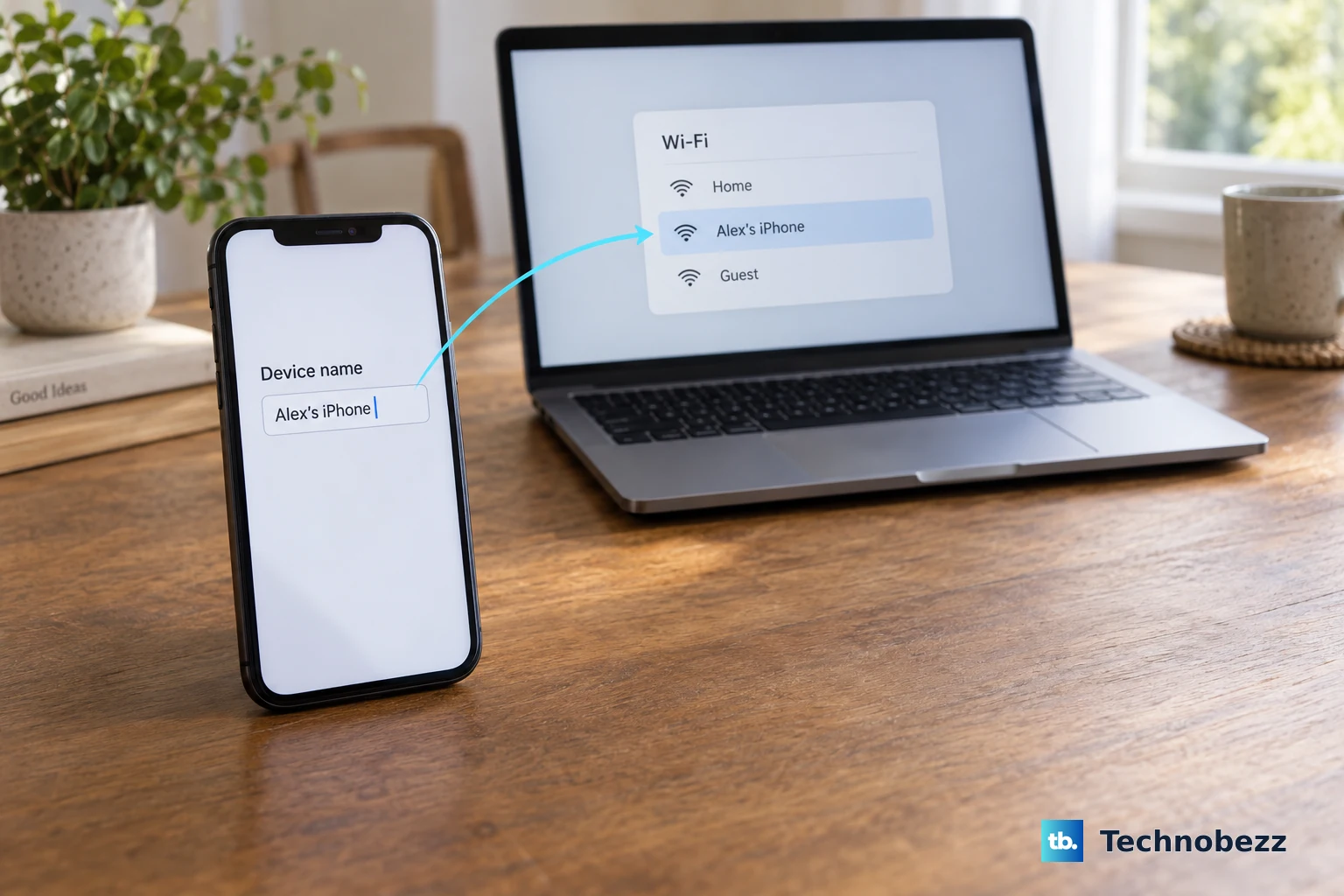
Rename a phone or computer hotspot
This applies when the Wi-Fi network comes from a phone, cellular tablet, or Windows 11 PC instead of a home router. Hotspot availability depends on the device, carrier, and plan.
On iPhone or a cellular iPad, open Settings, tap General > About > Name, and enter the new device name. The Personal Hotspot Wi-Fi name changes to that device name.
On Android, swipe down from the top of the screen, touch and hold Hotspot, open the hotspot settings, and change the hotspot name. On some devices, tap Set up Wi-Fi hotspot first.
On Samsung Galaxy phones and LTE or 5G tablets, open Settings, tap Connections > Mobile Hotspot and Tethering > Mobile Hotspot, tap the Information section, and change Network name.
On Windows 11, open Settings > Network & internet > Mobile hotspot, set Share my internet connection from, set Share over to Wi-Fi, expand Properties, select Edit, enter the new network name, select Save, and turn on Mobile hotspot.
Know what reset buttons and old guides will not do
A factory reset is not a shortcut for typing a custom Wi-Fi name. Holding the router or gateway Reset button restores the default Wi-Fi network name printed on the device label until you set up a custom name again in the app or web settings.
The WPS button and hardware Wi-Fi buttons do not set a custom network name. Forgetting or removing a saved Wi-Fi network on a phone or computer also does not rename the router's broadcast SSID.
Older equipment may still use Xfinity Gateway Admin Tool at http://10.0.0.1 for XB2 and XB3 gateways, Apple AirPort Utility, or NETGEAR Smart Wizard. For supported consumer setups, use the current router app, provider app, browser admin page, or Windows 11 hotspot settings.
Manage Wi-Fi in UniFi or an admin console
Use this method only when the Wi-Fi is controlled by an admin system such as UniFi Network. It also applies to prosumer and small-business homes with UniFi consoles or access points.
Open UniFi Network and go to Settings > WiFi.
Create a new WiFi or select the existing WiFi to modify.
Set Network Name (SSID), choose the network, select the access points or AP groups that should broadcast it, and apply the change.
Ask the owner or admin to change the SSID when you do not administer the Wi-Fi system.
Frequently Asked Questions
Will changing my Wi-Fi name change the password too?
No. The Wi-Fi name and password are separate fields. Some apps let you edit both on the same screen, but changing only the name keeps the password the same.
Why did my devices go offline after I changed the Wi-Fi name?
They were saved to the old network name. Join the new Wi-Fi name on each device and enter the current password.
Can I change my Wi-Fi name from my phone?
Yes, when your router, mesh system, or internet provider supports app management. Use the provider or router app, edit the Wi-Fi name or Network Name (SSID), and save the change.
Can a reset button set a custom Wi-Fi name?
No. A factory reset restores the default Wi-Fi name printed on the router or gateway label. You still need the app or web settings to type a custom name.