


To change your Microsoft account display name, sign in to the Microsoft account website, select Your info > Edit name, enter your new name, and select Save. Complete the CAPTCHA if prompted before saving. Microsoft says the updated name can take up to 24 hours to appear everywhere.
The short version
- Main method: Change your name through the Microsoft account website under Your info > Edit name.
- Teams option: Where Teams for personal use is available (it is not available in China), personal Teams accounts also offer profile editing or shortcuts to the account website.
- Update time: Allow up to 24 hours for the new name to appear across Microsoft services.
- Different settings: A local Windows account name and a classic Outlook sender name are separate from your Microsoft account display name.
| Starting point | Route or control | What it changes |
|---|---|---|
| Microsoft account website | Your info > Edit name | Personal Microsoft account name |
| Microsoft Support shortcut | Edit name | Same account name through the website editor |
| Account dashboard profile menu | Select My profile, then Edit name | Same personal account name |
| Teams personal mobile app | Settings > Profile | Microsoft account name |
| Teams desktop profile menu | Select My Microsoft account | Account name through the website |
| Teams desktop account settings | Accounts and orgs > Manage | Account name through the website |
| Teams desktop People tab | People > More options | Name and photo editing access |
| Microsoft 365 admin center | Account > Manage contact information | Work or school account display name |
| Windows Control Panel | User Accounts > Change your account name | Local Windows account name only |
| Classic Outlook account settings | Your name | Eligible email account sender name only |
Change your name on the Microsoft account website
Open the Microsoft account website and sign in to the account you want to rename. Select Your info, then select Edit name. Enter the name you want to display.
Enter the CAPTCHA characters if prompted, then select Save. This method applies to personal Microsoft accounts, including those you use with Windows, Outlook.com, and Microsoft 365 Personal or Family. For an Outlook.com account, use this same website editor to update the account name.
Reach the name editor from another account menu
From the Microsoft account dashboard, open the Account manager for username menu and select My profile. That takes you to Your info, where you can select Edit name. Enter your new name, complete any CAPTCHA, and select Save.
You can also open Microsoft's account name help and find Change your Microsoft account display name. Select Edit name and sign in if requested to reach the same editor. Change your name, complete any CAPTCHA, and select Save.
Update your name through personal Teams
Teams for personal use is no longer available in China, so if you are there, use the Microsoft account website method above. In Teams for personal use on Android or iOS, tap your profile picture, then open Settings > Profile. Tap the Pencil button beside your account name and update the name. Microsoft says this changes your Microsoft account name. If you cannot finish the change in the app, use the Microsoft account website and complete the process with Save.
On Teams desktop, select your profile picture, then select My Microsoft account. In the browser, select Your info > Edit name. Update your name, complete any CAPTCHA, and select Save.
Another desktop route starts with Settings and more > Settings > Accounts and orgs. Select Manage for your personal account to open the Microsoft account website. Continue through Your info > Edit name, enter your name, and select Save.
You can also access name and photo updates on desktop by selecting People > More options. If you cannot find where to finish the name change from that shortcut, follow either desktop route above to reach the website editor and select Save.
Change a work or school account name
If you use a work or school account, your ability to edit your name depends on your organization's permissions. Ask your administrator to change it when editing is restricted. The personal Microsoft account editor does not rename your organizational account.
If you administer the account and have an appropriate role, such as User Administrator, open the Microsoft 365 admin center. Select Users > Active users, select the user, then select Account > Manage contact information. Update the display name and select Save changes. If your organization synchronizes accounts from a local Active Directory, you may need to make the change there.
Check a name that has not updated
If your old name still appears after saving, allow up to 24 hours for the change to reach Microsoft services. Seeing the old name immediately afterward does not necessarily mean the change failed. Wait for that update window before treating it as a problem.
To check the name you entered, return to the Microsoft account website and select Your info. Make sure you are signed in to the account you intended to rename. If you need to correct the entry, select Edit name, make the correction, complete any CAPTCHA, and select Save.
Change a local Windows account name
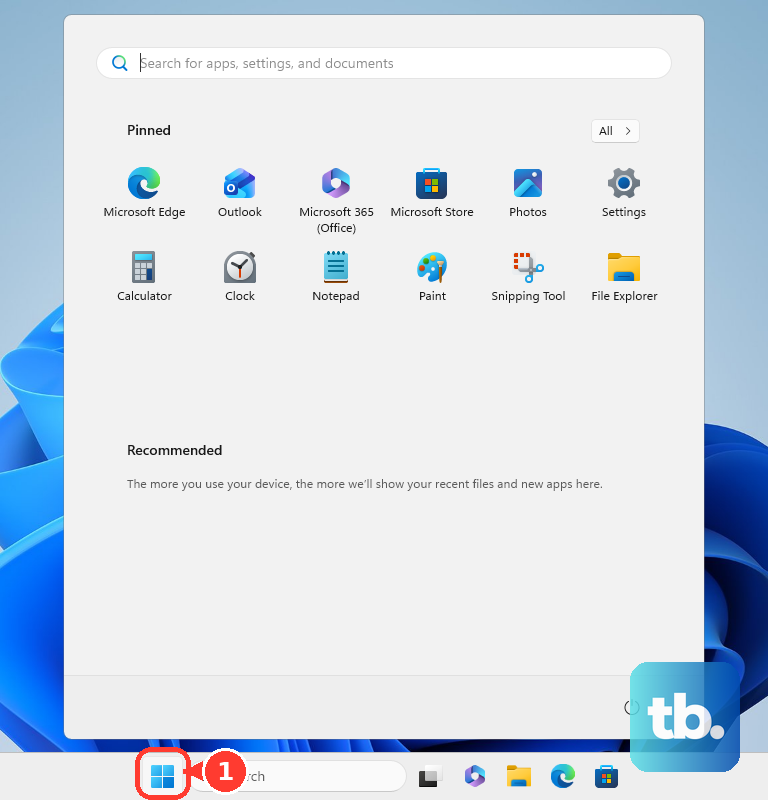
If you want to rename a local Windows account, select Start, type Control Panel, and select Open. Select User Accounts > Change your account name to access the local account name setting. This route applies to local Windows accounts; use the online editor to change your personal Microsoft account name.
Change a sender name in classic Outlook
For an eligible email account in classic Outlook, open File > Account Settings > Account Settings. Select the account, then select Change. Edit Your name, select Next, then select Close.
This setting changes your configured email sender name, which is separate from your personal Microsoft account profile. It applies to eligible accounts in classic Outlook for Microsoft 365 and Outlook 2024, and it excludes Microsoft Exchange accounts. If you want to change your Microsoft account display name, use the account website instead.
Frequently Asked Questions
Does changing your Microsoft account name change your Xbox gamertag?
No, changing your Microsoft account display name does not change your Xbox gamertag. You need to change your gamertag separately.
Do you need to install an app to change your Microsoft account name?
No, the main method uses the Microsoft account website, which you sign in to in a web browser. Select Your info > Edit name, change your name, and select Save.
Can you use a screen reader to reach the name editor?
Yes, Microsoft supports account dashboard navigation with Narrator, JAWS, and NVDA. Select Your info in the navigation landmark to reach the profile area, then select Edit name.
Can you use the classic Outlook sender name setting in new Outlook for Windows?
No, Microsoft says that sender name editing option is not yet available in new Outlook for Windows. You can still change your Microsoft account profile name through the Microsoft account website.