

To change PowerPoint’s menu language on Windows, open File > Options > Language, select a language under Office display Language, and choose Set as Preferred. For spelling checks, select your slide text and use Review > Language > Set Proofing Language. Changing the proofing language does not translate your words.
The desktop steps cover PowerPoint for Microsoft 365 and PowerPoint 2024, with translation availability specified separately. Windows system settings use Windows 11 menus, while Mac instructions use current macOS menus. Web and mobile versions have separate steps.
The short version
- Menus on Windows: Choose your display language under File > Options > Language, then restart Office.
- Menus on Mac: Drag your language to the top of Preferred Languages under System Settings > General > Language & Region, then restart PowerPoint.
- Spelling checks: Apply the proofing language to the text you want PowerPoint to check.
- Existing words: Use translation to change slide text into another language.
| What you want to change | Where to change it | What it affects |
|---|---|---|
| Windows interface language | File > Options > Language | Office menus and interface |
| Windows text proofing | Review > Language > Set Proofing Language | Selected text or text entered at the insertion point |
| Windows preferred authoring language | Office authoring languages and proofing | Office authoring preferences |
| Mac system language | Language & Region > Preferred Languages | The Mac’s overall language, which PowerPoint’s menus follow |
| Mac text proofing | Tools > Language | Selected text |
| Web text proofing | Right-click > Set Proofing Language | Selected words or a text box |
| Web interface through personal OneDrive | OneDrive Settings | Presentations opened from personal OneDrive |
| Web interface for work or school | Microsoft 365 Settings > Change your language | Microsoft 365 display language |
| iPhone or iPad display language | Settings > General > Language & Region | Device language used by PowerPoint |
| Android display language | Device language settings | Device language used by PowerPoint |
| Windows keyboard input | Windows 11 Settings > Time & language > Language & region | Keyboard layout while typing |
| Mac keyboard input | System Settings > Keyboard > Text Input | Input source while typing |
| iPhone keyboard input | Settings > General > Keyboard | Apple’s onscreen keyboard |
| Android keyboard input | Gboard Settings > Languages | Gboard’s typing language |
| Existing slide text | Review > Translate | Selected words in supported desktop versions |
| Missing Windows Office language resources | Language Accessory Pack installer | Installed Office language resources |
Change the menu language on Windows
Open PowerPoint and select File > Options > Language. Under Office display Language, select the language you want and choose Set as Preferred. Restart Office after changing the language.
If your language is missing, select Add a Language. You can also choose Match Microsoft Windows [Language] to have Office follow the Windows display language. This preference affects the Office interface.
Set the spelling language on Windows
Select the slide text you want to check, then open Review > Language > Set Proofing Language. Choose the language and select OK. For text you have not entered yet, position the insertion point before choosing the language.
The proofing setting tells PowerPoint which language to use when checking the selected text. If your slide contains different languages, apply the appropriate language to each relevant selection.
To change your preferred authoring language, open File > Options > Language and find Office authoring languages and proofing. Select the language and choose Set as Preferred, or select Add a language when it is missing. If the language shows Proofing available, select that label to install its missing proofing tools.
Choose PowerPoint’s language on Mac
PowerPoint for Mac uses your Mac’s primary language for its menus. To change it, open the Apple menu > System Settings > General > Language & Region. Under Preferred Languages, drag your desired language to the top. If you need another language, click the add button, choose a language, and select Add. Reopen PowerPoint; macOS may require a restart.
To change proofing, select the relevant text in PowerPoint, open Tools > Language, choose the language, and select OK. You can also open Review > Language, select the language, and choose OK.
Change the language in PowerPoint for the web
For spelling checks, select the words or target the entire text box. Right-click the selection or text box and choose Set Proofing Language. Under Mark selected text as, choose the language and select OK. Repeat for other text boxes as needed, because PowerPoint for the web does not support changing the whole file’s proofing language in one operation.
If you open presentations from personal OneDrive and want a different interface language, open Settings on the OneDrive website and select the currently displayed language. Choose another language and select Select. Open the presentation from OneDrive after making the change.
For a work or school account, sign in to Microsoft 365 and open Settings > Change your language. Under Display Language, select the pencil icon and choose a language. If you see the alternative settings interface, open Settings > Microsoft 365 settings > Settings > Language and time zone, choose a language, and select Save.
Microsoft says work or school display-language changes can take up to 24 hours to appear. Some organizations restrict this setting to administrators, so contact your administrator if you cannot change it.
Change the display language on your phone or tablet
On iPhone or iPad, open Settings > General > Language & Region > Add Language. Choose your desired language, then choose it as the primary language in the alert. PowerPoint uses the device language, but changing it does not translate existing slide content.
On a current Google Pixel phone or tablet, open Settings > System > Language & region > Preferred Language > Add a language. Choose the language and drag it to the top. Other Android manufacturers use different paths; Microsoft’s generic Office instructions identify the area as Settings > Language and Input.
Switch the language you type on a computer
On Windows 11, open Settings > Time & language > Language & region. Open the language’s ellipsis menu, select Language options, then choose Add a keyboard and select a layout. While editing PowerPoint, choose a layout from the taskbar input-language icon, or hold Windows and press Spacebar to cycle through installed layouts.
On Mac, open the Apple menu > System Settings > Keyboard, then choose Edit under Text Input. Click the add button, choose an input source, and select Add. Select that source from the Input menu while typing in PowerPoint.
With multiple Mac input sources installed, press Control + Space to switch to the previous source. Press Control + Option + Space to switch to the next one. These keyboard input controls work with desktop PowerPoint and PowerPoint for the web.
Switch the typing language on mobile
On iPhone with Apple’s onscreen keyboard, open Settings > General > Keyboard > Keyboards > Add New Keyboard and choose a language. While entering slide text, touch and hold the Emoji button or the Switch Keyboard key. Choose the keyboard you want to use.
On Android with Gboard already installed, open Gboard’s Settings > Languages > Add keyboard while editing text. Choose the language and layout, then select Done. Touch and hold the Space bar to switch languages; Gboard’s input language can differ from the device’s display language.
Translate the words already on your slides
Use Microsoft Translator to change selected slide text into another language. The built-in translation steps apply to PowerPoint for Microsoft 365 on Windows and Mac, plus PowerPoint 2024 for Mac. Translation requires internet access and connected experiences, and it is unavailable in Microsoft 365 operated by 21Vianet.
On Windows, highlight the text, open Review > Translate, and choose the destination language. The next step replaces the selected original text with its translation. Select Insert to apply it.
On Mac, highlight the text and open Review > Translate > Translate Selection, then choose the destination language. The next step replaces the selected original text with its translation. Select Insert to apply it.
Fix missing Office languages on Windows
If you need a separate language pack, open Microsoft’s Language Accessory Pack download page, choose Newer versions, and select your language. Download the version matching your Office installation’s 32-bit or 64-bit architecture, then run the installer. Return to File > Options > Language, configure your language preferences, and restart Office.
If the language is already listed but its proofing tools are missing, check Office authoring languages and proofing on the same page. Select Proofing available to install those tools.
Frequently Asked Questions
How do you make a proofing language the default for new PowerPoint presentations on Mac?
In PowerPoint for Microsoft 365 or PowerPoint 2024 for Mac, select the relevant text, open Tools > Language, and choose the language. Select Default to use it for new documents, then select OK.
Can PowerPoint show live subtitles in a different language?
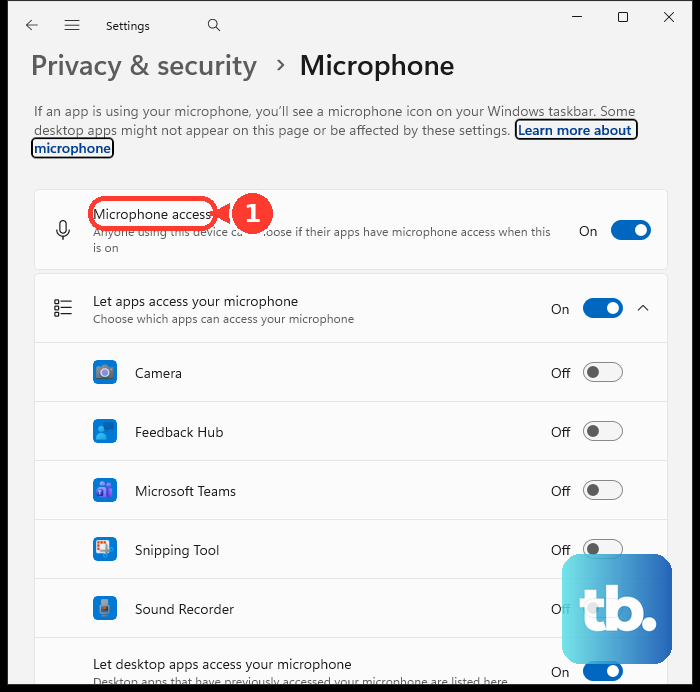
Yes, in PowerPoint for Microsoft 365 on Windows or Mac, open Slide Show > Subtitle Settings, choose your speaking language under Spoken Language, and choose the audience’s language under Subtitle Language. You need microphone access and internet for this live speech translation. On Windows, select Always Use Subtitles. During the presentation, use Toggle Subtitles to enable or disable captions.
Do you need to download an Office language pack on Mac?
You do not need a separate language-pack download for the available Office languages on Mac. PowerPoint for Microsoft 365 for Mac and PowerPoint 2024 for Mac include those languages.
Should you install the Presentation Translator add-in from an old tutorial?
No, Microsoft stopped offering Presentation Translator for download on July 31, 2020, and ended technical support and service updates. Use the built-in Review > Translate or Slide Show > Subtitle Settings controls in supported versions instead.