

To change the default save location in Windows 11, open Settings > System > Storage > Advanced storage settings > Where new content is saved, choose a drive for the content category, then select Apply. These steps use Windows 11 menus. This setting chooses drives for supported content, but it does not override every app’s save preferences or relocate all your existing files.
The short version
- Choose a drive: Open Where new content is saved to change the drive for supported content categories.
- Choose a folder: Use a personal folder’s Location tab to redirect folders such as Documents or Downloads.
- Check individual apps: Browsers, Office and Snipping Tool have their own destination settings.
- Check OneDrive first: Stop folder backup before redirecting a personal folder that OneDrive controls.
| What you want to change | Control to use | What it affects |
|---|---|---|
| Default content drive | Where new content is saved | Supported new content by category |
| Personal folder destination | Location > Move | The selected personal folder |
| Original personal folder destination | Location > Restore Default | A previously redirected personal folder |
| OneDrive folder backup | Manage backup, then enable the folder | Storage and synchronization of supported folders |
| Local storage for a backed-up folder | Manage backup, then disable the folder | Files kept only on your PC after the cloud-only file download described below. |
| Edge downloads | Downloads > Location | Files downloaded through Edge |
| Chrome downloads | Downloads > Change | Files downloaded through Chrome |
| Firefox downloads | Downloads > Save files to | Files downloaded through Firefox |
| Office local saves | File > Options > Save | The individual desktop application |
| Office recent-location default | Set As Default Location | Supported Microsoft 365 save dialogs |
| Access databases | Default database folder | New databases in desktop Access |
| One Office file | Save or Save As | The file you are saving |
| Snipping Tool screenshots | Automatic-save settings or Save as | Default screenshot folder or one capture |
| Nearby sharing files | Nearby sharing | Files received through Nearby sharing |
| Phone Link transfers | Features | Supported incoming file transfers |
| Library saves | Set save location | Files saved through that library |
| Operating controls by voice | Voice access | The same save-location controls |
Choose a drive for new content
Open Settings, select System, then choose Storage. Expand Advanced storage settings and open Where new content is saved. Choose an available drive for the category you want to change, then select Apply.
Categories include apps, documents, music, photos and videos, with the available categories and drives varying by your setup. Choose a destination for each relevant category shown on your PC. Use this setting when you want to select a drive, or use a personal folder’s properties when you need a specific destination folder.
Move Documents or another personal folder
Open File Explorer and right-click the personal folder you want to redirect. Select Properties > Location > Move, choose a separate destination folder, and apply the change. This method applies to personal folders that expose a Location tab, including Desktop, Documents, Downloads, Pictures, Music and Videos.
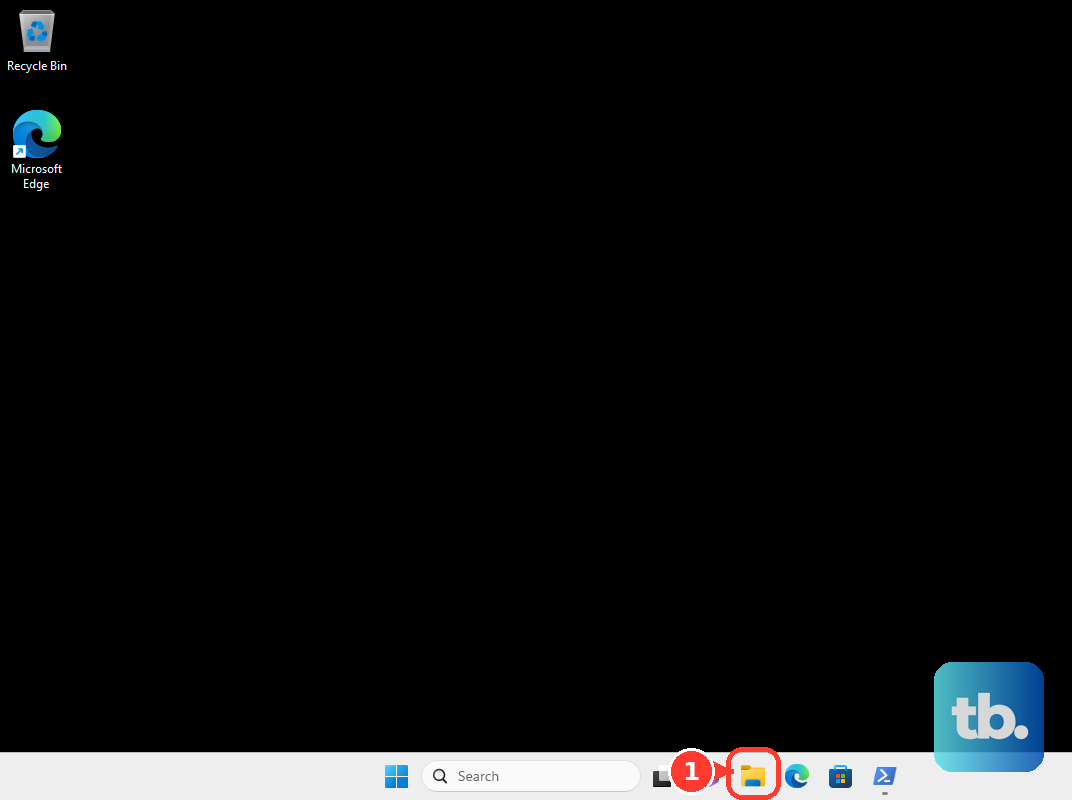
Use the personal folder itself, rather than an ordinary folder or a library. If the Location tab is missing, check that you opened the personal folder’s properties. When OneDrive controls the folder, stop its backup using the steps below before attempting redirection.
To return a redirected personal folder to its original destination, right-click it in File Explorer and select Properties > Location > Restore Default. Apply the change to restore that folder’s destination. This leaves separate browser and application save preferences unchanged.
Choose between OneDrive and local folders
To manage OneDrive folder backup, select the OneDrive cloud icon, then open Help & Settings > Settings > Sync and backup > Manage backup. Turn on the desired folder’s toggle and select Save changes. This changes the storage arrangement for the selected personal folder and enables synchronization, with available folders depending on your account and organizational policy.
Before returning a backed-up folder to local storage, download any cloud-only files, selecting Always keep on this device when required. Choosing to keep these files only on your PC removes them from OneDrive. In Manage backup, turn off the relevant folder’s toggle, then select Keep the files only on my PC.
Once backup has stopped for that folder, you can use its Location tab to choose a different personal-folder destination. If your organization prevents you from stopping backup, ask your administrator to review the folder’s policy before attempting redirection.
Change your browser download folder
In Microsoft Edge, open Settings and more > Settings > Downloads. Under Location, select Change and choose your destination folder. This changes Edge downloads independently of other browsers and apps.
In Chrome, open More > Settings > Downloads, select Change, and choose the folder. If you prefer to decide for each download, turn on Ask where to save each file before downloading. You can then choose a destination for each file.
In Firefox, open the application menu and select Settings, then open Downloads. In versions with the earlier settings layout, open General > Files and Applications > Downloads. Beside Save files to, select Browse and choose your destination folder.
Set the default folder in Office
In supported Windows desktop versions of Word, Excel or PowerPoint, including Microsoft 365, Office 2021, and Excel or PowerPoint 2024, open File > Options > Save. Check Save to Computer by default, then enter your destination in Default local file location. Select OK to apply the preference. If Word shows Create new files in the cloud automatically on the same Save page, clear it as well, because Word otherwise saves new documents to the cloud as soon as you create them.
Repeat the change in each application whose default you want to adjust. A Word preference applies to Word, so Excel and PowerPoint need their own settings. Office web apps do not use this desktop Options dialog.
For a single file, select Save for a new Office file or Save As for an existing one. Choose OneDrive or This PC, then choose the destination folder. This selects the destination for that file without necessarily changing future defaults.
Choose where Snipping Tool saves screenshots
Open Snipping Tool, select See More, then open Settings. Change the default Screenshots folder in the automatic-save settings to choose where Snipping Tool screenshots go. This controls the destination for automatically saved screenshots.
For an individual capture, select Save as, choose a location and filename, then select Save. Use this option when you want to choose a destination for the capture you are saving.
Set destinations for received files
For Nearby sharing, open Start > Settings > System > Nearby sharing. Under Save files I receive to, select Change, choose your destination, then select Select folder. This preference controls files received through Nearby sharing.
With a linked mobile device that supports Phone Link file sharing, open Phone Link and select Settings > Features. Find Transferred files will save to and change the destination folder. This replaces the usual Downloads\Phone Link destination for supported incoming transfers, with feature availability depending on your device and app versions.
Change a library’s default save folder
If Libraries doesn’t appear in File Explorer, open Options, select the View tab, and select Show libraries. Open Libraries in File Explorer, then right-click the library and select Properties. Select an included folder, choose Set save location, then select OK. Files saved to the library itself use the selected folder.
Saving directly to an explicitly selected folder uses that folder instead. A library’s save preference is separate from moving the underlying Documents or Pictures personal folder.
Fix files still saving to the wrong place
If files continue going to a different destination after you change the Windows content drive, check the application’s own save preference. Browser downloads and Office documents have separate controls, so use the matching steps above. The drive setting also does not relocate all existing files, so their remaining in an older location does not mean the new preference failed.
On a managed work or school PC, organizational policy can restrict personal-folder redirection, OneDrive backup and download settings in Edge or Chrome. If a policy prevents the change, ask your administrator to review the destination setting. Changing another app’s preference does not resolve that policy restriction.
Frequently Asked Questions
How do you change the default database folder in Access?
In supported Windows desktop editions of Access, including Microsoft 365 and Access 2024 or 2021, open File > Options > General. Under Creating databases, find Default database folder and select Browse to choose the destination, or enter its path.
Can you make a recent Office save location the default?
In Word, Excel or PowerPoint for Microsoft 365 on Windows using the cloud-focused save dialog, you can choose a recent location as the default. Open the save dialog for a new document and expand the location list. Right-click the desired recent location and select Set As Default Location.
Can you operate save location settings with your voice?
You can use Voice access when it is already configured in a supported language on Windows 11 version 22H2 or later. Open the relevant settings interface, say Show numbers, and use the numbered controls to select the destination. Voice access operates the existing controls rather than creating a separate save preference.
What does a library’s public save location control?
It controls the public save destination when other users save through a shared library, rather than the owner’s ordinary default. Windows uses this location when the person saving to the library is not the library’s owner.