


Change your keyboard’s function-key default with its supported Fn Lock shortcut, manufacturer app, or BIOS setting. The right method depends on your computer or keyboard model. The steps below use Windows 11 menus.
Choose standard function keys if you want the top row to send F1 through F12 directly, or hotkeys if you prefer direct brightness, volume, and other printed actions. On keyboards that support alternate actions, hold Fn while pressing the required top-row key to use its other action without changing the default.
The short version
- Start with the keyboard: Fn + Esc switches priority on supported Dell, Lenovo, ASUS, and specific Logitech keyboards.
- Check your model: Surface, Microsoft, Samsung, and other keyboards can use different lock keys or combinations.
- Change the default: Use your manufacturer’s keyboard app or firmware setting when your model provides it.
- Separate remapping: PowerToys can change received key actions but usually cannot remap Fn itself or change firmware Fn Lock.
| Method | Where it applies |
|---|---|
| Hold Fn with a top-row key | Keyboards supporting temporary alternate actions |
| Fn + Esc | Supported Dell, Lenovo, ASUS, and Logitech Pebble Keys 2 K380s keyboards |
| Press Fn | Surface and Huawei keyboards with the hardware toggle |
| Press F Lock | Microsoft keyboards with that key |
| Fn + Caps Lock | Microsoft All-in-One Media Keyboard |
| Fn Lock or Fn + F12 | Samsung notebooks with the corresponding layout |
| Fn + Left Shift | Specific HP ProBook and EliteBook G5 models |
| Fn + X + L | Keychron B39, held for three seconds |
| MyASUS | Supported ASUS laptops with the function-key setting |
| Asus Keyboard Hotkeys | ASUS models supplied with the configurable app |
| Open My gram | Supported LG models released in 2025 or later using this app |
| LG Smart Assistant | Supported LG models released in 2022 or later using this app |
| Huawei PC Manager | Huawei Windows computers supplied with this app |
| Surface app | Listed Surface models with current updates and a compatible app version |
| Windows advanced startup | Computers exposing UEFI Firmware Settings |
| Dell BIOS | Laptops with Fn Lock Options or Function Key Behavior |
| Dell Mobility Center tile | Installations showing Function Key Row |
| HP BIOS | Notebooks with Action Keys Mode |
| Lenovo BIOS hotkey setting | Models with Hotkey Mode |
| Lenovo BIOS primary-function setting | Models with F1-F12 as Primary Function |
| Acer BIOS | Laptops with Function key behavior |
| Logi Options+ | Supported keyboards exposing the function-key preference |
| PowerToys Keyboard Manager | Individual keys Windows receives, with PowerToys running |
| Microsoft Mouse and Keyboard Center | Individual supported keys on compatible Microsoft keyboards |
Use your keyboard’s lock shortcut
On a supported Dell, Lenovo, or ASUS keyboard, press Fn + Esc to switch between hotkeys and standard function keys. Dell documents this combination for the Inspiron 15 5510, while Lenovo and ASUS support it on keyboards equipped with the feature. Check your model’s keyboard-shortcut instructions before using that combination.
Surface keyboards and Type Covers with the hardware toggle work differently: press Fn to activate the function-key layer. Press Fn again to return to special-key actions, which turns off its indicator. Supported Huawei keyboards also use Fn alone, with the indicator illuminated for standard function keys and off for hotkeys.
On a Microsoft keyboard with a dedicated F Lock key, press it to alternate between assignments. Its illuminated indicator means standard function-key commands; an unlit indicator means alternate commands. For the Microsoft All-in-One Media Keyboard, press Fn + Caps Lock, then repeat the combination to reverse the setting.
Samsung notebooks with a dedicated Fn Lock key use that key to enable hotkeys without holding Fn. On Galaxy Book layouts that assign Fn Lock to F12, press Fn + F12. Older Samsung layouts can assign another action to that key, so follow the instructions for your keyboard’s layout.
Change the preference in your manufacturer’s app
For supported ASUS laptops, open MyASUS > Device Settings > input Device Settings. Find Fn Function key, then choose hotkeys for direct special actions or F1-F12 for direct application function keys. This control requires ASUS System Control Interface V2 or later and a laptop that supports the setting.
To obtain the app for a compatible ASUS PC, open the official ASUS download page and select Download Now. Some models instead use the separate Asus Keyboard Hotkeys app: search for it in Windows and open it. Select Hotkeys for special actions or its function-key mode for standard function keys.
On supported LG models released in 2025 or later that use the app named My gram, open My gram > PC Maintenance > Keyboard. Set Lock Fn Key to On to enable the lock or Off to undo it. For supported models released in 2022 or later using LG Smart Assistant, open that app’s Keyboard Settings and change Lock Fn Key between On and Off.
On Huawei computers supplied with Huawei PC Manager, open the app’s upper-right menu and select Settings. Open Accessibility, or System settings on the alternative interface. Select Prioritize functions for standard function keys or Prioritize hotkeys for special actions.
Surface app customization requires version 76.2010.145.0 or later, current device updates, and a supported device. Supported Pro models are Surface Pro 8, Pro 9 with Intel, Pro 10 for Business including 5G, Pro for Business (11th Edition), Pro (12th Edition), and Pro 12-inch (1st Edition).
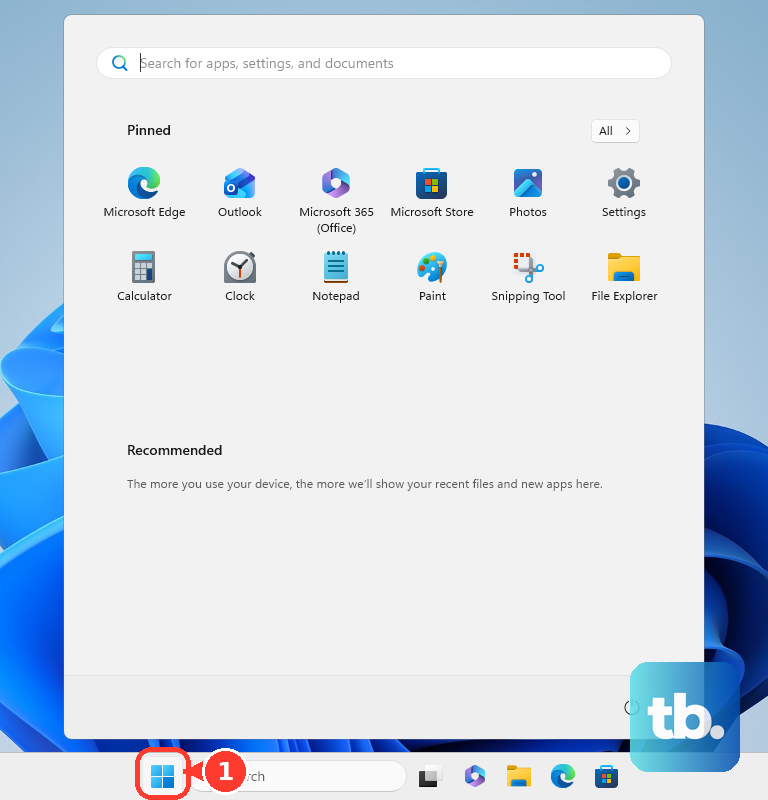
Supported Laptop models are Surface Laptop 6 for Business, Laptop (7th Edition), Laptop for Business (7th Edition), Laptop 5G for Business (7th Edition), Laptop (8th Edition), and Laptop for Business 13-inch (Intel). On a listed device, open Start, search for Surface, and open the app.
For a supported Surface Pro, attach its keyboard and select the keyboard at the bottom of the app. For a supported Surface Laptop, select the laptop at the bottom instead. Select Customize keyboard to change the top-row behavior using the controls shown for your device.
Open firmware settings through Windows
Windows 11 can open Advanced Startup options so you can reach your computer’s firmware settings. Save your work, then open Settings > System > Recovery. Under Advanced startup, select Restart now; if the save-work dialog appears, select Restart now again.
Choose Troubleshoot > Advanced options > UEFI Firmware Settings > Restart. This opens firmware configuration on computers that expose the option; continue with your manufacturer’s keyboard setting below. If that option is missing, get to BIOS during startup using your model’s documented key, such as the Dell, HP, or Acer keys below.
Set the default on a Dell laptop
On a Dell laptop with the relevant firmware controls, restart the computer and press F2 at the Dell logo. Open Post Behavior > Fn Lock Options, or Advanced > Function Key Behavior on the other documented interface. Choose your preferred default and save before exiting. Dell says menu choices and save-confirmation wording vary, so follow your model’s manual for the exact selections.
Some Dell installations also provide the preference in Windows. Search Windows for Mobility Center, open it, and change the dropdown under Function Key Row. If that tile is absent, use your supported keyboard shortcut or BIOS setting instead; the tile is an optional Dell extension whose availability depends on the operating-system version.
Change Action Keys Mode on an HP notebook
On an HP notebook with Action Keys Mode, start the computer and repeatedly press F10 to enter BIOS. Open System Configuration > Action Keys Mode. Choose Disabled to use F1 through F12 directly, or Enabled to use the printed icon actions directly. Press F10 to save the setting and restart.
HP ProBook 440 G5, 450 G5, and 470 G5, plus EliteBook 830 G5, 840 G5, and 850 G5, support a separate hardware shortcut. On those models, press Fn + Left Shift together to change the mode. With the Fn indicator illuminated, the printed action requires holding Fn while pressing its function key.
Choose function keys on Lenovo or Acer
On Lenovo or IdeaPad models with Hotkey Mode, enter BIOS and open Configuration > Hotkey Mode. Choose Disabled for direct standard function keys or Enabled for direct hotkeys. Press F10 to save and exit.
Some Lenovo models, including Yoga 900s and Yoga 910, require Lenovo Vantage instead of that BIOS setting. For those models, follow the model’s Vantage instructions. On Lenovo models with the alternative ThinkPad-style BIOS control, open Config > Keyboard/Mouse and set F1-F12 as Primary Function to Enabled for direct standard function keys.
On an Acer laptop with the relevant firmware option, restart and press F2 at the startup logo. Open Main > Function key behavior, select Function Key, and press Enter. Press F10 to save and exit, then hold Fn with a top-row key whenever you need its media action.
Set an external keyboard’s top row
For Logitech Pebble Keys 2 K380s, including the keyboard supplied with Pebble 2 Combo, press Fn + Esc to alternate between shortcut and function keys. Other Logitech models need their own keyboard instructions. The Pebble keyboard also offers a software preference in Logi Options+.
Obtain the app from the official Logi Options+ page and check its supported-device list. Open Logi Options+, select the supported keyboard, and open SETTINGS. Choose standard function-key operation using the preference offered for that keyboard.
On Keychron B39, hold Fn + X + L for three seconds to switch between multimedia and standard function keys. That combination and timing are specific to the B39, so follow model-specific instructions for other Keychron keyboards.
Change an individual function key’s action
Changing what a received key does is a separate task from switching the top row’s default. PowerToys Keyboard Manager can remap F1 through F12 and other keys Windows receives. It usually cannot remap Fn itself or change firmware Fn Lock.
Install PowerToys through Microsoft’s PowerToys installation page, then open PowerToys > Keyboard Manager > Remap a Key > Add key remapping. Choose the received key under Select and its replacement under To send. PowerToys must be running for this remapping to work.
Compatible Microsoft keyboards also support individual-key reassignment through Microsoft Mouse and Keyboard Center. Connect the keyboard, open the app from Start, select a key from the displayed list, and choose its replacement command. For changing top-row priority, use your keyboard’s supported hardware, app, or firmware control.
Frequently Asked Questions
Can I swap the Fn and Ctrl keys on a Lenovo laptop?
On supported Lenovo models, open Lenovo Vantage > Devices > Input & Accessories, find Fn and Ctrl key swap, and switch it to ON. Close Vantage; no restart is required. This exchanges the functions of Fn and Ctrl rather than changing top-row priority, and navigation differs between Vantage generations.
Is Fn Sticky Key the same as Fn Lock?
No, Lenovo treats sticky-Fn behavior and Fn Lock as separate features. On models with the relevant BIOS controls, you can find Fn Sticky Key under Config > Keyboard/Mouse. Lenovo’s function-key troubleshooting configuration sets that option to Disabled.
Can I exchange Fn and the Windows key on an MSI notebook?
On supported MSI notebooks, open MSI Center or MSI Center Pro, depending on your model. Open General Settings and use the control represented by the Windows and Fn key icons to exchange their functions. This changes the modifier’s location rather than the top-row priority.
Can Lenovo Vantage customize a single special key?
Yes, on Lenovo systems offering a user-defined key, open Lenovo Vantage > Device settings > Input > User defined key. Choose an available assignment for that model’s customizable key. This setting customizes an individual key rather than providing a universal Fn Lock switch.