Your microphone can be on in one place and blocked in another. Calls go silent, voice typing stops working, and websites keep asking for access because the device, app, browser, or input setting is getting in the way. Start with the fastest checks, then use the exact Windows, iPhone, Android, and browser settings below to turn the mic back on.
1. Check The Mute Switch First
Look at your headset, earbuds, microphone, dock, keyboard, and cable for a mute button or switch. Set it to unmuted before changing anything in Settings. A hardware mute blocks audio before Windows, iPhone, Android, or Chrome gets a chance to use the mic. Fix that first, then move to permissions.
2. Turn On Windows 11 Microphone Access
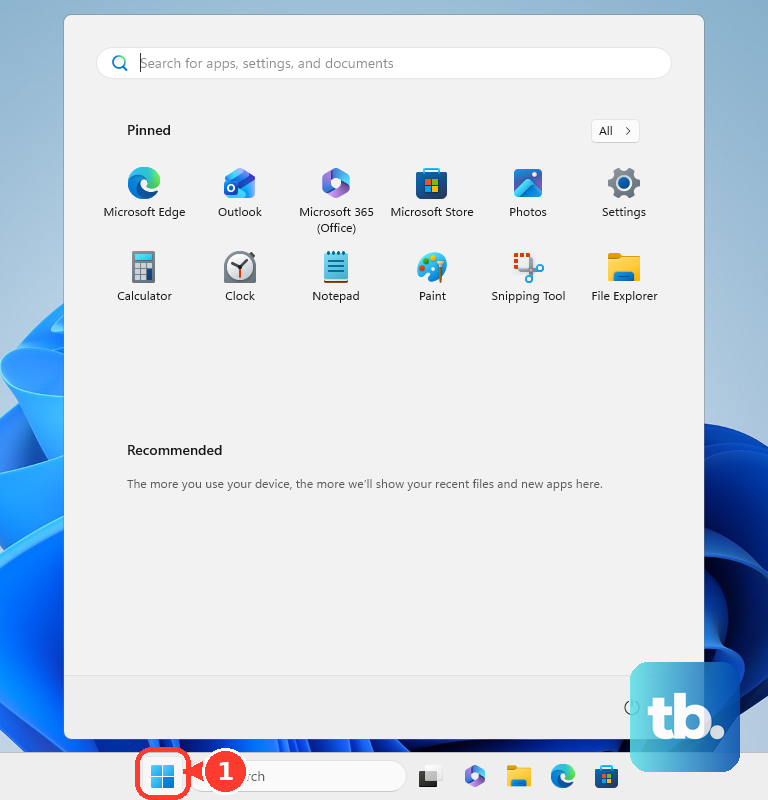
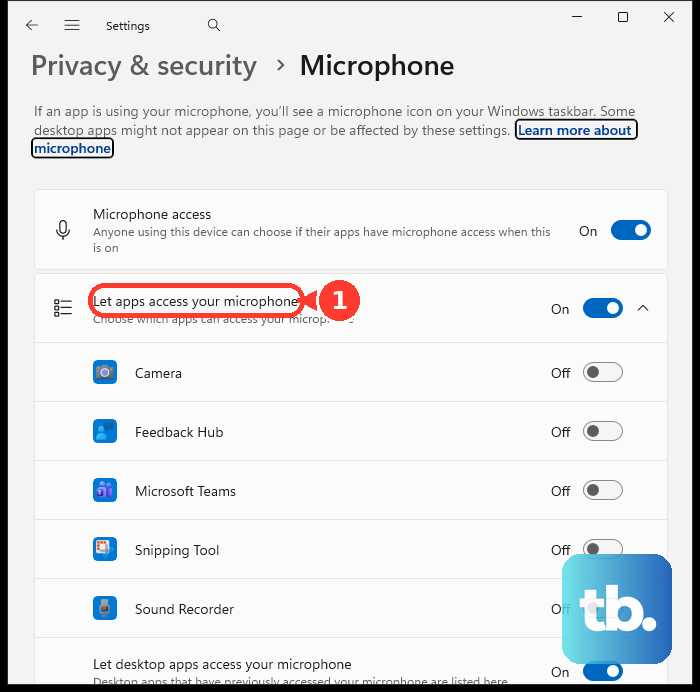
Open Start, select Settings, go to Privacy & security, and open Microphone. Turn on Microphone access, then turn on Let apps access your microphone.
For a Microsoft Store app, stay on the same Microphone page and turn on the app under Let apps access your microphone. For desktop apps, turn on Let desktop apps access your microphone.
If a Microsoft Store-style app has its own app permissions page, use Settings > Apps > Installed Apps. Search for the app, select the three dots, and open Advanced options. Turn on Microphone under App permissions, then close and reopen the app.
3. Pick The Correct Windows Input
Permission does not help if Windows is listening to the wrong device.
- 1.Open Start.
- 2.Select Settings.
- 3.Go to System.
- 4.Open Sound.
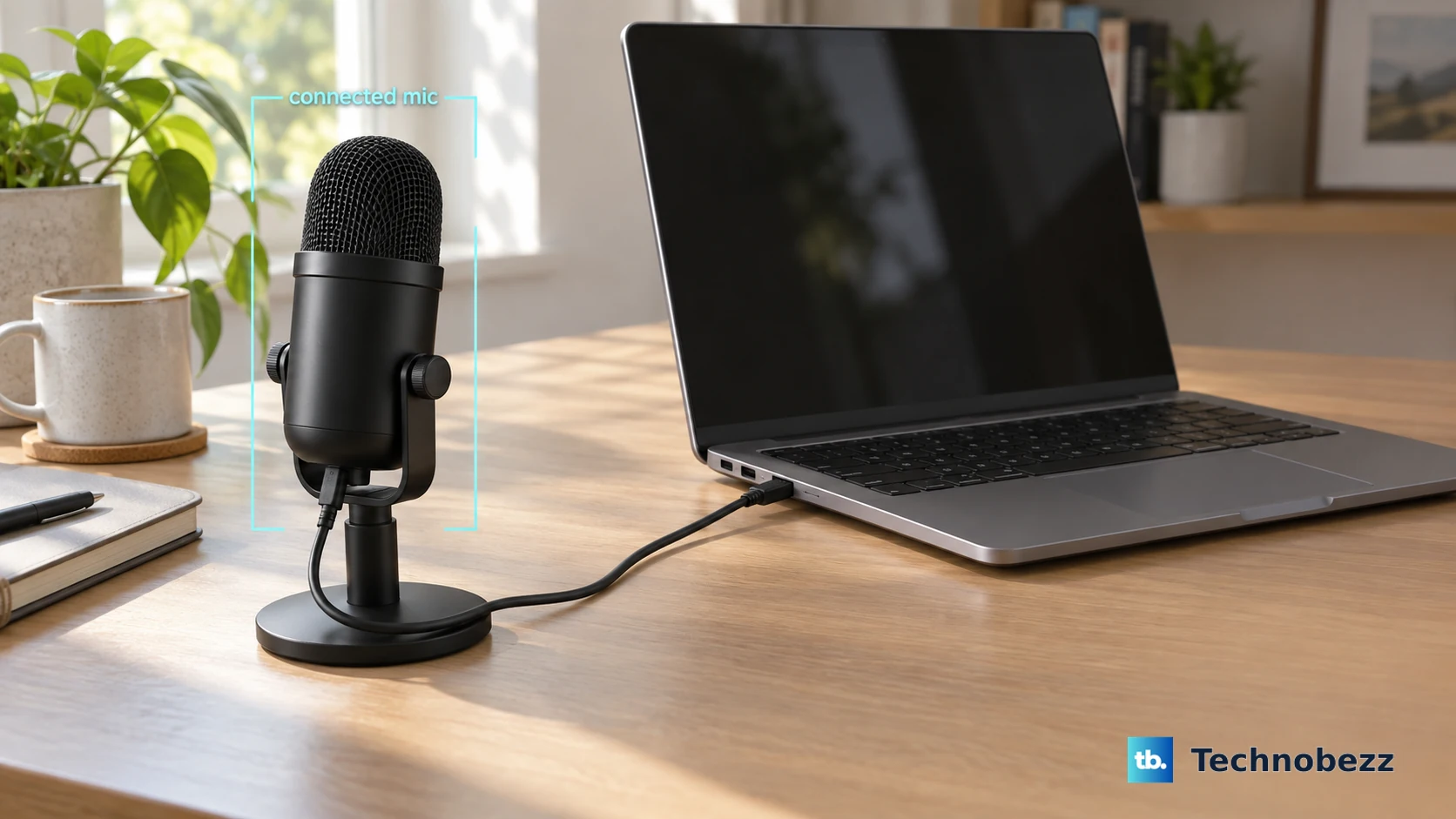
- 5.Under Input, choose the connected microphone.
For a Bluetooth microphone, select Add device and follow the pairing prompts. After that, return to System > Sound > Input and choose it.
4. Allow The Mic In Your Browser
Websites need browser permission on top of device permission. Open the site again after changing these settings.
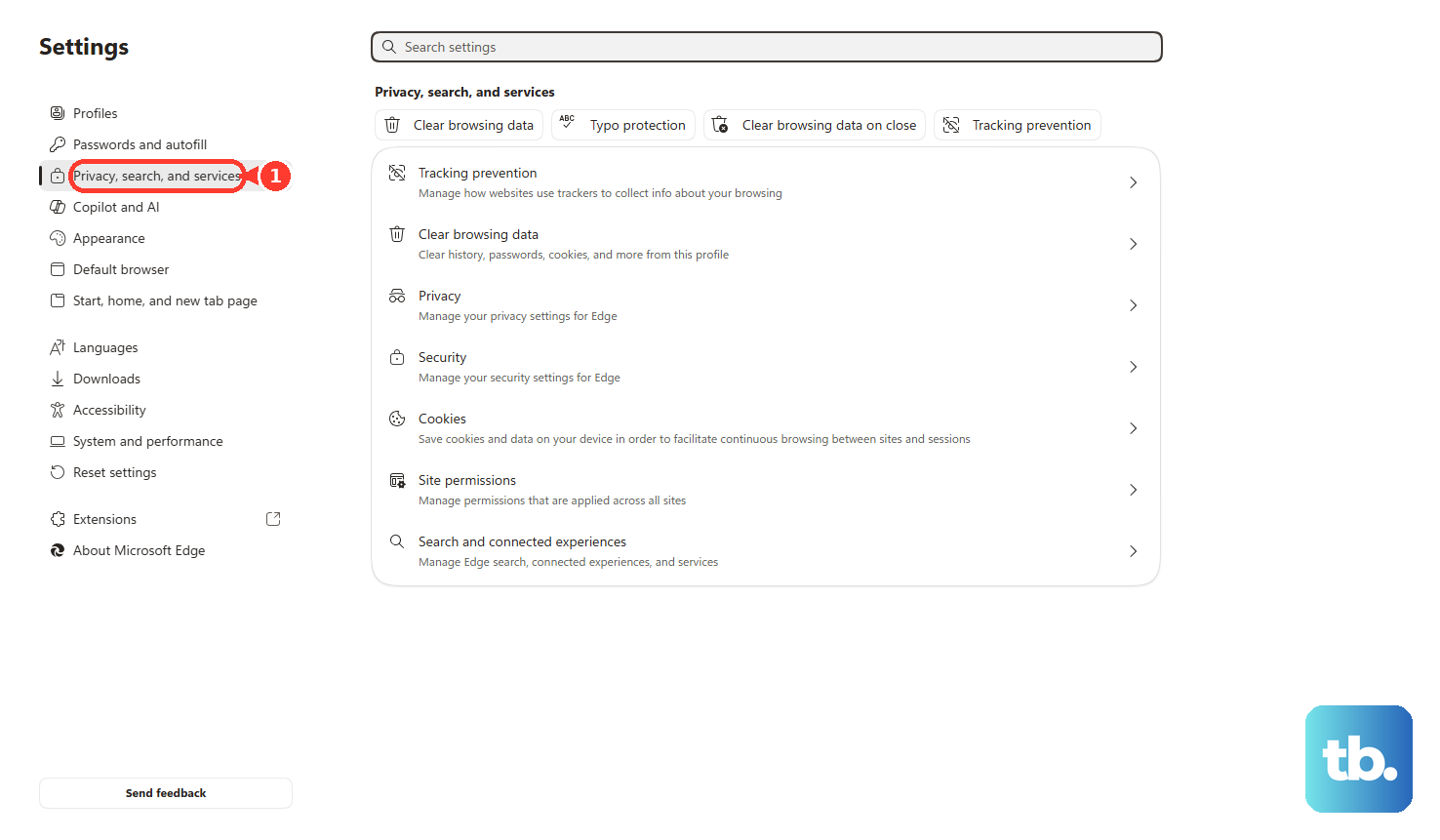
Microsoft Edge: Open the site and select Allow when Edge asks to use your microphone. To fix a saved choice, open Settings and more > Settings > Privacy, search, and services > Site Permissions > All sites. Choose the website, then set Microphone to Allow.
Chrome desktop: Open the site and choose Allow while visiting the site or Allow this time. For saved permissions, go to More > Settings > Privacy and security > Site settings > Microphone. Choose the default microphone, change the blocked site to Allow, or delete the saved exception so Chrome asks again.
Firefox: Open Menu > Settings > Privacy & Security > Permissions > Microphone > Settings. Then set the website to Allow or remove the saved permission. You can also click the permissions icon on the left side of the address bar, click the X next to the microphone status to clear it, then reload so Firefox asks again.
5. Enable Microphone Access On iPhone
On iPhone, the main switch lives in privacy settings. Open Settings, tap Privacy & Security, tap Microphone, and turn on access for the app that needs the mic.
Apps appear in this list after they request microphone access. If the app is enabled there, or the app is not listed, Apple directs you to contact the app developer.
For Chrome on iPhone or iPad, open the site and tap Allow when asked. To change a saved choice, tap the Camera or Microphone icon on the left of the address bar and turn Permissions on or off. For Chrome voice features such as Voice Search, open Settings > Chrome and turn on Speech Recognition.
6. Switch On iPhone Voice Features
If the microphone works in apps but not for iPhone voice tools, turn on the feature itself. Dictation: Go to Settings > General > Keyboard, turn on Enable Dictation, then tap Enable Dictation if prompted.
Siri voice activation: Go to Settings > Siri or Apple Intelligence & Siri > Talk to Siri or Talk & Type to Siri, then choose Siri or Hey Siri. FaceTime: During a FaceTime call, tap the screen if controls are hidden, then use the FaceTime controls to turn the microphone on.
When microphone prompts are stuck across apps, reset them with Settings > General > Transfer or Reset iPhone > Reset > Reset Location & Privacy. Reopen the app and grant microphone permission when it asks.
7. Open Android Microphone Access
Open Settings, go to Security & privacy, tap Privacy, and open Privacy controls. Turn on Microphone access.
On Android 12 and later, swipe down twice from the top of the screen and tap the microphone tile to turn microphone access on. If the tile is missing, tap Edit or Add, then drag the tile into Quick Settings.
8. Give An Android App Mic Permission
For one app, open Settings > Apps. Select the app or tap See all apps first, then go to Permissions > Microphone. Choose Allow only while using the app or Ask every time.
To review every app from one screen, open Settings > Security & Privacy > Privacy > Permission manager > Microphone. Select an app, and change its setting.
If the permission keeps disappearing, Android has paused the unused app. Open Settings > Apps, choose the app, then under Unused app settings, turn off Pause app activity if unused.
9. Fix Android Chrome And Voice Assistant Access
Chrome for Android needs permission from Android and from the website. New Chrome prompt: Open the site that wants the microphone and tap Allow.
Saved Chrome permission: Go to More > Settings > Site settings > Microphone, then turn microphone access on. If the site is under Blocked, tap the site and choose Allow.
Google Assistant voice activation: Open the Google Home app, then go to Settings > Google Assistant > Voice Match and turn on Hey Google. Gemini voice activation: Open the Gemini app, tap your profile picture or initial > Settings > Talk to Gemini hands-free, then turn on Hey Google and set up Voice Match if prompted.
For Windows voice typing, turn on Microphone access, click in a text box, then press Windows logo key + H. For Windows Voice access on Windows 11, version 22H2 or later, open Settings > Accessibility > Speech and turn on Voice access.
On a work or school device, settings labeled as managed by your organization are controlled by an admin policy. Contact your IT administrator when Windows, Edge, Chrome, or Android blocks microphone changes.
Frequently Asked Questions
Why is my microphone still not working after I allowed it?
The mic can still be muted in hardware or the wrong input can be selected. Check the mute button first, then choose the correct microphone under Windows Settings > System > Sound > Input.
Why does Chrome still block my microphone?
Chrome has saved site permissions. Open Chrome Settings > Privacy and security > Site settings > Microphone, then set the site to Allow or delete the saved exception so Chrome asks again.
Why does my iPhone app not appear under Microphone?
Apps appear in Settings > Privacy & Security > Microphone after they request access. If the app is not listed and the mic still fails in that app, Apple directs you to contact the app developer.
Can my workplace block microphone settings?
Yes. Managed Windows, Edge, Chrome, and Android devices can have microphone access controlled by organization policy, so the setting must be changed by an IT administrator.