

Open Settings > Privacy & security to turn off optional diagnostic data, personalized advertising, and app access you do not need. Then review clipboard syncing, Windows backup, and privacy controls inside the apps you use. These steps use Windows 11 menus, and required diagnostic data continues after you disable optional diagnostics.
The short version
- Start with diagnostics: Turn off Send optional diagnostic data to reduce Windows diagnostic collection.
- Reduce personalization: Disable the advertising ID and personalized offers separately.
- Limit app access: Review camera, microphone, location, and file permissions for apps you use.
- Review syncing: Clipboard sharing and Windows backup have separate controls outside Privacy & security.
- Separate collection from deletion: Deleting diagnostic data does not stop future collection.
| Privacy control | Where to look | Main limit or tradeoff |
|---|---|---|
| Optional diagnostics | Privacy & security > Diagnostics & feedback | Required diagnostics continue |
| Typing and handwriting samples | Diagnostics & feedback > Improve inking & typing | Samples are optional diagnostic data |
| Diagnostic data deletion | Diagnostics & feedback > Delete diagnostic data | Future collection continues |
| Advertising ID | Privacy & security > Recommendations & offers | Does not control browser cookies |
| Language-list access | Privacy & security > Recommendations & offers | Controls locally relevant website content |
| App-launch tracking | Privacy & security > Recommendations & offers | Changes Start and search personalization |
| Settings suggestions | Privacy & security > Recommendations & offers | Does not disable all ads or diagnostics |
| Personalized offers | Privacy & security > Personalized offers | May appear inside Recommendations & offers |
| Camera access | Privacy & security > Camera | Windows Hello and desktop-app exceptions apply |
| Microphone access | Privacy & security > Microphone | Some desktop-app access has exceptions |
| Physical camera restriction | Built-in shutter or camera switch | Requires hardware with these controls |
| External capture devices | Camera or microphone connection | Unplug removable hardware when unused |
| Location access | Privacy & security > Location | Apps may infer location independently |
| Other app permissions | Privacy & security > App permissions | Categories vary by hardware, apps, and build |
| File access | Privacy & security > File system | Many desktop programs are outside its coverage |
| Presence sensing | Privacy & security > Presence Sensing | Requires compatible sensors |
| Online speech recognition | Privacy & security > Speech | Separate from microphone access |
| Voice activation | Privacy & security > Voice activation | Applies to apps supporting Windows voice activation |
| Custom typing words | Privacy & security > Inking & typing personalization | Turning the control off clears saved words |
| Clipboard synchronization | System > Clipboard | Manual sharing is an alternative |
| Clipboard history clearing | Windows + V | Pinned items need separate removal |
| Windows backup | Accounts > Windows backup | OneDrive folder backup is separate |
| Recall snapshot saving | Privacy & security > Recall & snapshots | Applies to supported Copilot+ PCs with Recall |
| Recall snapshot deletion | Recall & snapshots > Delete snapshots | Requires Windows Hello authorization |
| Recall retention | Maximum storage duration for snapshots | Unlimited removes snapshots only at the storage limit |
| Browser cookies | Edge Privacy, search, and services > Cookies | Separate from the Windows advertising ID |
| Address-bar suggestions | Edge Search suggestions and filters | Controls suggestions using typed characters |
| Website camera and microphone access | Edge Site Permissions > All sites | Separate from Windows permissions |
| Browser synchronization | Edge Profiles > Sync | Separate from Windows backup |
Turn off optional diagnostic sharing
Open Settings > Privacy & security > Diagnostics & feedback. Open Diagnostic data and turn off Send optional diagnostic data. Required diagnostic data continues, and organizational policies can restrict changes on a managed device.
On the same page, turn off Improve inking & typing to stop contributing typing and handwriting samples. Microsoft collects these inking and typing samples as optional diagnostic data.
Deleting diagnostic data removes your device's diagnostic data but does not disable future collection. Open Delete diagnostic data and select Delete. This does not delete diagnostic data associated with your Microsoft account; view and delete that data on the Microsoft privacy dashboard. Keep optional diagnostic sharing off to reduce future collection as well.
Disable personalized ads and recommendations
Open Settings > Privacy & security > Recommendations & offers. Turn off the setting that reads "Let apps show my personalized ads by using my advertising ID". If your switch uses the older wording, turn off the setting that reads "Let apps show me personalized ads by using my advertising ID". This controls apps using the Windows advertising identifier, not browser cookies.
Next, turn off the setting that reads "Let websites show me locally relevant content by accessing my language list". Turn off Let Windows improve Start and search results by tracking app launches to stop that personalization. To reduce suggestions inside Settings, turn off Show me suggested content in the Settings app.
For activity-based Windows offers, open Settings > Privacy & security > Personalized offers. Turn off the setting that reads "Get personalized tips, ads, and recommendations based on my Windows activity". Some layouts put Personalized offers inside Recommendations & offers, so open it there if your settings are grouped that way.
If Recommendations & offers is absent on an older Windows 11 build, open Settings > Privacy & security > General for the advertising ID, language-list, app-launch, and suggested-content controls. If Personalized offers is absent on an older Windows 11 build, open Settings > Privacy & security > Diagnostics & feedback and turn off Tailored experiences. Keep the controls separate when choosing what to disable: turning off suggested content alone does not disable all advertising or diagnostic collection.
Review camera and microphone permissions
Open Settings > Privacy & security > Camera and review the listed apps. Turn off individual apps you do not want accessing the camera, or turn off Let apps access your camera for broader restriction. The page also provides Camera access and Let desktop apps access your camera.
Follow the same approach in Settings > Privacy & security > Microphone. Disable individual listed apps, or turn off Let apps access your microphone. For broader controls, review Microphone access and Let desktop apps access your microphone.
Desktop-app controls have exceptions and do not universally provide a separate switch for every program. Windows Hello also has exceptions to camera privacy controls. For a physical restriction, close a built-in camera shutter or move its camera switch to the off position on hardware equipped with those controls.
Unplug an external camera or microphone when you do not need it. This also gives you an option when a desktop app uses an access method that bypasses Windows privacy controls.
Limit location and other app permissions
Open Settings > Privacy & security > Location. To keep location available for selected apps, leave Location services and Let apps access your location enabled, then turn off individual apps’ precise-location access. Alternatively, turn off Let apps access your location, or turn off Location services for the device.
Changing the device-wide location setting requires administrator access. Apps can infer your location independently, so this setting does not prevent every form of location estimation. Microsoft removed the old local location-history storage and clearing settings from updated Windows 11.
Return to Privacy & security and review the relevant categories under App permissions, including permissions for contacts, calendars, email, and account information. Open each relevant category and disable unnecessary access. The categories displayed depend on your hardware, apps, and Windows build, and these controls do not comprehensively govern desktop apps.
For file access, open File system and turn off Let apps access your file system, or disable individual listed apps and services. Many desktop programs are outside this permission’s coverage.
On PCs with compatible presence sensors, open Presence Sensing and turn off Let apps access Presence Sensing or individual app switches. The available options depend on manufacturer capabilities and management policy, so review this category only if your PC supports it.
Reduce speech and typing data use
Open Settings > Privacy & security > Speech and turn off Online speech recognition. This controls the speech service; it does not universally switch off microphone access or third-party speech services.
To restrict apps that support Windows voice activation, open Settings > Privacy & security > Voice activation. Turn off Let apps access voice activation services, or disable individual apps. Expand the setting to review activation while the device is locked.
Turning off the custom typing word list clears its saved words. Open Settings > Privacy & security > Inking & typing personalization and turn off Custom inking and typing word list. If the control is named Custom inking and typing dictionary, turn that off instead.
Review clipboard sharing and Windows backup
For clipboard synchronization through a Microsoft account or work account, open Settings > System > Clipboard and turn off Clipboard history across your devices. To keep selective sharing, choose Manually sync text that I copy instead. These controls determine what crosses devices when you use clipboard history in Windows.
Clearing clipboard history removes unpinned history items; pinned items require separate removal. With clipboard history enabled, press Windows + V and select Clear all. Clearing stored items and disabling cloud synchronization are separate actions.
When you use a personal Microsoft account, open Settings > Accounts > Windows backup. Turn off Remember my apps and turn off Remember my preferences, or deselect only the preference categories you do not want synchronized. OneDrive folder backup is separate from these controls.
Stop Recall snapshots on supported PCs
On a supported Copilot+ PC with Recall, open Settings > Privacy & security > Recall & snapshots. Turn off Save snapshots and authenticate with Windows Hello when requested. Snapshot saving is opt-in, and Recall processes and stores snapshots locally.
Deleting snapshots removes the saved snapshots you select. Open Delete snapshots and select Delete all, or choose a time period and select Delete snapshots. Windows Hello authorization is required.
If you keep snapshot saving enabled, use Maximum storage duration for snapshots to choose 30, 60, 90, or 180 days, and snapshots are deleted once they reach that age. With the unlimited option, snapshots are not removed by age; when the Maximum storage for snapshots limit is reached, the oldest snapshots are deleted first. The retention setting controls storage duration, while Save snapshots controls collection.
Adjust Edge privacy separately
Windows advertising and app-permission switches leave separate browser choices to review. In Microsoft Edge, open Settings > Privacy, search, and services > Cookies and enable Block third-party cookies.
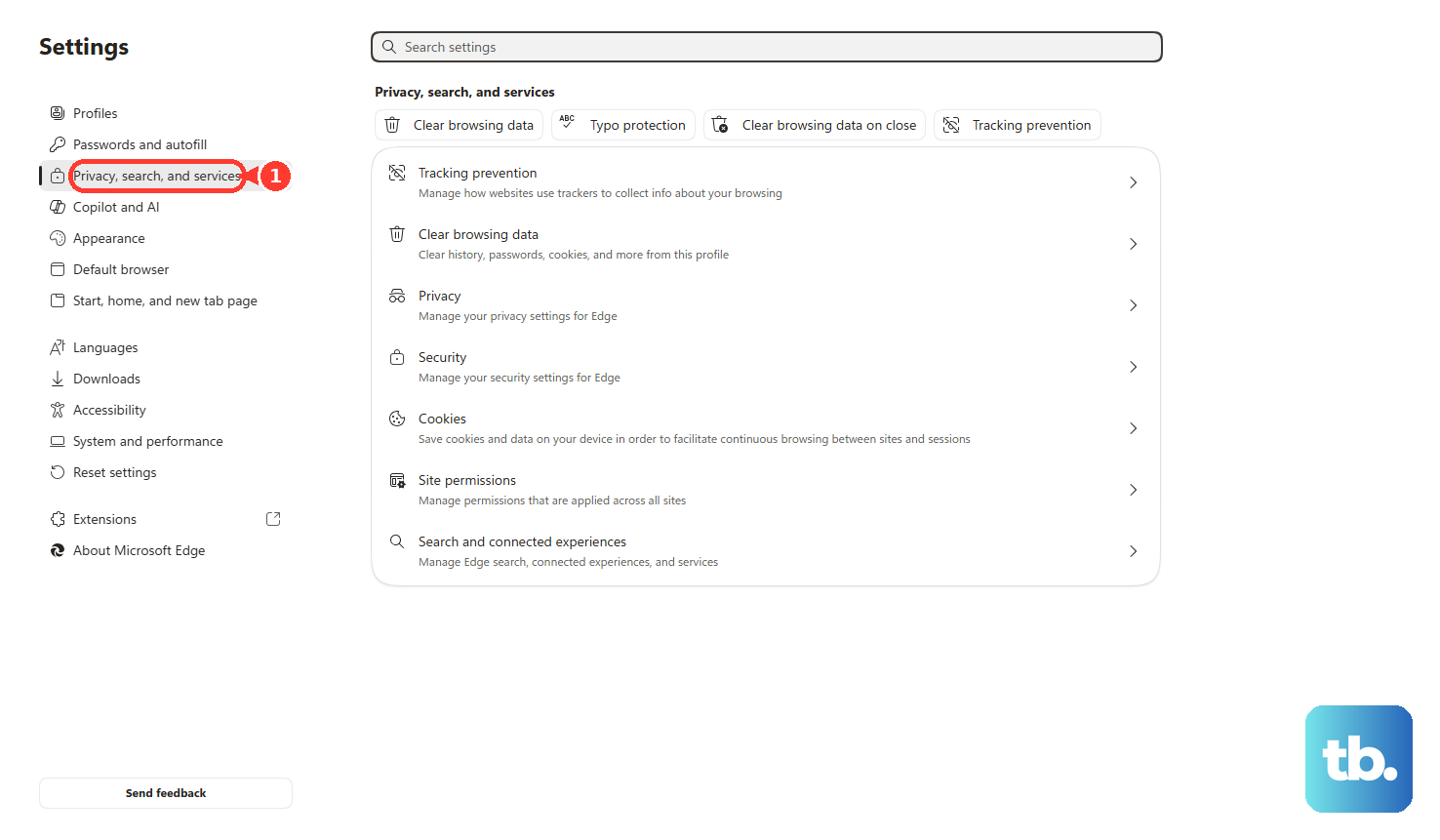
To stop typed address-bar characters being sent for suggestions, open Edge Settings > Privacy, search, and services > Search and connected experiences > Address bar and search > Search suggestions and filters. Turn off the setting that reads "Show me search and site suggestions using my typed characters".
Website camera and microphone permissions are separate from Windows permissions. Open Edge Settings > Privacy, search, and services > Site Permissions > All sites. Select a website and choose Block for Camera or Microphone. For a new permission request, select Block.
If you are signed into Edge, open Settings > Profiles > Sync and disable unwanted data types. This controls browser synchronization separately from Windows backup and clipboard sharing.
Frequently Asked Questions
Does turning off Delivery Optimization stop personal files from being shared?
Delivery Optimization shares update and app packages, not personal documents. To stop sharing those packages with other devices, open Settings > Windows Update > Advanced options > Delivery Optimization and turn off Allow downloads from other devices.
Can limiting background apps stop them from sending data?
For supported apps, open Settings > Apps > Installed apps, then open the app’s More options > Advanced options. Under Background app permissions > Let this app run in background, select Never. This does not block transmission while the app is open. Desktop programs require their own background controls.
What privacy choice should you review in Nearby sharing?
Open Settings > System > Nearby sharing and choose My devices only, or disable Nearby sharing when you do not use it. Choosing Everyone nearby exposes your PC name and Bluetooth MAC address to nearby devices.
Does changing feedback frequency reduce diagnostic collection?
Feedback frequency controls invitations to provide feedback, not diagnostic collection. On Windows 11 devices with that setting, change the request frequency under Settings > Privacy & security > Diagnostics & feedback > Feedback frequency.