One dead key, wrong symbols, missed shortcuts, or a wireless keyboard that drops out can make the whole computer feel broken. Start by proving whether the problem is key output, the active layout, an accessibility setting, or the keyboard connection. Use these checks in order, from the fastest typing test to hardware diagnostics.
1. Prove the keys in a blank document
Begin with the simplest test: type into a plain text app and watch exactly what each key produces.
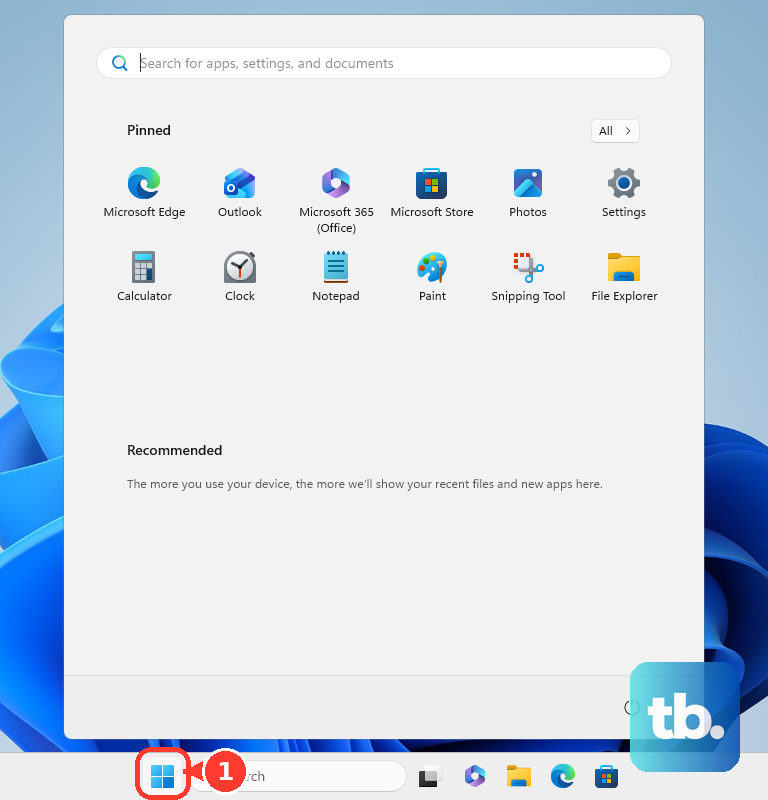
On Windows, select Start, type Notepad, open Notepad, then type every letter, number, symbol, Space, Backspace, Enter, and shortcut you want to verify.
On Mac, open TextEdit, choose File, then New. Type every letter, number, symbol, Space, Delete, Return, and shortcut you want to check.
In TextEdit, choose Format, then Make Plain Text if formatting gets in the way.
If the same key fails in a blank document, compare it against an on-screen keyboard before changing drivers or replacing hardware.
2. Compare presses with an on-screen keyboard
Windows gives you a direct comparison tool for physical key input.
Open Start, Settings, Accessibility, then Keyboard.
Turn on On-Screen Keyboard.
Or press Windows logo key + Ctrl + O.
Press the physical keys and compare the typed output with the on-screen layout.
On Mac, open the Input menu in the menu bar, then choose Show Keyboard Viewer. If the Input menu is missing, open Apple menu, System Settings, Keyboard, Text Input, Edit, then turn on Show Input menu in menu bar.
For another Mac comparison surface, open Apple menu, System Settings, Accessibility, Keyboard, then turn on Accessibility Keyboard. Close it from the top-left Close button when you finish.
3. Fix the layout when characters come out wrong
Use this when keys respond, but the wrong letters, symbols, or language layout appears.
On Windows 11, open Start, Settings, Time & language, then Language & region.
Select the ellipses next to the current Windows display language.
Open Language options, then review Keyboards.
Select the layout you use, or choose Add a keyboard.
On Mac, open Apple menu, System Settings, Keyboard, Text Input, then Edit. Turn on Show Input menu in menu bar, open the Input menu, and select the correct keyboard layout.
4. Switch off settings that swallow key presses
Accessibility keyboard settings change how repeated, brief, or modifier-key presses behave. Check them before treating the keyboard as faulty.
On Windows, open Start, Settings, Accessibility, then Keyboard. Review On-screen keyboard, Sticky keys, Toggle keys, and Filter keys.
Turn Filter keys off when quick or repeated presses do not register.
Turn on Toggle keys when you want an audible test for Caps lock, Num lock, and Scroll lock.
On Mac, open Apple menu, System Settings, Accessibility, then Keyboard. Make sure Slow Keys is off.
Next on Mac, open Apple menu, System Settings, Accessibility, then Pointer Control. Make sure Mouse Keys is off.
You can also press Option + Command + F5, open Accessibility Shortcuts, and deselect Mouse Keys.
5. Reconnect external keyboards before driver work
For a USB keyboard or wireless receiver, unplug it, wait briefly, then plug it back in. Try a different USB port, remove any USB hub, and connect the keyboard directly to the computer.
For a wireless keyboard, check the batteries or charge and confirm the keyboard is powered on. If the keyboard still does not work, connect it to another PC and see whether the failure follows the keyboard.
On Windows touchscreen or tablet-capable devices, right-click the taskbar, open Taskbar settings, go to Personalization, Taskbar, System tray icons, set Touch keyboard to Always, then select the Touch keyboard icon in the system tray and test typing in a text field.
6. Pair Bluetooth keyboards again
If the keyboard never reaches the typing test, rebuild the Bluetooth connection.
On Windows 11, put the keyboard in pairing mode.
Open Start, Settings, Bluetooth & devices, Add device, then Bluetooth.
Select the keyboard when it appears.
For a Microsoft Bluetooth Keyboard, press and hold the pair button on the bottom for 5 seconds until the LED flashes, then pair it in Windows.
On Mac, turn on the keyboard, open Apple menu, System Settings, then Bluetooth. Click Connect when the keyboard appears.
If macOS asks for a passcode, enter it on that keyboard and press Return.
If a Magic Keyboard is connected to another Mac, use that Mac to open Apple menu, System Settings, Bluetooth, then use the Show Detail button or remove button and choose Forget This Device.
On Windows 11, remove a stale Bluetooth keyboard from Bluetooth & devices, select More options (…), then Remove device, and add it again through Add device, Bluetooth.
7. Update drivers or run Apple Diagnostics
On Windows, update through Windows Update first. Search the taskbar for check for updates, open Check for updates, choose Windows Update, then select Check for updates.
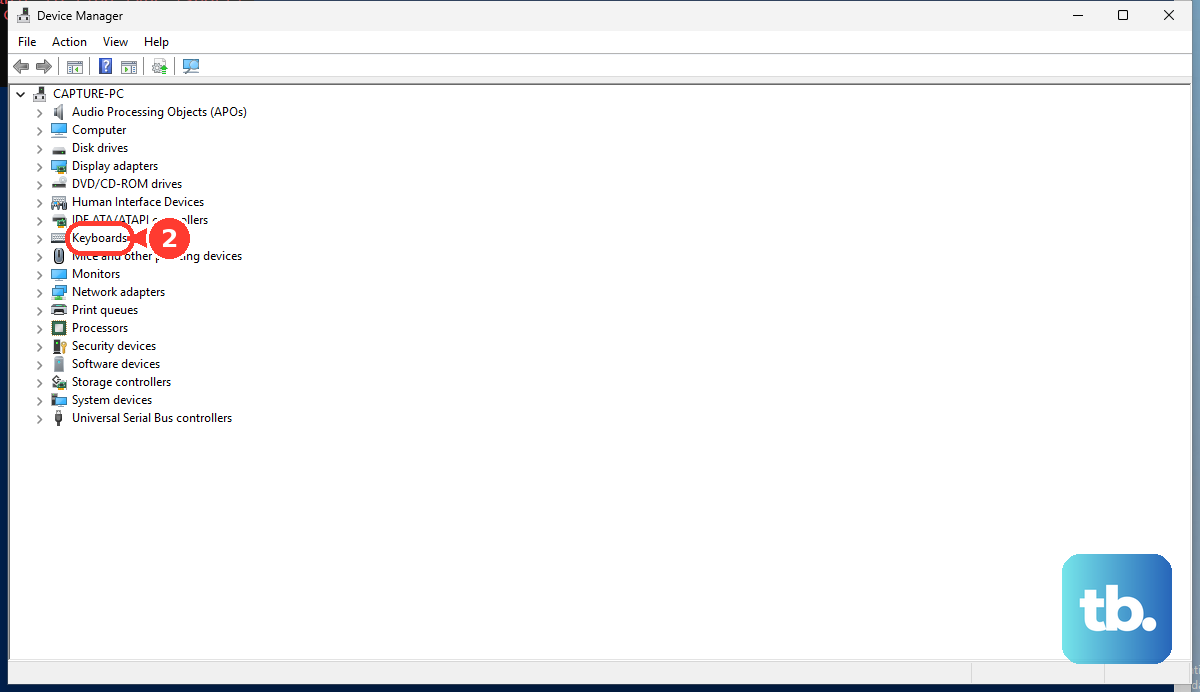
To update from Device Manager, search the taskbar for Device Manager, expand the device category, double-click the keyboard or device, open the Driver tab, and select Update Driver.
To reinstall the Windows keyboard driver, open Device Manager, expand Keyboards, right-click the keyboard, choose Uninstall device, select Uninstall, then restart Windows. Windows reinstalls the device driver after restart or hardware rescan.
On Mac, use Apple Diagnostics for hardware-level testing. Disconnect external devices except the keyboard, mouse, display, Ethernet if used, and AC power. On Apple silicon, press and hold the power button until Options appears, then press and hold Command + D. On Intel Macs, turn on the Mac and immediately press and hold D; use Option + D if diagnostics does not start.
In macOS Tahoe 26 and later, choose a specific diagnostic such as keyboard when prompted. Earlier macOS versions run diagnostics automatically.
8. Use online testers and companion apps last
An online keyboard checker is useful after the built-in tests. Open the checker, click the test area, then press each key. Working keys are highlighted or logged.
Browser testers have firm limits: browser shortcuts, OS-reserved keys, Fn-layer keys, Touch ID, power, and some media keys are not exposed to web pages.
Use testers built on keydown and keyup events, and skip old keypress-only tests.
For supported Logitech keyboards, open Logi Options+, select the keyboard, select the button or key to inspect, then review the assigned action.
Use Logitech's official setup or software page for supported keyboards on Windows 10 or later and macOS 12 or later.
9. Escalate managed devices to an admin
Company and school computers can block hardware installation or enforce input settings. On a Windows work PC, device installation restrictions can stop a keyboard from installing.
On a managed Mac, open Apple menu, System Settings, General, then Device Management to review installed profiles. Remove a management profile only when you own the Mac and understand the profile. For a company or school device, contact the administrator after the keyboard fails the basic typing, layout, accessibility, and connection tests.
Frequently Asked Questions
What is the quickest way to test a keyboard?
Open Notepad on Windows or TextEdit on Mac and type every key you care about, including letters, numbers, symbols, Space, Backspace or Delete, Enter or Return, and shortcuts.
Why does my keyboard type the wrong symbols?
The active layout or input source is wrong. Check Windows Language & region keyboard settings or the Mac Input menu, then select the layout you use.
Can an online keyboard tester check every key?
No. Online testers check normal browser-visible keys, but browser shortcuts, OS-reserved keys, Fn-layer keys, Touch ID, power, and some media keys are outside what web pages receive.
When should I reinstall the keyboard driver on Windows?
Use Device Manager driver reinstall only after the keyboard fails simpler checks: reconnecting, changing USB ports, checking the layout, and reviewing accessibility keyboard settings.











